1. Муқаддима
This manual provides detailed instructions for the setup, operation, and maintenance of your Natec TURBOT Wireless Keyboard with Touchpad (model NKL-0968). This device is designed to enhance your experience with Smart TVs, cellphones, and other compatible devices, offering convenient wireless control via 2.4 GHz technology.
Лутфан пеш аз истифодаи маҳсулот ин дастурро бодиққат хонед, то фаъолияти дурустро таъмин кунед ва осеб надиҳед.
2. Мундариҷаи баста
Боварӣ ҳосил кунед, ки ҳама ашё дар баста мавҷуд аст:
- Natec TURBOT Wireless Keyboard with Touchpad
- USB 2.4 GHz Receiver
- Дастури корбар (ин ҳуҷҷат)
- (Note: 2 AAA batteries are required and may not be included)
3. Дастури насб
3.1. Насби батарея
The Natec TURBOT keyboard requires two (2) AAA batteries for operation. Locate the battery compartment on the underside of the keyboard. Open the cover, insert the batteries according to the polarity markings (+/-), and close the cover securely.
3.2. Пайваст кардани қабулкунандаи USB
The USB 2.4 GHz receiver is typically stored in a dedicated compartment on the keyboard itself for safekeeping. Carefully remove the receiver from its storage slot.

Figure 1: USB receiver stored in the keyboard compartment.
Insert the USB receiver into an available USB port on your Smart TV, computer, or other compatible device. The device should automatically detect and install the necessary drivers.
3.3. Фаъолсозии клавиатура
Locate the power switch on the side of the keyboard. Slide the switch to the "ON" position. The keyboard should now be ready for use.
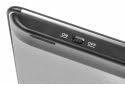
Figure 2: Power switch on the keyboard.
4. Дастурҳои истифодабарӣ
4.1. Функсияҳои клавиатура

Figure 3: Natec TURBOT Wireless Keyboard Layout.
The keyboard features a standard QWERTY layout for typing. It also includes dedicated function keys (F1-F12) which may have secondary multimedia functions (e.g., volume control, media playback). These secondary functions are often accessed by holding down the Fn key and pressing the corresponding function key.
- Ҳарфҳои калон даргирон: Toggles uppercase/lowercase letters.
- Гузариш: Used for uppercase letters and secondary symbols.
- Ctrl / Alt / Win: Standard modifier keys for various shortcuts depending on the operating system.
- Нури паси: The keyboard features a backlight for improved visibility in low-light conditions. Refer to your device's operating system or the keyboard's specific function key combinations (often involving the Fn key) to activate or adjust the backlight.
4.2. Touchpad Functions
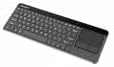
Figure 4: Integrated Touchpad.
The integrated touchpad allows for mouse-like navigation. It supports various gestures:
- Ламс кардани як ангушт: Functions as a left-click.
- Ду ангушт занед: Functions as a right-click.
- Ҳаракати ду ангушт: Drag two fingers up or down to scroll through content.
- Тугмаҳои ҷисмонӣ: Below the touchpad, there are two physical buttons. The left button acts as a left-click, and the right button acts as a right-click.
Touchpad sensitivity and other settings may be adjustable through your connected device's operating system settings.
5. Нигоҳдорӣ
- Тозакунӣ: Use a soft, dry cloth to clean the keyboard and touchpad. For stubborn dirt, a slightly damp cloth with mild cleaning solution can be used, ensuring no liquid enters the device.
- Иваз кардани батарея: Replace batteries when the keyboard's performance degrades or it stops responding. Always use fresh AAA batteries.
- Нигоҳдорӣ: When not in use for extended periods, turn off the keyboard to conserve battery life. Store the USB receiver in its designated compartment to prevent loss.
- Аз шароити шадид канорагирӣ кунед: Do not expose the keyboard to extreme temperatures, direct sunlight, or high humidity.
6. Баррасии мушкилот
6.1. Клавиатура ҷавоб намедиҳад
- Боварӣ ҳосил кунед, ки клавиатура фаъол аст.
- Санҷед, ки батареяҳо дуруст насб карда шудаанд ва заряди кофӣ доранд. Агар лозим бошад, иваз кунед.
- Verify that the USB receiver is securely plugged into a working USB port on your device.
- Кӯшиш кунед, ки қабулкунаки USB-ро ба порти дигари USB пайваст кунед.
- Restart your connected device (Smart TV, computer, etc.).
6.2. Touchpad Not Working
- Боварӣ ҳосил кунед, ки клавиатура фаъол ва пайваст аст.
- Clean the touchpad surface to remove any dirt or obstructions.
- Check your device's settings for any touchpad-related configurations.
6.3. Пайвасти фосилавӣ
- Ensure there are no large metallic objects or other 2.4 GHz wireless devices causing interference between the keyboard and the USB receiver.
- Клавиатураро ба қабулкунандаи USB наздиктар кунед.
7. Мушаххасоти
| Бренд | Натек |
| Рақами модел | NKL-0968 |
| Технологияи пайвастшавӣ | 2.4 ГГц бесим |
| Дастгоҳҳои мувофиқ | Smart TV, Cellphone |
| Мутобиқати системаи оператсионӣ | Android 10.0 (and compatible systems) |
| Хусусиятҳои махсус | Integrated Touchpad, Backlit Keys |
| Тавсифи клавиатура | Мултимедиа |
| Ранги | Сиёҳ/нуқра |
| Материал | Акрилонитрил бутадиен стирен (ABS) |
| Манбаи нерӯ | 2 x батареяҳои AAA |
8. Кафолат ва дастгирӣ
For warranty information, technical support, or further assistance, please refer to the official Natec webсайт ё шӯъбаи хидматрасонии муштариёни онҳо тамос гиред. Квитансияи хариди худро барои даъвоҳои кафолат нигоҳ доред.
Natec does not provide specific information regarding spare parts availability or software updates beyond the initial purchase.