
Муқаддима
This manual provides essential information for the proper setup, operation, and maintenance of your Philips 346B1C Curved Monitor. This 34-inch WQHD (3440 x 1440) display features a 100 Hz refresh rate, 5ms response time, and a curved VA panel for an immersive viewing experience. Key features include USB-C docking, MultiView functionality, FreeSync technology, LowBlue Mode, and FlickerFree technology for enhanced user comfort and productivity.

Тасвир: Пеш view of the Philips 346B1C curved monitor, showcasing its ultrawide display and key features like WQHD, USB-C Docking, and MultiView.
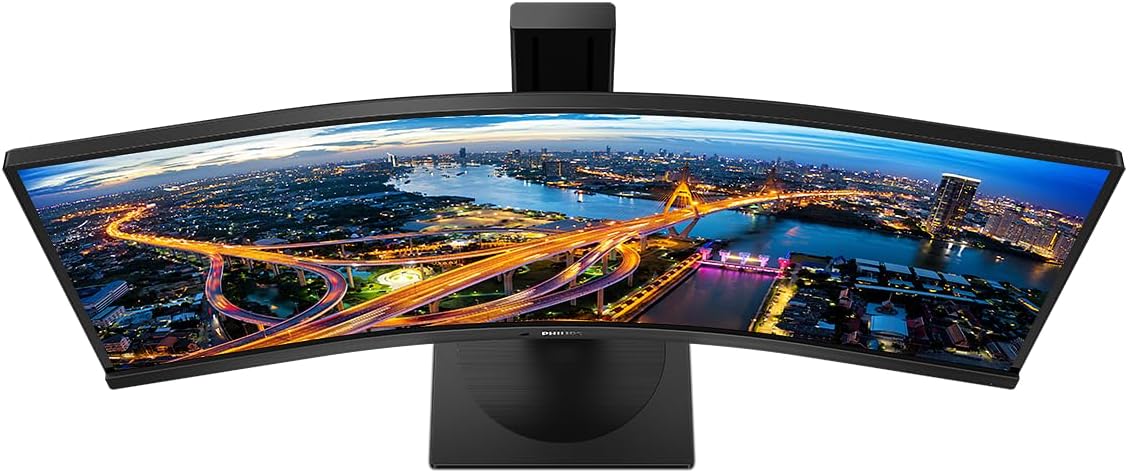
Тасвир: аз боло ба поён view of the Philips 346B1C curved monitor, emphasizing the curvature of the screen.
Дар қуттӣ чӣ ҳаст
Пеш аз идома додани танзимот, санҷед, ки ҳама ҷузъҳо мавҷуданд.
- Philips 346B1C Curved Monitor
- Пойгоҳи монитор (поя ва гардан)
- Кабели барқ
- Кабели HDMI
- Кабели DisplayPort
- USB-C ба кабели USB-C
- USB-A to USB-B Cable (Upstream)
- Documentation (Quick Start Guide, User Manual CD)
Дастурҳои насб
1. Монтажи стенд
- Мониторро рӯ ба поён ба рӯи мулоим ва тоза ҷойгир кунед, то харошиданро пешгирӣ кунед.
- Гардани стендро ба панели монитор пайваст кунед. Боварӣ ҳосил кунед, ки он ба ҷои худ мустаҳкам часпидааст ё агар мавҷуд бошад, бо винтҳо маҳкам карда шудааст.
- Пойгоҳи таваққуфро ба гардани таваққуф пайваст кунед. Винт ё винтҳоро аз поёни таҳкурсӣ маҳкам кунед.

Тасвир: Қафо view of the Philips 346B1C monitor, showing the stand attachment point and VESA mounting holes.
2. Пайвастшавӣ ба компютери шумо
Мониторро ба компютери худ бо истифода аз яке аз усулҳои зерин пайваст кунед:
- Пайвасти HDMI: Як нӯги сими HDMI-ро ба порти HDMI-и монитор ва нӯги дигарро ба баромади HDMI-и компютери худ пайваст кунед.
- Пайвастшавӣ DisplayPort: Connect one end of the DisplayPort cable to the monitor's DisplayPort and the other end to your computer's DisplayPort output.
- Пайвастшавӣ USB-C: Connect one end of the USB-C cable to the monitor's USB-C port and the other end to your computer's USB-C port. This connection supports video, data, and power delivery (up to 90W) to your laptop.
For USB hub functionality, connect the USB-A to USB-B upstream cable from your computer to the monitor's USB-B upstream port.
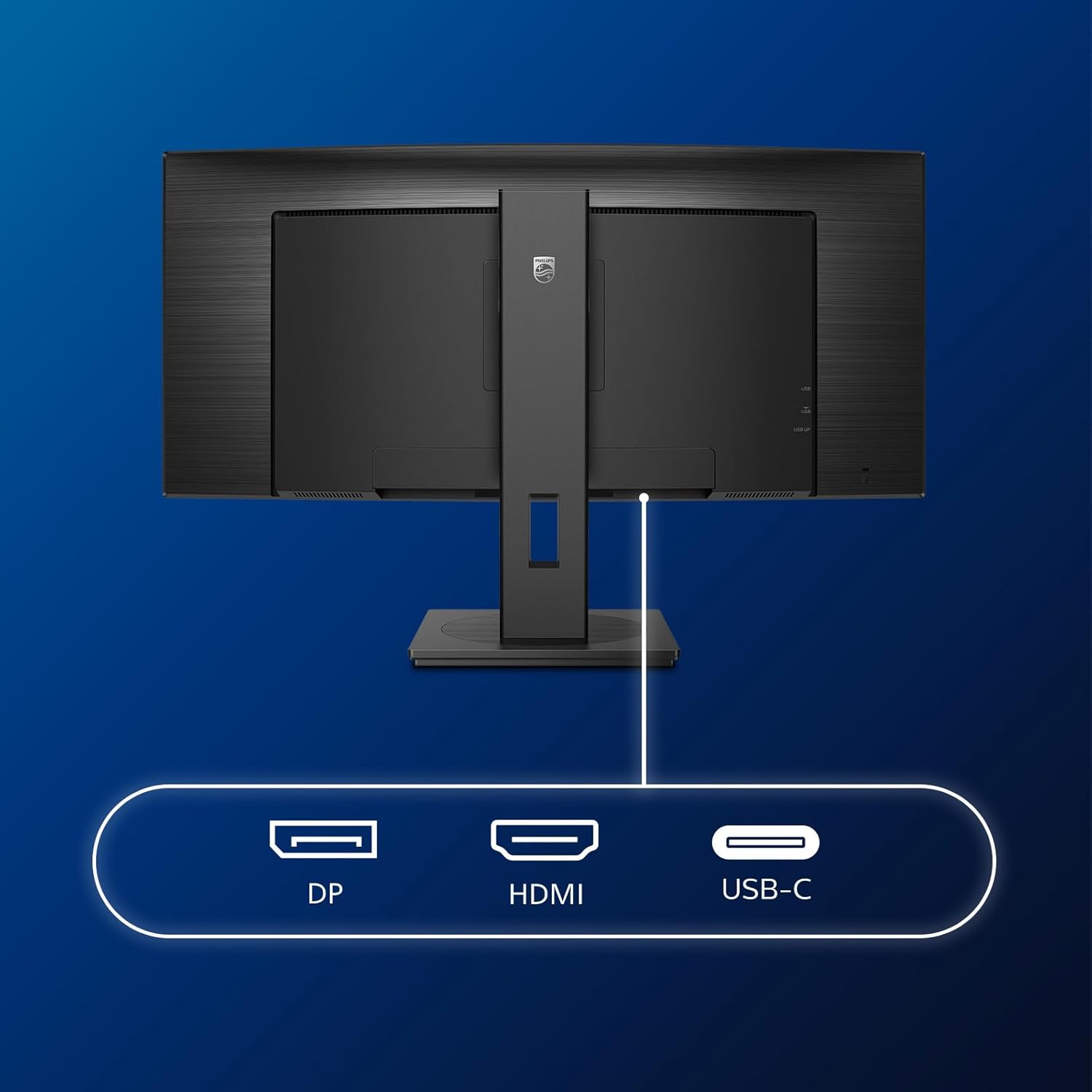
Тасвир: Муфассал view of the monitor's input ports, including DisplayPort (DP), HDMI, and USB-C, for connecting to various devices.
3. Пайвастшавии барқ
Сими барқро ба вуруди барқи монитор ва сипас ба васлаки барқии заминӣ пайваст кунед.
4. Фаъолсозии ибтидоӣ
Press the power button located on the monitor to turn it on. The monitor should automatically detect the input signal. If not, use the On-Screen Display (OSD) menu to select the correct input source.
Дастурҳои амалиётӣ
Менюи Намоиши дар экран (OSD).
The OSD menu allows you to adjust various monitor settings. Use the joystick control located on the back or bottom of the monitor to navigate the menu.
- Равшанӣ/Контраст: Равшанӣ ва контрасти умумии экранро танзим кунед.
- Танзимоти ранг: Ҳарорати ранг, гамма ва фазои рангро дақиқ созед.
- Интихоби вуруд: Гузаришро дастӣ байни вурудҳои HDMI, DisplayPort ва USB-C анҷом диҳед.
- Аудио: Adjust volume or mute the built-in speakers.
- Ҳолати тасвир: Select from preset picture modes (e.g., Standard, Gaming, Text).
МултиView Фаъолият
МултиView feature allows you to connect and view content from two different sources simultaneously on the screen. Access this feature through the OSD menu to select Picture-by-Picture (PbP) or Picture-in-Picture (PiP) modes and configure input sources.
Ҷойгиркунии USB-C
When connected via USB-C, the monitor acts as a docking station, providing video, data transfer through its integrated USB hub, and power delivery to charge your connected laptop (up to 90W).
SmartErgoBase and Adjustability
The monitor's SmartErgoBase allows for ergonomic adjustments including height, swivel, and tilt to optimize your viewтасаллӣ.

Image: Illustrations demonstrating the monitor's adjustable features, including height adjustment, tilt, and swivel capabilities for ergonomic positioning.
Хусусиятҳои тасаллии чашм
- Ҳолати пасту кабуд: Reduces harmful shortwave blue light emissions to prevent eye strain. Activate this mode via the OSD menu.
- Технологияи FlickerFree: Равшаниро танзим мекунад ва барои бароҳаттар будан ларзишро кам мекунад viewing. Ин хусусият ҳамеша фаъол аст.
- PowerSensor & LightSensor: These sensors automatically adjust monitor brightness based on ambient light conditions and user presence, saving energy and reducing eye strain.
Нигоҳдорӣ
Тоза кардани монитор
- Пеш аз тоза кардан ҳамеша мониторро аз розетка ҷудо кунед.
- Аз матои мулоим ва бе-лин сабук истифода баред гampбо об ё тозакунандаи экрани ҳалим, ки абразив нест.
- Do not use alcohol, solvents, or ammonia-based cleaners, as these can damage the screen surface.
- Барои тоза кардани чанг ва доғҳо экранро хушхӯю хушк кунед.
- Мониторро тоза кунед casing бо матои мулоими хушк.
Нигоҳубини умумӣ
- Дар болои монитор ё кабелҳои он аз гузоштани ашёи вазнин худдорӣ намоед.
- Мониторро ба нури бевоситаи офтоб, гармии аз ҳад зиёд ё хунукии шадид нагузоред.
- Дар атрофи монитор вентилятсияи дурустро таъмин кунед.
Мушкилкушо
Агар шумо бо мониторатон мушкилоте пайдо кунед, ба қадамҳои маъмулии ҳалли мушкилот муроҷиат кунед:
| Мушкилот | Сабаби эҳтимолӣ | Ҳалли |
|---|---|---|
| Ягон тасвир дар экран нест | Сими барқ ҷудо карда шудааст; Кабели видео ҷудо карда шудааст; Манбаи вуруди нодуруст интихоб шудааст. | Ensure power cable is securely connected; Check video cable connections (HDMI, DP, USB-C); Select correct input source via OSD menu. |
| Тасвир норавшан ё таҳриф шудааст | ҳалли нодуруст; Масъалаи драйвери графикӣ. | Set display resolution to 3440 x 1440; Update graphics card drivers. |
| Аз баландгӯякҳо садое нест | Volume muted or too low; Incorrect audio output selected on computer. | Adjust monitor volume via OSD; Check computer's audio output settings. |
| Портҳои USB кор намекунанд | Сими USB болооб пайваст нашудааст. | Ensure the USB-A to USB-B upstream cable is connected from the monitor to your computer. |
For further assistance, please refer to the support section or contact Philips customer service.
Мушаххасоти
| Хусусият | Тафсилот |
|---|---|
| Бренд | Philips |
| Рақами модел | 346В1С |
| Андозаи экран | 34 инч (86 см) |
| Резолюция | 3440 x 1440 (WQHD) |
| Таносуби тараф | 21:9 |
| Сатҳи экран | Curved VA Panel |
| Меъёри навсозӣ | 100 Гц |
| Вақти ҷавоб | 5 Milliseconds (GtG) |
| Таносуби контраст | 3000:1 (Одатан) |
| Равшанӣ | 300 кд/м² |
| Viewкунҷи ангушт | 178° (H) / 178° (V) |
| Пайвастшавӣ | 1x HDMI 2.0, 1x DisplayPort 1.2, 1x USB-C 3.2 Gen 1 (upstream, power up to 90W), 1x USB-B (upstream), 4x USB 3.2 (downstream), RJ45 (Ethernet) |
| Синхронизатсияи мутобиқшавӣ | FreeSync |
| Баландгӯякҳои дарунсохт | 2х 5Вт |
| Истеъмоли қувваи барқ | 5 Watts (Eco mode) |
| Вазн | 7.8 килограмм (бо стенд) |
Кафолат ва дастгирӣ
Маълумот дар бораи кафолат
This Philips monitor comes with a Кафолати 2-солаи истеҳсолкунанда. The specific terms and conditions of the warranty can be found in the detailed documentation provided with your product or on the official Philips support website. Your statutory rights as a consumer are not affected by this warranty.
Дастгирии муштариён
For technical assistance, product inquiries, or warranty claims, please visit the official Philips support website or contact their customer service department. You may need your monitor's model number (346B1C) and serial number (found on the back of the monitor) when contacting support.
Дастгирии Philips Webсайт: www.philips.com/support