
1. Муқаддима
The ATUVOS Air Tracker Tag is a compact Bluetooth device designed to help you locate your personal belongings using the Apple Find My network. This manual provides detailed instructions for setting up, operating, and maintaining your ATUVOS Air Tracker Tags.
2. Маълумот оид ба бехатарӣ
- Keep the device out of reach of small children and pets to prevent accidental ingestion of small parts, especially the battery.
- Do not attempt to disassemble or modify the device beyond battery replacement.
- Dispose of batteries according to local regulations. Do not expose batteries to excessive heat or fire.
- This device is water-resistant (IP67 rated) but not waterproof. Avoid prolonged submersion in water.
3. Мундариҷаи баста
- ATUVOS Air Tracker Tags (2 бастаи)
- Дастури корбар
- CR2032 Coin Cell Batteries (pre-installed)
4. Маҳсулот ба охир расидview
The ATUVOS Air Tracker Tag is a compact, square-shaped device designed for easy attachment to various items. It features a single button for operation and a small hole for attaching to keyrings or straps.

Figure 1: ATUVOS Air Tracker Tags
Хусусиятҳои асосӣ:
- Find My App Compatibility: Works exclusively with Apple's Find My network (iOS devices only).
- Loud Ring: Built-in speaker emits an 80-100dB sound to help locate nearby items.
- Диапазони васеи Bluetooth: Up to 200 feet (60 meters) without obstacles.
- Огоҳӣ дар бораи партофтани маълумот: Receive notifications if you leave your tagашёи ged дар паси.
- Ҳолати гумшуда: Mark your item as lost in the Find My app to receive automatic notifications when detected by the network.
- IP67 Water-resistant: Protected against dust and temporary immersion in water.
- Батареяи ивазшаванда: Powered by a CR2032 coin cell battery with over 1 year of life.
- Муҳофизати махфият: The Find My network is encrypted and anonymous; location data is not stored on the tag.
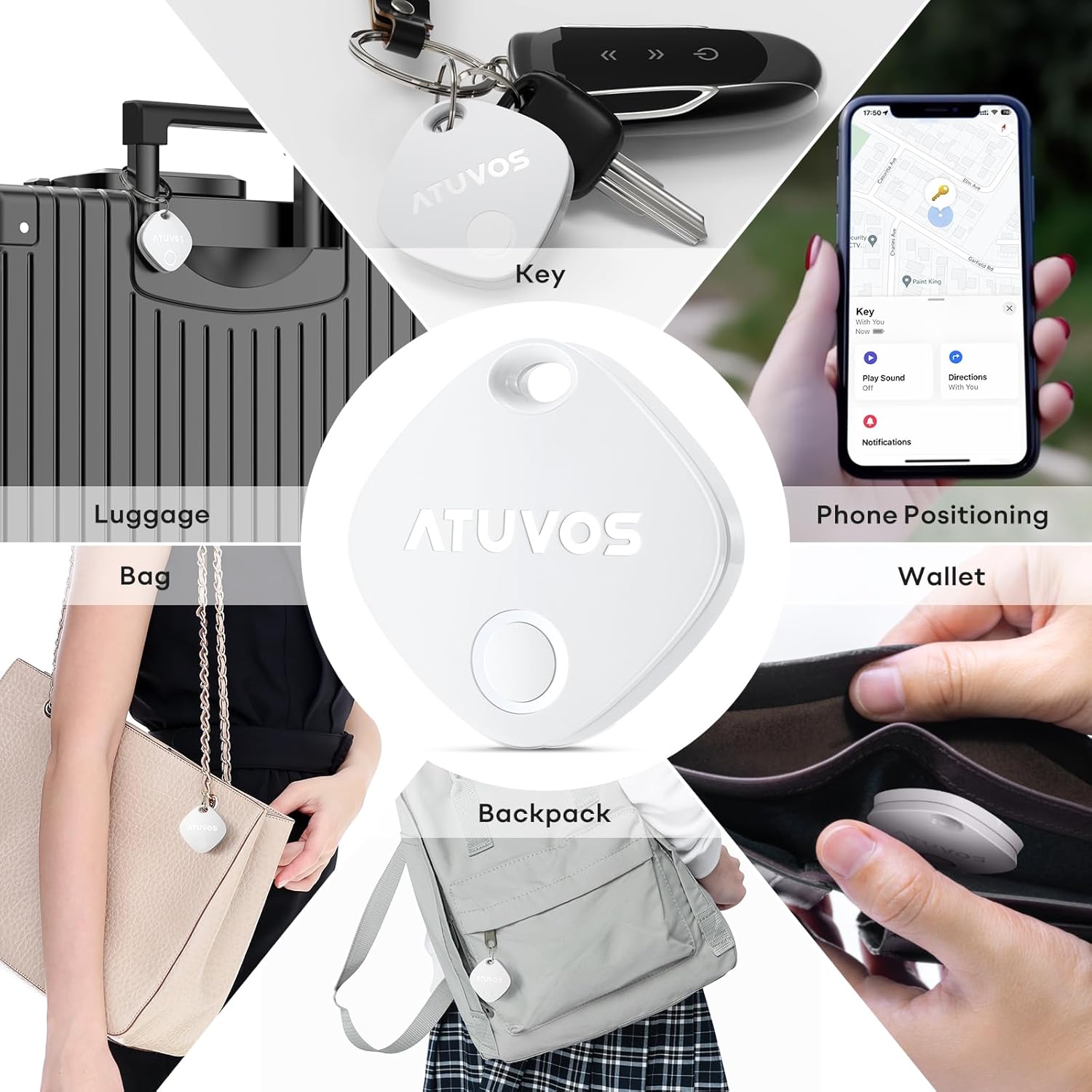
Расми 2: Андозаҳои маҳсулот (1.34 x 1.34 x 0.42 дюйм)
5. Танзимот
Follow these steps to connect your ATUVOS Air Tracker Tag to your iOS device:
- Дастгоҳро аз нав танзим кунед: Таъмин кунед tag is powered on. Press and hold the button on the ATUVOS Tag for approximately 10 seconds. You will hear a short beep after 3 seconds, and a long beep after 10 seconds. Release the button after the long beep. Two short beeps will confirm a successful reset.
- Пайдо кардани барномаи манро кушоед: On your iOS device, open the 'Find My' application. Ensure Bluetooth is enabled on your device.
- Иловаи ашёи нав: Navigate to the 'Items' tab at the bottom of the screen. Tap the '+' icon and select 'Add Other Item'.
- Пайвастшавӣ: Your iOS device will search for nearby compatible items. Once 'Atuvos Tag' пайдо мешавад, 'Пайваст'-ро клик кунед.
- Name Your Item: Follow the on-screen prompts to name your item (e.g., 'Keys', 'Wallet', 'Luggage') and choose an emoji to represent it.
- Ба шартҳо розӣ шавед: Review and agree to the terms and conditions.
- Анҷоми насб: Дар tag is now linked to your Apple ID and ready for use.
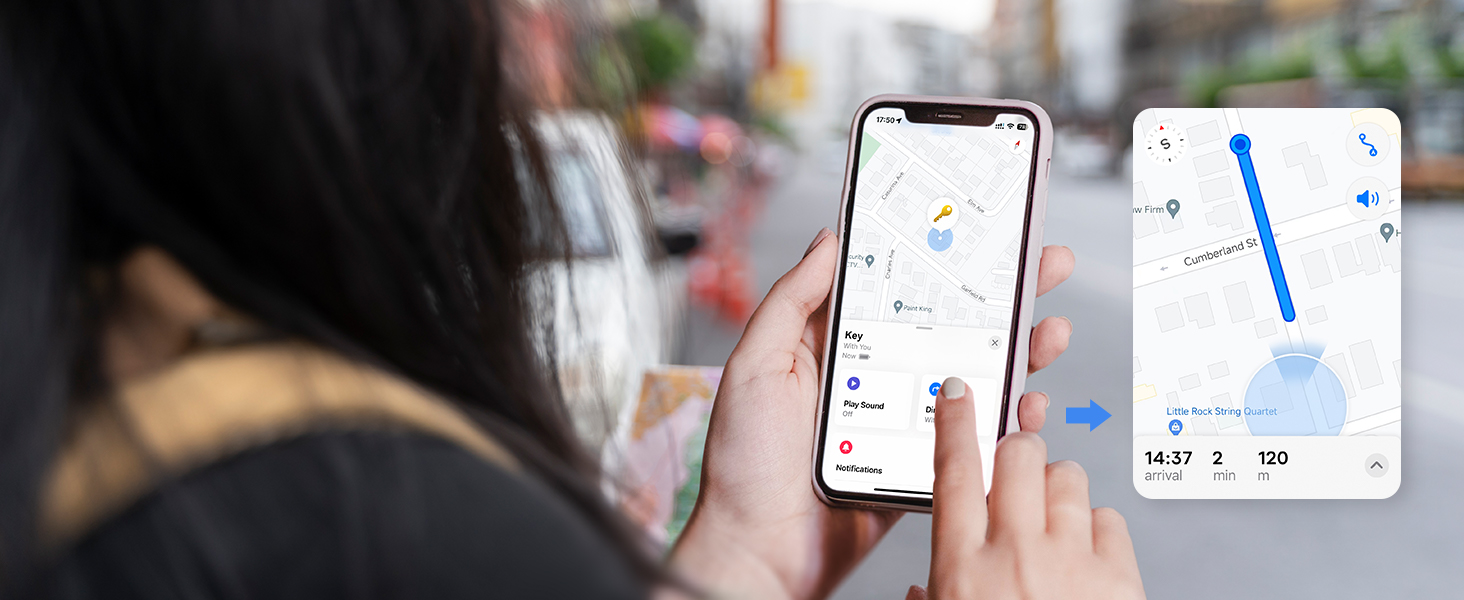
Figure 3: Setup Process in Find My App
Video 1: ATUVOS Tracker Tag Compatible with Apple Find My (iOS Only) - This video demonstrates the process of connecting the ATUVOS Tag to the Apple Find My app on an iOS device.
6. Дастурҳои истифодабарӣ
6.1. Find Nearby
When your ATUVOS Tag is within Bluetooth range, you can make it play a sound to help you locate it.
- Дар дастгоҳи iOS-и худ барномаи "Find My" -ро кушоед.
- Go to the 'Items' tab.
- Select your ATUVOS Tag аз рӯйхат.
- Tap 'Play Sound'. The tag will emit a loud ring (80-100dB) to guide you to its location.
- You can also ask Siri, "Hey Siri, find my [item name]."

Figure 4: Locating a Nearby Item
6.2. Find Far Away
If your ATUVOS Tag is outside of Bluetooth range, you can still locate it using the Find My network.
- Дар дастгоҳи iOS-и худ барномаи "Find My" -ро кушоед.
- Go to the 'Items' tab.
- Select your ATUVOS Tag. The app will display its last known location on a map.
- Tap 'Directions' to get navigation to the tag's vicinity.

Figure 5: Locating a Far Away Item
6.3. Left Behind Remind
Receive instant alerts if you accidentally leave your tagашёи ged дар паси.
- In the 'Find My' app, select your ATUVOS Tag.
- Scroll down and enable 'Notify When Left Behind'.
- You can customize locations where you don't want to be notified (e.g., home).

Figure 6: Left Behind Reminder Notification
6.4. Ҳолати гумшуда
If your item is lost, activate Lost Mode to increase your chances of recovery.
- In the 'Find My' app, select your ATUVOS Tag.
- Scroll down to 'Lost Mode' and tap 'Enable'.
- Follow the instructions to enter your contact information (phone number or email) and a message for the person who finds your item.
- You will be automatically notified when your lost item is detected by any device in the Find My network.

Figure 7: Anti-Lost Mode Interface
6.5. Share Item (iOS 17 and above)
With iOS 17 or later, you can share your ATUVOS Tag with up to 5 other individuals.
- Ensure your iOS device is updated to iOS 17 or newer.
- In the 'Find My' app, select your ATUVOS Tag.
- Scroll down and tap 'Share This Item'.
- Follow the prompts to add up to 5 borrowers. They will be able to see the item's location on a map.
- Borrowers will not receive tracking notifications when the item moves with them.

Figure 8: Sharing an ATUVOS Tag
7. Иваз кардани батарея
The ATUVOS Air Tracker Tag uses a replaceable CR2032 coin cell battery. When the battery is low, you will receive a notification on your iOS device.
- Locate the small gap on the side of the ATUVOS Tag.
- Carefully insert a thin tool (like a guitar pick or a small flat-head screwdriver) into the gap.
- Gently pry open the two halves of the tag.
- Батареяи кӯҳнаи CR2032-ро хориҷ кунед.
- Батареяи нави CR2032-ро бо тарафи мусбат (+) ба боло гузоред.
- Ду нимаи қисмро баробар кунед tag and press them firmly together until they click securely into place. Ensure the top hole on both lids aligns.

Figure 9: Battery Replacement Steps
Video 2: How do I replace the battery? - This video provides a visual guide on replacing the battery of the ATUVOS Tag.
8. Нигоҳдорӣ
- Clean the ATUVOS Tag бо матои мулоим ва хушк. Аз истифодаи кимиёвии сахт ё маводи абразивӣ худдорӣ намоед.
- Regularly check the battery level in the Find My app to ensure continuous tracking.
- Таъмин кунед tag is securely attached to your items to prevent accidental detachment.
9. Баррасии мушкилот
9.1. Tag Not Pairing
- Боварӣ ҳосил кунед, ки Bluetooth дар дастгоҳи iOS-и шумо фаъол аст.
- Make sure the ATUVOS Tag ба кор андохта шудааст ва батареяи нав дорад.
- Perform a device reset as described in Section 5.1.
- биёред tag closer to your iOS device during the pairing process.
9.2. Sound Not Playing
- Таъмин кунед tag is within Bluetooth range of your iOS device.
- Check the battery level of the tag. A low battery might affect sound output.
- Verify that the volume on your iOS device is not muted or too low.
9.3. Inaccurate Location
- Location accuracy depends on the density of Apple devices in the Find My network. In areas with fewer devices, location updates might be less frequent or precise.
- Ensure your iOS device has a stable internet connection for accurate map data.
- Агар tag is indoors or in a dense environment, GPS signals might be obstructed.
10. Мушаххасоти
| Рақами модел | AT2301 |
| Андозаҳо | 1.34 x 1.34 x 0.42 инч |
| Вазни ашё | 1.44 унция |
| Пайвастшавӣ | Bluetooth 5.2 |
| Муқовимат ба об | IP67 |
| Навъи батарея | Ҳуҷайраи тангаи CR2032 (дохил карда шудааст) |
| Муҳлати батарея | Зиёда аз 1 сол |
| Мутобиқати | iOS devices only (Apple Find My network) |
11. Кафолат ва дастгирӣ
ATUVOS provides customer service for its products. For any questions regarding the use of your ATUVOS Air Tracker Tags, please contact customer support. Refer to the product packaging or the official ATUVOS webсайт барои тафсилоти мушаххаси кафолат ва маълумоти тамос.
Хидмат ба муштари: Available 24 hours. Please refer to the contact details provided with your product or on the ATUVOS official webсайт.