1. Муқаддима
Welcome to the user manual for your Natec FURY SHOBO SH4F RGB MIDI TOWER PC Case. This guide provides essential information for the proper assembly, installation, operation, and maintenance of your new computer chassis. Please read this manual thoroughly before beginning installation to ensure optimal performance and longevity of your components.
2. Дастур оид ба бехатарӣ
- Always disconnect the power supply from the wall outlet before installing or removing any components inside the PC case.
- Handle components with care to avoid damage from electrostatic discharge (ESD). Consider using an anti-static wrist strap.
- Қисмҳои хурд, ба монанди винтҳо, аз дастрасии кӯдакон дур нигоҳ доред.
- Барои пешгирӣ аз гармшавии аз ҳад зиёд, вентилятсияи дурусти атрофи корпуси компютерро таъмин кунед.
- Do not expose the case to extreme temperatures, humidity, or direct sunlight.
- Avoid placing heavy objects on top of the case.
3. Мундариҷаи баста
Лутфан тасдиқ кунед, ки ҳама ашё дар бастаи шумо мавҷуданд:
- Natec FURY SHOBO SH4F RGB MIDI TOWER PC Case
- Accessory box (containing screws, cable ties, and other small parts)
- Дастури корбар (ин ҳуҷҷат)
4. Маҳсулот ба охир расидview
The Natec FURY SHOBO SH4F is a MIDI TOWER PC case designed for gaming and general-purpose computing, offering ample space for components and efficient cooling. It features a modern design with RGB lighting.
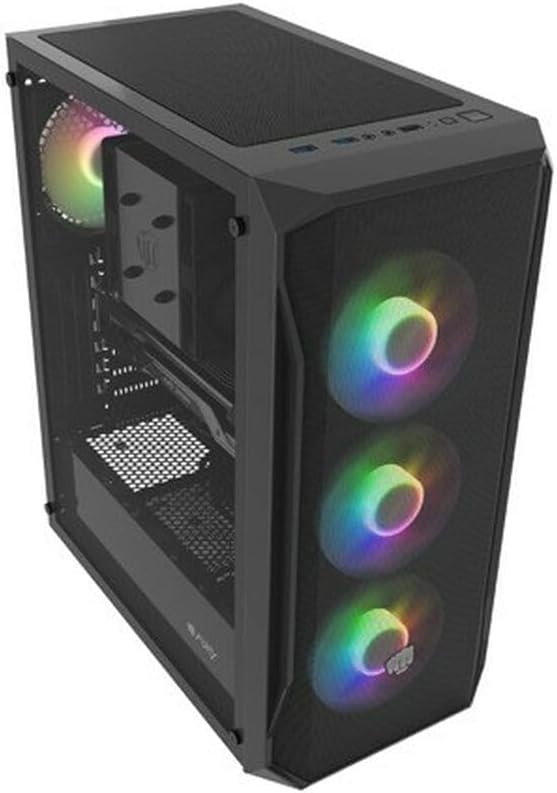
Расми 4.1: кунҷӣ view of the Natec FURY SHOBO SH4F RGB MIDI TOWER PC Case, showcasing its black metal and tempered glass construction. The front panel features a mesh design with three illuminated RGB fans, and a single RGB fan is visible at the rear exhaust. The top panel includes I/O ports and a mesh filter.
4.1 Панели пеши вуруд / баромад
- Тугмаи барқ
- Тугмаи Reset
- Порти USB 2.0 (x1)
- Ҷойгиркунакҳои аудио (Гӯшмонак/Микрофон)
- RGB Control Button (if applicable)
4.2 Тарҳбандии дохилӣ
The case supports Micro ATX and Mini ATX motherboards and features a bottom-mounted power supply bay. It includes dedicated areas for storage drives and efficient cable management.
5. Насб ва насби ҷузъҳо
Follow these steps to install your PC components into the FURY SHOBO SH4F case.
5.1 Омода кардани парванда
- Қуттиро дар сатҳи ҳамвор ва устувор ҷойгир кунед.
- Remove the side panels. Typically, the tempered glass side panel is secured with thumbscrews.
5.2 Насби motherboard
- Сипари вуруд/хуруҷро (агар он дар motherboard-и шумо пешакӣ насб нашуда бошад) дар сӯрохи қафои корпус насб кунед.
- Ensure the motherboard standoffs are correctly aligned for your Micro ATX or Mini ATX motherboard. Adjust or install additional standoffs if necessary.
- Модераторро бодиққат ба рӯи тахтачаҳо ҷойгир кунед ва сӯрохиҳои винтҳоро ҳамвор кунед.
- Модераторро бо винтҳои додашуда мустаҳкам кунед. Аз ҳад зиёд сахт накунед.
5.3 Насби таъминоти барқ
- Locate the power supply bay at the bottom rear of the case.
- Slide your power supply unit (PSU) into the bay from the rear of the case, ensuring the fan faces downwards (if the case has a bottom vent) or upwards.
- PSU-ро бо винтҳо аз пушти корпус мустаҳкам кунед.
5.4 Насби диски нигаҳдорӣ
Refer to your case's specific drive bay design for 2.5" SSDs and 3.5" HDDs. Typically, these involve trays or direct screw mounting.
5.5 Expansion Card Installation (e.g., Graphics Card)
- Сарпӯшҳои зарурии слотҳои PCI-E-ро аз қафои корпус хориҷ кунед.
- Insert your expansion card into the corresponding PCI-E slot on the motherboard.
- Secure the card with a screw or the case's retention mechanism.
5.6 Идоракунии кабел
Барои пайваст кардан ва мустаҳкам кардани кабелҳо, аз буришҳо ва нуқтаҳои пайвасткунӣ дар паси табақи motherboard истифода баред. Ин ҷараёни ҳаво ва зебоиро беҳтар мекунад.
5.7 Connecting RGB Fans
The pre-installed RGB fans typically connect to a central RGB controller or directly to your motherboard's RGB headers. Consult your motherboard manual for specific RGB header locations and software control. Ensure all fan power cables are connected to appropriate fan headers on the motherboard or a fan hub.
6. Коркарди парвандаи компютери шумо
6.1 Фурӯзон/хомӯш кардан
After all components are installed and cables connected, plug your power supply into a wall outlet. Press the power button on the front I/O panel to turn on your system. To turn off, use the operating system's shutdown function or press and hold the power button for several seconds.
6.2 Назорати равшании RGB
If your case features an RGB control button on the front I/O panel, press it to cycle through various lighting modes and colors. For advanced customization, use your motherboard's RGB software (e.g., ASUS Aura Sync, MSI Mystic Light, Gigabyte RGB Fusion) if the fans are connected to compatible headers.
7. Нигоҳдорӣ
Нигоҳдории мунтазам ба таъмини кори беҳтарин ва дароз кардани мӯҳлати хидмати ҷузъҳои компютери шумо кӯмак мекунад.
7.1 Тоза кардани филтри чанг
The FURY SHOBO SH4F case includes dust filters (e.g., on the top and bottom). Periodically remove and clean these filters by rinsing them with water and allowing them to dry completely before re-installing. This prevents dust buildup and maintains airflow.
7.2 Тозакунии берунӣ
берунии корпусро бо нарм пок кунед, гamp cloth. Avoid abrasive cleaners or solvents that could damage the finish or tempered glass.
8. Баррасии мушкилот
Агар шумо бо мушкилот рӯ ба рӯ шавед, ба қадамҳои маъмулии ҳалли мушкилот муроҷиат кунед:
- Не қудрат: Ensure the power supply is properly connected to the wall outlet and the motherboard. Check all internal power cables (24-pin ATX, 8-pin CPU, GPU power). Verify the power button cable is correctly connected to the motherboard's front panel header.
- Мухлисон чарх намезананд: Check if fan power cables are securely connected to the motherboard or fan hub. Ensure the power supply is functioning.
- Равшании RGB кор намекунад: Verify RGB cables are correctly connected to the RGB controller or motherboard header. If using a button, try cycling through modes. If using software, ensure it's installed and configured correctly.
- Аз ҳад зиёд гармшавӣ: Ensure all fans are spinning correctly and oriented for proper airflow (intake/exhaust). Clean dust filters and internal components. Verify CPU cooler and GPU cooler are properly installed.
9. Мушаххасоти
| Бренд | Натек |
| Силсила | SH4F |
| Рақами модел | NFO-2154 |
| Навъи парванда | Бурҷи Миди |
| Мутобиқати motherboard | Micro ATX, Mini ATX |
| Ранги | Сиёҳ |
| Материал | Металл |
| Андозаҳои маҳсулот (LxWxH) | 19.69 x 16.93 x 9.84 инч (50 x 43 x 25 см) |
| Вазни ашё | 9.46 фунт (4.3 килограмм) |
| Навъи васлкунии таъминоти барқ | Кӯҳи поён |
| Усули хунуккунӣ | Ҳаво |
| Шумораи портҳои USB 2.0 | 1 |
10. Кафолат ва дастгирӣ
Natec products are manufactured to high-quality standards. For information regarding warranty terms and conditions, please refer to the warranty card included with your product or visit the official Natec website. If you encounter any issues not covered in this manual or require further assistance, please contact Natec customer support through their official channels.
Истеҳсолкунанда: Натек