
DragoBud AX913
DragoBud AX900Mbps USB WiFi 6 Adapter with Bluetooth 5.4 Dongle
Модели: AX913
Муқаддима
This manual provides detailed instructions for the installation, operation, and troubleshooting of your DragoBud AX900Mbps USB WiFi 6 Adapter with Bluetooth 5.4 Dongle. Please read this manual thoroughly before using the device to ensure optimal performance and proper handling.
Дар қуттӣ чӣ ҳаст
- 1x DragoBud AX900Mbps USB WiFi 6 Adapter
Хусусиятҳои асосӣ
- Wi-Fi 6 AX900: Supports Wi-Fi 6 (802.11ax) with backward compatibility (802.11 ac/a/b/g/n). Delivers dual-band speeds up to 600 Mbps on 5GHz and 287 Mbps on 2.4GHz. Features advanced internal chips and dual 2dBi antennas for stable, long-range coverage.
- Multi-Device Bluetooth 5.4 Connectivity: Connects up to 7 devices simultaneously (PC, laptop, smartphone, wireless headphones, Bluetooth speakers, keyboards, printers). Offers a 65-foot range with backward compatibility (5.3/5.2/5.0/4.0). Low-latency technology ensures lag-free gaming and clear audio with automatic reconnection.
- 2-in-1 WiFi Receiver & Hotspot Mode: Functions as a WiFi receiver to connect to a router or as an Access Point (AP) to create a WiFi hotspot from a wired connection. Ideal for travel, emergency networking, and internet sharing.
- Plug-and-Play Built-in Driver Installation: Automatic installation on Windows 10/11 without requiring a CD or downloads. Simply plug into a USB port to connect. Supports Windows 7/10/11 for WiFi; Bluetooth requires Windows 10+. Not compatible with macOS, Linux, or Windows 8/8.1/XP.
- Амнияти WPA3: Supports WPA3 encryption, an advanced security protocol for network information protection.
- Ultra-Compact External Design: Portable size (1.25” × 0.6" × 0.3") suitable for travel and desktop use.
Мутобиқати система
The DragoBud AX913 adapter is compatible with the following operating systems:
- WiFi Function: Windows 7, Windows 10, Windows 11
- Функсияи Bluetooth: Windows 10, Windows 11
Note: This device is NOT compatible with macOS, Linux, Windows 8/8.1, or Windows XP.

Image: System compatibility chart showing support for Windows 7, 10, 11 for WiFi, and Windows 10, 11 for Bluetooth. macOS, Linux, Chrome OS, and TV are marked as incompatible.
Насб ва насб
1. Пайвастагии ҷисмонӣ
Insert the DragoBud AX913 USB adapter into an available USB port on your desktop or laptop computer. The adapter features a compact design, ensuring it does not obstruct adjacent ports.

Image: The DragoBud AX913 USB WiFi 6 Adapter is shown plugged into the USB port of a laptop, with a blue light indicating activity and a WiFi signal icon.
2. Driver Installation (Windows 10/11 Plug-and-Play)
For Windows 10 and Windows 11, the driver installation is automatic. Simply plug the adapter into a USB port, and the system will detect and install the necessary drivers. A work indicator light on the adapter will illuminate once the WiFi connection is established.
Video: A tutorial demonstrating the USB WiFi 6 adapter driver installation process on a Windows computer. It shows plugging in the adapter, the automatic driver detection, and connecting to a WiFi network.
3. Driver Installation (Windows 7 or Manual Installation)
If the driver does not install automatically, or for Windows 7, follow these steps:
- Plug the USB WiFi 6 adapter into your computer's USB port.
- Open 'This PC' (or 'My Computer') and locate the virtual CD drive (e.g., 'REALTEK (E:)').
- Double-click the drive to open it, then navigate to the 'Windows' folder.
- Run the 'WiFiAutoInstallSetup' application.
- Follow the on-screen prompts to complete the installation. You may need to restart your computer.

Image: Visual guide showing the steps to install the WiFi adapter driver, including locating the virtual drive and running the setup file.
Дастурҳои амалиётӣ
1. Connecting to a WiFi Network (Receiver Mode)
Once the driver is installed, the adapter will function as a WiFi receiver. To connect to a network:
- Click the WiFi icon in your system tray (bottom-right corner of the screen).
- Select your desired WiFi network from the list.
- Агар дархост карда шавад, калиди амнияти шабака (парол)-ро ворид кунед.
- Click 'Connect'. Your computer should now be connected to the internet.

Image: A schematic diagram illustrating the WiFi adapter in both receiving WiFi mode (connecting to a router) and transmitting WiFi mode (creating a hotspot).
2. Creating a WiFi Hotspot (AP Mode)
The adapter can also convert a wired internet connection into a WiFi hotspot:
- Ensure your computer has a wired internet connection.
- Access your computer's network settings (e.g., 'Settings' > 'Network & Internet' > 'Mobile hotspot').
- Enable the 'Mobile hotspot' feature.
- Номи шабака (SSID) ва паролро барои нуқтаи дастрасии нави худ танзим кунед.
- Other devices can now connect to your computer's WiFi hotspot.
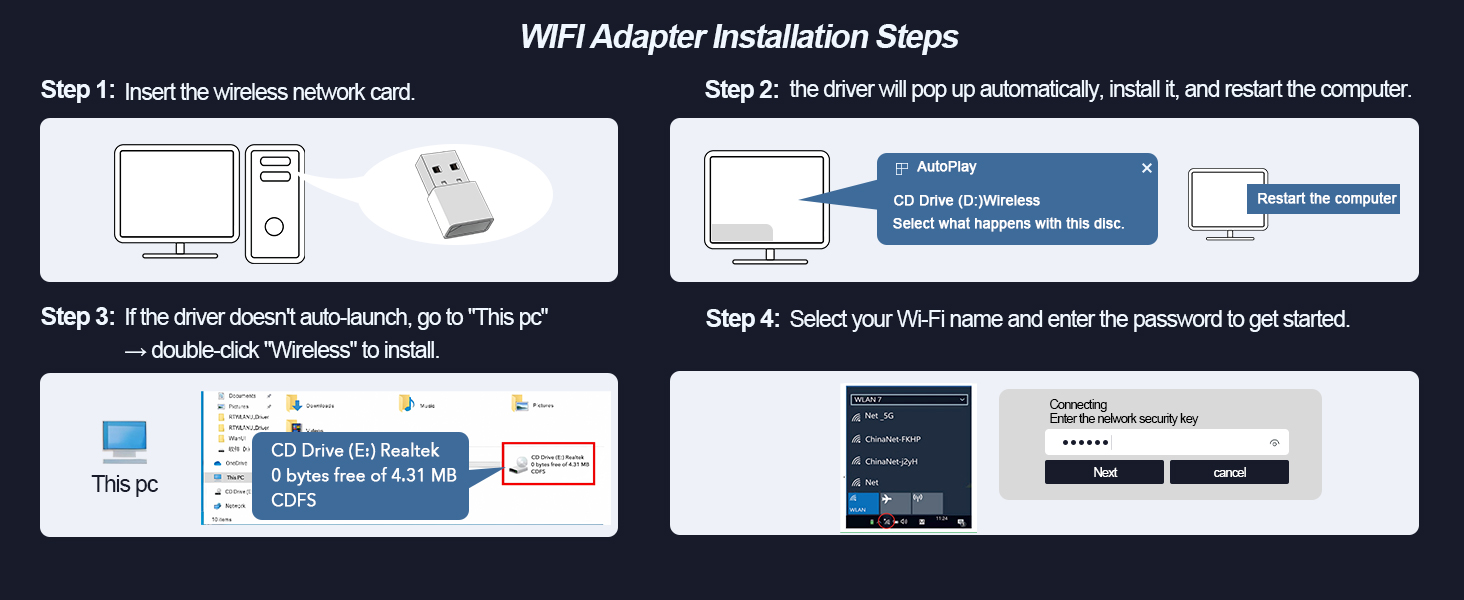
Image: A diagram showing a laptop transmitting WiFi, allowing multiple mobile devices to connect, illustrating the hotspot functionality.
3. Пайвасткунии дастгоҳҳои Bluetooth
To connect Bluetooth devices to your computer using the adapter:
- Ensure your computer's built-in Bluetooth (if any) is disabled via Device Manager to avoid conflicts.
- Right-click the Bluetooth icon on the taskbar and select 'Add a Bluetooth Device'.
- Put your Bluetooth device (e.g., headphones, mouse, keyboard) into pairing mode.
- Дастгоҳи худро аз рӯйхат интихоб кунед ва барои анҷом додани ҷуфткунӣ ҳама дастурҳои дар экран бударо иҷро кунед.

Image: A diagram illustrating multiple Bluetooth devices (printer, keyboard, mouse, phone, audio, earphone) simultaneously connected to a computer via the Bluetooth 5.4 adapter.
Нигоҳдорӣ
- Адаптерро тоза ва аз чанг тоза нигоҳ доред.
- Нагузоред, ки адаптер ба ҳарорати аз ҳад зиёд ё намӣ дучор шавад.
- Do not attempt to disassemble or repair the adapter yourself.
Мушкилкушо
1. WiFi Connection Issues
- No WiFi Networks Detected: Ensure the adapter is properly inserted into a USB port and its drivers are installed. Check your computer's Device Manager to confirm the adapter is recognized and enabled.
- Суръатҳои суст: Ensure you are connecting to the appropriate band (5GHz for higher speeds, 2.4GHz for longer range). Check for interference from other devices or physical obstructions.
- Қатъкунии зуд-зуд: Try moving closer to your WiFi router. Ensure your router firmware is up to date.
2. Масъалаҳои пайвасти Bluetooth
- Device Not Found: Ensure your Bluetooth device is in pairing mode and within range.
- Cannot Connect: If your computer has built-in Bluetooth, disable it in Device Manager before using the adapter to prevent conflicts.
- Audio Lag/Stuttering: Reduce the distance between the adapter and the Bluetooth audio device. Ensure no other devices are causing interference.
Video: A troubleshooting guide for Bluetooth connection issues, specifically demonstrating how to disable a PC's built-in Bluetooth device to avoid conflicts with the adapter.
Мушаххасоти
| Хусусият | Тафсилот |
|---|---|
| Рақами модел | AX913 |
| Андозаҳои маҳсулот | 1.25 x 0.6 x 0.3 инч |
| Вазни ашё | 0.634 унция |
| Интерфейси сахтафзор | Bluetooth 5, USB 2.0 |
| Протоколи истинод ба маълумот | Bluetooth, IEEE 802.11 ax/ac/a/b/g/n |
| Меъёри интиқоли маълумот | 900 Мегабит дар як сония |
| Оилаи системаҳои оператсионии мувофиқ | Windows |
| Minimum Required Operating System Version | Windows 7 |
Кафолат ва дастгирӣ
This product includes a 30-day money-back guarantee and a 12-month replacement warranty. For technical support or warranty claims, please contact DragoBud customer service through the retailer where the product was purchased.
Manufacturer: DragoBud
Ask a question about this manual
Ask about setup, troubleshooting, compatibility, parts, safety, or missing instructions. Manuals+ will review the question and use this page’s manual context to help answer it.