
1. Муқаддима
The TMEZON H4 Trail Camera is designed for wildlife monitoring, security surveillance, and game tracking. It features 4K video recording, 48MP still image capture, integrated WiFi and Bluetooth connectivity, and a solar panel for extended operation. This manual provides detailed instructions for setting up, operating, and maintaining your camera to ensure optimal performance.
2. Мундариҷаи баста
- TMEZON H4 Trail Camera
- Панели офтобӣ
- Тасмаро васлкунӣ
- Виддаҳои васлкунӣ
- Сими USB
- Корти SD 64 ГБ
- Дастури корбар
3. Маҳсулот ба охир расидview
Familiarize yourself with the main components of your TMEZON H4 Trail Camera.
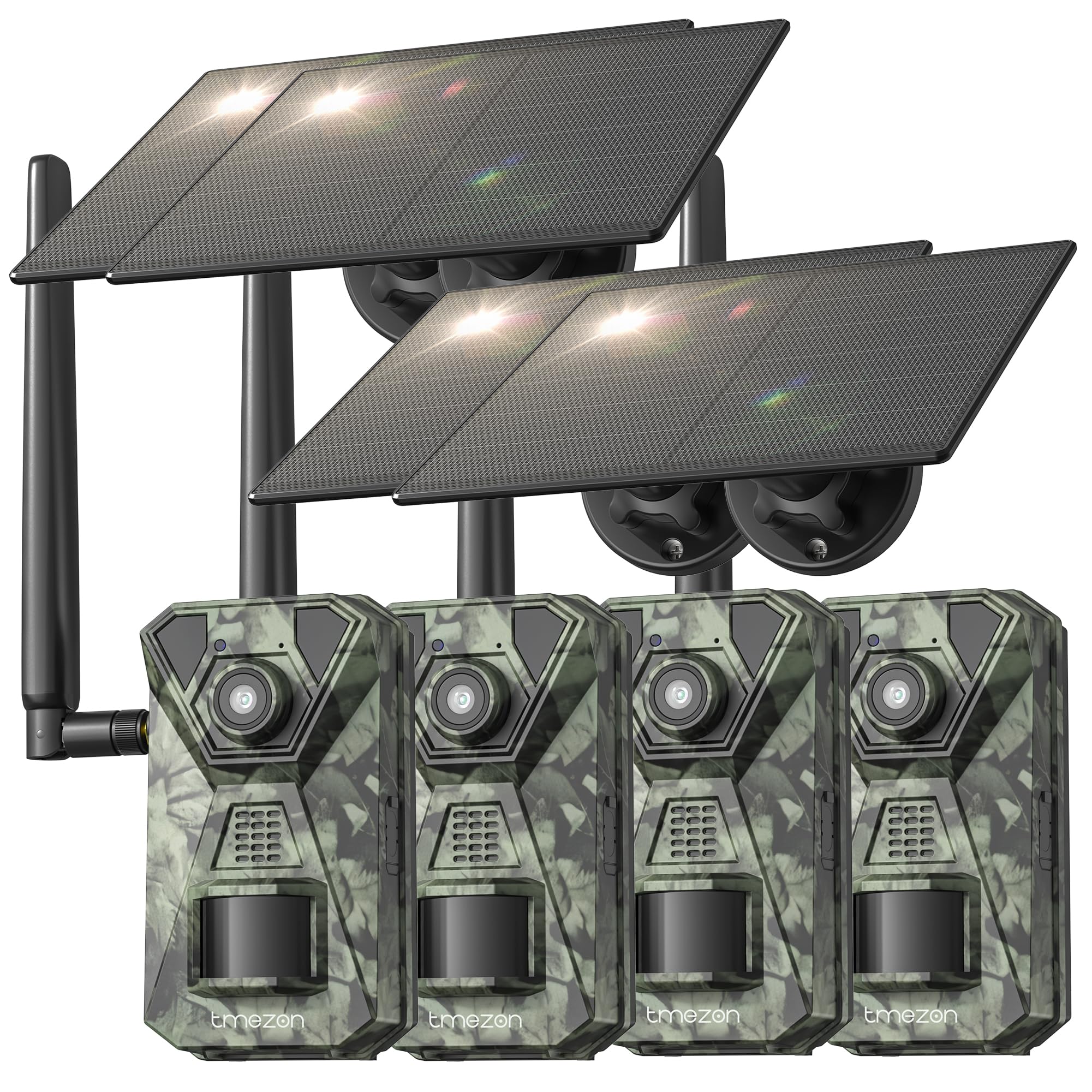
Тасвири 1: Пеш view of the TMEZON H4 Trail Camera, showing the lens, PIR sensors, and integrated solar panel. This image illustrates the compact, camouflage design suitable for outdoor environments.
Қисмҳои камера:
- Линза: Тасвирҳо ва видеоҳоро сабт мекунад.
- Сенсорҳои PIR: Passive Infrared sensors detect motion.
- ЭШҳо: LED-ҳои инфрасурх барои биниши шабона.
- Экрани LCD: For menu navigation and viewвасоити ахбори оммаи гирифташуда.
- Тугмаҳои назорат: Navigate menus and settings.
- Ковокии корти SD: Insert the provided 64GB SD card.
- Порти USB: Барои пайвастшавӣ ба компютер.
- Порти барқи беруна: For connecting the solar panel or external power source.
- Бахши батарея: Holds 8 AA batteries (not included) for backup power.
4. Танзимот
4.1. Battery and Solar Panel Installation
- Қисмати батареяро дар камера кушоед.
- Insert 8 new AA batteries (alkaline or rechargeable NiMH recommended) according to the polarity indicators. These batteries serve as a backup to the solar panel.
- Connect the solar panel cable to the camera's external power port. Ensure the solar panel is positioned to receive maximum sunlight.
4.2. Ҷойгиркунии корти SD
- Locate the SD card slot on the side or bottom of the camera.
- Insert the provided 64GB SD card with the metal contacts facing the correct direction until it clicks into place.
- To remove, push the card in gently until it springs out.
4.3. Ҷойгиркунии камера
- Use the included mounting strap to secure the camera to a tree or pole. Thread the strap through the slots on the back of the camera and tighten.
- Alternatively, use the mounting screws to attach the camera to a wall or other flat surface.
- Position the camera at a height of 3-6 feet (1-2 meters) and aim it towards the desired monitoring area. Ensure no obstacles block the PIR sensors.
4.4. Боргирии барнома ва пайвастшавӣ
- Download the official TMEZON app from your smartphone's app store (iOS or Android). Ҷустуҷӯ "TMEZON Trail Camera" or scan the QR code provided in the quick start guide.
- Bluetooth-ро дар смартфони худ фаъол созед.
- Камераро фурӯзон кунед.
- Open the TMEZON app, select "Add Device," and follow the on-screen instructions to connect via Bluetooth.
- Once connected via Bluetooth, the app will prompt you to connect to the camera's WiFi network for faster data transfer and live view.
5. Истифода бурдани камера
5.1. Фаъол / Хомӯш ва Интихоби Ҳолати
- OFF: Камераро хомӯш кунед.
- ТАШКИЛ КАРДАН: Enter setup mode to configure settings, view photos/videos, or connect to the app.
- ДАР БОРАИ: Activate the camera for monitoring. The camera will enter monitoring mode after a short countdown.
5.2. Навигатсия ва танзимоти меню
In SETUP mode, use the control buttons to navigate the menu on the LCD screen. Press the 'MENU' button to access settings. Key settings include:
- Режим: Select Photo, Video, or Photo+Video (Hybrid).
- Қарори акс: 48MP, 30MP, 20MP, etc.
- Ҳалли видео: 4K, 2.7K, 1080P, 720P.
- Ҳассосияти PIR: High, Medium, Low. Adjust based on environment to avoid false triggers.
- Фосилаи PIR: Time delay between detections.
- Вақти гузашт: Capture images at set intervals regardless of motion.
- Сана ва вақт: Сана ва вақти ҷорӣро таъин кунед.
- SD кортро формат кунед: Ҳама маълумотро дар корти SD тоза кунед. Caution: This will delete all files.
5.3. Remote Monitoring via App
Once connected to the TMEZON app:
- View зинда бошиtagд аз камера.
- Adjust camera settings remotely.
- Browse and download captured photos and videos to your smartphone.
- Receive notifications for detected motion (if 4G LTE cellular transmission is enabled and configured).
6. Нигоҳдорӣ
6.1. Тозакунӣ
- Wipe the camera lens and PIR sensors with a soft, dry cloth to remove dust or smudges.
- Ensure the solar panel is clean for efficient charging.
- Тозакунанда ё ҳалкунандаҳои абразивиро истифода набаред.
6.2. Нигоҳдорӣ
- If storing the camera for an extended period, remove the AA batteries.
- Камераро дар ҷои хунук ва хушк, дур аз нури бевоситаи офтоб нигоҳ доред.
7. Баррасии мушкилот
- Камера фаъол нест: Check battery installation and charge level. Ensure solar panel is connected and receiving sunlight.
- Сифати пасти тасвир/видео: Clean the lens. Ensure sufficient lighting or proper night vision settings. Check resolution settings.
- No motion detection: Adjust PIR sensitivity (High for sparse areas, Low for busy areas). Ensure PIR sensors are not obstructed. Check PIR interval settings.
- Хатогии корти SD: Format the SD card in the camera's settings. If the issue persists, try a different compatible SD card.
- Масъалаҳои пайвастшавӣ ба барнома: Ensure Bluetooth and WiFi are enabled on your phone. Restart both the camera and the app. Ensure the camera is in SETUP mode for initial pairing.
- Панели офтобӣ пур намешавад: Ensure the solar panel is clean and positioned to receive direct sunlight. Check the connection cable.
8. Мушаххасоти
| Номи модел | H4 |
| Ҳалли самаранок | 48 МП |
| Ҳалли самараноки видео | 4K |
| Технологияи пайвастшавӣ | Wireless (WiFi, Bluetooth, 4G LTE) |
| Манбаи нерӯ | Solar Powered, 8x AA Battery Backup |
| Навъи хотираи флеш | SD Card (64GB included, max 64GB supported) |
| Диапазони биниши шабона | 65 фут |
| Триггер Суръат | 0.2с |
| Кунҷи муайянкунии PIR | 120° |
| Рейтинги обногузар | IP66 |
| Андозаҳои ашё | 4 x 3.5 x 6 инч |
| Материал | Металл, пластикӣ |
9. Кафолат ва дастгирӣ
TMEZON products come with a standard manufacturer's warranty. For detailed warranty information, technical support, or service inquiries, please refer to the warranty card included in your package or visit the official TMEZON website. You can also contact customer support through the TMEZON app or the contact information provided on the product packaging.