1. Муқаддима
This manual provides detailed instructions for the installation, operation, and maintenance of the Generic MT7925 WiFi 7 Network Card. This M.2 NGFF wireless adapter offers WiFi 7 (802.11be) connectivity with tri-band support (2.4GHz, 5GHz, 6GHz) and Bluetooth 5.3 capabilities, designed for Windows 10 and Windows 11 systems.
2. Маълумот оид ба бехатарӣ
- Always disconnect power from your computer before installing or removing any internal components.
- Handle the network card by its edges to avoid touching the gold connectors or sensitive components.
- Барои пешгирии осеб дидан аз разряди электростатикӣ (ESD) чораҳои эҳтиётии мувофиқи зиддистатикӣ (масалан, тасмаи зиддистатикии даст)-ро истифода баред.
- Дастгоҳро аз намӣ ва ҳарорати аз ҳад зиёд дур нигоҳ доред.
3. Мундариҷаи баста
Боварӣ ҳосил кунед, ки ҳама ашё дар баста мавҷуд аст:
- 1 x MT7925 WiFi Card
4. Танзим ва насб
4.1 Рӯйхати санҷиши пеш аз насб
- Ensure your computer has an available M.2 NGFF slot (Key E).
- Confirm your operating system is Windows 10 or Windows 11 (64-bit).
- Download the latest drivers for the MT7925 from the manufacturer's or chipset provider's website onto a USB drive or accessible location before installation.
4.2 Насби ҷисмонӣ
The MT7925 network card is designed for M.2 NGFF Key E slots found in both desktop motherboards and laptops.

Тасвир: Пеш ва қафо view of the MT7925 WiFi 7 network card, highlighting the Key E connector for installation.
- Компютери худро хомӯш кунед ва ҳамаи кабелҳоро ҷудо кунед.
- Open your computer case (for desktop) or access the M.2 slot compartment (for laptop). Refer to your computer's manual for specific instructions.
- Locate an available M.2 NGFF slot (Key E).
- Carefully insert the MT7925 card into the M.2 slot at a slight angle.
- Gently press down the card and secure it with the screw provided with your motherboard or laptop.
- Connect the antenna cables (if applicable) to the corresponding 'Main' and 'Aux' connectors on the card.
- Close your computer case or compartment.
- Ҳама кабелҳоро аз нав пайваст кунед ва дар компютери худ барқро пайваст кунед.
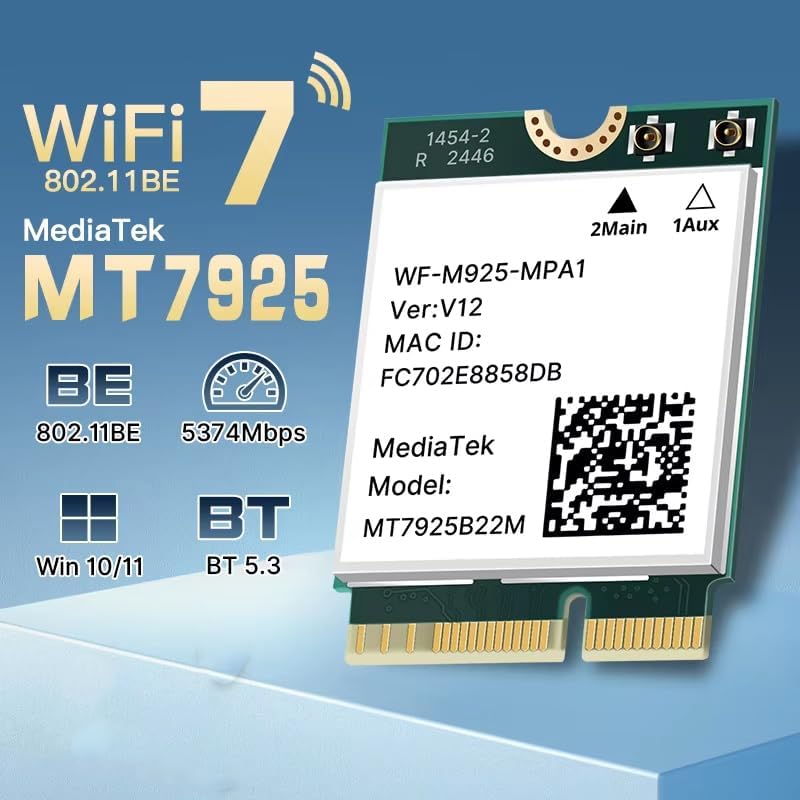
Image: Illustration of M.2 slot availability for both desktop and laptop installations. The image indicates 'Available' and 'Unavailable' slots for clarity.
4.3 Насби драйверҳо
- After booting into Windows, open Device Manager.
- Look for an unknown device or a network adapter with a yellow exclamation mark under 'Network adapters' or 'Other devices'.
- Right-click on the device and select 'Update driver'.
- Choose 'Browse my computer for drivers' and navigate to the folder where you saved the downloaded drivers.
- Барои анҷом додани насби драйвер, дастурҳои дар экран бударо иҷро кунед.
- Агар дархост карда шавад, компютери худро бозоғоз намоед.
5. Дастурҳои истифодабарӣ
5.1 Пайвастшавӣ ба Wi-Fi
Once drivers are installed, the MT7925 card will enable Wi-Fi functionality. You can connect to available networks:
- Тасвири Wi-Fi-ро дар панели вазифаҳои Windows клик кунед.
- Аз рӯйхат шабакаи дилхоҳатонро интихоб кунед.
- Enter the network password if required and click 'Connect'.
- The MT7925 supports tri-band operation (2.4GHz, 5GHz, 6GHz) for optimal performance.

Image: Visual representation of the MT7925's data rates across different frequency bands: 6GHz (2400Mbps), 5GHz (2400Mbps), and 2.4GHz (574Mbps).
5.2 Пайвасткунии Bluetooth
The MT7925 also provides Bluetooth 5.3 connectivity.
- Ба Танзимоти Windows > Дастгоҳҳо > Bluetooth ва дигар дастгоҳҳо равед.
- Боварӣ ҳосил кунед, ки Bluetooth "Фаъол" аст.
- "Иловаи Bluetooth ё дастгоҳи дигар" -ро клик кунед ва "Bluetooth" -ро интихоб кунед.
- Дастгоҳи Bluetooth -и худро ба ҳолати ҷуфтшавӣ гузоред.
- Дастгоҳи худро аз рӯйхат интихоб кунед ва барои анҷом додани ҷуфткунӣ ҳама дастурҳои дар экран бударо иҷро кунед.

Image: An illustration demonstrating the compatibility of the upgraded Bluetooth 5.3 with various devices, including printers, keyboards, gamepads, mice, headsets, speakers, cell phones, and tablets.
5.3 Мутобиқати системаи амалиётӣ
The MT7925 network card is compatible with 64-bit versions of Windows 10 and Windows 11.

Image: Logos for Windows 10 and Windows 11, confirming support for 64-bit versions of these operating systems.
6. Нигоҳдорӣ
- Навсозии ронандагон: Regularly check for updated drivers on the manufacturer's or chipset provider's webсайт барои таъмини иҷрои беҳтарин ва бехатарӣ.
- Санҷиши ҷисмонӣ: Periodically inspect the card and antenna connections (if external) for any signs of damage or loose connections.
- Тозакунӣ: If necessary, gently clean the card with compressed air to remove dust buildup. Ensure the computer is powered off and unplugged before cleaning.
7. Баррасии мушкилот
7.1 No Wi-Fi or Bluetooth Connectivity
- Менеҷери дастгоҳро санҷед: Verify that the MT7925 card is recognized and has no error symbols. Reinstall drivers if necessary.
- Пайвастагии ҷисмонӣ: Ensure the card is securely seated in the M.2 slot and any antenna cables are properly connected.
- Танзимоти BIOS/UEFI: Some motherboards may require enabling the M.2 slot or Wi-Fi/Bluetooth functionality in the BIOS/UEFI settings.
7.2 Slow Wi-Fi Speeds
- Навсозии ронанда: Боварӣ ҳосил кунед, ки шумо драйверҳои навтаринро насб кардаед.
- Ҷойгиркунии роутер: Move closer to your Wi-Fi router or ensure there are no significant obstructions.
- Банди басомад: Connect to the 5GHz or 6GHz band for higher speeds, if available and supported by your router.
- дахолат: Other electronic devices can cause interference. Try changing your router's Wi-Fi channel.
7.3 Bluetooth Device Not Pairing
- Bluetooth фаъол: Confirm Bluetooth is enabled in Windows settings.
- Ҳолати пайвасткунии дастгоҳ: Боварӣ ҳосил кунед, ки дастгоҳи Bluetooth-и шумо дар ҳолати ҷуфтшавӣ қарор дорад.
- Масофа: Keep the Bluetooth device close to your computer during pairing.
- дахолат: Minimize other wireless devices nearby during pairing.
8. Мушаххасоти
| Модели | МТ7925 |
| Стандарти бесим | WiFi 7 (802.11be) |
| Меъёри интиқоли маълумот | Up to 5400Mbps (2400Mbps on 6GHz, 2400Mbps on 5GHz, 574Mbps on 2.4GHz) |
| Бастаҳои басомадҳо | 2.4GHz, 5GHz, 6GHz (Tri-Band) |
| Версияи Bluetooth | Bluetooth 5.3 |
| Интерфейс | M.2 NGFF (Key E) |
| Системаҳои оператсионии мувофиқ | Windows 10 (64-бит), Windows 11 (64-бит) |
| Протоколҳои бесим | 802.11n, 802.11ax (WiFi 6), 802.11a/g, 802.11ac, 802.11be (WiFi 7) |
| Интерфейси сахтафзор | 802.11 ac/b/g/n |
| Вазни ашё | 0.48 унсия (13.61 г) |
9. Кафолат ва дастгирӣ
This product is sold under the 'Generic' brand. For specific warranty terms and conditions, please refer to the seller or retailer from whom you purchased this product. Keep your proof of purchase for any warranty claims.
For technical support, driver updates, or further assistance, please visit the website of the chipset manufacturer (MediaTek) or contact your product vendor.


