
Leadfan B0FC2L6R4B
Leadfan Android Car Stereo User Manual
For Toyota Sienna (2011-2014) with JBL System - Model B0FC2L6R4B
1. Муқаддима
This manual provides detailed instructions for the installation, operation, and maintenance of your Leadfan Android Car Stereo, specifically designed for Toyota Sienna models from 2011 to 2014 equipped with the original JBL sound system. Please read this manual thoroughly before installation and use to ensure proper function and safety.
2. Маҳсулот ба охир расидview
The Leadfan Android Car Stereo is an advanced head unit featuring a 9-inch IPS touch screen, 4-core CPU, 2GB RAM, and 32GB ROM. It offers seamless integration with your vehicle's existing JBL system and provides a range of modern functionalities for enhanced driving experience.
Хусусиятҳои асосӣ:
- бесими Apple CarPlay & Android Auto
- Экрани сенсории 9-дюймаи IPS (қарори 1280*720)
- Навигатсияи GPS-и дарунсохт (харитаҳои онлайн/офлайн)
- Bluetooth 5.1 for Hands-Free Calling & Audio Streaming
- 5G WiFi Connectivity & Hotspot Support
- Split-Screen Functionality
- Mirror Link for iOS/Android devices
- Радиои FM/RDS
- Steering Wheel Control (SWC) Support
- Includes IP68 AHD Rear Camera
- Plug & Play Wiring Harness
Дар қуттӣ чӣ мавҷуд аст:
- 9-inch IPS Touchscreen Android Radio Headunit
- Radio Kit Frame for Toyota Sienna 2011-2014
- AHD Backup Camera + Reversing Camera Input Cable
- Антеннаи GPS
- WiFi & Bluetooth Signal Booster Cable
- Plug and Play Power Harness
- CanBus Decoder
- Микрофони беруна
- Симҳои USB (x2)
- Кабели RCA
- Дастури корбар
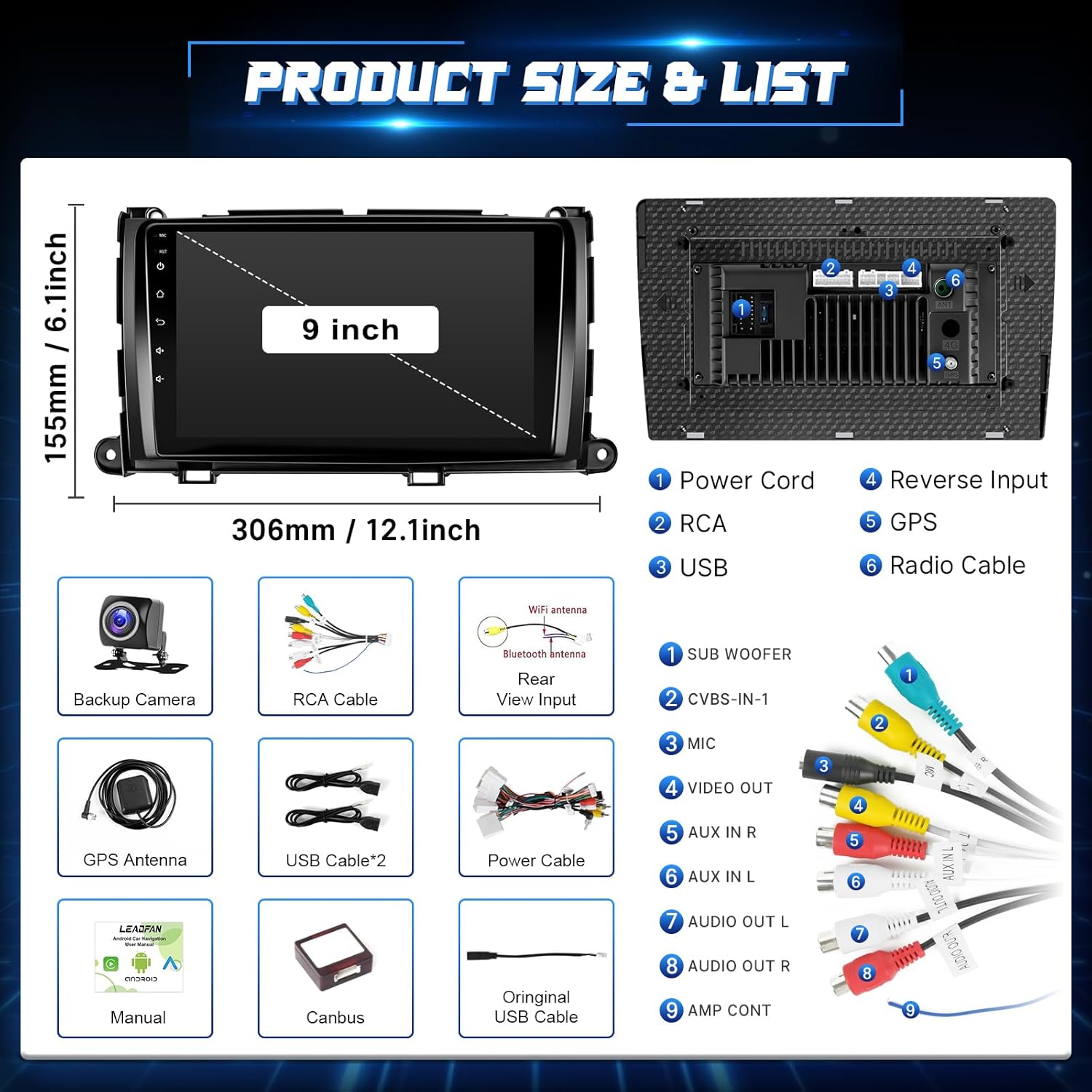
Image: Product dimensions and a detailed list of included components such as the head unit, backup camera, GPS antenna, USB cables, power cable, Canbus, and user manual.
3. Маълумот оид ба бехатарӣ
- Always ensure the vehicle is turned off and the battery is disconnected before performing any installation or wiring.
- Improper installation can lead to vehicle damage or personal injury. If unsure, seek professional assistance.
- Дастгоҳро тавре кор накунед, ки шуморо аз рондани мошин дур кунад. Ҳамеша бехатарии роҳро дар мадди аввал гузоред.
- Дастгоҳро аз об ва гармии аз ҳад зиёд дур нигоҳ доред.
4. Дастури насб
This head unit is designed for a plug-and-play installation for Toyota Sienna 2011-2014 models with the original JBL system. It includes a custom frame and wiring harness to simplify the process.
Санҷиши пеш аз насб:
- Verify your car model, year, and the shape of your vehicle's center console to ensure compatibility.
- Confirm your vehicle has the original JBL sound system.
Қадамҳои умумии насб:
- Батареяро ҷудо кунед: For safety, disconnect the negative terminal of your car battery.
- Блоки аслии сарлавҳаро хориҷ кунед: Carefully remove the trim panels and screws securing the factory radio.
- Пайваст кардани сими сим: Connect the provided plug-and-play wiring harness to your vehicle's existing connectors and to the new head unit. Ensure all connections are secure.
- Антенаи GPS-ро насб кунед: Антеннаи GPS-ро дар ҷое бо равшанӣ насб кунед view осмон, одатан дар панели асбобҳо ё дар зери шишаи пеш.
- Install Rear Camera (Optional but Recommended): Route the camera cable from the rear of the vehicle to the head unit. Connect the camera's power to the reverse light circuit and the video signal to the 'Reverse Input' on the head unit.
- Mount New Head Unit: Secure the new head unit into the dashboard using the provided frame and screws.
- Батареяро аз нав пайваст кунед: Reconnect the car battery and test the unit.

Image: Visual comparison showing the original Toyota Sienna dashboard radio and the new Leadfan Android Car Stereo installed, highlighting compatibility with JBL systems.

Image: Detailed wiring diagram for connecting the backup camera, including connections to the reverse trigger and power supply.
5. Танзимоти ибтидоӣ
Upon first power-on, the system may guide you through initial setup steps such as language selection, time zone, and Wi-Fi connection. Follow the on-screen prompts.
- Пайвастшавӣ Wi-Fi: Navigate to Settings > Network & Internet > Wi-Fi to connect to an available network. This is essential for online maps, app downloads, and certain CarPlay/Android Auto functionalities.
- Сана ва вақт: Ensure the date and time are correctly set, either manually or by enabling network time synchronization.
6. Дастурҳои истифодабарӣ
6.1. Wireless CarPlay & Android Auto
Connect your iPhone or Android device wirelessly for a seamless in-car experience.
- Bluetooth ва Wi-Fi-ро фаъол созед: Дар смартфони худ, боварӣ ҳосил кунед, ки ҳам Bluetooth ва ҳам Wi-Fi фаъол аст.
- Дастгоҳи ҷуфт: On the car stereo, go to the CarPlay/Android Auto application. Follow the on-screen instructions to pair your phone via Bluetooth.
- Пайвасти худкор: Once paired, the system will automatically connect via Wi-Fi for full CarPlay/Android Auto functionality.

Image: Displays the user interfaces for Apple CarPlay, Android Auto, and Mirror Link, illustrating their respective connection methods (USB/WiFi/Bluetooth).
6.2. Зеркашии экран
Project your mobile phone's screen onto the head unit for a larger display of content.
- Access Mirror Link App: Open the Mirror Link application on the car stereo.
- Дастурҳоро риоя кунед: The app will provide instructions for connecting your iOS or Android device, typically involving Wi-Fi or a USB connection.

Image: Shows the Mirror Link feature, detailing connection options for Android (WiFi, USB) and Apple (WiFi, Bluetooth) devices, with a phone screen mirrored to the head unit.
6.3. Навигатсияи GPS
Дастгоҳ ҳам паймоиши онлайн ва ҳам офлайнро дастгирӣ мекунад.
- Харитаҳои офлайнӣ: North American offline maps are pre-installed. Access them via the Navigation app without an internet connection.
- Харитаҳои онлайн: Connect to Wi-Fi (via hotspot or local network) to use online navigation apps like Google Maps, Waze, etc., which can be downloaded from the Application Store.

Image: Highlights GPS navigation with online and offline map options, Wi-Fi functionality, the Android 11 operating system, and the 4-core CPU architecture.
6.4. Функсияи Bluetooth
Enjoy hands-free calling and wireless audio streaming.
- Ҷуфт кардан: Go to the Bluetooth app on the stereo, enable Bluetooth on your phone, and search for the head unit. Select it to pair.
- Зангҳои дастӣ: Once paired, you can make and receive calls directly from the stereo screen using the built-in microphone or the external microphone.
- Ҷараёни аудио: Мусиқиро аз телефони худ тавассути баландгӯякҳои мошин гӯш кунед.
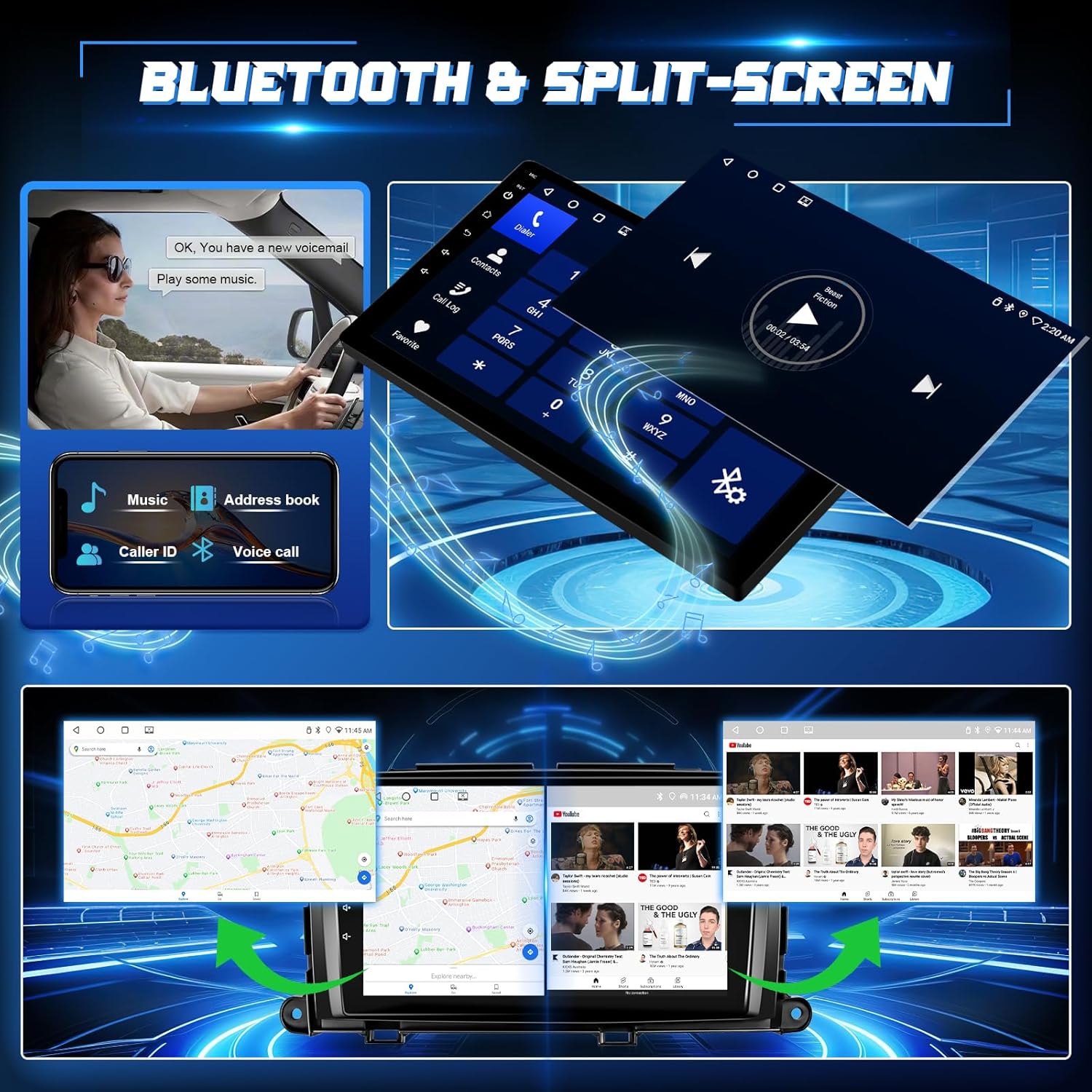
Image: Illustrates Bluetooth 5.1 features for hands-free calling and music playback, along with the split-screen capability showing two applications running simultaneously.
6.5. FM Radio & EQ Settings
Access your favorite radio stations and customize audio output.
- Радиои FM: Open the FM Radio app. You can manually search for stations or use the automatic scan function to find and save presets.
- Танзимоти EQ: The unit features a 32-band equalizer. Access the EQ settings to adjust audio frequencies, balance, and fader to optimize sound quality.
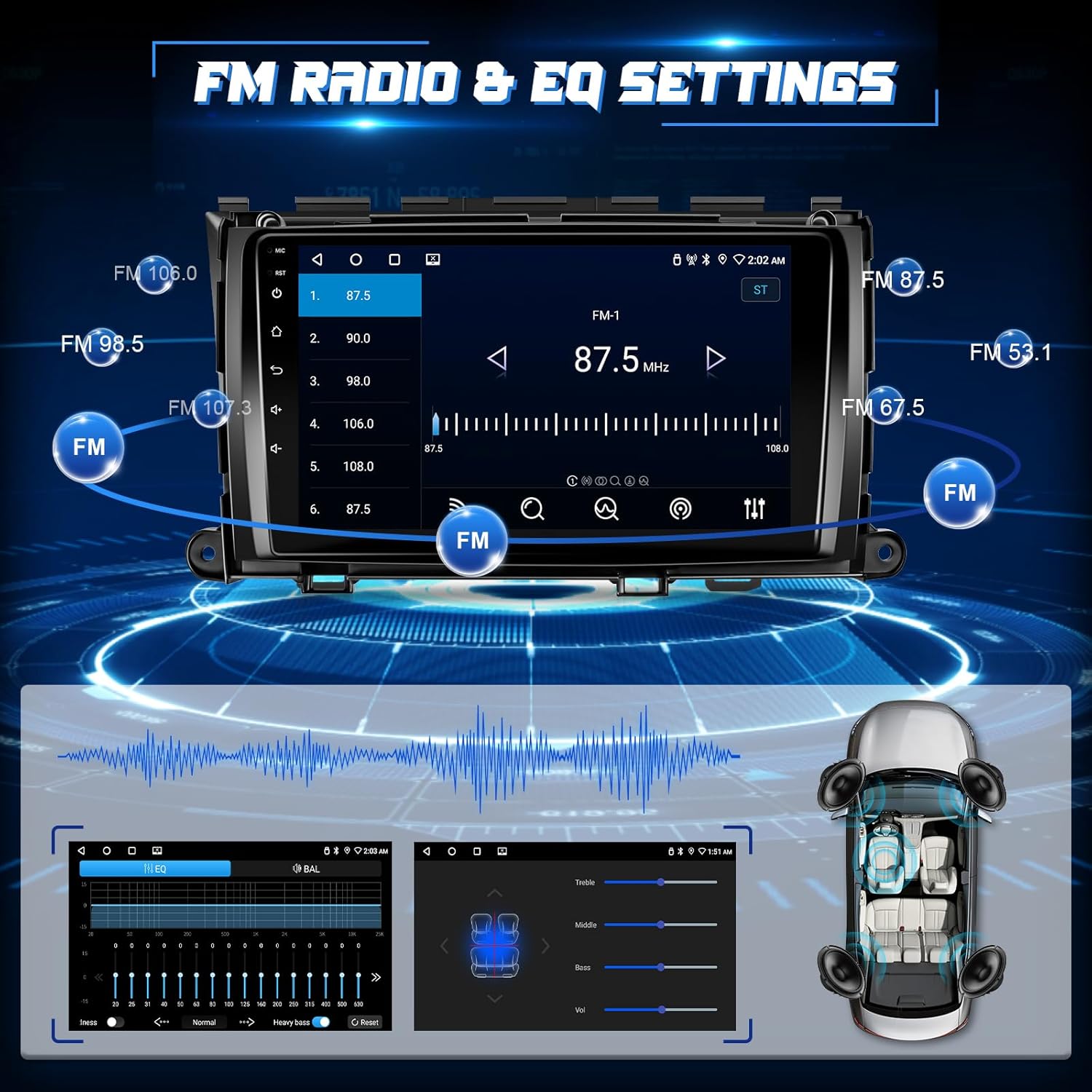
Image: Shows the FM radio interface with frequency display and preset options, alongside the audio equalizer settings for fine-tuning sound output.
6.6. Функсияи экрани тақсимшуда
Run two applications simultaneously on the 9-inch display.
- Activate Split-Screen: While an app is open, press and hold the recent apps button or drag an app to one side of the screen (method may vary slightly based on Android version).
- Select Second App: Choose another app from the recent apps list or app drawer to occupy the other half of the screen.

Image: Demonstrates the split-screen feature, displaying navigation on one side and a media player or phone interface on the other.
6.7. Reverse Image & Steering Wheel Control (SWC)
Enhance safety and convenience with these integrated features.
- Камераи ақиб: When the vehicle is shifted into reverse, the IP68 AHD rear camera automatically displays a 1280*720P image with a 170-degree ultra-wide angle on the touch screen.
- Назорати руль: The unit supports your original car's steering wheel controls. Use the SWC harness to configure buttons for hands-free calling, music switching, and volume control. Access the SWC learning function in the settings to map your vehicle's buttons.

Image: Features the reverse camera display with parking guidelines and an interface for mapping steering wheel control buttons for various functions.
7. Нигоҳдорӣ
- Тозакунӣ: Барои тоза кардани экран ва дастгоҳ матои мулоим ва хушкро истифода баред. Аз тозакунандаҳои абразивӣ ё ҳалкунандаҳо худдорӣ кунед.
- Навсозии нармафзор: Periodically check for software updates via the system settings (requires Wi-Fi connection) to ensure optimal performance and access to new features.
- Нусхаи маълумот: If you store important data on the unit, consider backing it up regularly.
8. Баррасии мушкилот
Агар шумо бо ягон мушкилот дучор шавед, ба мушкилот ва роҳҳои ҳалли маъмулии зерин муроҷиат кунед:
| Мушкилот | Ҳалли имконпазир |
|---|---|
| Дастгоҳ фаъол нест | Check power connections and vehicle's fuse box. Ensure the car battery is properly connected. |
| Садо нест | Verify speaker wiring, volume settings, and ensure the unit is not muted. Check amplifier connections if applicable. |
| Сигнали GPS гум шудааст ё нодуруст аст | Боварӣ ҳосил кунед, ки мавҷгири GPS дуруст насб карда шудааст ва равшанӣ дорад view аз осмон. Пайвасти антеннаро тафтиш кунед. |
| Bluetooth/Wi-Fi connection issues | Restart both the head unit and your mobile device. Ensure Bluetooth/Wi-Fi is enabled on both. Re-pair devices if necessary. |
| Камераи қафо намоиш дода намешавад | Check camera wiring, especially the reverse trigger connection. Ensure the camera is receiving power. |
| Идоракунии чархи руль кор намекунад | Ensure the SWC harness is correctly connected. Access the SWC learning function in settings to re-map buttons. |
For further technical or installation assistance, please contact Leadfan customer support. You can typically find their contact information by navigating to the seller's page on the platform where you purchased the product and clicking 'Ask a question'.

Image: Illustrates the steps to contact customer service by clicking on the seller's name and then 'Ask a question' on the product page.
9. Мушаххасоти
| Хусусият | Тафсилот |
|---|---|
| Рақами модел | B0FC2L6R4B |
| Мошинҳои мувофиқ | Toyota Sienna 2011, 2012, 2013, 2014 (with Original JBL & Large Screen) |
| Низоми амал | Android 11 (or similar Android version) |
| ВПМ - Воҳиди Пардозиши Марказӣ | 4-АСЛИ |
| RAM | 2 ГБ |
| Абзори ёддошткунандаи доимӣ | 32 ГБ |
| Андозаи экран | 9 инч |
| Навъи намоиш | Экрани сенсории IPS |
| Резолюция | 1280*720 |
| Пайвастшавӣ | Wireless CarPlay, Wireless Android Auto, Bluetooth 5.1, 5G WiFi, USB, RCA |
| Ҳолати баромади аудио | Стерео |
| Канали садои атроф | 5.0 |
| Рамзгузории видео | H.264, H.265/HEVC, MPEG-4 |
| Вазни ашё | 3.23 фунт |
| Андозаҳои бастаҳо | 14.76 x 11.06 x 4.41 инч |
10. Кафолат ва дастгирӣ
For warranty information and customer support, please refer to the documentation included with your product or contact the seller directly through the platform of purchase. The manufacturer, Leedfan, is committed to providing customer assistance for any technical or installation queries.
Ask a question about this manual
Ask about setup, troubleshooting, compatibility, parts, safety, or missing instructions. Manuals+ will review the question and use this page’s manual context to help answer it.