
1. Муқаддима
Thank you for choosing the PRIXTON Prado XL 15.6-inch Digital Photo Frame. This manual provides essential information for setting up, operating, and maintaining your device. Please read it carefully before use to ensure optimal performance and longevity of your digital photo frame.
The PRIXTON Prado XL features a vibrant 15.6-inch Full HD IPS touchscreen display, offering clear and vivid image reproduction. With built-in Wi-Fi, 32GB of internal memory, and support for both photos and videos, it allows you to easily share and display your cherished memories. The frame also includes integrated speakers and multiple input options, including USB Type-C, USB-A, and an SD card slot, providing versatile ways to manage your content.
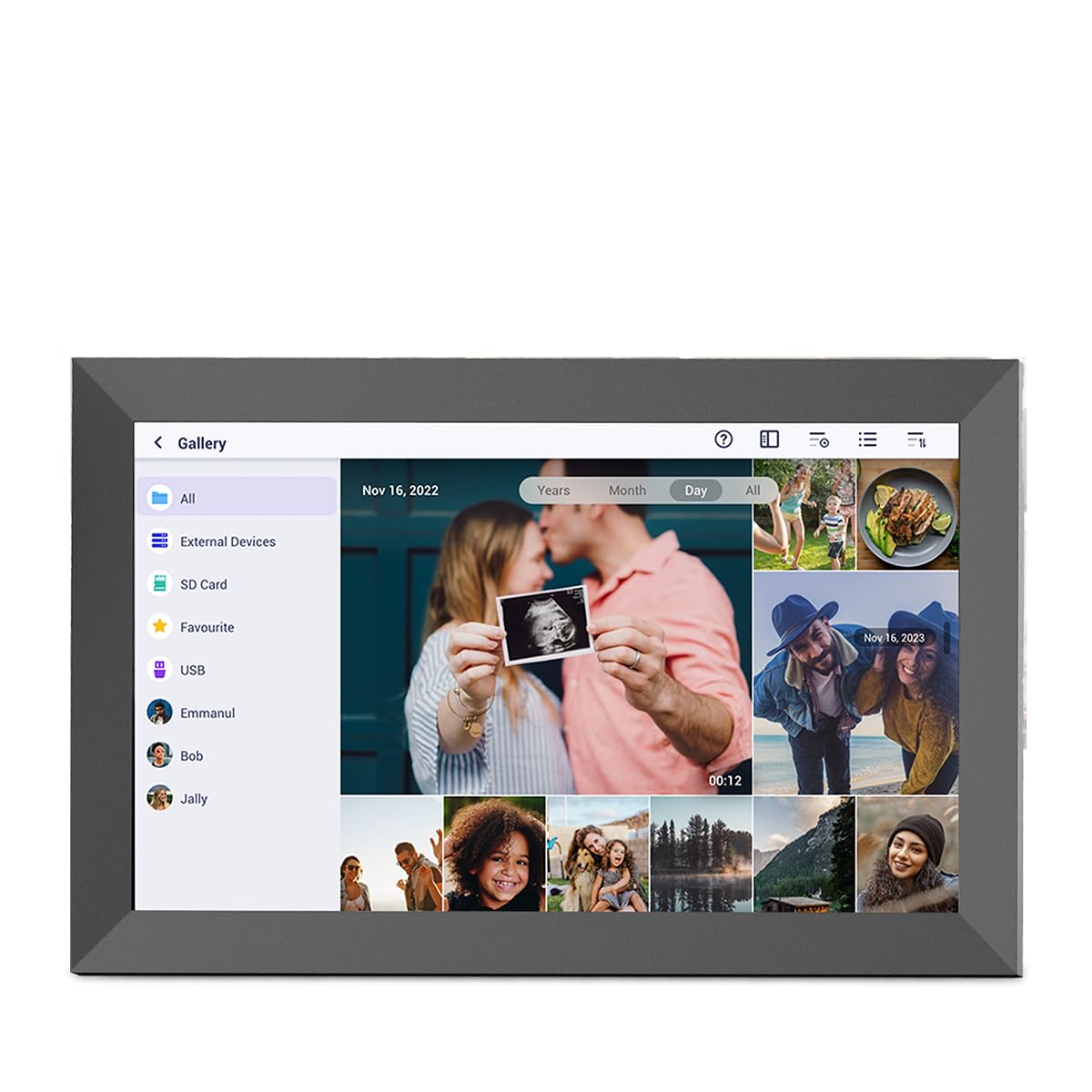
Image: The PRIXTON Prado XL digital photo frame showcasing a family picture.
2. Мундариҷаи баста
Лутфан қуттии ҷузъҳои зеринро тафтиш кунед:
- PRIXTON Prado XL 15.6-inch Digital Photo Frame
- Адаптери барқ
- Дастури корбар (ин ҳуҷҷат)
3. Маҳсулот ба охир расидview
Familiarize yourself with the various ports and controls on your digital photo frame.

Image: Back panel of the frame, highlighting the power button, USB-A, USB-C, SD card slot, and headphone jack.
Компонентҳои асосӣ:
- Тугмаи барқ: Located on the back, used to turn the frame on/off or put it into sleep mode.
- Порти USB-A: For connecting USB flash drives to transfer photos and videos.
- Порти USB Type-C: For connecting compatible devices or for data transfer.
- Ковокии корти SD: For inserting SD cards to display or transfer media.
- Гӯшаки гӯшмонак: Барои пайваст кардани дастгоҳҳои аудиоии беруна.
- Вуруди қувваи DC: Барои пайваст кардани адаптери барқ.
- Сӯрохиҳои васлкунии девор: Барои насб кардани чаҳорчӯба ба девор.
4. Танзимот
4.1 Фаъолсозии барқ
- Connect the power adapter to the DC Power Input port on the back of the frame.
- Адаптери барқро ба васлаки деворӣ пайваст кунед.
- The frame will automatically power on. If not, press and hold the Power Button for a few seconds.
4.2 Танзимоти ибтидоӣ
Upon first startup, you will be guided through the initial setup process:
- Забонро интихоб кунед: Аз рӯйхат забони дилхоҳи худро интихоб кунед.
- Ба Wi-Fi пайваст шавед: Select your Wi-Fi network and enter the password. A stable internet connection is required for app functionality and software updates.
- Таъин кардани сана ва вақт: Configure the correct date, time, and time zone.
4.3 Connecting with the Uhale App
The Uhale app allows you to easily send photos and videos directly to your frame from your smartphone.
- Барномаро зеркашӣ кунед: Ҷустуҷӯ "Uhale" in your smartphone's app store (iOS or Android) and install it.
- Ҳисоб кушоед: Open the Uhale app and follow the instructions to create a new user account.
- Pair the Frame: On your digital photo frame, navigate to the "Settings" menu and find the "Bind Device" or "Add Device" option. This will display a unique code or QR code.
- Enter Code/Scan QR: In the Uhale app, select "Add Device" and either manually enter the code displayed on your frame or use your phone's camera to scan the QR code.
- Пас аз ҷуфт кардан, шумо метавонед ба чаҳорчӯбаи худ фиристодани аксҳо ва видеоҳоро оғоз кунед.

Image: A smartphone screen showing the Uhale app interface next to the digital photo frame.
5. Operating the Frame
5.1 Навигатсия дар экрани сенсорӣ
The Prado XL features a responsive touchscreen for easy navigation:
- Клик кунед: Элементро интихоб кунед ё менюро кушоед.
- Лағжиш: Navigate through photos, menus, or lists.
- Пич-то-масштаб: Zoom in or out on photos (if supported by software).
5.2 Илова кардани аксҳо ва видеоҳо
There are several ways to add media to your frame:
5.2.1 Via Uhale App
- Open the Uhale app on your paired smartphone.
- Select the photos or videos you wish to send.
- Tap the "Send" or "Share" button to transfer them to your frame.
- The media will appear on your frame shortly, provided it is connected to Wi-Fi.
5.2.2 Via USB Drive or SD Card
- Insert a USB flash drive into the USB-A port or an SD card into the SD card slot.
- The frame will detect the external storage. Navigate to the "Gallery" or "Files" section.
- Select the desired photos or videos and choose to copy them to the frame's internal memory.

Image: User interacting with the Uhale app to send content to the digital photo frame.
5.3 Managing Content and Slideshows
- Галерея: Access all your stored photos and videos. You can view them individually or start a slideshow.
- Нест кардан: Select unwanted media and choose the delete option.
- Танзимоти слайдҳо: Customize slideshow duration, transition effects, and playback order in the settings menu.

Image: The digital photo frame displaying a lively birthday party scene.
6. Менюи Танзимот
Access the settings menu by tapping the gear icon on the home screen. Here you can configure various aspects of your frame:
- Намоиш: Adjust brightness, screen sleep time, and display mode.
- Вай-фай: Пайвастҳои шабакавии худро идора кунед.
- Сана ва вақт: Manually set or synchronize date and time.
- Нигоҳдорӣ: View internal storage usage and manage external storage devices.
- Дар бораи: View device information, including software version and model number.
7. Нигоҳдорӣ
7.1 Тоза кардани экран
To clean the touchscreen, gently wipe it with a soft, lint-free cloth. For stubborn smudges, slightly dampматоъро бо об ё маҳлули тозакунандаи барои экран бехатар тоза кунед. Аз истифодаи маводи кимиёвии сахт ё маводҳои абразивӣ худдорӣ намоед.
7.2 Навсозии нармафзор
Ensure your frame is connected to Wi-Fi to receive automatic software updates. Updates provide new features, performance improvements, and bug fixes. You can manually check for updates in the "Settings" > "About" menu.
8. Баррасии мушкилот
| Чоп | Ҳалли имконпазир |
|---|---|
| Frame does not turn on. | Боварӣ ҳосил кунед, ки адаптери барқ ҳам ба чаҳорчӯба ва ҳам ба васлаки барқии корӣ боэътимод пайваст шудааст. Васлаки дигарро санҷед. |
| Ба Wi-Fi пайваст шуда наметавонад. | Check if your Wi-Fi router is on and working. Re-enter the Wi-Fi password carefully. Move the frame closer to the router. |
| Аксҳо/видеоҳо пайдо намешаванд. | Verify that the media has been successfully uploaded via the app or copied from USB/SD. Check file formats for compatibility. Ensure the frame is connected to Wi-Fi if using the app. |
| Экрани сенсорӣ ҷавоб намедиҳад. | Restart the frame by holding the power button. Ensure the screen is clean and free of debris. |
| Чаҳорчӯба суст аст ё ях мекунад. | Restart the frame. Clear some internal storage if it is nearly full. |
9. Мушаххасоти
| Хусусият | Тафсилот |
|---|---|
| Рақами модел | 10006183 |
| Андозаи намоиш | 15.6 инч |
| Навъи намоиш | Экрани сенсории IPS |
| Резолюция | 1920 x 1080 Full HD |
| Хотираи дохилӣ | 32 ГБ флеш |
| RAM | 1 ГБ |
| Пайвастшавӣ | Вай-фай |
| Портҳо | USB Type-C, USB-A, SD Card Slot, Headphone Jack |
| Аудио | Маърӯзачиён |
| Андозаҳо (L x W x H) | 14 х 21 х 2.51 см |
10. Кафолат ва дастгирӣ
PRIXTON products are designed and manufactured to the highest quality standards. For information regarding warranty coverage, please refer to the warranty card included with your product or visit the official PRIXTON webсайт.
If you encounter any issues or have questions not covered in this manual, please contact PRIXTON customer support for assistance. You can find contact details on the PRIXTON webсайт ё тавассути платформаи хариди худ.
Дастгирии онлайн: Visit the PRIXTON Store on Amazon


