
Moman Xview M4 Pro
Moman Xview M4 Pro Selfie Monitor User Manual
Модели: Xview M4 Pro
1. Муқаддима
This manual provides comprehensive instructions for the safe and efficient use of your Moman Xview M4 Pro Selfie Monitor. Please read this manual thoroughly before operating the device and retain it for future reference.
2. Маълумот оид ба бехатарӣ
Барои таъмини бехатарии кор ва пешгирии зарар, чораҳои эҳтиётии зеринро риоя кунед:
- Мониторро дар зери об ё намӣ аз ҳад зиёд нагузоред.
- Аз партофтан ё дучори таъсири сахти дастгоҳ худдорӣ намоед.
- Кӯшиш накунед, ки мониторро худатон қисм-қисм кунед ё таъмир кунед. Бо кормандони баландихтисос тамос гиред.
- Мониторро аз нурҳои бевоситаи офтоб ва манбаъҳои гармӣ дур нигоҳ доред.
- Танҳо адаптери барқӣ ва лавозимоти мушаххасшударо истифода баред.
3. Мундариҷаи баста
Боварӣ ҳосил кунед, ки ҳама ашё дар баста мавҷуд аст:
- Moman Xview M4 Pro Selfie Monitor (main unit)
- Сими пуркунандаи USB-C
- Дастури корбар (ин ҳуҷҷат)
Note: The package contents may vary slightly depending on the region or specific bundle purchased.
4. Танзимот
4.1 Пур кардани монитор
Before first use, fully charge the Moman Xview M4 Pro monitor. Connect the provided USB-C cable to the monitor's charging port and the other end to a compatible USB power adapter (not included) or a computer's USB port.
The charging indicator light will typically show red while charging and turn green or off when fully charged.
4.2 Мониторро насб кунед
The Moman Xview M4 Pro is designed to be mounted on various camera rigs or smartphone cages. It features a standard 1/4"-20 screw hole for attachment.
- Attach the monitor to a cold shoe mount or a compatible bracket (sold separately) using the 1/4"-20 screw.
- Securely fasten the monitor to your smartphone cage or camera setup.
- танзим кунед viewкунҷи кунҷи зарурӣ.
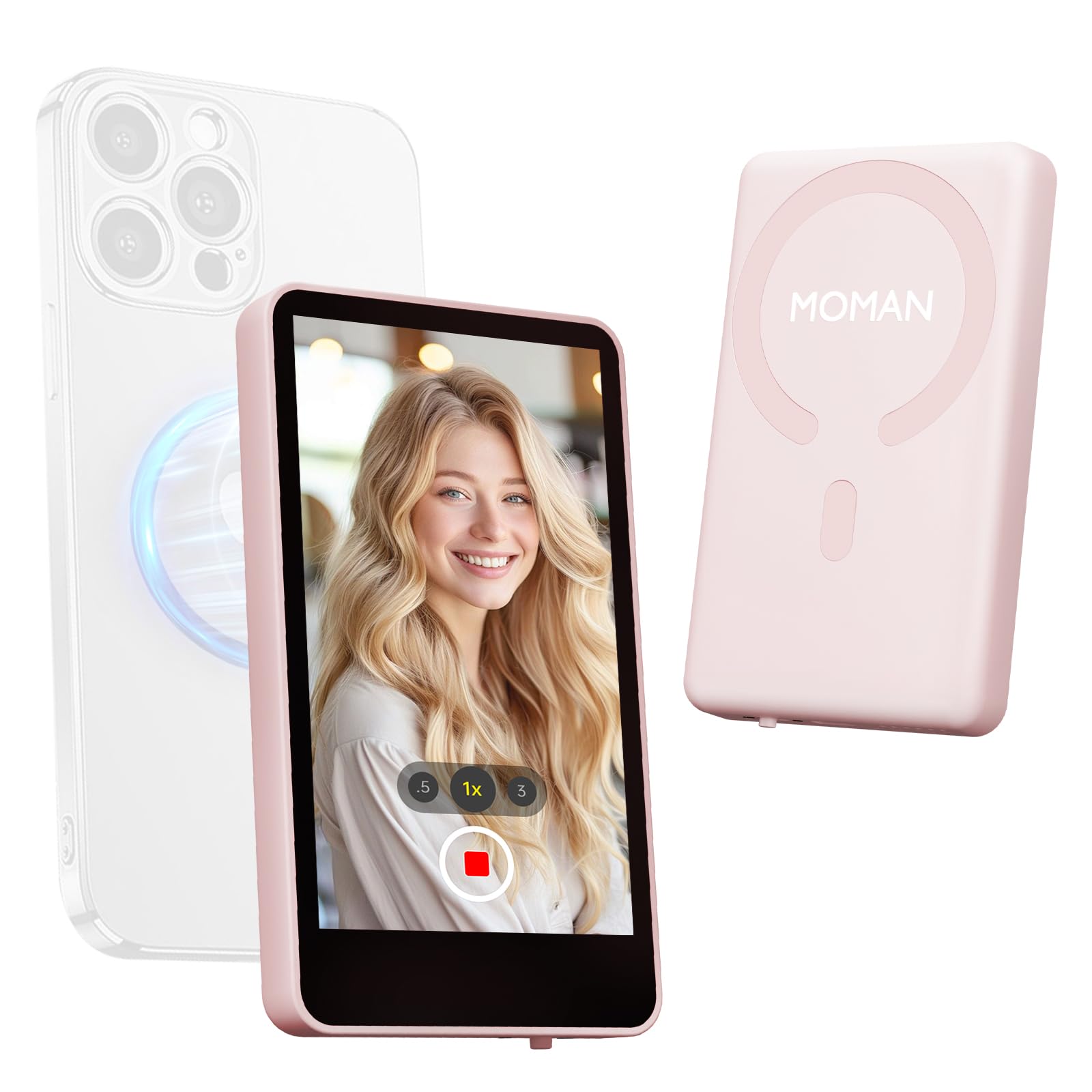
Image: The Moman Xview M4 Pro Selfie Monitor shown attached to a smartphone rig, demonstrating its compact size and mounting flexibility.
5. Дастурҳои истифодабарӣ
5.1 Фурӯзон/хомӯш кардан
To power on the monitor, press and hold the power button located on the side/back of the device for approximately 3 seconds. The screen will illuminate. To power off, press and hold the power button again until the screen turns off.
5.2 Connecting to a Smartphone
The Moman Xview M4 Pro connects wirelessly to your smartphone (iPhone 7-17 Series & Android). Follow these steps:
- Боварӣ ҳосил кунед, ки Bluetooth ва Wi-Fi-и смартфони шумо фаъол аст.
- Download and install the dedicated Moman Xview барнома аз мағозаи барномаҳои смартфони худ.
- Open the Moman Xview app and follow the on-screen instructions to pair with the M4 Pro monitor. The app will guide you through the connection process, typically involving selecting the monitor from a list of available devices.
- Once connected, your smartphone's camera feed will be mirrored on the M4 Pro monitor.
For optimal performance, ensure your smartphone and the monitor are within close proximity and free from wireless interference.
5.3 Функсияҳои монитор
The M4 Pro monitor provides various functions to enhance your selfie and video recording experience:
- Мониторинги вақти воқеӣ: View your smartphone's camera feed in real-time.
- Танзими равшанӣ: Use the dedicated buttons or app controls to adjust screen brightness.
- Mirror/Flip Function: Some models or app versions may offer options to mirror or flip the display for specific shooting scenarios. Refer to the app for available features.
- Нишондиҳандаи батарея: The monitor displays its current battery level.
6. Нигоҳдорӣ
6.1 Тозакунӣ
To clean the monitor, use a soft, dry, lint-free cloth. For stubborn smudges, lightly dampen the cloth with water or a screen-cleaning solution. Do not use harsh chemicals or abrasive materials.
6.2 Нигоҳдорӣ
When not in use, store the monitor in a cool, dry place, away from direct sunlight and extreme temperatures. It is recommended to use the original packaging or a protective case to prevent scratches and damage.
7. Баррасии мушкилот
| Мушкилот | Сабаби эҳтимолӣ | Ҳалли |
|---|---|---|
| Монитор фаъол нест. | Батареяи кам. | Charge the monitor using the provided USB-C cable. |
| Cannot connect to smartphone. | Bluetooth/Wi-Fi off; App not installed; Monitor not in pairing mode; Interference. | Ensure Bluetooth/Wi-Fi are on. Install Moman Xview app. Restart monitor and app. Move closer to the monitor. |
| Экран холӣ ё милт-милт мекунад. | Loose connection; Software glitch. | Ensure secure connection. Restart monitor and smartphone. Check for app updates. |
Агар мушкилот пас аз санҷидани ин роҳҳои ҳал идома ёбад, лутфан бо дастгирии муштариёни Moman тамос гиред.
8. Мушаххасоти
| Хусусият | Тафсилот |
|---|---|
| Модели | Xview M4 Pro |
| Пайвастшавӣ | Wireless (Bluetooth/Wi-Fi) |
| Мутобиқати | iPhone 7-17 Series & Android smartphones |
| Андозаҳо | 12.19 x 9.91 x 1.9 см (тақрибан) |
| Вазн | 168 грамм (тақрибан) |
| Манбаи нерӯ | USB-C (internal rechargeable battery) |
Мушаххасот бояд бидуни огоҳӣ тағир дода шавад.
9. Кафолат ва дастгирӣ
Moman products are covered by a limited warranty. For detailed warranty terms and conditions, please refer to the warranty card included with your product or visit the official Moman webсайт.
For technical support, troubleshooting assistance, or service inquiries, please contact Moman customer support through their official webсайт ё маълумоти тамос, ки дар бастаи маҳсулоти шумо оварда шудааст.
Момани расмӣ Webсайт: www.moman.co
Ask a question about this manual
Ask about setup, troubleshooting, compatibility, parts, safety, or missing instructions. Manuals+ will review the question and use this page’s manual context to help answer it.