1. Муқаддима
The SteelSeries Sensei Laser Gaming Mouse is designed for precision and customization, catering to both casual and competitive gamers. It features an advanced laser sensor, an ambidextrous design, and extensive customization options through its dedicated software. This manual provides detailed instructions for setup, operation, maintenance, and troubleshooting to ensure optimal performance of your device.

Тасвири 1: Аз боло ба поён view of the SteelSeries Sensei Laser Gaming Mouse, showcasing its sleek grey finish and central scroll wheel.
2. Мундариҷаи баста
Лутфан тасдиқ кунед, ки ҳама ашё дар бастаи шумо мавҷуданд:
- SteelSeries Sensei Laser Gaming Mouse
- Дастури оғози зуд (агар дохил карда шуда бошад)

Image 2: Retail packaging for the SteelSeries Sensei Laser Gaming Mouse, displaying the product name and brand logo.
3. Танзимот
3.1 Пайвасти сахтафзор
- Unpack the SteelSeries Sensei Laser Gaming Mouse from its packaging.
- Connect the USB cable of the mouse to an available USB port on your computer. The mouse is plug-and-play compatible, and your operating system should automatically detect and install the necessary basic drivers.
3.2 Насби нармафзор (SteelSeries Engine)
For full customization and advanced features, it is recommended to install the SteelSeries Engine software:
- Боздид аз SteelSeries-и расмӣ webсайт (steelseries.com/engine) to download the latest version of the SteelSeries Engine software.
- Барои насб кардани нармафзор дастурҳои дар экран бударо иҷро кунед.
- Once installed, launch the SteelSeries Engine to configure your mouse settings, including CPI, button assignments, macros, and lighting effects.
Тасвири 3: Поён view of the SteelSeries Sensei Laser Gaming Mouse, showing the laser sensor and product information label.
4. Истифода бурдани муш
4.1 Тарҳрезии дутарафа
The Sensei mouse features an ambidextrous shape, making it comfortable for both left-handed and right-handed users. The side buttons are mirrored on both sides to accommodate different grip styles and preferences.
4.2 Тугмаҳои барномарезишаванда
The mouse is equipped with 7 programmable buttons. These buttons can be customized using the SteelSeries Engine software to perform various functions, including:
- Standard mouse clicks (left, right, middle)
- Keyboard key assignments
- Complex macros
- CPI switching

Тасвир 4: Тараф view of the SteelSeries Sensei Laser Gaming Mouse, highlighting the two programmable side buttons.
4.3 CPI Adjustment
The Sensei mouse allows for on-the-fly CPI (Counts Per Inch) adjustment. The dedicated CPI indicator button, typically located behind the scroll wheel, allows you to cycle between two user-defined CPI settings. These settings can be configured within the SteelSeries Engine software to match your preferred sensitivity levels for different tasks or games.
4.4 Равшанӣ
The mouse features three-zone illumination: the scroll wheel, the CPI indicator, and the SteelSeries logo. The color and lighting effects (e.g., steady, pulse) for these zones can be customized through the SteelSeries Engine software.
5. SteelSeries Engine Software
The SteelSeries Engine is a powerful software suite that unlocks the full potential of your Sensei mouse. Key functionalities include:
- Харитасозии тугмаҳо: Assign any function, keyboard key, or macro to any of the 7 programmable buttons.
- CPI Settings: Fine-tune and save multiple CPI profiles барои барномаҳо ё бозиҳои гуногун.
- Муҳаррири макро: Create and manage complex macros for in-game actions or productivity tasks.
- Сатҳи овоздиҳӣ: Барои вокуниши беҳтарин, суръати пурсиши мушро танзим кунед.
- Назорати равшанӣ: Customize LED colors and effects for the scroll wheel, CPI indicator, and logo.
- Profile Идоракунӣ: Якчанд профессионалро эҷод ва захира кунедfiles, allowing you to switch between different configurations quickly.
- Навсозии нармафзор: Keep your mouse's firmware up-to-date for improved performance and new features.

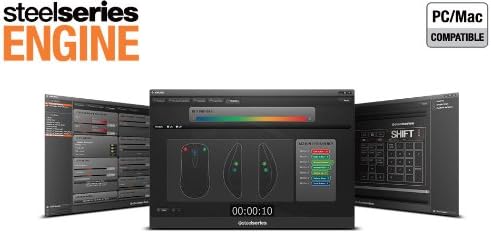
Image 5: Screenshot of the SteelSeries Engine software interface, showing options for button mapping, CPI adjustment, and lighting customization.
6. Нигоҳдорӣ
To ensure the longevity and optimal performance of your SteelSeries Sensei mouse, follow these maintenance guidelines:
- Тозакунӣ: Барои тоза кардани сатҳи муш аз матои нарм ва хушк истифода баред. Барои ифлосиҳои якрав, каме тоза кунед.amp матоъро истифода бурдан мумкин аст, аммо боварӣ ҳосил кунед, ки намӣ ба муш надарояд. Аз маводи кимиёвии сахт ё тозакунандаҳои абразивӣ худдорӣ кунед.
- Нигоҳубини сенсор: Keep the laser sensor on the bottom of the mouse clean and free from dust or debris. Use a cotton swab or compressed air if necessary.
- Идоракунии кабелӣ: Барои пешгирӣ аз осеб дидан аз хамшавии тез ё кашидани аз ҳад зиёди сими USB худдорӣ кунед.
7. Баррасии мушкилот
If you encounter issues with your SteelSeries Sensei mouse, refer to the following common solutions:
- Муш ҷавоб намедиҳад:
- Боварӣ ҳосил кунед, ки сими USB ба компютери шумо бехатар пайваст шудааст.
- Кӯшиш кунед, ки мушро ба порти дигари USB пайваст кунед.
- Компютери худро бозоғоз намоед.
- Пайгирии номувофиқ:
- Clean the laser sensor on the bottom of the mouse.
- Боварӣ ҳосил кунед, ки шумо мушро дар рӯи мувофиқ истифода мебаред (масалан, тахтаи муш).
- Check for dust or debris on your mouse pad.
- Тугмаҳо кор намекунанд:
- Verify button assignments in the SteelSeries Engine software.
- Ensure the software is running correctly and profiles бор карда мешаванд.
- Масъалаҳои нармафзор:
- Update the SteelSeries Engine software to the latest version.
- Reinstall the SteelSeries Engine software.
- Check for any available firmware updates for your mouse within the software.
8. Мушаххасоти
| Хусусият | Тафсилот |
|---|---|
| Бренд | SteelSeries |
| Рақами модел | 62150 |
| Технологияи муайянкунии ҳаракат | Лазер |
| Технологияи пайвастшавӣ | USB |
| Ранги | Грей |
| Платформаи сахтафзор | PC |
| Мутобиқати системаи оператсионӣ | All Major PC Operating Systems |
| Вазни ашё | 14.6 унция |
| Андозаҳои маҳсулот (LxWxH) | 7.9 x 6.8 x 2.3 инч |
| Тугмаҳои барномарезишаванда | 7 |
| Illumination Zones | 3 (Scroll Wheel, CPI Indicator, Logo) |
9. Кафолат ва дастгирӣ
The SteelSeries Sensei Laser Gaming Mouse is covered by a manufacturer's warranty. For detailed information regarding warranty terms, conditions, and duration, please refer to the warranty card included with your product or visit the official SteelSeries website. For technical support, driver downloads, and frequently asked questions, please visit the SteelSeries support page.
SteelSeries Official Webсайт: steelseries.com
Дастгирии SteelSeries: support.steelseries.com


