1. Маҳсулот ба охир расидview
The Gioteck EX-05S High Definition Headset is designed to deliver superior stereo game sound and crystal-clear voice communication. It is compatible with multiple platforms including PS4, PS3, Xbox 360, PC, and Mac. This headset features 40mm high-quality stereo drivers, a noise-isolating microphone, and breathable micro-fibre ear cups for extended comfort.
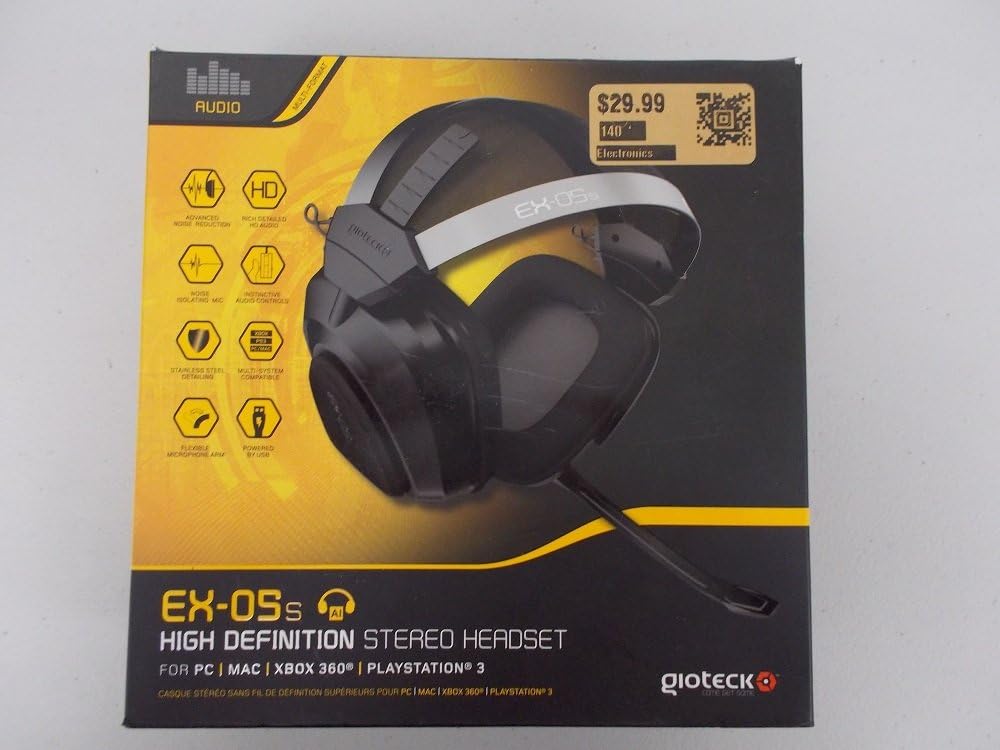
Figure 1.1: Gioteck EX-05S Headset packaging, highlighting key features and compatibility.

Расми 1.2: Тараф view of the Gioteck EX-05S Headset, showing the ear cup and microphone arm.
2. Хусусиятҳо
- 40mm High Quality Stereo Drivers: Delivering rich, detailed audio for an immersive gaming experience.
- Микрофони изолятсионии садо: Designed to eliminate echo and external noise for clear communication.
- Breathable Micro-Fibre Ear Cups: Ensures comfort during long gaming sessions.
- Кам кардани садои пешрафта: Minimizes game sound interference from external speakers.
- Flexible and 180-Degree Rotating Microphone Arm: Allows for optimal microphone positioning.
- Instinctive and Accessible Controls: Conveniently located controls for voice and game sound adjustments.
- Stainless Steel Detailing: Provides durability and a premium finish.
- Мутобиқати бисёр платформа: Works with PS4, PS3, Xbox 360, PC, and Mac.
3. Мундариҷаи баста
Лутфан боварӣ ҳосил кунед, ки ҳамаи ашёҳои зерин дар бастаи шумо мавҷуданд:
- Gioteck EX-05S Universal High Definition Stereo Headset
4. Дастури насб
4.1 Connecting to Gaming Consoles (PS4, PS3, Xbox 360)
- Locate the 3.5mm audio jack on your gaming controller or console.
- Insert the 3.5mm connector from the EX-05S headset firmly into the audio jack.
- Ensure your console's audio settings are configured to output game audio and chat through the connected headset. Refer to your console's system settings for specific audio output configurations.
4.2 Пайвастшавӣ ба компютер/Mac
- For PCs with separate audio and microphone jacks, you may need a PC splitter cable (not included) to connect the single 3.5mm headset jack to your computer's audio output and microphone input ports.
- For devices with a combined 3.5mm audio/microphone jack, simply plug the headset's 3.5mm connector directly into the port.
- Adjust your computer's sound settings to select the EX-05S headset as the default playback and recording device.
5. Дастурҳои истифодабарӣ
5.1 Назорати баландии овоз
The EX-05S headset features an inline control box on the cable. Use the volume dial to adjust the overall audio level of your game and chat sound.
5.2 Хомӯш кардани микрофон
A switch or button on the inline control box allows you to quickly mute or unmute your microphone. Ensure the microphone is unmuted when you wish to communicate.
5.3 Ҷойгиркунии микрофон
The flexible microphone arm can be rotated 180 degrees. Position the microphone approximately 1-2 inches from your mouth for optimal voice clarity and to minimize background noise.
6. Нигоҳдорӣ ва нигоҳубин
- Тозакунӣ: Use a soft, dry cloth to clean the headset. For ear cups, a slightly damp cloth can be used, but ensure no moisture enters the speaker grilles. Do not use harsh chemicals or abrasive cleaners.
- Нигоҳдорӣ: Store the headset in a cool, dry place away from direct sunlight and extreme temperatures. Avoid tangling the cable.
- Муносибат: Always grasp the plug when disconnecting the cable, rather than pulling on the cable itself, to prevent damage to the wiring.
- Косаҳои гӯш: The breathable micro-fibre ear cups can be gently wiped clean. Avoid excessive pressure or stretching.
7. Баррасии мушкилот
7.1 No Sound from Headset
- Боварӣ ҳосил кунед, ки сурохии 3.5 мм ба порти аудио пурра ворид карда шудааст.
- Check the inline volume control on the headset cable and ensure it is turned up.
- Verify your device's (console, PC, Mac) audio output settings are configured to send sound to the headset.
- Гӯшмонакро дар дастгоҳи дигар санҷед, то мушкилоти марбут ба дастгоҳро истисно кунед.
7.2 Микрофон кор намекунад
- Check the microphone mute switch on the inline control box and ensure it is unmuted.
- Verify your device's (console, PC, Mac) microphone input settings are configured to receive input from the headset.
- Ensure the microphone arm is positioned correctly and not obstructed.
- Test the microphone on another device or application to confirm functionality.
7.3 Static or Distorted Audio
- Боварӣ ҳосил кунед, ки пайвастшавӣ бехатар аст ва аз партовҳо холӣ аст.
- Try adjusting the volume levels on both the headset and the connected device.
- Move away from potential sources of electromagnetic interference (e.g., Wi-Fi routers, cordless phones).
- Бо дигар манбаи аудио ё дастгоҳ озмоиш кунед.
8. Мушаххасоти
| Хусусият | Тафсилот |
|---|---|
| Номи модел | E5SUNI-11-MU |
| Технологияи пайвастшавӣ | Симдор |
| Компонентҳои дохилшуда | Гӯшмонакҳо |
| Давраи синну сол (Тавсиф) | Калонсол |
| Материал | Пулоди Зангнамезадагӣ |
| Истифодаи мушаххас барои маҳсулот | Бозӣ |
| Дастгоҳҳои мувофиқ | Gaming Consoles, Computers |
| Навъи назорат | Назорати овоз |
| Хусусияти кабелӣ | Бозгаштшаванда |
| Вазни ашё | 669 грамм (1.47 фунт) |
| Усули назорат | Овоз |
| Навъи драйвери аудио | Ронандаи динамикӣ |
| Шакли гӯшмонак | Аз болои гӯш |
| Гӯшмонакҳо Jack | Ҷек 3.5 мм |
| Андозаҳои маҳсулот | 8.46 x 7.87 x 3.94 инч |
9. Кафолат ва дастгирӣ
Gioteck products are manufactured to high standards and undergo rigorous testing. For information regarding warranty coverage, technical support, or service, please refer to the official Gioteck webсайт ё бевосита бо дастгирии мизоҷони худ тамос гиред. Барои ҳама даъвоҳои кафолат далели хариди худро нигоҳ доред.
Барои гирифтани маълумоти мукаммали дастгирӣ, лутфан ба ин муроҷиат кунед: www.gioteck.com/support


