1. Муқаддима
This manual provides essential information for the safe and efficient operation of your Canon PIXMA iP8720 Wireless Inkjet Photo Printer. Please read this manual thoroughly before using the printer and retain it for future reference. The Canon PIXMA iP8720 is designed for high-quality photo and document printing, supporting various media sizes up to 13" x 19".
2. Маълумот оид ба бехатарӣ
- Always place the printer on a stable, level surface to prevent damage or injury.
- Do not block ventilation openings. Ensure adequate space around the printer for proper airflow.
- Use only the power cord supplied with the printer. Connect it to a grounded electrical outlet.
- Keep the printer away from water or excessive moisture.
- Кӯшиш накунед, ки принтерро худатон қисм-қисм кунед ё таъмир кунед. Ба кормандони баландихтисос муроҷиат кунед.
- Картриджҳои сиёҳро аз дастрасии кӯдакон дур нигоҳ доред.
3. Мундариҷаи баста
Боварӣ ҳосил кунед, ки ҳама ашё дар баста мавҷуд аст:
- Canon PIXMA iP8720 Wireless Inkjet Photo Printer
- Setup CD-ROM (for Windows/Mac)
- Сими барқ
- Setup Ink Tanks (PGI-250 Pigment Black, CLI-251 Cyan, CLI-251 Magenta, CLI-251 Yellow, CLI-251 Gray, CLI-251 Black)
- Сари чоп
- USB Cable (may be sold separately)
- Дастурҳо ва дигар ҳуҷҷатҳо
4. Танзимот
4.1. Unboxing and Physical Placement
Carefully remove the printer from its packaging. Remove all protective tapes and packing materials. Place the printer on a flat, stable surface with adequate space for paper loading and output. Connect the power cord to the printer and a wall outlet.

Расми 1: Пеш view of the Canon PIXMA iP8720 printer with a photo being printed.
4.2. Ink Tank Installation
- Сарпӯши болоии принтерро кушоед.
- Remove each ink tank from its packaging.
- Carefully insert each ink tank into its corresponding slot, matching the color and shape. Press down until it clicks into place.
- Close the top cover. The printer will perform an initial setup process.

Расми 2: Интерьер view of the Canon PIXMA iP8720 printer showing the ink tank compartments.
4.3. Насби нармафзор ва драйверҳо
Insert the Setup CD-ROM into your computer's drive and follow the on-screen instructions. Alternatively, download the latest drivers and software from the official Canon website by searching for "Canon iP8720 drivers".
4.4. Wireless (Wi-Fi) Setup
The Canon iP8720 supports wireless connectivity. For optimal performance, ensure your Wi-Fi network is stable and strong. If you encounter connectivity issues, consider connecting the printer directly to your computer via a USB cable for a more reliable and faster data transfer.
Видео 1: Ба охир расидview of the Canon IP8720 Wireless Printer, highlighting its features and connectivity options.
5. Истифода бурдани принтер
5.1. Боркунии коғаз
Open the paper support and extend the output tray. Adjust the paper guides to fit the width of your paper. Load paper into the rear tray with the print side facing up. The printer supports various paper types and sizes, including glossy photo paper and large formats up to 13" x 19".
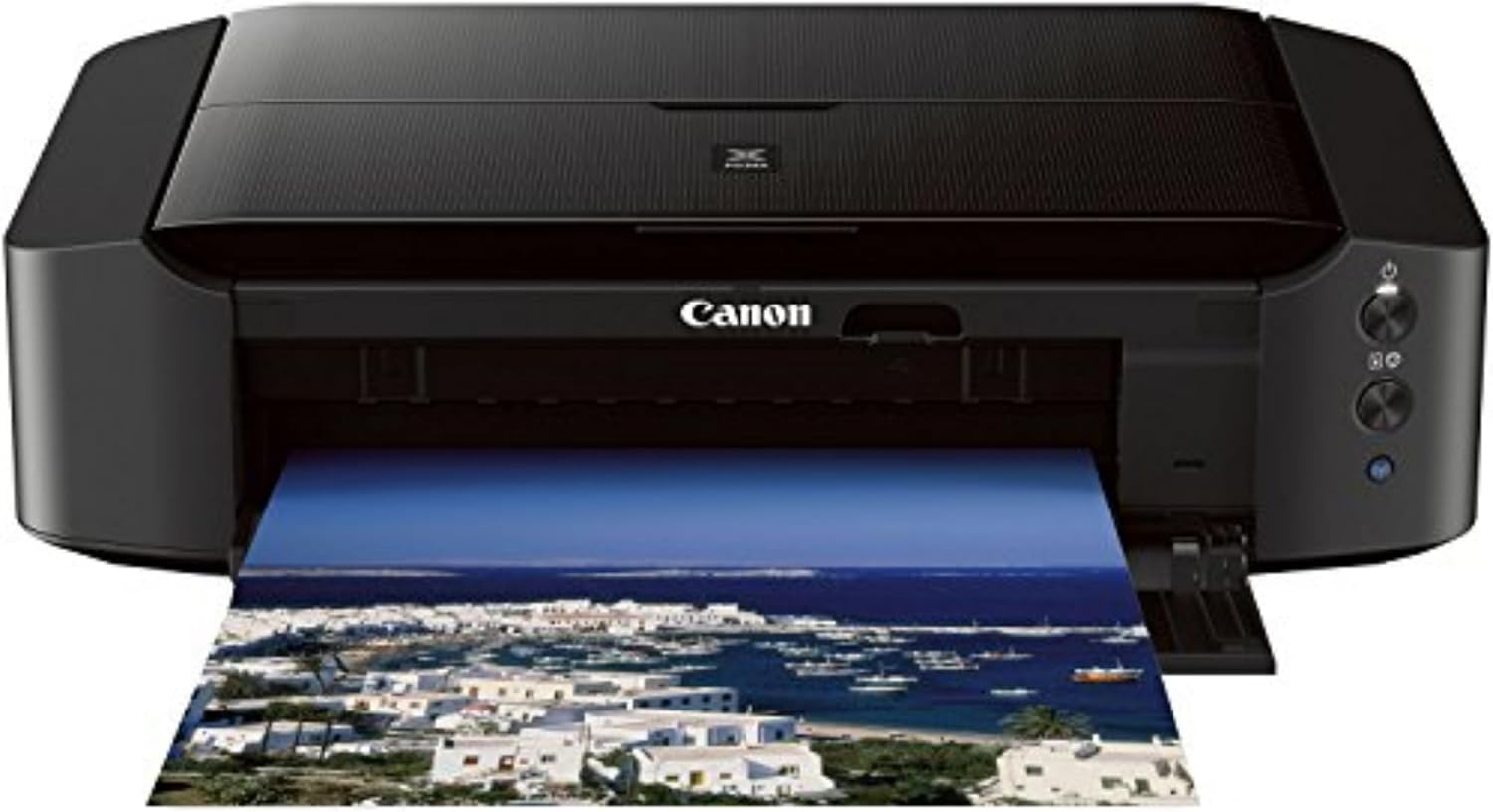
Figure 3: The Canon PIXMA iP8720 printer with paper loaded in the rear tray, ready for printing.
5.2. Чоп кардани хуччатхо ва суратхо
From your computer or mobile device, select the document or photo you wish to print. Access the print settings to choose paper type, size, print quality (e.g., standard, high), and other options. Confirm your selections and initiate the print job. The printer offers fast print speeds of 14.5 images per minute (ipm) for black and 10.4 ipm for color.
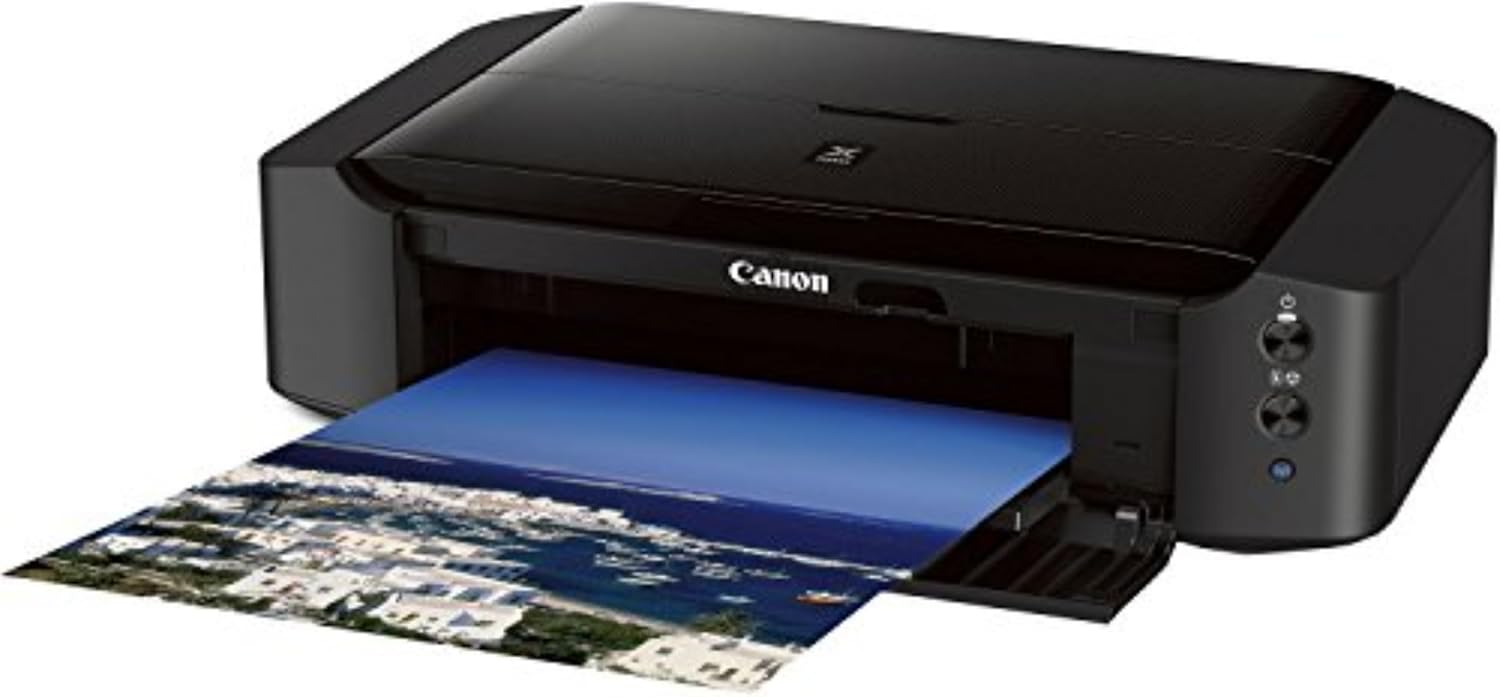
Figure 4: The Canon PIXMA iP8720 printer in operation, with a printed photo emerging from the front output tray.
5.3. Special Printing Features
- Чопи бидуни сарҳад: Print photos without margins up to 13" x 19".
- CD/DVD Printing: Utilize the included disc tray to print directly onto compatible CDs and DVDs.
- AirPrint: Print wirelessly from compatible iPhone, iPad, or iPod touch devices without needing drivers.
- Чопи абрии Google: Print from Gmail and Google Docs on mobile devices, or from Google Chrome browser on various operating systems.
- PIXMA Printing Solutions (PPS): Use the free PPS app to print photos and documents from your compatible mobile device.
- Full HD Movie Print: Software that allows printing still images from Full HD movie clips captured with select Canon cameras.
- My Image Garden: Software for organizing and printing photos with features like facial recognition and automatic layout suggestions.
- Creative Park Premium: An exclusive service for users of genuine Canon inks, offering access to photos, templates, and more.
- Ҳолати ором: Reduces operational noise for printing in quiet environments.
- Wireless PictBridge: Print photos directly from a wireless PictBridge (DPS over IP) compatible camera without a computer.
6. Нигоҳдорӣ
6.1. Ink Tank Replacement
When an ink tank runs low or is empty, the printer's indicator light will signal. Replace empty tanks with genuine Canon ink tanks (PGI-250 Pigment Black, CLI-251 Cyan, CLI-251 Magenta, CLI-251 Yellow, CLI-251 Gray, CLI-251 Black). Using non-genuine inks may affect print quality and printer longevity.
6.2. Print Head Cleaning and Alignment
If print quality degrades (e.g., streaks, faded colors), perform a print head cleaning or alignment through the printer's utility software on your computer. Regular maintenance helps maintain optimal print quality.
6.3. Тозакунии умумӣ
берунии принтерро бо нарм пок кунед, гamp cloth. Avoid using abrasive cleaners or solvents. Keep the paper path clear of dust and debris.
7. Баррасии мушкилот
- Принтер ҷавоб намедиҳад: Check power connections, USB cable (if wired), and Wi-Fi connection. Restart the printer and computer.
- Сифати пасти чоп: Perform print head cleaning and alignment. Ensure genuine Canon ink tanks are used and not expired. Check paper type settings.
- Роҳбандии коғаз: Carefully remove any jammed paper following the instructions in the printer's on-screen guide or Canon support webсайт.
- Масъалаҳои пайвасти бесим: Ensure your router is functioning correctly and the printer is within range. Re-run the wireless setup process. Consider a wired USB connection if wireless remains unstable.
For further assistance, refer to the comprehensive help section on the official Canon webсомона ё бо дастгирии мизоҷон Canon тамос гиред.
8. Мушаххасоти
| Андозаҳои маҳсулот | 13.1"D x 23.3"W x 6.3"H |
| Вазни ашё | 18.6 фунт |
| Технологияи чоп | Inkjet |
| Технологияи пайвастшавӣ | Wi-Fi, Wired (USB) |
| Андозаи максималии медиа | 13 x 19 дюйм |
| Ҳаҷми максималии чопи ранг | 9600 x 2400 dpi |
| Суръати максималии чоп (монохромӣ) | 14.5 саҳм |
| Суръати максималии чоп (ранга) | 10.4 саҳм |
| Ранги ранг | Black, Gray, Cyan, Magenta, Yellow |
| Хусусиятҳои махсус | Borderless Printing, Auto Power On, CD-Printing, Auto Power Off |
| Рақами модел | 8746B002 |
| UPC | 013803230840 |
9. Кафолат ва дастгирӣ
The Canon PIXMA iP8720 Wireless Inkjet Photo Printer comes with a limited warranty. For detailed warranty information, product support, and service, please visit the official Canon webсайт ё шӯъбаи хидматрасонии муштариёни онҳо тамос гиред. Квитансияи хариди худро ҳамчун далели харид барои даъвоҳои кафолат нигоҳ доред.


