Муқаддима
Ташаккур ба шумо барои харидasing the DIAFIELD 1byone Ultra-Thin Wireless Keyboard. This manual provides detailed instructions on how to set up, operate, and maintain your new keyboard. Please read this manual thoroughly before use to ensure optimal performance and longevity of your device.
Маҳсулот ба охир расидview
The DIAFIELD 1byone Ultra-Thin Wireless Keyboard is designed for versatility and convenience, featuring a compact design, a multi-function touchpad, and broad compatibility.

Figure 1: DIAFIELD 1byone Wireless Keyboard
Хусусиятҳои асосӣ:
- Ultra Portability: Designed for use anywhere, anytime, with your smartphone, tablet, or Smart TV. Its compact design ensures easy transport and quick setup.
- Touchpad ҳамгирошуда: Features an ultra-thin touchpad that functions as a mouse, supporting various pre-set gestures for convenient navigation. The touchpad can also be disabled if not needed.
- Муҳлати батареяи устувор: Equipped with a 500 mAh built-in battery, providing up to 4 months of standby time or 90 hours of continuous use on a single charge.
- Spanish QWERTY Layout: Specifically designed for Spanish speakers, including common Spanish symbols and the 'Ñ' key. Ensure your system's keyboard language is set to Spanish for proper functionality.
- Пайвастшавӣ ба Bluetooth 3.0: Ensures fast and stable connections with tablets and other devices, providing synchronous input without delay. Setup is quick and easy.

Figure 2: Touchpad and Function Keys

Figure 3: Type-C Charging and Battery Life
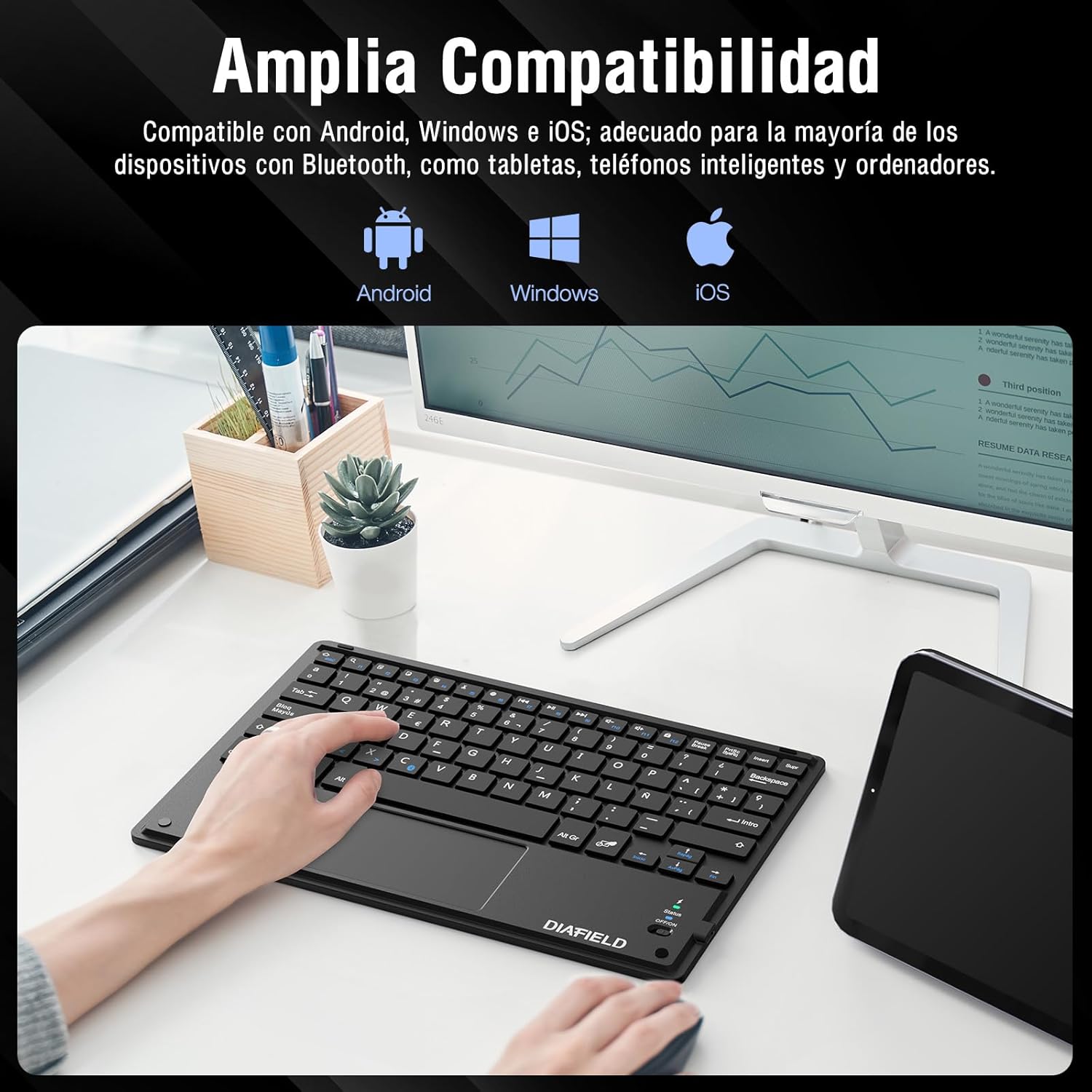
Расми 4: Мутобиқати васеи дастгоҳ

Figure 5: Scissor-Type Key Mechanism

Figure 6: Compact and Lightweight Design

Figure 7: Multi-touch Gestures

Figure 8: Keyboard in Use with Tablet
Дастури насб
1. Пуркунии клавиатура
Before first use, ensure the keyboard is fully charged. Connect the provided USB-C cable to the keyboard's charging port and the other end to a USB power source (e.g., computer, wall adapter). The charging indicator light will show the charging status.
- Charging time: Less than 4 hours.
- Иқтидори батарея: 500 мАч.

Figure 9: Charging the Keyboard
2. Ҷуфти Bluetooth
Follow these simple steps to pair your keyboard with your device:
- Turn on the keyboard by sliding the power switch to the "ON" position. The status indicator light will illuminate.
- Activate Bluetooth on your device (tablet, smartphone, computer, Smart TV).
- On your device, search for available Bluetooth devices. The keyboard will appear as "DIAFIELD KEYBOARD" or similar.
- Select the keyboard from the list to initiate pairing. Your device may prompt you to enter a pairing code displayed on the screen. Type this code on the keyboard and press Enter.
- Once paired, the status indicator light on the keyboard will turn off or change color, indicating a successful connection.
The keyboard supports quick connection and pairing with iOS, Android, and Windows systems.

Figure 10: Bluetooth Pairing on a Smartphone
Дастурҳои амалиётӣ
1. Истифодаи панели сенсорӣ
The integrated touchpad supports various multi-touch gestures to enhance your productivity:
- Клики чап: Single tap with one finger.
- Клики рост: Tap with two fingers.
- Баланд кардан/Кум кардан: Бо ду ангушт чин кунед ё берун кунед.
- Scroll/Explore: Drag two fingers up or down, or left or right.
- Иваз кардани Windows: Swipe three fingers horizontally.
- Open Task Manager (Windows): Swipe three fingers upwards.
Figure 11: Touchpad Multi-touch Gestures
2. Тугмаҳои функсионалӣ
The top row of keys (F1-F12) includes multimedia and shortcut functions. To use these functions, press the Fn тугмаро ҳамзамон бо тугмаи функсияи дилхоҳ пахш кунед.
| Комбинатсияи калидҳо | Функсия |
|---|---|
| Fn + Esc | Хона |
| Fn + F1 | кофтуков |
| Fn + F2 | Нусхабардорӣ |
| Fn + F3 | Бурида |
| Fn + F4 | Часбонед |
| Fn + F5 | Паст кардани овоз |
| Fn + F6 | Баланд бардоштани овоз |
| Fn + F7 | Треки қаблӣ |
| Fn + F8 | Бозӣ/Таваққуф |
| Fn + F9 | Треки навбатӣ |
| Fn + F10 | Хомӯш кардан |
| Fn + F11 | Ҳамаро интихоб кунед |
| Fn + F12 | Қулфи экран |

Figure 12: Keyboard Function Keys
Нигоҳдорӣ
Proper maintenance will extend the life of your keyboard:
- Тозакунӣ: Барои тоза кардани сатҳи клавиатура аз матои нарм, хушк ва бепаҷ истифода баред. Барои ифлосиҳои якрав, каме тоза кунед.ampМатоъро бо об ё маҳлули нарми тозакунанда бишӯед. Аз намӣ аз ҳад зиёд худдорӣ кунед.
- Нигоҳдорӣ: Клавиатураро дар ҷои хунук ва хушк, дур аз нури бевоситаи офтоб ва ҳарорати аз ҳад зиёд нигоҳ доред.
- Нигоҳубини батарея: To preserve battery life, avoid fully discharging the keyboard frequently. If storing for a long period, charge it to about 50% and recharge every few months.
- Аз моеъ худдорӣ кунед: Keep the keyboard away from liquids to prevent damage to internal components.
Мушкилкушо
Мушкилот ва роҳҳои ҳалли умумӣ:
- Клавиатура тавассути Bluetooth пайваст намешавад:
- Боварӣ ҳосил кунед, ки клавиатура пур карда шудааст ва фаъол аст.
- Боварӣ ҳосил кунед, ки Bluetooth дар дастгоҳи шумо фаъол аст.
- Кӯшиш кунед, ки клавиатураро аз танзимоти Bluetooth-и дастгоҳи худ ҷудо ва аз нав ҷуфт кунед.
- Ҳам клавиатура (хомӯш/фаъол) ва ҳам дастгоҳи худро аз нав фаъол созед.
- Characters typed do not match the keys (e.g., @ instead of "):
This often happens when the keyboard layout setting on your device does not match the physical layout of the keyboard (Spanish QWERTY). You need to change your device's keyboard input language to Spanish.
For Android devices, follow these general steps (may vary slightly by device model):
- Ба Танзимотҳо.
- Гузариш ба Идоракунии умумӣ (or System).
- Интихоб кунед Забон ва вуруд.
- Under "Physical keyboard" or "Keyboards," find your connected keyboard (e.g., "DIAFIELD KEYBOARD").
- Tap on the keyboard name and then select Тарҳҳои клавиатураро танзим кунед or Configure keyboard layouts.
- Ensure "Spanish (ES)" is selected or enabled. You might need to disable other languages.
- Alternatively, you can often switch layouts by pressing Ctrl + Spacebar дар клавиатура.

Figure 13: Resolving Keyboard Layout Mismatch
- Сенсорӣ ҷавоб намедиҳад:
- Ensure the touchpad is not accidentally disabled (check for a function key combination that toggles the touchpad).
- Сатҳи touchpad-ро тоза кунед.
- Клавиатураро тавассути Bluetooth аз нав пайваст кунед.
Мушаххасоти
| Хусусият | Тафсилот |
|---|---|
| Бренд | 1 BY ONE |
| Истеҳсолкунанда | ДИАФИЛЬД |
| Рақами модел | О0000-0713 |
| Андозаҳои маҳсулот | 25.8 х 17.2 х 0.4 см |
| Вазн | 259 гр |
| Ранги | Сиёҳ |
| Манбаи нерӯ | Батарея |
| Навъи батарея | Батареяи литийи ҳамгирошуда |
| Ҳаҷми батареяtage | 4.2 вольт |
| Шумораи батареяҳо | 1 |
| Платформаи сахтафзор | Computer, Laptop, Smartphone, Tablet, Television |
| Мутобиқати системаи оператсионӣ | iOS, Android, Windows |
| Технологияи пайвастшавӣ | Bluetooth 3.0 |
| Тавсифи клавиатура | Мултимедиа |
| Истифодаи тавсияшаванда | Истифодаи ҳаррӯза |
| Хусусияти махсус | Панели паймоиш |
| Шумораи калидҳо | 81 |
| Keyboard Backlight Color | Ранги ягона |
| Санаи аввалини дастрас | 24 августи соли 2015 |
Кафолат ва дастгирӣ
For warranty information and technical support, please refer to the contact details provided with your product packaging or visit the official 1 BY ONE webсайт. Квитансияи хариди худро ҳамчун далели харид барои ҳама даъвоҳои кафолат нигоҳ доред.
If you encounter any issues not covered in this manual, please contact customer support for assistance.


