1. тамомview
The GIGABYTE GA-X99-Phoenix SLI is an ATX motherboard designed for high-performance computing. It supports Intel Core i7 Broadwell-E processors on the LGA2011-3 socket and features the Intel X99 chipset. This motherboard is equipped with Quad Channel DDR4 memory support, multiple PCIe slots for 3-Way/2-Way SLI and CrossFire configurations, and advanced storage options including NVMe PCIe Gen3 x4 M.2 and U.2 interfaces. It also integrates Intel USB 3.1 with Type-C, dual Intel Gigabit Ethernet, and Intel 802.11ac wireless connectivity.
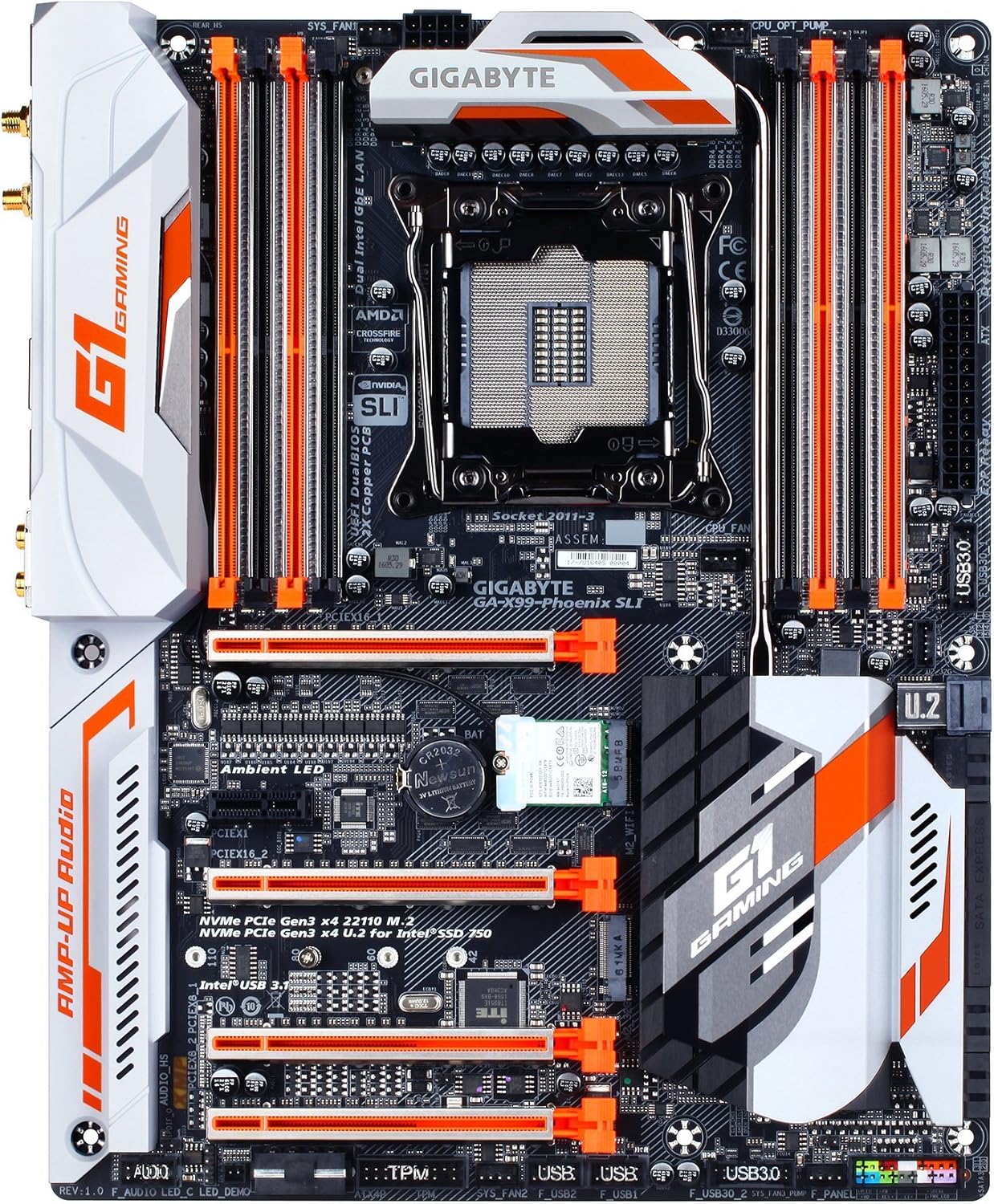
Расми 1: Аз боло ба поён view of the GIGABYTE GA-X99-Phoenix SLI motherboard, showcasing its layout including the CPU socket, RAM slots, PCIe slots, and various connectors.
2. Танзим ва насб
2.1 Рӯйхати санҷиши пеш аз насб
- Мутобиқати парванда: Ensure your PC case supports the E-ATX form factor. Standard ATX cases may not accommodate this motherboard.
- Протсессор: Verify you have an Intel Core i7 processor compatible with the LGA 2011-3 socket.
- Хотира: Use DDR4 DIMMs. The motherboard supports Quad Channel, Registered / Non-ECC Unbuffered DDR4.
- Таъмини нерӯ: A stable power supply unit (PSU) with sufficient wattage is crucial for system stability.
2.2 Насби motherboard
- Омода кардани парванда: Сипари I/O-ро дар кушодагии пушти корпуси компютери худ насб кунед.
- Монтажи плата: Carefully align the motherboard with the standoffs in your case and secure it with screws.
- CPU насб кунед: Open the CPU socket lever, align the CPU with the socket (matching the golden triangle on the CPU to the mark on the socket), gently place the CPU, and close the lever.
- CPU Cooler насб кунед: Сардкунандаи CPU-и интихобкардаатонро мувофиқи дастурҳои истеҳсолкунанда васл кунед.
- Хотира насб кунед (RAM): Open the clips on the DDR4 DIMM slots. Align the memory modules with the slots, ensuring the notch on the module matches the key in the slot. Press down firmly until the clips snap into place. For optimal performance, populate memory in a quad-channel configuration as recommended by the motherboard manual.
- Пайваст кардани барқ: Connect the 24-pin ATX main power connector and the 8-pin CPU power connector from your PSU to the motherboard.
- Пайваст кардани дастгоҳҳои нигоҳдорӣ: Connect SATA, M.2, or U.2 drives to the appropriate ports.
- Дастгоҳҳои перифериро пайваст кунед: Connect front panel headers (power, reset, USB, audio), USB devices, and other peripherals.

Расми 2: кунҷӣ view of the motherboard, highlighting the rear I/O panel and the layout of the PCIe and RAM slots.
2.3 Дастрасии ибтидоӣ ва дастрасии BIOS
After connecting all necessary components, power on your system. During the Power-On Self-Test (POST), press the ДЕЛ key repeatedly to enter the UEFI BIOS setup. You may also press the Поён key during POST to access Q-Flash for BIOS updates.
3. Коркарди платаи модарӣ
3.1 UEFI BIOS Navigation
The GIGABYTE UEFI BIOS provides a graphical interface for system configuration. While mouse navigation is available, some users may find the keyboard more responsive for precise control due to potential mouse lag within the BIOS environment.
3.2 Overclocking Features
This motherboard offers robust overclocking capabilities. For users new to overclocking, GIGABYTE's EasyTune utility (part of the APP Center) provides one-click overclocking options (e.g., 3.8GHz, 4.0GHz, 4.2GHz) for compatible CPUs. Memory overclocking can be adjusted directly in the BIOS by selecting desired speeds from a dropdown menu, allowing the motherboard to manage voltage settings automatically.
3.3 Утилитҳои нармафзор
Дар GIGABYTE APP Center provides access to various utilities, including:
- Осонсозӣ: For system tuning, monitoring, and overclocking.
- Истгоҳи абрӣ: For cloud-based data management and sharing.
- Other utilities for fan control, system information, and more.
3.4 Audio and Network
The motherboard features 115dB SNR HD Audio with a built-in rear audio amplifier for enhanced sound quality. Network connectivity is provided by Dual Intel Gigabit Ethernet LAN ports, which can be optimized with cFosSpeed Internet Accelerator Software, and integrated Intel 802.11ac Dual Band Wireless with Bluetooth 4.2.

Figure 3: Close-up of the rear I/O panel, showing various ports including USB, Ethernet, audio jacks, and wireless antenna connectors.
4. Нигоҳдорӣ
Батареяи 4.1 CMOS
The motherboard uses a Lithium Metal battery (CR2032) to retain BIOS settings and the system clock when the computer is powered off. If you experience issues with incorrect time/date or lost BIOS settings, the CMOS battery may need replacement. Refer to the motherboard diagram for its location.
4.2 Навсозии BIOS
GIGABYTE's Q-Flash Plus utility allows you to update the BIOS without installing a CPU, memory, or graphics card. Simply download the latest BIOS version from the GIGABYTE website, place it on a USB flash drive, and follow the instructions for Q-Flash Plus. Regular BIOS updates can improve system stability, compatibility, and performance.
5. Баррасии мушкилот
5.1 Масъалаҳои умумӣ
- System Fails to POST (Power-On Self-Test):
- Ҳама пайвастҳои барқро санҷед (24-pin ATX, 8-pin CPU).
- Боварӣ ҳосил кунед, ки CPU ва RAM дуруст ҷойгир шудаанд.
- Verify the CPU cooler is properly installed.
- Кӯшиш кунед, ки танҳо бо ҷузъҳои муҳим (CPU, як хотираи RAM, GPU, агар графикаи интегралӣ набошад) пурбор кунед.
- System Freezes or is Unstable:
- Ensure the BIOS is updated to the latest stable version. Early BIOS versions may have compatibility issues.
- Ҳарорати CPU ва GPU-ро санҷед, то аз ҳад зиёд гарм шуданро пешгирӣ кунед.
- Агар аз ҳад зиёд кор кунед, барои санҷидани устуворӣ ба танзимоти пешфарз баргардонед.
- Барои санҷидани якпорчагии RAM асбобҳои ташхиси хотираро иҷро кунед.
- No Debug Code LED: This motherboard does not feature a debug code LED. Troubleshooting will rely on beep codes (if enabled) or visual inspection of components.
- Mouse Lag in BIOS: This is a known characteristic for some users. Use keyboard navigation for a more responsive experience.
6. Мушаххасоти
| Хусусият | Мушаххасоти |
|---|---|
| Бренд | GIGABYTE |
| Номи модел | GA-X99-Phoenix SLI |
| Васлаки CPU | LGA 2011-3 |
| Протсессорҳои мувофиқ | Intel Core i7 (Broadwell-E) |
| Навъи чипсет | Intel X99 |
| Технологияи хотираи RAM | SDRAM DDR4 |
| Каналҳои хотира | Канали чоргона |
| Иқтидори максималии хотира | Up to 256 GB (8 DIMMs) |
| Интерфейси графикӣ | PCIe Gen3 x16 slots (Supports 3-Way/2-Way SLI & CrossFire) |
| Интерфейсҳои нигаҳдорӣ | NVMe PCIe Gen3 x4 22110 M.2, U.2, SATA Express, SATA 6Gb/s |
| Портҳои USB | Intel USB 3.1 (Type-A & Type-C), USB 3.0, USB 2.0 |
| LAN | Dual Intel Gigabit Ethernet |
| Пайвасти бесим | Intel 802.11ac Dual Band Wireless, Bluetooth 4.2 |
| Аудио | Аудиои 115dB SNR HD бо аудиои дарунсохти қафо Ampзиндатар |
| Формаи форма | E-ATX (14.48 x 12.2 x 3.85 inches) |
| Хусусиятҳои махсус | Ambient Surround LED, Ultra Durable Metal Shielding, Anti-Sulfur Resistors, Anti-Rust Rear I/O, Dual Hybrid Fan Headers, GIGABYTE UEFI Dual BIOS with Q-Flash Plus |
| Батареяи CMOS | 1 батареяи литий металлӣ лозим аст |