Муқаддима
The Intermec PB51 is a rugged, 4-inch direct thermal mobile receipt printer designed for demanding field service, route accounting, and point-of-service applications. It offers fast, reliable printing performance to enhance productivity for mobile workers.
This manual provides essential information for the proper setup, operation, maintenance, and troubleshooting of your PB51 printer.
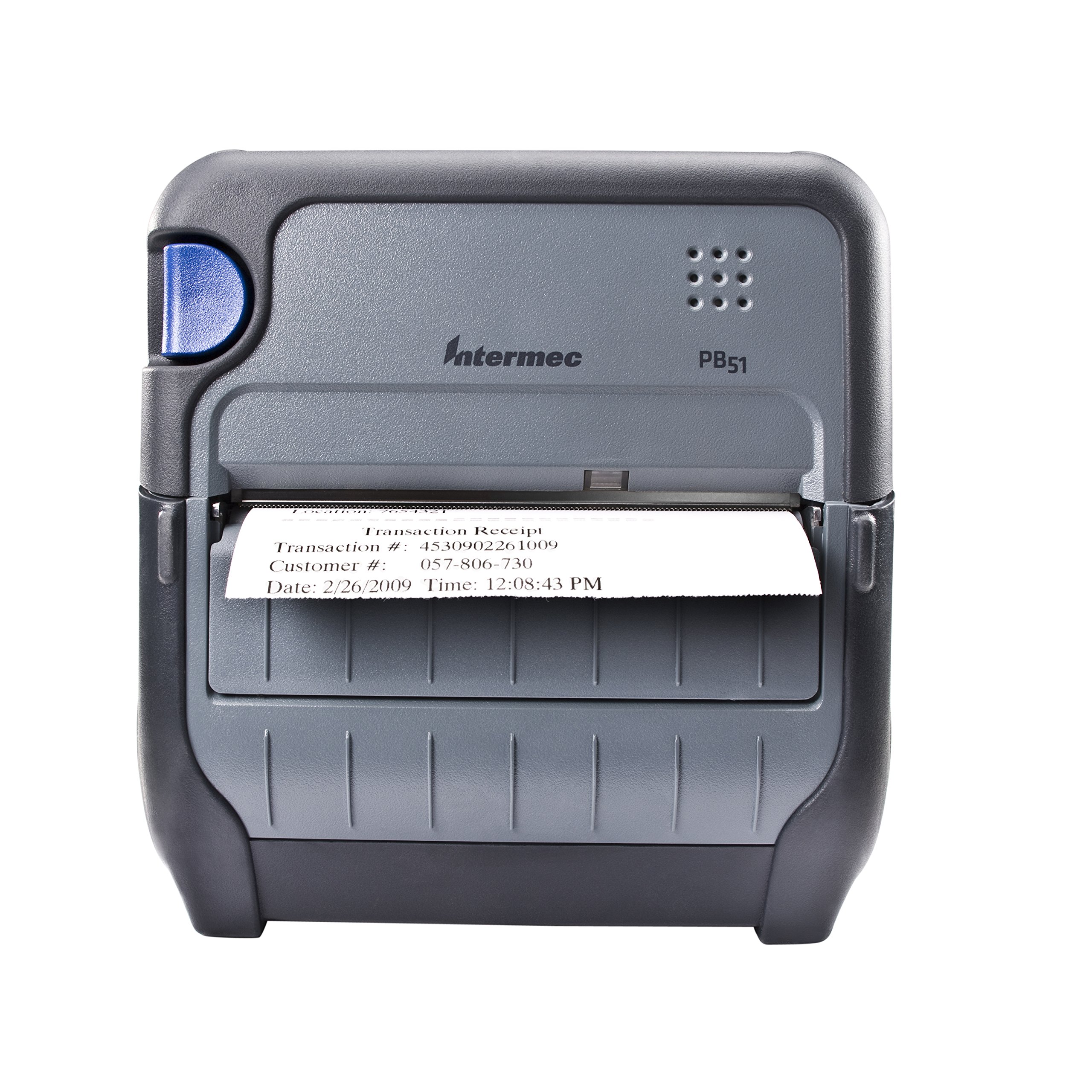
Расми 1: Пеш view of the Intermec PB51 mobile receipt printer. A receipt is partially ejected from the front slot, displaying "Transaction Receipt", "Transaction #: 4530902261009", "Customer #: 057-806-730", and "Date: 2/26/2009 Time: 12:08:43 PM". The printer features a dark gray casing with a blue button on the left side and the "Intermec PB51" logo on the top panel.
Ташкил кардан
1. Кушодан ва тафтиш
- Принтер ва ҳамаи лавозимотро аз бастабандӣ бодиққат хориҷ кунед.
- Боварӣ ҳосил кунед, ки ҳама ҷузъҳои дар варақаи бастабандӣ номбаршуда мавҷуданд.
- Inspect the printer for any visible damage. If damage is found, contact your supplier immediately.
2. Насб ва пуркунии батарея
- Боварӣ ҳосил кунед, ки принтер хомӯш аст.
- Locate the battery compartment on the printer.
- Insert the battery, ensuring proper alignment with the contacts.
- Қисмати батареяро бехатар пӯшед.
- Connect the AC adapter to the printer and a power outlet. The battery indicator light will show charging status. Allow the battery to fully charge before first use.
3. Боркунии коғази гармидиҳӣ
- Сарпӯши қисмати коғазро кушоед.
- Insert the thermal paper roll with the print-side facing the print head.
- Pull a small amount of paper out past the print mechanism.
- Close the paper compartment cover firmly until it latches.
- The printer's paper sensors will detect the paper, minimizing lost transactions.
4. Connectivity Setup (Bluetooth / USB / Serial)
- Блутуз: Turn on the printer and enable Bluetooth on your host device (e.g., smartphone, tablet, or computer). Ҷустуҷӯ available devices and select the PB51. Pair using the default PIN (refer to the printer's display or documentation for the specific PIN).
- USB: Connect the printer to your host device using a standard USB cable. Install the necessary printer drivers on your host device if prompted.
- Силсила: Connect the printer to your host device using a serial cable. Configure the serial port settings (baud rate, data bits, parity, stop bits) on both the printer and the host device to match.
Дастурҳои амалиётӣ
1. Фурӯзон/хомӯшкунӣ
- Барои фаъол кардан, тугмаи барқро то равшан шудани дисплей пахш карда нигоҳ доред.
- To power off, press and hold the power button until the display indicates shutdown, then release.
2. Printing a Receipt
- Ensure the printer is powered on and connected to your host device.
- Open the application on your host device that generates receipts or invoices.
- Initiate the print command from your application. The PB51 is designed for 20-30% faster time-to-receipt printing.
- The printer will automatically feed and print the receipt.
- Tear off the receipt along the serrated edge.
3. Using the LCD Display
The standard LCD display provides important information about the printer's status, battery level, connectivity, and error messages. Use the navigation buttons (if present) to scroll through menu options and settings.
Нигоҳдорӣ
1. Тоза кардани сари чоп
- Power off the printer and disconnect it from any power source.
- Ҳуҷраи коғазро кушоед.
- Gently wipe the print head surface with a lint-free cloth dampбо спирти изопропилӣ андохт.
- Пеш аз пӯшидани сарпӯш ва фурӯзон кардани принтер, ба сари чоп иҷозат диҳед, ки пурра хушк шавад.
- Perform this cleaning regularly, especially if print quality degrades.
2. Нигоҳубини батарея
- Барои ба ҳадди аксар дароз кардани мӯҳлати хизмати батарея, зуд-зуд холӣ кардани батареяро пешгирӣ кунед.
- Вақте ки принтер ва батареяро муддати тӯлонӣ истифода намебаред, онро дар ҷои хунук ва хушк нигоҳ доред.
- Use only genuine Intermec replacement batteries.
3. Тозакунии умумӣ
берунии принтерро бо нарм пок кунед, гamp cloth. Do not use harsh chemicals or abrasive cleaners. Ensure no liquid enters the printer's openings.
Мушкилкушо
| Мушкилот | Сабаби эҳтимолӣ | Ҳалли |
|---|---|---|
| Принтер фаъол нест | Low or dead battery; faulty power adapter; loose battery connection. | Charge the battery; check power adapter connection; re-seat the battery. |
| Натиҷаи чоп нест | No paper; paper loaded incorrectly; connectivity issue; print head dirty. | Load paper correctly; check Bluetooth/USB/Serial connection; clean print head. |
| Сифати чопи паст | Dirty print head; incorrect paper type; low battery. | Clean print head; ensure thermal paper is used; charge battery. |
| Масъалаҳои пайвастшавӣ | Incorrect pairing; driver issues; out of range. | Re-pair Bluetooth; reinstall drivers; move closer to host device. |
If the problem persists after attempting these solutions, please contact Intermec customer support.
Мушаххасоти
| Хусусият | Тафсилот |
|---|---|
| Номи модел | PB51B33004100 |
| Технологияи чоп | Гармии мустақим |
| Натиҷаи чопгар | Монохромӣ |
| Андозаи максималии медиа | 4 инч |
| Технологияи пайвастшавӣ | USB, Serial, Bluetooth |
| Вазни ашё | 42 унс (тақрибан 2.63 фунт) |
| Андозаҳои бастаҳо | 10.2 x 10 x 5 инч |
| Навъи назораткунанда | Android (мувофиқ) |
| Истеҳсолкунанда | Интермек |
Кафолат ва дастгирӣ
Specific warranty information for the Intermec PB51 printer is not available in this document. Please refer to the warranty card included with your product or visit the official Intermec (now Honeywell) webсайт барои шартҳо ва шартҳои кафолати муфассал.
For technical support, service, or to purchase accessories, please contact your authorized Intermec/Honeywell dealer or visit their official support portal.


