1. Муқаддима
This manual provides essential information for the safe and efficient operation of your Ricoh Aficio MP C3004 Color Laser Multifunction Copier. Please read this manual thoroughly before using the machine and keep it in a safe place for future reference. The Ricoh Aficio MP C3004 is designed for high-performance copying, printing, scanning, and faxing, featuring a 10.1-inch Smart Operation Panel and network connectivity.
2. Маълумот оид ба бехатарӣ
Observe the following safety precautions to prevent injury or damage to the machine.
- Таъмини нерӯ: Connect the machine to a grounded power outlet. Do not overload power strips.
- Ҷойгиршавӣ: Place the machine on a stable, level surface with adequate ventilation. Avoid direct sunlight, excessive heat, humidity, or dust.
- Муносибат: Do not attempt to disassemble or modify the machine. Refer all servicing to qualified personnel.
- Интиқоли мошин: When moving the machine, ensure all paper trays are closed and the power cord is disconnected. Use appropriate lifting techniques or assistance due to its weight.
- Кӯдакон: Мошинро аз дастрасии кӯдакон дур нигоҳ доред.
3. Танзимот
3.1 Кушодан ва ҷойгиркунӣ
Carefully remove the machine from its packaging. Ensure all packing materials are removed. Place the machine on a sturdy, level surface capable of supporting its weight. Allow sufficient space around the machine for ventilation and access to trays and covers.
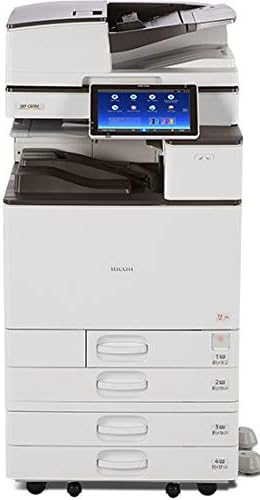
This image displays the complete Ricoh Aficio MP C3004 multifunction copier unit, featuring its main body, integrated stand, multiple paper input trays, and the Smart Operation Panel.
3.2 Пайвастшавии барқ
Connect the power cord securely to the machine and then to a grounded electrical outlet. Turn on the main power switch, usually located on the side of the machine.
3.3 Танзимоти ибтидоӣ ва танзимоти шабака
Upon first power-on, the 10.1-inch Smart Operation Panel will guide you through initial setup, including language selection and basic network settings. For network connectivity, you can use either a wired Ethernet connection or the built-in Wi-Fi. Access network settings via the Smart Operation Panel to configure IP addresses or connect to your wireless network.
3.4 Насби драйверҳо
Install the necessary printer and scanner drivers on your computer. The machine comes with a pre-installed PostScript 3 Supplement, ensuring compatibility with various operating systems and applications. Drivers can typically be found on the Ricoh support webсайт.
3.5 Боркунии коғаз
Open the desired paper tray and adjust the paper guides to fit the paper size. Load paper with the print side facing up (or as indicated by the tray diagram). Ensure the paper stack does not exceed the maximum fill line. The machine supports paper sizes up to 11" x 17" / A3 and various media types.
4. Дастурҳои истифодабарӣ
4.1 Using the Smart Operation Panel
The 10.1-inch Wide Super VGA Smart Operation Panel provides an intuitive interface for all machine functions. Tap, drag, swipe, and scroll to navigate through menus and applications. The home screen displays icons for common functions and allows for personalization with widgets.

Ин тасвир тафсилоти муфассалро нишон медиҳад view of the 10.1-inch Smart Operation Panel, highlighting its touch interface with icons for functions like Quick Copy, Printer, Quick Scanner, Document Server, Web Browser, and User Guide.
4.2 Нусхабардории ҳуҷҷатҳо
- Place your original document on the exposure glass or in the Automatic Document Feeder (ADF).
- On the Smart Operation Panel, select the 'Copy' application.
- Adjust settings such as quantity, color mode (color/black and white), duplex (auto duplex supported), paper tray, and zoom.
- Барои оғози нусхабардорӣ тугмаи "Оғоз" -ро пахш кунед.
4.3 Чопи ҳуҷҷатҳо
To print from a computer, ensure the drivers are installed and the machine is connected to the network. Select the Ricoh Aficio MP C3004 as your printer from your application's print dialog. Adjust print settings as needed (e.g., color, duplex, paper size) and send the print job. Mobile printing is also supported via Wi-Fi connectivity.
4.4 Сканкунии ҳуҷҷатҳо
- Place your original document on the exposure glass or in the ADF.
- Select the 'Scanner' application on the Smart Operation Panel.
- Choose your scan destination (e.g., Scan to Email, Scan to Folder, Scan to USB).
- Танзимоти сканро ба монанди ҳалли, ҳолати ранг ва file формат.
- Барои оғози сканкунӣ тугмаи "Оғоз" -ро пахш кунед.
4.5 Ҳуҷҷатҳои факс
To send a fax, place your document in the ADF. Select the 'Fax' application on the Smart Operation Panel. Enter the recipient's fax number using the on-screen keypad or select from an address book. Adjust any necessary settings and press 'Start' to send the fax.
5. Нигоҳдорӣ
5.1 Тоза кардани мошин
берунии машинаро бо нарм мунтазам тоза кардан дamp cloth. For the scanner glass, use a lint-free cloth and a mild glass cleaner. Avoid abrasive cleaners or solvents.
5.2 Replacing Toner Cartridges
The Smart Operation Panel will display a warning when a toner cartridge is low or empty. Follow the on-screen instructions or refer to the machine's internal guide for specific steps on replacing toner cartridges. Ensure you use genuine Ricoh toner for optimal performance.
5.3 Тоза кардани роҳбандиҳои коғаз
If a paper jam occurs, the Smart Operation Panel will indicate the location of the jam. Open the specified covers and carefully remove the jammed paper, pulling it gently in the direction of the paper path. Close all covers securely after clearing the jam.
6. Баррасии мушкилот
This section addresses common issues you might encounter with your Ricoh Aficio MP C3004.
- Мошин фаъол нест: Check the power cord connection and ensure the main power switch is on. Verify the power outlet is functional.
- Сифати пасти чоп: Check toner levels. Perform a print head cleaning or calibration from the maintenance menu on the Smart Operation Panel. Ensure you are using appropriate paper for your print settings.
- Роҳбандии коғаз: Refer to Section 5.3 for clearing paper jams. Ensure paper is loaded correctly and not creased or damaged.
- Масъалаҳои пайвастшавӣ ба шабака: Verify network cable connections or Wi-Fi settings. Restart the machine and your network router. Check IP address settings on the Smart Operation Panel.
- Smart Operation Panel Unresponsive: Try restarting the machine. If the issue persists, contact support.
7. Мушаххасоти
| Хусусият | Мушаххасоти |
|---|---|
| Функсияҳо | Copy, Print, Scan, Fax, Auto Duplex, Network, Wi-Fi |
| Суръати чоп | Up to 30 pages per minute (color and black & white) |
| Андозаи коғаз | Up to 11" x 17" / A3 |
| Намоиш | 10.1-inch Wide Super VGA Smart Operation Panel |
| Резолюция | 1200 x 1200 dpi (maximum) |
| Пайвастшавӣ | Ethernet, Wi-Fi |
| Рақами модел | 417483 |
8. Кафолат ва дастгирӣ
Your Ricoh Aficio MP C3004 is covered by a manufacturer's warranty. For specific warranty terms and conditions, please refer to the documentation provided at the time of purchase or visit the official Ricoh website. For technical support, driver downloads, or service requests, please contact Ricoh customer support or your authorized dealer.


