Муқаддима
This user manual provides comprehensive instructions for the setup, operation, maintenance, and troubleshooting of your Alienware M15 Gaming Laptop. Please read this manual thoroughly to ensure optimal performance and longevity of your device. For additional support, refer to the official Alienware support resources.
Маҳсулот ба охир расидview
Хусусиятҳои асосӣ
- 8th Generation Intel Core i7-8750H (6-Core, 9MB Cache, up to 4.1GHz w/ Turbo Boost)
- 15.6" FHD (1920 x 1080) 60Hz Anti-glare IPS, 300-nits 72% Color gamut, narrow-border Display
- 16GB, 2x8GB, DDR4, 2666MHz RAM
- 128GB PCIe M.2 SSD + 1TB (+8GB SSHD) Hybrid Drive
- Nvidia GeForce GTX 1060 with 6GB GDDR5 Graphics Card
- Windows 10 Home Operating System
Компонентҳои физикӣ

Расми 1: Пеш view of the Alienware M15 laptop, showcasing the display with the Alienware logo.

Расми 2: Аз боло ба поён view of the open Alienware M15 laptop, highlighting the keyboard layout and touchpad.

Расми 3: Тарафи чап view of the Alienware M15 laptop, showing various ports such as USB 3.0.
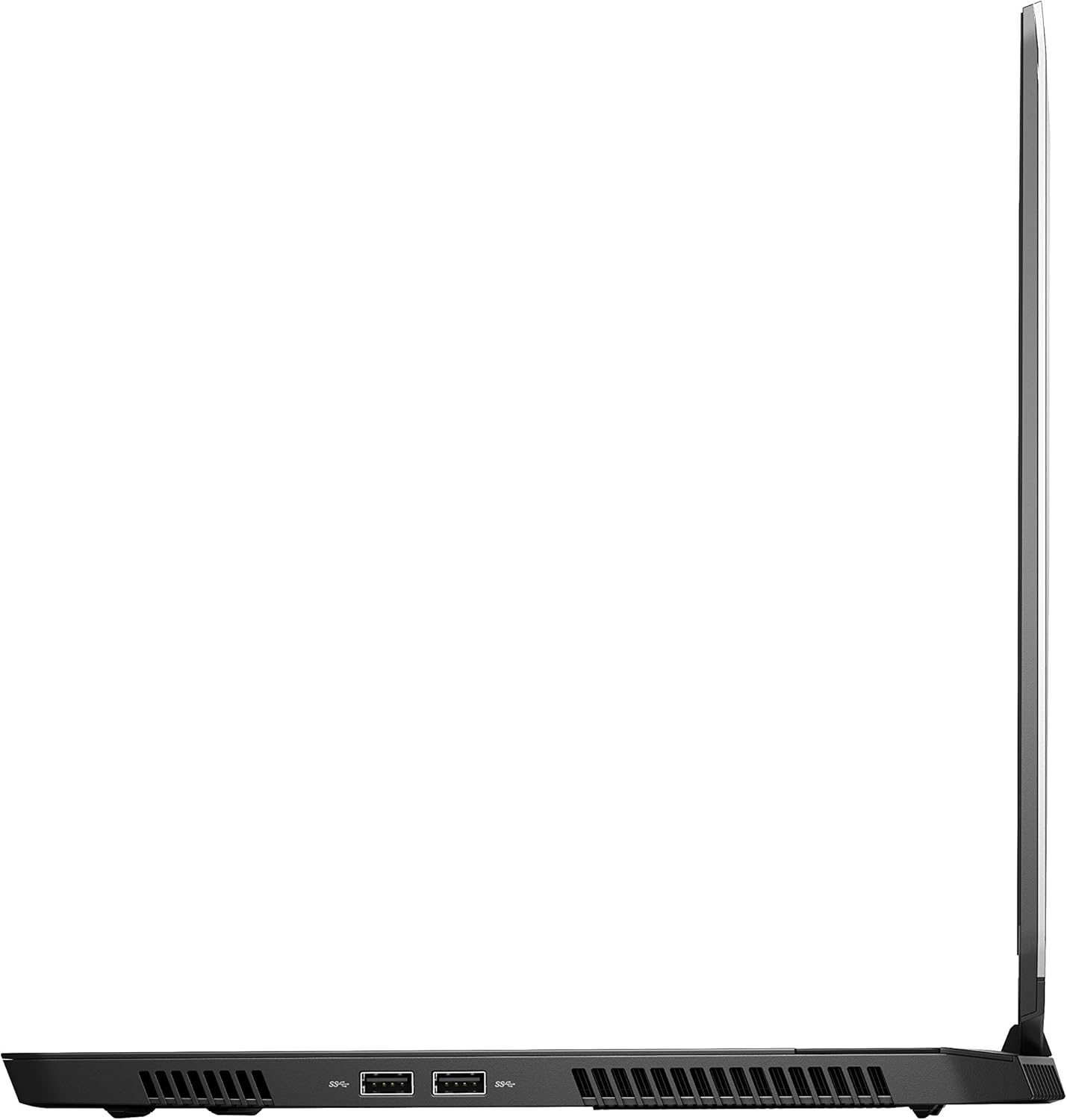
Расми 4: Тарафи рост view of the Alienware M15 laptop, displaying additional ports and ventilation.

Расми 5: Таркид view illustrating the internal cooling system of the Alienware M15 laptop, including fans and heat sinks.
Ташкил кардан
Кушодан
Ҳама ҷузъҳоро аз бастабандӣ бодиққат хориҷ кунед. Боварӣ ҳосил кунед, ки ашёҳои зерин мавҷуданд:
- Alienware M15 Gaming Laptop
- Сими барқ
- 180W адаптер барқ
Фаъолсозии ибтидоӣ
- Адаптери барқро ба порти вуруди барқи ноутбук пайваст кунед.
- Сими барқро ба васлаки деворӣ пайваст кунед.
- Open the laptop lid and press the power button, typically located on the top right of the keyboard deck or a dedicated button on the chassis.
- Follow the on-screen instructions to complete the Windows 10 Home setup process, including language selection, network connection, and user account creation.
Дастурҳои амалиётӣ
Амалиёти асосӣ
Your Alienware M15 laptop runs on Windows 10 Home. Familiarize yourself with the operating system's interface. The keyboard features customizable backlighting via Alienware's software. The touchpad supports multi-touch gestures for navigation.
Фаъолияти бозӣ
The Alienware M15 is designed for high-performance gaming. For optimal gaming experience, ensure the laptop is connected to the power adapter. This allows the system to utilize its full power capabilities for the CPU and GPU. While gaming, the laptop may generate significant heat; this is normal for high-performance hardware. Consider using a cooling pad for extended gaming sessions to enhance thermal management.
Нигоҳдорӣ
Тозакунӣ
- Экран: Аз матои мулоим ва матои пок каме истифода баред гampбо об ё тозакунандаи экран. Аз маводи кимиёвии сахт худдорӣ намоед.
- Клавиатура ва шасси: Use a soft brush or compressed air to remove dust from keys and vents. Wipe surfaces with a microfiber cloth.
- Бандарҳо: Use compressed air to clear dust from USB, HDMI, and other ports.
Навсозии нармафзор
Regularly update your Windows operating system, graphics drivers (NVIDIA GeForce), and Alienware software. Updates often include performance improvements, security patches, and bug fixes. Access Windows updates through Settings > Update & Security. Graphics drivers can be updated via the NVIDIA GeForce Experience application.
Нигоҳубини батарея
To maximize battery lifespan, avoid consistently discharging the battery completely. For prolonged use while plugged in, consider using battery management features (if available in Alienware Command Center) to limit charging to 80-90% capacity.
Мушкилкушо
This section addresses common issues you might encounter with your Alienware M15 laptop.
| Мушкилот | Сабаби эҳтимолӣ / Ҳалли |
|---|---|
| Laptop gets excessively hot during use. | High-performance components generate heat. Ensure ventilation vents are clear. Use a cooling pad. Update graphics drivers. |
| "No media present" error or SSD/HDD not detected. | This can sometimes be a temporary software glitch. Try restarting the laptop. If persistent, ensure the power cable is securely connected and try a hard reboot (unplug power, hold power button for 15 seconds, then reconnect and power on). If the issue persists, contact support. |
| Пайвасти Wi-Fi зуд-зуд қатъ мешавад. | Ensure Wi-Fi drivers are up to date. Check for interference from other devices. Restart your router and the laptop. If the issue persists, consider reinstalling Wi-Fi drivers or contacting support. |
| System performance is slow or lagging. | Ensure the laptop is plugged into power for full performance. Close unnecessary background applications. Check for malware. Ensure sufficient free space on the SSD/HDD. |
Мушаххасоти
Detailed technical specifications for the Alienware M15 Gaming Laptop (Model: AWM15-7830SLV-PUS).
| Хусусият | Тафсилот |
|---|---|
| Андозаи намоиши экран | 15.6 инч |
| Ҳалли экран | 1920 x 1080 пиксел |
| Ҳалномаи максималии экран | 1920x1080 пиксел |
| Протсессор | 4.1 GHz core_i7_8750h |
| RAM | 16 ГБ DDR4 |
| Суръати хотира | 2666 МГц |
| Диски сахт | 1000 GB 128GB PCIe M.2 SSD + 1TB (+8GB SSHD) Hybrid Drive |
| Процессори графикӣ | NVIDIA GeForce GTX 1060 |
| Бренди Chipset | NVIDIA |
| Тавсифи корт | Бахшида шудааст |
| Андозаи корти графикии RAM | 6 ГБ |
| Навъи бесим | 802.11a/b/g/n |
| Шумораи портҳои USB 3.0 | 3 |
| Бренд | Alienware |
| Силсила | AWm15-7830SLV-PUS |
| Рақами модели ашё | AWM15-7830SLV-PUS |
| Низоми амал | Windows 10 Home |
| Вазни ашё | 4.8 фунт |
| Андозаҳои маҳсулот | 10.8 x 14.3 x 0.8 инч |
| Ранги | Сиёҳ |
| Бренд протсессор | Intel |
| Шумораи коркардкунандагон | 6 |
| Навъи хотираи компютер | SDRAM DDR4 |
| Андозаи хотираи флеш | 16 |
| Интерфейси диски сахт | Ҳолати сахт |
| Суръати гардиши диски сахт | 5400 чархзании |
| Навъи диски оптикӣ | Диски оптикӣ нест |
| Ҷилдиtage | 240 вольт |
| Батареяҳо | 1 батареяи литий металлӣ лозим аст. (дохил карда шудааст) |
| Санаи аввалин дастрас | 5 январи соли 2019 |
| Номи модел | AWm15-7830SLV-PUS |
| Андозаи экран | 15.6 инч |
| Андозаи диски сахт | 1000 ГБ |
| Модели CPU | Core i7 8750H |
| Андозаи хотираи насбшуда | 16 ГБ |
| Хусусияти махсус | Сарпӯши зидди дурахшон |
Кафолат ва дастгирӣ
For detailed warranty information, please refer to the documentation included with your purchase or visit the official Alienware support website. For technical assistance, driver downloads, and further resources, please visit the Alienware support portal.
Дастури расмии корбар (PDF) инчунин барои зеркашӣ дастрас аст: Download User Manual PDF


