1. Танзимоти ибтидоӣ
This section guides you through the initial steps to get your iPhone 11 ready for use.
- Фаъол: Press and hold the Side button until the Apple logo appears.
- Конфигуратсияи ибтидоӣ: Барои интихоб кардани забон, минтақа ва пайваст шудан ба шабакаи Wi-Fi дастурҳои дар экран бударо иҷро кунед.
- Ҷойгиркунии SIM корт: Use the provided SIM ejector tool to open the SIM tray. Insert your nano-SIM card into the tray and reinsert it into the iPhone. Ensure the iPhone is unlocked for your carrier.
- Интиқоли маълумот (ихтиёрӣ): If you are upgrading from another iPhone, you can transfer your data using Quick Start or iCloud backup.
- Apple ID Setup: Sign in with your Apple ID or create a new one. This is essential for downloading apps, using iCloud, and other Apple services.
- Face ID & Passcode: Set up Face ID for secure facial recognition and create a passcode for additional security.

2. Operating Your iPhone
Familiarize yourself with the basic operations and features of your iPhone 11.
2.1 Навигатсияи асосӣ
- Экрани асосӣ: Барои гузаштан ба Экрани асосӣ, аз канори поёни экран ба боло лағжед.
- Ивазкунандаи барнома: Аз канори поёнӣ ба боло лағжонед ва дар мобайни экран таваққуф кунед, то view open apps. Swipe left or right to navigate between them, and swipe an app up to close it.
- Маркази назорат: Swipe down from the top-right corner of the screen to access quick settings like Wi-Fi, Bluetooth, brightness, and volume.
- Огоҳиҳо: Swipe down from the top-center of the screen to view огоҳиномаҳои шумо.
2.2 Танзимоти намоиш
- Оҳанги ҳақиқӣ: Your iPhone 11 features True Tone technology, which automatically adjusts the display's color and intensity to match the ambient light, making images appear more natural. You can toggle this feature in Танзимотҳо > Намоиш ва равшанӣ.
- Ҳолати торик: Switch to Dark Mode for a darker color scheme that is easier on the eyes in low-light conditions. This can be found in Танзимотҳо > Намоиш ва равшанӣ.

3. Хусусиятҳои камера
The iPhone 11 is equipped with an advanced dual-camera system designed to capture high-quality photos and videos.
3.1 Системаи камераи қафо
- Dual 12MP Cameras: Features a 12MP Wide lens and a 12MP Ultra Wide lens.
- Реҷаи шабона: Automatically activates in low-light conditions to produce brighter, more detailed photos.
- Smart HDR: Enhances highlights and shadows in your photos for improved dynamic range.
- Усули портрет: Creates a depth-of-field effect, blurring the background to make your subject stand out.
- Сабти видеои 4K: Record stunning 4K video at up to 60 frames per second (fps).
Камераи пеши 3.2
- 12MP TrueDepth Camera: Ideal for selfies and FaceTime calls.
- Slofie: Record slow-motion selfie videos at 120 fps.
4. Батарея ва пуркунии барқ
The iPhone 11 is designed for efficient power management and offers multiple charging options.
- Иқтидори батарея: The iPhone 11 has a 3110 mAh battery, providing ampқувва барои истифодаи ҳаррӯза.
- Пуркунии зуд: Supports fast charging up to 18W, allowing you to charge your device to 50% in approximately 30 minutes with a compatible power adapter (sold separately).
- Пуркунии бесим: Compatible with Qi-certified wireless chargers for convenient charging without cables.
- Саломатии батарея: For renewed devices, the battery is tested and guaranteed to have a minimum capacity of 80% relative to when new. You can check your battery health in Settings > Battery > Battery Health & Charging.
5. Мушаххасоти
Key technical specifications for the Apple iPhone 11.
| Хусусият | Тафсилот |
|---|---|
| Намоиш | 6.1-inch Liquid Retina HD LCD (1792 x 828 pixels, 326 ppi) |
| Протсессор | A13 Bionic chip with 3rd-generation Neural Engine |
| RAM | 4 ГБ |
| Нигоҳдорӣ | 64GB (as per this model) |
| Камераи пушти | Dual 12MP Ultra Wide and Wide cameras (Night mode, Deep Fusion, Smart HDR 3) |
| Камераи пеши | 12MP TrueDepth camera (Portrait mode, 4K video, Slo-mo) |
| Сабти видео | 4K video recording at 24 fps, 30 fps, or 60 fps |
| Батарея | 3110 mAh (up to 17 hours video playback) |
| Пур кардан | Fast-charge capable (up to 50% in 30 minutes), Wireless charging (Qi-compatible) |
| Низоми амал | iOS 16 (at time of product data extraction) |
| Андозаҳо | 5.94 x 2.98 x 0.33 инч (150.9 x 75.7 x 8.3 мм) |
| Вазн | 6.84 унсия (194 грамм) |
| Пайвастшавӣ | 4G LTE, Wi-Fi 6, Bluetooth 5.0, NFC |
| Муқовимат ба об | IP68 (maximum depth of 2 meters up to 30 minutes) |
6. Renewed Product Information
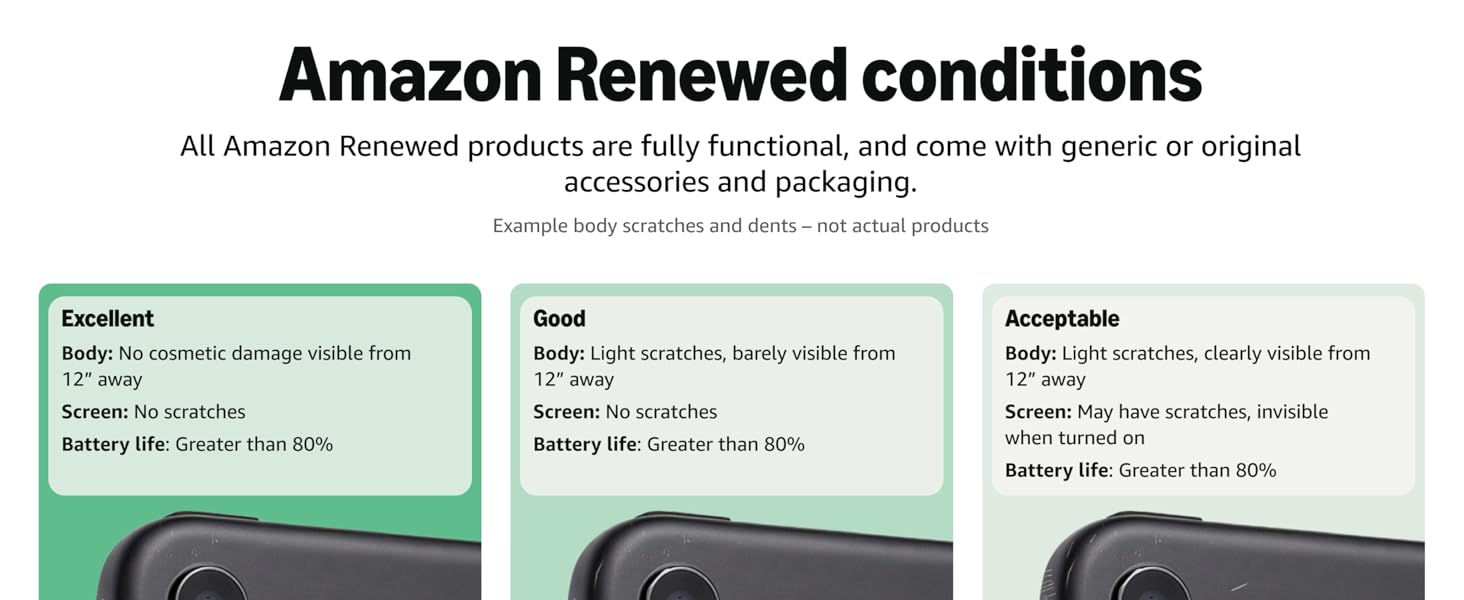
This iPhone 11 is an Amazon Renewed product, meaning it has been professionally inspected and tested to work and look like new.
6.1 Renewed Conditions
All Amazon Renewed products are fully functional and come with generic or original accessories and packaging. The product has successfully passed a full diagnostic test, ensuring like-new functionality and removal of any prior-user personal information.
6.2 Он чизе, ки дар бар мегирад
- Apple iPhone 11 (Renewed)
- Сими USB маълумот
Note: Power adapter and headphones are typically sold separately for renewed iPhones.
7. Баррасии мушкилот
Common issues and their solutions for your iPhone 11.
- Дастгоҳ ҷавоб намедиҳад: If your iPhone is unresponsive, perform a force restart: Press and quickly release the Volume Up button, then press and quickly release the Volume Down button, then press and hold the Side button until you see the Apple logo.
- Ба зудӣ холӣ кардани батарея: Санҷед Танзимотҳо > Батарея to identify apps consuming the most power. Reduce screen brightness, disable background app refresh for non-essential apps, and ensure Optimized Battery Charging is enabled.
- Масъалаҳои пайвастшавӣ: For Wi-Fi or Bluetooth problems, try toggling the respective settings off and on in Control Center or Танзимотҳо. If issues persist, reset network settings via Settings > General > Transfer or Reset iPhone > Reset > Reset Network Settings.
- Қатъи барнома: Ensure the app is updated to its latest version. If it continues to crash, delete the app and reinstall it from the App Store.
8. Нигоҳдорӣ
To ensure the longevity and optimal performance of your iPhone 11, follow these maintenance tips.
- Навсозии нармафзор: Regularly check for and install iOS updates via Танзимот > Умумӣ > Навсозии нармафзор. Updates provide new features, security patches, and performance improvements.
- Тозакунӣ: Use a soft, lint-free cloth to clean your iPhone. Avoid abrasive materials or harsh chemicals. For stubborn smudges, a slightly damp cloth with water is usually sufficient.
- Идоракунии нигаҳдорӣ: Monitor your storage usage in Танзимотҳо > Умумӣ > Захираи iPhone. Delete unnecessary apps, photos, and videos to free up space and maintain performance.
- Дастгоҳи худро муҳофизат кунед: Барои муҳофизат кардан аз қатраҳо ва харошидан, корпуси муҳофизатӣ ва муҳофизаткунандаи экранро истифода баред.
9. Кафолат ва дастгирӣ
Your Amazon Renewed iPhone 11 comes with a satisfaction guarantee.
- Кафолати навшудаи Amazon: This product is backed by the Amazon Renewed Guarantee. If you are not satisfied with your purchase, you are eligible for a replacement or refund within 90 days of receipt.
- Тамос бо дастгирии: For any issues or questions regarding your renewed iPhone, please contact Amazon Customer Service or the seller directly.


