1. Муқаддима
Thank you for choosing the Comsol CMMP09 USB-C to HDMI Adapter. This device is designed to expand the connectivity of your USB-C enabled computer, allowing you to connect to multiple displays, network, USB peripherals, and memory cards, all while providing power pass-through charging.
This manual provides detailed instructions for the setup, operation, and maintenance of your CMMP09 adapter to ensure optimal performance and longevity.
2. Маҳсулот ба охир расидview
The Comsol CMMP09 adapter features a comprehensive array of ports to enhance your productivity. Below is a visual representation and description of the adapter's components.
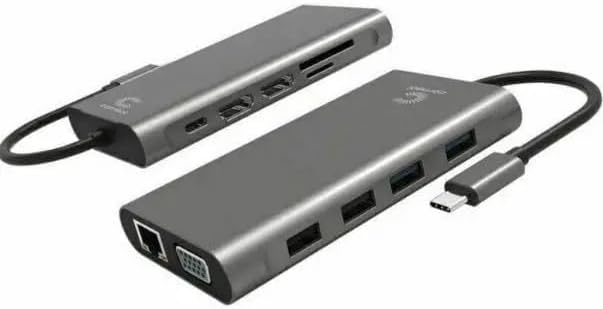
Расми 2.1: Генерал view of the Comsol CMMP09 USB-C to HDMI Adapter, showcasing тарҳи паймон ва портҳои гуногун.

Расми 2.2: Муфассал view of the Comsol CMMP09 adapter with all ports clearly labeled for easy identification.
Тавсифи порт:
- 1 x USB-C Male Connector: Ба порти USB-C-и компютери шумо пайваст мешавад.
- 2 x HDMI Female Connectors: Supports 4K Ultra HD 2160p (3840 x 2160) at 30Hz for a single monitor.
- 1 x VGA Female Connector: Supports 1920 x 1080 at 60Hz.
- 2 x USB 3.0 Type-A Female Connectors: Суръати интиқоли маълумотро то 5 Гбит/с дастгирӣ мекунад.
- 2 x USB 2.0 Type-A Female Connectors: Supports data transfer speeds up to 480Mbps.
- 1 x RJ45 Female Connector: For Gigabit Ethernet LAN connection.
- 1 x SD Card Reader Female Port: For data transfer, supports SD/SDHC/SDXC V3.0 UHS-I cards up to 2TB.
- 1 x Micro SD Card Reader Female Port: For data transfer, supports Micro SD/SDHC/SDXC V3.0 UHS-I cards up to 2TB.
- 1 x USB-C Female Connector (Power Pass-Through): Supports 100W (20V 5A) power delivery to charge your host device.
3. Дастурамал оид ба насб
Follow these steps to set up your Comsol CMMP09 adapter:
- Ба дастгоҳи мизбон пайваст шавед: Plug the male USB-C connector of the CMMP09 adapter into an available USB-C port on your computer. Ensure the USB-C port on your computer supports video output (DisplayPort Alternate Mode) and power delivery if you intend to use these features.
- Пайваст кардани намоишҳо:
- For HDMI displays, connect HDMI cables from your monitors to the HDMI ports on the adapter.
- For VGA displays, connect a VGA cable from your monitor to the VGA port on the adapter.
- Your computer should automatically detect the connected displays. You may need to adjust display settings in your operating system (e.g., Windows Display Settings) to configure mirror or extend modes.
- Пайваст кардани дастгоҳҳои периферии USB: Plug your USB devices (e.g., keyboard, mouse, external hard drive, USB flash drive) into the USB 3.0 or USB 2.0 Type-A ports on the adapter.
- Пайвастшавӣ ба шабака: For a wired internet connection, connect an Ethernet cable from your router or modem to the RJ45 port on the adapter.
- Кортҳои хотираро ворид кунед: Insert your SD or Micro SD cards into the corresponding card reader slots for data access.
- Пайваст кардани барқ (ихтиёрӣ): If your computer supports USB-C Power Delivery and you wish to charge it through the adapter, connect your computer's original USB-C power adapter to the USB-C female port on the CMMP09 adapter. This port supports up to 100W power pass-through.
4. Дастурҳои истифодабарӣ
Once the adapter is set up, you can utilize its various functions:
- Натиҷаи намоиш:
- The adapter supports mirror or extend mode for Windows operating systems. Access your display settings (e.g., right-click on desktop > Display settings) to configure your preferred display arrangement.
- Ensure your monitors are set to the correct input source (HDMI or VGA).
- Интиқоли маълумот USB:
- Connect USB 3.0 devices to the blue USB-A ports for maximum data transfer speeds (up to 5Gbps).
- Connect USB 2.0 devices to the black USB-A ports for standard data transfer speeds (up to 480Mbps).
- Пайвасти шабакавӣ:
- Once connected via the RJ45 port, your computer should automatically detect the wired network connection. Verify network status in your operating system's network settings.
- Card Reader Functionality:
- Insert SD or Micro SD cards into their respective slots. The cards will appear as removable drives in your computer's file explorer, ки ба шумо имкон медиҳад интиқол диҳед files.
- Интиқоли барқ:
- If a power adapter is connected to the USB-C power pass-through port, your host computer will begin charging. The adapter itself does not require external power to function, but it is necessary for charging the host device.
5. Нигоҳдорӣ ва нигоҳубин
To ensure the longevity and proper functioning of your Comsol CMMP09 adapter, please observe the following care guidelines:
- Keep the adapter dry. Avoid exposure to moisture, rain, or liquids.
- Do not expose the adapter to extreme temperatures (hot or cold).
- Clean the adapter with a soft, dry cloth. Do not use harsh chemicals or abrasive cleaners.
- Аз партофтан ё дучори таъсири сахти адаптер худдорӣ намоед.
- Кӯшиш накунед, ки адаптерро ҷудо кунед ё тағир диҳед. Ин кафолатро бекор мекунад.
- Store the adapter in a clean, dust-free environment when not in use.
6. Баррасии мушкилот
If you encounter issues with your CMMP09 adapter, please refer to the following common problems and solutions:
- Намоиши баромад:
- Боварӣ ҳосил кунед, ки пайвасткунаки USB-C пурра ба порти компютери шумо ворид карда шудааст.
- Verify that your computer's USB-C port supports DisplayPort Alternate Mode (video output).
- Check that the HDMI/VGA cables are securely connected to both the adapter and the monitor.
- Confirm that your monitor is set to the correct input source (HDMI/VGA).
- Adjust display settings in your operating system (e.g., extend, duplicate).
- Дастгоҳҳои USB эътироф карда намешаванд:
- Ensure the USB device is properly connected to the adapter's USB-A port.
- Try connecting the USB device to a different USB port on the adapter or directly to your computer to rule out device issues.
- If using a high-power USB device, ensure the adapter is connected to external power via its USB-C PD port.
- No Network Connection via RJ45:
- Check that the Ethernet cable is securely connected to both the adapter and your router/modem.
- Танзимоти шабакаро дар компютери худ санҷед.
- Боварӣ ҳосил кунед, ки роутер/модеми шумо дуруст кор мекунад.
- Корти SD/Micro SD муайян нашуд:
- Боварӣ ҳосил кунед, ки корт пурра ба слотҳои дуруст ворид карда шудааст.
- Check if the card is damaged or corrupted by trying it in another device.
- Host Device Not Charging (Power Pass-Through):
- Ensure your computer's original USB-C power adapter is connected to the adapter's USB-C PD port.
- Verify that your computer's USB-C port supports Power Delivery.
- Адаптери барқ ва сими барқро аз назар гузаронед, то ягон зараре надошта бошад.
7. Мушаххасоти
| Хусусият | Тафсилот |
|---|---|
| Модели | CMMP09 |
| Бренд | Комсол |
| Андозаҳо | 115 x 63 x 16 мм |
| Материал | Пластмасса |
| Вуруд | 1 x USB-C Male Connector |
| баромади HDMI | 2 x HDMI Female, supports 4K Ultra HD 2160p (3840 x 2160) @30Hz (single monitor) |
| Натиҷаи VGA | 1 x VGA Female, supports 1920 x 1080 @60Hz |
| Портҳои USB 3.0 | 2 x USB 3.0 Type-A Female, up to 5Gbps data transfer |
| Портҳои USB 2.0 | 2 x USB 2.0 Type-A Female, up to 480Mbps data transfer |
| Ethernet | 1 x RJ45 Female, Gigabit LAN |
| Кортхонанда | 1 x SD, 1 x Micro SD, supports SD/SDHC/SDXC V3.0 UHS-I up to 2TB |
| Интиқоли барқ | 1 x USB-C Female, 100W (20V 5A) pass-through charging |
| Мутобиқати | Windows (supports mirror or extend mode) |
8. Кафолат ва дастгирӣ
Comsol products are designed and manufactured to the highest quality standards. For information regarding warranty terms and conditions, or for technical support, please refer to the warranty card included with your purchase or visit the official Comsol webсайт.
Лутфан далели хариди худро барои даъвоҳои кафолат нигоҳ доред.