ТАЪМИНИ ISR Webcam бо дастури корбари Light
Model: B08P4QLQNM
1. Муқаддима
This manual provides comprehensive instructions for the setup, operation, and maintenance of your PROVISION ISR Webcam with Light. Please read this manual thoroughly before using the device to ensure optimal performance and longevity.
The PROVISION ISR Webcam with Light is designed to offer a superior video streaming experience with its Full HD 1080p resolution, adjustable integrated lighting, and a built-in noise-reduction microphone. It is ideal for various applications including live streaming, video conferencing, online classes, and content creation.
2. Хусусиятҳои асосӣ
- Профессионал Webcam with Adjustable Light: Features an innovative design with an integrated LED light offering 3 adjustable brightness levels for optimal illumination in any environment.
- Қарори Full HD 1080p: Delivers crystal-clear images and high color reproduction with a 1080p resolution and a 100-degree wide viewing angle for a natural, undistorted picture.
- Built-in Noise-Canceling Microphone: Equipped with a microphone that reduces background noise and echoes, ensuring clear audio during calls and recordings.
- Аризаи бисёрҷониба: Suitable for live streaming, video conferences, online courses, vlogging, and gaming.
- Насбкунии Plug and Play: Requires no driver installation; simply connect the USB cable to your device. Compatible with most popular operating systems.
3. Мундариҷаи баста
Лутфан, ҳангоми кушодани баста, боварӣ ҳосил кунед, ки ҳамаи ашё мавҷуд аст ва дар ҳолати хуб қарор доранд.
- ТАЪМИНИ ISR Webкамера бо нур
- Сими USB интегралӣ
- Дастури корбар (ин ҳуҷҷат)
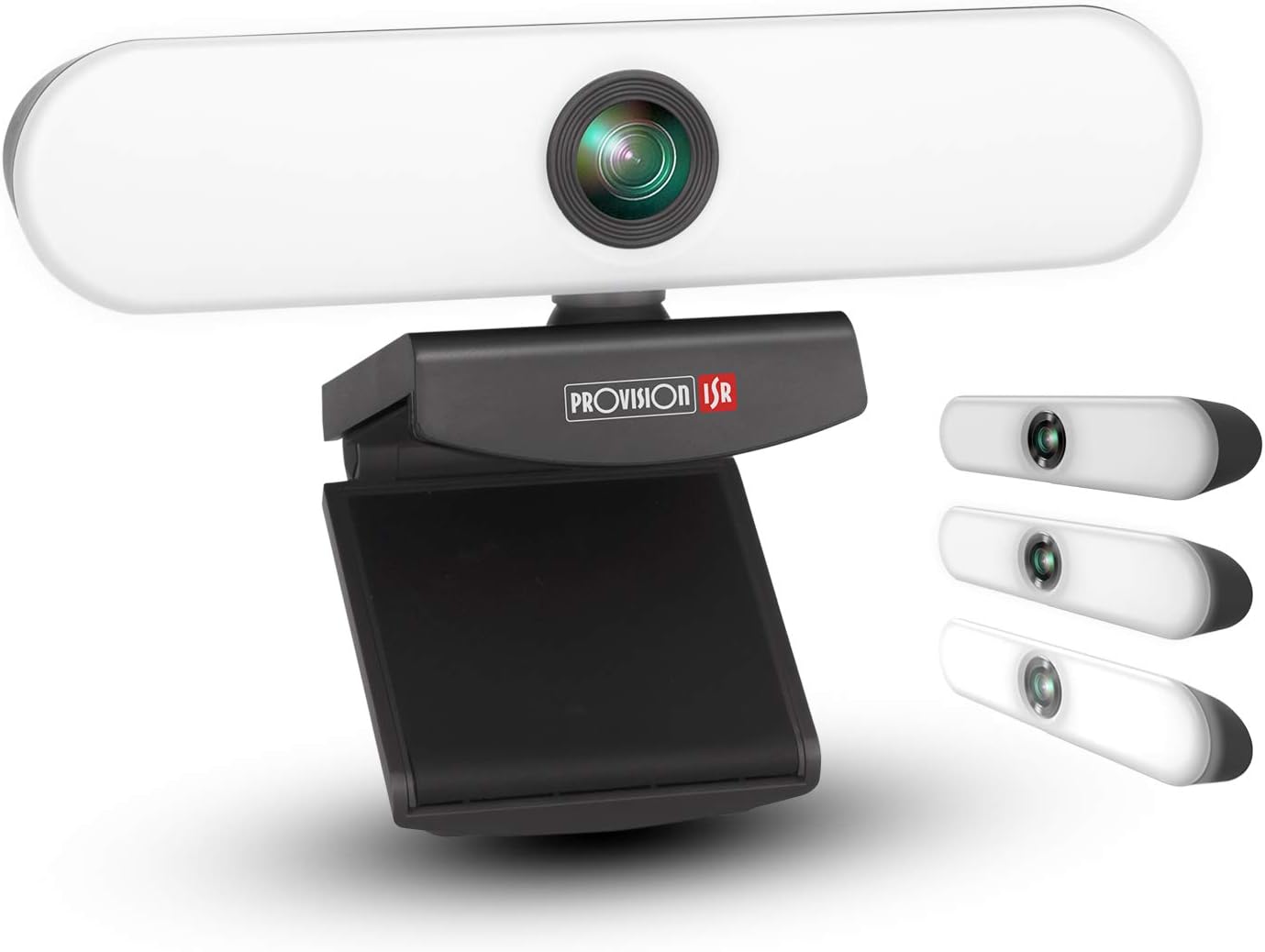
Image: The PROVISION ISR Webcam with Light, showing its integrated light bar and adjustable clip.
4. Дастури насб
4.1 Пайваст кардани Webcam
- Кушодани: Бодиққат хориҷ кунед webкамера аз бастабандии он.
- Кӯҳ: Open the adjustable clip base and securely place the webcam on top of your computer monitor, laptop screen, or a flat surface. Ensure the webcam is stable and facing the desired direction.
- Пайвастшавӣ: Plug the integrated USB cable from the webкамераро ба порти USB дастрас дар компютери шумо.

Тасвир: The webcam shown with its USB cable, illustrating its plug-and-play compatibility with Windows, Mac OS, and Android devices.
4.2 Driver Installation (Plug & Play)
The PROVISION ISR Webcam is designed for plug-and-play operation. Your operating system (Windows, macOS, Linux, Android) should automatically detect and install the necessary drivers upon connection. No manual driver installation is typically required.
- Wait a few moments after connecting the USB cable for your system to recognize the device.
- You may see a notification indicating that a new device has been detected and is ready for use.
4.3 Initial Setup in Applications
Once connected, you can select the webcam and its microphone within your preferred video conferencing or streaming application (e.g., Zoom, Skype, Microsoft Teams, OBS Studio).
- Open your desired application.
- Navigate to the application's settings or preferences, usually under "Audio" or "Video" settings.
- Select "PROVISION ISR Webcam"-ро ҳамчун дастгоҳи вуруди видеоии худ истифода баред.
- Select "PROVISION ISR Webcam Microphone" (or similar) as your audio input device.
- Adjust video and audio settings as needed within the application.

Image: A woman on a video call, demonstrating the webcam's clear image and sound quality when used with a laptop.
5. Дастурҳои истифодабарӣ
5.1 Adjusting the Integrated Light
Дар webcam features an integrated LED light with three brightness levels. To adjust the light:
- Locate the touch button on the top of the webкамера
- Tap the button once to cycle through the brightness levels: Low, Medium, High, and Off.
- Select the level that provides optimal illumination for your environment.

Image: Illustration showing the webcam and three examples of lighting levels (Low, Medium, High) on a person's face.
5.2 Танзим кардан Viewкунҷи ангушт
Дар webcam's clip base allows for flexible positioning and angle adjustment.
- Gently tilt the webcam up or down to adjust the vertical viewкунҷи дохилӣ.
- ро гардиш кунед webcam left or right on its base to adjust the horizontal viewкунҷи дохилӣ.
- Таъмин кунед webcam is securely positioned after adjustment.

Image: Diagram illustrating the 90-degree wide-angle view аз webcam, showing it capturing a group meeting.
6. Нигоҳдорӣ
Нигоҳубини дуруст умри дароз ва иҷрои оптималии шуморо таъмин мекунад webкамера
- Тоза кардани линза: Use a soft, lint-free cloth specifically designed for optical lenses to gently wipe the webлинзаи камера. Аз маводҳои абразивӣ ё кимиёвии сахт худдорӣ кунед.
- Тоза кардани бадан: Баданро пок кунед webcam with a soft, dry cloth. If necessary, a slightly damp матоъ истифода бурдан мумкин аст, аммо боварӣ ҳосил кунед, ки намӣ ба дастгоҳ дохил нашавад.
- Нигоҳдорӣ: Вақте ки дар муддати тӯлонӣ истифода набаред, онро нигоҳ доред webcam in a clean, dry place away from direct sunlight and extreme temperatures.
- Нигоҳубини кабел: Avoid bending or kinking the USB cable excessively. Do not pull the cable to disconnect the webcam; always grasp the plug.
7. Баррасии мушкилот
| Мушкилот | Сабаби эҳтимолӣ | Ҳалли |
|---|---|---|
| Webкамера ошкор нашудааст | Loose USB connection, faulty USB port, driver issue, application not recognizing device. | Ensure USB cable is fully inserted. Try a different USB port. Restart your computer. Check device manager for driver status. Select the webcam in your application settings. |
| Не баромади видео | Webcam not selected in application, privacy settings blocking camera, lens cap (if applicable). | Тасдиқ кунед webcam selection in application settings. Check operating system privacy settings (e.g., Windows Camera Privacy). Ensure nothing is obstructing the lens. |
| Сифати видео | Insufficient lighting, dirty lens, low bandwidth, application settings. | Adjust the integrated light to a higher brightness level. Clean the webcam lens. Ensure stable internet connection. Check application video resolution settings. |
| Microphone not working or poor audio | Microphone not selected, privacy settings, background noise. | -ро интихоб кунед webcam's microphone in your application's audio settings. Check operating system microphone privacy settings. Reduce ambient noise. |
| Integrated light not working | Not turned on, faulty unit. | Tap the touch button on top of the webcam to cycle through brightness levels. If still not working, contact customer support. |
8. Мушаххасоти
| Хусусият | Тафсилот |
|---|---|
| Рақами модел | B08P4QLQNM |
| Қарори сабти видео | 1080p пурра HD |
| Технологияи сенсори акс | CMOS |
| Технологияи пайвастшавӣ | USB |
| Хусусияти махсус | Integrated Adjustable Light (3 Levels), Low Light Performance |
| Микрофон | Built-in Noise-Reduction Microphone |
| Viewкунҷи ангушт | 100-degree (approx.) |
| Андозаҳо (тақрибан) | 15.9 х 7.1 х 6.3 см |
| Вазн (тақрибан) | 237 гр |
| Мутобиқати | Windows, macOS, Android (Plug & Play) |
9. Кафолат ва дастгирӣ
PROVISION ISR products are manufactured to high quality standards. For specific warranty information, please refer to the warranty card included with your purchase or visit the official PROVISION ISR webсайт. Квитансияи хариди худро ҳамчун далели харид нигоҳ доред.
For technical support, troubleshooting assistance beyond this manual, or warranty claims, please contact PROVISION ISR customer service through their official channels. Contact information can typically be found on the product packaging or the brand's official webсайт.
Note: Warranty terms and support availability may vary by region.


