1. Муқаддима
This manual provides essential information for the safe and efficient operation of your GIGABYTE AORUS FO48U 48" 4K OLED Gaming Monitor. Please read this manual thoroughly before using the product and retain it for future reference. The AORUS FO48U is designed to deliver a high-performance visual experience with its 4K OLED display, fast refresh rate, and advanced features.
2. Маълумот оид ба бехатарӣ
Барои пешгирӣ кардани осеб ба монитор ва таъмини амнияти корбар чораҳои зерини бехатариро риоя кунед:
- Барои пешгирӣ аз сӯхтор ё зарба, мониторро дар зери борон ё намӣ нагузоред.
- Мониторро накушоед вasing. Дар дохили он қисмҳои барои хидматрасонии корбар мувофиқ мавҷуд нестанд. Ҳамаи корҳои хидматрасониро ба кормандони соҳибихтисос супоред.
- Мониторро дар сатҳи устувор ва ҳамвор ҷойгир кунед, то аз афтидан пешгирӣ кунад.
- Дар атрофи монитор вентилятсияи дурустро таъмин кунед. Кушодани вентилятсияро манъ накунед.
- Use only the power adapter and cables provided or specified by the manufacturer.
- Мониторро дар вақти тӯфони барқ ё дар муддати тӯлонӣ истифода набурдан аз васлаки барқ ҷудо кунед.
- Барои пешгирӣ кардани осеб ба экран бо ашёи тез даст нарасонед.
3. Мундариҷаи баста
Боварӣ ҳосил кунед, ки ҳамаи ҷузъҳои дар поён овардашуда ба бастаи шумо дохил карда шудаанд:
- GIGABYTE AORUS FO48U 48" 4K OLED Gaming Monitor
- Сими барқ
- Сими HDMI 2.1
- Кабели DP 1.4
- USB 3.0 B to A cable
- Дастури зуд оғоз (QSG)
- Корти кафолат
- AORUS Remote Control
4. Танзимот
4.1 Танзимоти физикӣ
The monitor can be set up using its included stand or a VESA-compatible wall mount.
Маҷлиси стенд:
Follow the instructions in the Quick Start Guide to securely attach the stand to the monitor base. Ensure all screws are tightened.
Насби девори VESA:
The AORUS FO48U supports VESA wall mounts with a 300 x 300mm pattern. Remove the stand if already attached. Use appropriate screws and a VESA-compatible bracket (not included) to mount the monitor. Refer to your wall mount's instructions for specific installation steps.

Тасвир: Қафо view of the AORUS FO48U monitor, highlighting the VESA 300x300mm mounting points for wall installation.
4.2 Кабелҳои пайвастшавӣ
Connect the necessary cables to the monitor's I/O ports. Ensure the monitor is powered off before connecting or disconnecting cables.

Тасвир: Ҷониби муфассал view of the monitor's I/O ports, including USB 3.0, USB Upstream, USB Type-C (KVM), DisplayPort 1.4, HDMI 2.1, Headphone Jack, and Audio Line-Out.
- Пайвасти барқ: Сими барқро ба вуруди барқи монитор ва сипас ба васлаки барқ пайваст кунед.
- Видео дохилӣ: Connect your PC or gaming console using either the provided HDMI 2.1 cable or DisplayPort 1.4 cable. The monitor features two HDMI 2.1 ports and one DisplayPort 1.4.
- Пайвастҳои USB: Connect the USB 3.0 B to A cable from your PC to the monitor's USB Upstream port to enable the monitor's USB 3.0 ports and KVM functionality.
- USB Type-C (KVM): For KVM functionality, connect a USB Type-C cable (10Gbps Type-C cable required, not always included) from your device to the monitor's USB Type-C port. This allows control of multiple devices with a single keyboard and mouse connected to the monitor.
- Натиҷаи аудио: Use the Headphone Jack or Audio Line-Out for external audio devices.
4.3 Фаъолсозии ибтидоӣ
After connecting all necessary cables, press the power button on the monitor to turn it on. The monitor will automatically detect the active input source. If no signal is detected, ensure your source device is powered on and correctly connected.
5. Дастурҳои истифодабарӣ
5.1 Навигатсия дар экран (OSD).
The monitor's settings can be adjusted using the OSD menu, typically accessed via a joystick or buttons on the monitor's rear or bottom edge, or with the included AORUS Remote Control.
- Use the joystick/buttons or remote to navigate through menu options.
- Press to select an option or enter a sub-menu.
- Move left/right or up/down to adjust values or select different settings.
- Press the back button or move the joystick in a specific direction (as indicated on-screen) to exit menus.
5.2 Хусусиятҳои асосӣ
The AORUS FO48U offers several features for an enhanced viewтаҷрибаи бозӣ ва бозӣ:
- Қарори 4K UHD (3840x2160): Provides crisp, detailed visuals.
- Суръати навсозӣ 120 Гц: Ensures smooth motion for gaming and fast-paced content.
- 1ms (GTG) Response Time: Minimizes ghosting and motion blur.
- FreeSync Premium Support: Суръати навсозии мониторро бо GPU-и шумо барои бозиҳои беашк ҳамоҳанг месозад.
- 10-bit Color / 98% DCI-P3 / 130% sRGB: Delivers accurate and vibrant color reproduction.

Image: Visual comparison demonstrating the difference between 1ms response time at 120Hz refresh rate and 5ms response time at 60Hz, illustrating smoother motion with higher specifications.
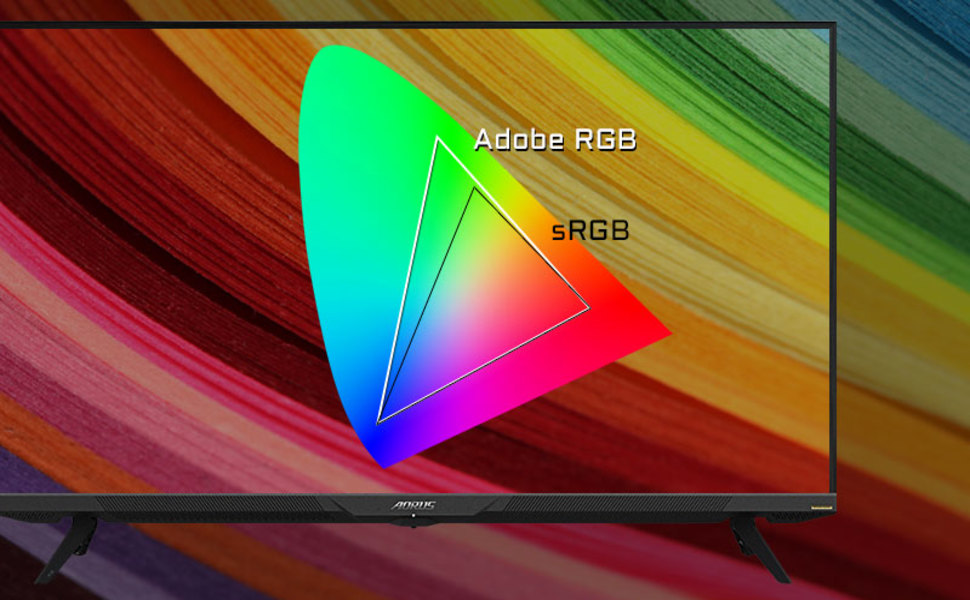
Image: A visual representation of color gamut, comparing Adobe RGB and sRGB color spaces, indicating the monitor's wide color coverage.
5.3 Хусусиятҳои махсус
The monitor includes several advanced features accessible via the OSD or OSD Sidekick software:
- OSD Sidekick: A software utility that allows you to control OSD settings directly from your desktop.
- Тасвир дар расм (PiP) / Тасвир аз рӯи расм (PbP): Display content from multiple sources simultaneously on the screen.
- Панели идоракунӣ: Real-time hardware information display (e.g., CPU/GPU temperature, fan speed).
- Эквалайзери сиёҳ: Намоёнӣ дар ҷойҳои торикро бе он ки ҷойҳои равшанро аз ҳад зиёд равшан кунад, беҳтар мекунад.
- Ёрии бозӣ: Provides in-game enhancements like crosshairs, timers, and refresh rate counters.
- Space Audio: Offers 5 modes of audio experiences for immersive sound.
- KVM Feature: Allows you to control multiple devices (e.g., two PCs) connected to the monitor using a single keyboard and mouse. Connect devices via USB Type-C and USB 3.0 Upstream ports.

Image: A diagram showing how the Type-C KVM feature allows switching between a desktop PC and a laptop connected to the monitor using one keyboard and mouse.
6. Нигоҳдорӣ
6.1 Тоза кардани монитор
To clean the monitor, first unplug the power cord. Use a soft, lint-free cloth lightly dampened with water or a mild, non-abrasive screen cleaner. Do not spray cleaner directly onto the screen. Avoid using alcohol, ammonia, or abrasive cleaners, as they can damage the screen surface.
6.2 Нигоҳубини OLED ва пешгирии сӯхтан
OLED displays are susceptible to image retention (burn-in) if static images are displayed for extended periods. To prolong the life of your OLED panel:
- Avoid displaying static images (e.g., desktop icons, taskbars, logos) for long durations.
- Аз муҳофизи экран ё обои динамикӣ истифода баред.
- Enable the monitor's built-in OLED care features (e.g., pixel shift, pixel refresh, logo luminance adjustment) through the OSD menu.
- Вақте ки лозим нест, равшании экранро кам кунед.
- Вақте ки истифода намебаред, мониторро хомӯш кунед.
7. Баррасии мушкилот
Агар шумо бо мониторатон мушкилот пайдо кунед, ба мушкилот ва роҳҳои ҳалли зерин муроҷиат кунед:
| Мушкилот | Сабаби эҳтимолӣ | Ҳалли |
|---|---|---|
| Ягон тасвир дар экран нест | Power cable disconnected; Video cable disconnected or loose; Incorrect input source selected; Source device off. | Check power and video cable connections; Ensure source device is on; Select correct input source via OSD. |
| Тасвир норавшан ё таҳриф шудааст | Incorrect resolution; Video cable quality; Graphics card driver issues. | Set display resolution to 3840x2160; Use high-quality HDMI 2.1 or DP 1.4 cables; Update graphics drivers. |
| Screen randomly turns off/on | Loose video cable; Power supply issue; Monitor firmware issue; Source device instability. | Ensure video cables are securely connected; Try a different power outlet; Check for and install the latest monitor firmware updates from GIGABYTE's website; Test with a different source device. |
| Садо нест | Volume too low or muted; Incorrect audio output selected; Audio cable disconnected. | Adjust monitor volume; Select correct audio output in PC settings; Ensure external speakers/headphones are connected. |
| KVM feature not working | Incorrect USB cable; USB Upstream cable not connected; Devices not properly configured. | Ensure a 10Gbps USB Type-C cable is used for Type-C connection; Connect the USB 3.0 B to A cable to your primary PC; Refer to the OSD Sidekick software for KVM setup. |
8. Мушаххасоти
Key technical specifications for the GIGABYTE AORUS FO48U monitor:
| Хусусият | Тафсилот |
|---|---|
| Андозаи экран | 48 инч |
| Навъи панел | OLED |
| Резолюция | 3840 x 2160 (4K UHD) |
| Меъёри навсозӣ | 120 Гц |
| Вақти ҷавоб | 1мс (GTG) |
| Гамути ранг | 98% DCI-P3 / 130% sRGB |
| Амиқии ранг | 10-бит |
| Viewкунҷи ангушт | 178°(Н)/178°(В) |
| Пайвастшавӣ | 2x HDMI 2.1, 1x DisplayPort 1.4, 1x USB Type-C (KVM), 2x USB 3.0, 1x USB 3.0 Upstream, Earphone Jack, Audio Line-Out |
| Маърузачиён | 2x 15W, 1x 20W (Space Audio) |
| Кӯҳи VESA | 300х300мм |
| Андозаҳо (WxHxD) | 26.58 x 42.07 x 9.89 дюйм (бо стенд) |
| Вазн | 39.8 фунт (бо стенд) |
9. Кафолат ва дастгирӣ
For detailed warranty information, please refer to the warranty card included in your product package or visit the official GIGABYTE website. For technical support, driver downloads, and further assistance, please visit the GIGABYTE support page or contact their customer service.
Расмии GIGABYTE Webсайт: www.gigabyte.com


