1. Муқаддима
This manual provides detailed instructions for the setup, operation, and maintenance of your CHERRY DW 9100 Slim Wireless Keyboard and Mouse Set. This rechargeable desktop set offers both 2.4 GHz wireless and Bluetooth connectivity, featuring a slim design and silent keystroke SX Scissor Mechanism for comfortable and efficient use in various environments.

Image 1.1: The CHERRY DW 9100 Slim Wireless Keyboard and Mouse Set, including the USB nano receiver.
2. Мундариҷаи баста
Лутфан ҳангоми кушодани қуттӣ мундариҷаи бастаро тафтиш кунед, то боварӣ ҳосил кунед, ки ҳама ҷузъҳо мавҷуданд:
- CHERRY DW 9100 Slim Wireless Keyboard
- CHERRY DW 9100 Slim Wireless Mouse
- Қабулкунандаи USB нано
- Сими пуркунандаи USB-C
- Дастури корбар (ин ҳуҷҷат)
3. Танзимот
3.1 Пур кардани дастгоҳҳо
Both the keyboard and mouse are equipped with rechargeable lithium batteries.
- Connect the supplied USB-C charging cable to the USB-C port on the keyboard and mouse.
- Нӯги дигари кабелро ба порти USB пайваст кунед (масалан, компютер, адаптери девории USB).
- The status LED on each device will indicate the charging status. A full charge is indicated when the LED changes color or turns off (refer to Section 4.3 for LED indicators).
3.2 Пайвастшавӣ тавассути 2.4 ГГц бесим
For a stable and fast wireless connection, use the included USB nano receiver.
- Locate the USB nano receiver.
- Қабулкунаки USB-и нано-қабулкунакро ба порти USB-и дастрас дар компютери худ пайваст кунед.
- On both the keyboard and mouse, locate the connectivity switch. Set the switch to the 2.4 ГГц position (often indicated by a receiver icon or "RF").
- The devices should automatically connect to your computer.
3.3 Пайвастшавӣ тавассути Bluetooth
The set supports Bluetooth connectivity for devices that have Bluetooth capabilities.
- On both the keyboard and mouse, locate the connectivity switch. Set the switch to the блутуз position (often indicated by a Bluetooth icon).
- On your computer or device, open the Bluetooth settings.
- Initiate the pairing process on your device. The keyboard and mouse should appear in the list of discoverable devices (e.g., "CHERRY DW 9100 Keyboard", "CHERRY DW 9100 Mouse").
- Select each device to pair them. Follow any on-screen prompts, such as entering a pairing code for the keyboard.
Шарҳ: The keyboard and mouse can be paired with multiple Bluetooth devices. Use the connectivity switch to toggle between paired devices or 2.4 GHz mode.
4. Дастурҳои истифодабарӣ
4.1 Функсияҳои клавиатура
The CHERRY DW 9100 Slim Keyboard features a full-size layout with an SX Scissor Mechanism for silent and precise keystrokes.
- Калидҳои стандартӣ: Ҳамаи тугмаҳои стандартии алифбоӣ-рақамӣ ва рамзӣ мувофиқи интизорӣ кор мекунанд.
- Тугмаҳои функсионалӣ (F1-F12): These keys may have secondary functions (e.g., media control, volume, brightness) accessible by pressing the Fn key simultaneously. Refer to your operating system's settings for specific function key behavior.
- Клавиатураи рақамӣ: Provides dedicated number entry.

Тасвир 4.1: Профессионали тарафfile of the CHERRY DW 9100 Slim Keyboard, highlighting its thin design.

Image 4.2: Visual representation of the CHERRY SX Scissor Mechanism, responsible for silent and precise keystrokes.
4.2 Вазифаҳои муш
The CHERRY DW 9100 Slim Mouse features 6 buttons and a scroll wheel for versatile navigation.
- Пахши чап/рост: Тугмаҳои стандартии муш.
- Чархи ҳаракат: Барои ҳаракатдиҳии амудӣ ва ҳамчун тугмаи миёнаи клик.
- Тугмаҳои тарафӣ: Typically used for forward/backward navigation in web браузерҳо.
- Гузариши DPI: A button, usually near the scroll wheel, allows adjustment of the mouse's sensitivity (DPI - Dots Per Inch). Pressing this button cycles through different DPI settings, indicated by the mouse's status LED.

Тасвири 4.3: боло view of the CHERRY DW 9100 Slim Mouse, showing the left/right click buttons, scroll wheel, and DPI switch.
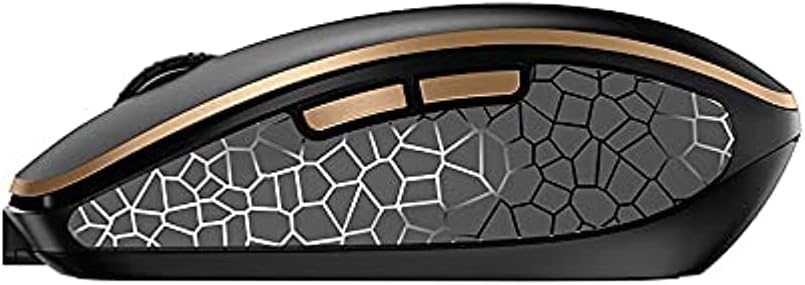
Тасвир 4.4: Тараф view of the CHERRY DW 9100 Slim Mouse, illustrating the ergonomic design and side buttons.
4.3 LED -ҳои ҳолати
Both the keyboard and mouse feature status LEDs to provide information on battery level, charging status, and mouse resolution.
- Батареяи кам: The LED will flash or illuminate in a specific color (e.g., red) when the battery level is low, indicating that charging is required.
- Пур кардан: The LED will illuminate while charging and typically change color or turn off when fully charged.
- Mouse Resolution (DPI): When adjusting the DPI, the mouse LED may briefly flash to indicate the current setting.
5. Нигоҳдорӣ
5.1 Тозакунӣ
To maintain the performance and appearance of your devices:
- Пеш аз тозакунӣ дастгоҳҳоро аз компютер ҷудо кунед.
- Аз матои мулоим ва матои пок каме истифода баред гampбо об ё маҳлули ҳалим тоза кардан.
- Avoid using harsh chemicals, abrasive cleaners, or solvents, as these can damage the surfaces.
- Барои клавиатура, ҳавои фишурдашударо барои тоза кардани чанг ва партовҳо аз байни тугмаҳо истифода баред.
5.2 Нигоҳубини батарея
The integrated lithium batteries are designed for long-term use.
- Recharge the devices when the low battery indicator appears.
- Барои дароз кардани мӯҳлати хизмати батареяҳо, аз холӣ кардани пурраи онҳо зуд-зуд худдорӣ кунед.
- If storing the devices for an extended period, charge them to approximately 50% before storage.
6. Баррасии мушкилот
If you encounter issues with your CHERRY DW 9100 Slim set, refer to the following common solutions:
6.1 Масъалаҳои пайвастшавӣ
- No Connection (2.4 GHz):
- Ensure the USB nano receiver is securely plugged into a working USB port.
- Verify the keyboard and mouse connectivity switches are set to the 2.4 ГГц мавқеъ.
- Кӯшиш кунед, ки қабулкунакро ба порти дигари USB пайваст кунед.
- Ensure the devices are sufficiently charged.
- Пайвастшавӣ нест (Bluetooth):
- Ensure the keyboard and mouse connectivity switches are set to the блутуз мавқеъ.
- Confirm Bluetooth is enabled on your computer/device.
- Remove previous pairings from your device's Bluetooth settings and attempt to re-pair.
- Ensure the devices are sufficiently charged.
6.2 Масъалаҳои барқ ва пуркунии барқ
- Дастгоҳҳо барқгиранда нестанд:
- Check that the USB-C charging cable is properly connected to both the device and the power source.
- Try a different USB-C cable or a different USB power source.
- Боварӣ ҳосил кунед, ки манбаи барқ фаъол аст.
- Ҳаёти кӯтоҳи батарея:
- Пеш аз истифода, боварӣ ҳосил кунед, ки дастгоҳҳо пурра пур карда шудаанд.
- Battery life can vary based on usage patterns.
6.3 Mouse Tracking Issues
- Inaccurate or No Tracking:
- Боварӣ ҳосил кунед, ки сенсори муш тоза ва аз партовҳо холӣ аст.
- Use the mouse on a suitable surface (e.g., mouse pad). Highly reflective or transparent surfaces may cause issues.
- Adjust the DPI setting using the DPI switch on the mouse.
7. Мушаххасоти
| Хусусият | Тафсилот |
|---|---|
| Рақами модел | JD-9100US-2 |
| Андозаҳои маҳсулот | 17.32 x 5.12 x 0.59 инч |
| Вазни ашё | 2.35 фунт |
| Батареяҳо | Rechargeable Lithium (USB-C) |
| Технологияи пайвастшавӣ | Bluetooth, 2.4 GHz Radio Frequency (USB) |
| Хусусияти махсус | Rechargeable, Silent Keystroke (SX Scissor Mechanism) |
| Дастгоҳҳои мувофиқ | Компютери шахсӣ |
| Истеҳсолкунанда | ГЕЛОС |
Note on Batteries: The product description indicates USB-C rechargeable lithium batteries. The specification "1 AA batteries required. (included)" in the source data appears to be a discrepancy. Please rely on the USB-C rechargeable feature for this model.
8. Кафолат ва дастгирӣ
CHERRY products are manufactured to high-quality standards. For detailed warranty information, including terms and conditions, please refer to the official CHERRY webсайт ё корти кафолат, ки ба маҳсулоти шумо дохил карда шудааст.
For technical support, troubleshooting assistance beyond this manual, or to inquire about replacement parts, please visit the official CHERRY support portal or contact their customer service directly.
- Official CHERRY Webсайт: www.cherry.de/en/ (or regional equivalent)
- Дастгирии муштариён: Ба webсайт барои маълумот барои тамос.