
1. Муқаддима
The Poly Studio X70 Video Bar and TC8 Touch Controller combine to provide a premium, all-in-one video conferencing solution designed for large conference rooms. This system delivers razor-sharp 4K video and boardroom-filling stereo sound, ensuring an optimal meeting experience. The integrated design simplifies setup by eliminating complex cabling and offers robust audio and video capabilities.
This manual provides essential information for setting up, operating, maintaining, and troubleshooting your Poly Studio X70 and TC8 system.

Image: The Poly Studio X70 Video Bar (top) and the TC8 Touch Controller (bottom left), showcasing the complete conferencing system.
2. Дар қуттӣ чӣ мавҷуд аст
Пеш аз идома додани насб, санҷед, ки ҳама ҷузъҳо мавҷуданд:
- Poly Studio X70 Бар Видео
- Poly TC8 Touch Controller
- Required cables (e.g., Ethernet, HDMI) - Specific cables may vary by region or package.
- Таҷҳизоти васлкунӣ (агар лозим бошад)
3. Танзимот
Follow these steps to set up your Poly Studio X70 and TC8 system:
- Ҷойгиршавӣ: Position the Poly Studio X70 Video Bar centrally above or below your display in the conference room. Ensure it has a clear line of sight to all participants.

Image: The Poly Studio X70 Video Bar installed above a large display in a conference room, with the TC8 controller on the table.
- Пайваст кардани барқ: The Poly Studio X70 requires Power Over Ethernet (POE). Connect an Ethernet cable from a POE-enabled network switch or injector to the POE port on the Studio X70.
- Ба намоиш пайваст шавед: Use an HDMI cable to connect the Studio X70 to your conference room display(s).
- Connect TC8 Touch Controller: Connect the TC8 Touch Controller to the network via an Ethernet cable. The TC8 will automatically discover and pair with the Studio X70 on the same network.
- Пайвасти шабакавӣ: Ensure both the Studio X70 and TC8 are connected to a network with internet access for updates and cloud service integration.
- Конфигуратсияи ибтидоӣ: Follow the on-screen prompts on the TC8 controller to complete the initial setup, including network settings, time zone, and integration with your preferred cloud video service (e.g., Zoom, Microsoft Teams).
4. Дастурҳои истифодабарӣ
The Poly Studio X70 and TC8 are designed for intuitive operation with leading cloud video services.
4.1. Starting a Meeting
- On the TC8 Touch Controller, select your desired meeting platform (e.g., Zoom, Microsoft Teams).
- Join a scheduled meeting from the calendar, or start an instant meeting.
- Use the TC8 to manage participants, mute/unmute microphones, share content, and control camera functions.
4.2. Хусусиятҳои видеоӣ
The Studio X70 features dual 4K lenses and 20-megapixel camera sensors for life-like video quality.
- Пайгирии баландгӯяк: The system automatically focuses on the active speaker, ensuring they are always clearly visible.

Image: Close-up of the Poly Studio X70 camera, highlighting its automatic speaker tracking and group framing capabilities.
- Group Framing: The camera intelligently frames all participants in the room, adjusting as people enter or leave.

Тасвир: Муфассал view of the Poly Studio X70's dual 4K lenses, emphasizing its high-resolution video capabilities.
4.3. Хусусиятҳои аудио
Experience boardroom-filling audio with two-way stereo speakers, aluminum cone tweeters, and advanced bass ports.
- NoiseBlockAI: This technology intelligently blocks distracting noises from interrupting your meetings.

Тасвир: тараф view of the Poly Studio X70, indicating the location of microphones and speakers that utilize NoiseBlockAI and Acoustic Fence technologies.
- Девори акустикӣ: Creates a virtual fence to prevent side conversations and background noise from being picked up by the microphones.
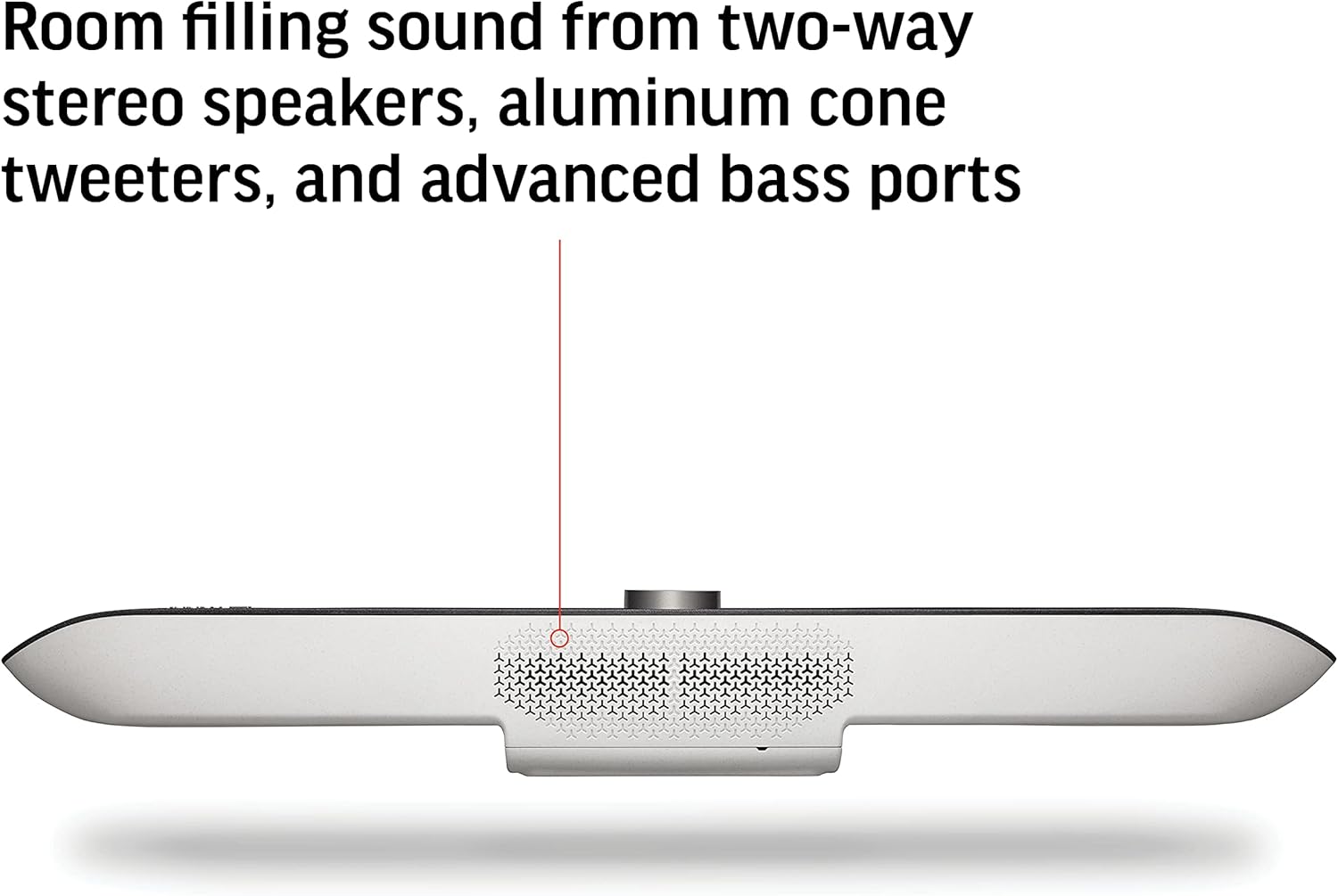
Тасвир: Поён view of the Poly Studio X70, highlighting the speaker grilles for room-filling stereo sound.
4.4. Content Sharing
Share content wirelessly from most personal devices directly to the meeting display.

Image: Graphic illustrating wireless content sharing from various devices like phones, tablets, and laptops to the Poly Studio X70 system.
4.5. Идоракунии дастгоҳ
The Poly Studio X70 can be managed using Poly Lens cloud-based device management software, ensuring high uptime and providing advanced analytics.
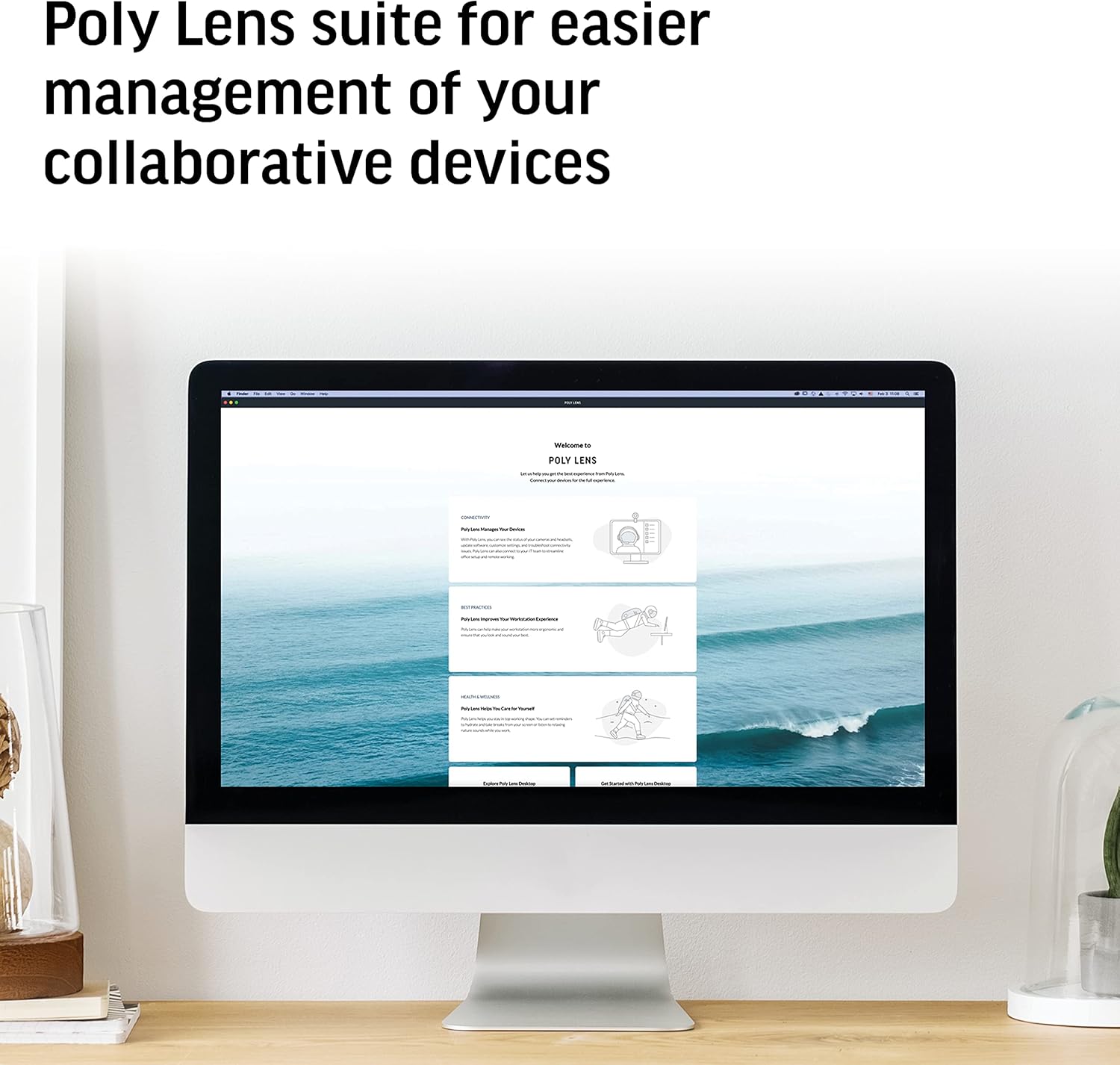
Image: A computer screen displaying the Poly Lens software interface, used for managing Poly collaborative devices.
5. Нигоҳдорӣ
To ensure optimal performance and longevity of your Poly Studio X70 and TC8 system:
- Тозакунӣ: Gently wipe the surfaces of the video bar and touch controller with a soft, dry, lint-free cloth. Do not use abrasive cleaners or solvents.
- Навсозии нармафзор: Regularly check for and install firmware updates through the Poly Lens platform or the device's web interface to ensure the latest features and security patches.
- Вентилятсия: Ensure the video bar's ventilation openings are not obstructed to prevent overheating.
6. Баррасии мушкилот
If you encounter issues with your Poly Studio X70 and TC8, refer to the following common solutions:
| Мушкилот | Сабаби эҳтимолӣ | Ҳалли |
|---|---|---|
| Дар намоиш баромади видео нест. | HDMI cable loose or faulty; display input incorrect; Studio X70 not powered on. | Check HDMI cable connections. Ensure display is on correct input. Verify Studio X70 is powered via POE. |
| Аз баландгӯякҳо аудио нест. | Volume muted; audio settings incorrect; speaker issue. | Check volume on TC8 and display. Verify audio output settings in the system. |
| TC8 Touch Controller not responding or paired. | Network connectivity issue; TC8 not powered; pairing lost. | Ensure TC8 has power and network connection. Restart both TC8 and Studio X70. Re-pair if necessary via system settings. |
| Сифати видео. | Insufficient network bandwidth; dirty camera lenses. | Check network speed and stability. Clean camera lenses with a soft cloth. |
For further assistance, please refer to the official Poly support website or contact your IT administrator.
7. Мушаххасоти
| Хусусият | Тафсилот |
|---|---|
| Рақами модел | 7200-87300-001 |
| Қарори сабти видео | 4K |
| Сенсорҳои камера | Dual 20 Megapixel |
| Хусусиятҳои аудио | Two-way stereo speakers, aluminum cone tweeters, advanced bass ports, NoiseBlockAI, Acoustic Fence |
| Пайвастшавӣ | Ethernet (POE), HDMI |
| Андозаи ҳуҷраи идеалӣ | Large meeting rooms (up to 25ft long) |
| Андозаҳо (LxWxH) | 36.5 x 13.5 x 8 инч |
| Вазни ашё | 16.61 фунт |
| Хидматҳои абрии дастгирӣшаванда | Zoom, Microsoft Teams, and more |
8. Кафолат ва дастгирӣ
Poly products typically come with a standard manufacturer's warranty. For specific warranty terms and conditions, please refer to the documentation included with your purchase or visit the official Poly webсайт.
For technical support, software downloads, and additional resources, please visit the Дастгирии Poly webсайт or contact your authorized Poly reseller.
Тавсия дода мешавад, ки маҳсулоти худро барои гирифтани навсозиҳо ва огоҳиномаҳои дастгирӣ сабти ном кунед.


