1. Муқаддима
This manual provides essential information for setting up, operating, and maintaining your TECLAST X11 2-in-1 Laptop/Tablet. The TECLAST X11 is a versatile device designed to function as both a portable tablet and a compact laptop, running on Windows 10 Home. It features a 10.1-inch Full HD display, an Intel N4020 processor, 6GB RAM, and 128GB of internal storage.
2. Дар қуттӣ чӣ мавҷуд аст
- TECLAST X11 Tablet
- Адаптери барқ
- Сими USB
- Дастури корбар (ин ҳуҷҷат)
Note: The keyboard and stylus pen are sold separately and are not included in the standard package.
3. Маҳсулот ба охир расидview
3.1 Хусусиятҳои асосӣ
- Тарҳрезии 2-дар 1: Seamlessly switch between tablet and laptop modes.
- Намоиш: 10.1-inch IPS Full HD (1920x1200) touchscreen.
- Протсессор: Intel Gemini Lake Reflash N4020 CPU (up to 2.8GHz).
- Хотира ва нигоҳдорӣ: 6GB RAM, 128GB eMMC ROM (expandable up to 256GB via TF card).
- Низоми амал: Windows 10 Home пешакӣ насбшуда.
- Пайвастшавӣ: Dual-band 2.4G/5G WiFi, Bluetooth 4.2.
- Камераҳо: Камераи пушти 5 МП, камераи пеши 2 МП.
- Бандарҳо: USB 3.0, Mini-HDMI, Headphone Jack, DC Port.
- Дастгоҳ: Adjustable U-shaped kickstand (0° to 145°).
3.2 Тарҳбандии дастгоҳ
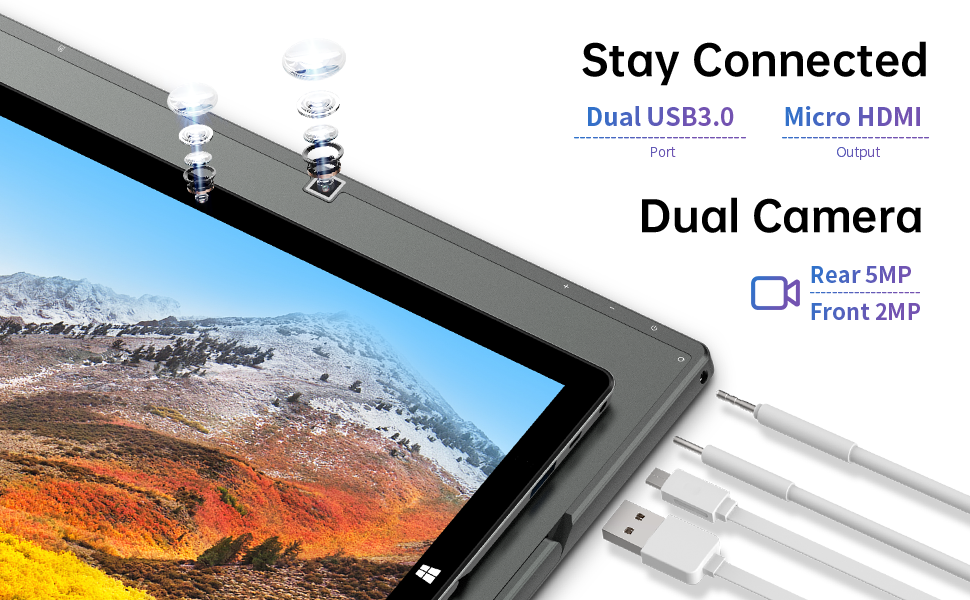
Тасвир: тараф view of the TECLAST X11 tablet highlighting the USB 3.0 port, Micro HDMI output, and front/rear cameras.

Тасвир: Муфассал view of the TECLAST X11's side ports, including USB 3.0, Mini-HDMI, DC power input, and headphone jack.
4. Танзимот
4.1 Пуркунии ибтидоӣ
Before first use, fully charge your TECLAST X11 tablet. Connect the provided power adapter to the DC port on the device and plug it into a power outlet. The charging indicator will illuminate.
4.2 Фурӯзон/хомӯш кардан
- Барои фаъол кардан: Тугмаи барқро то равшан шудани экран пахш кунед ва нигоҳ доред.
- Барои хомӯш кардани барқ: Press and hold the Power button, then select "Shut down" from the on-screen options. Alternatively, go to Start Menu > Power > Shut down.
- Ҳолати хоб: Briefly press the Power button to put the device into sleep mode or wake it up.
4.3 Танзимоти ибтидоии Windows
Upon first power-on, follow the on-screen instructions to complete the Windows 10 setup process. This includes selecting your region, language, connecting to a Wi-Fi network, and creating a user account.
5. Дастурҳои истифодабарӣ
5.1 Гузариш байни режимҳо
The TECLAST X11 is designed for flexibility, allowing you to switch between tablet and laptop modes.
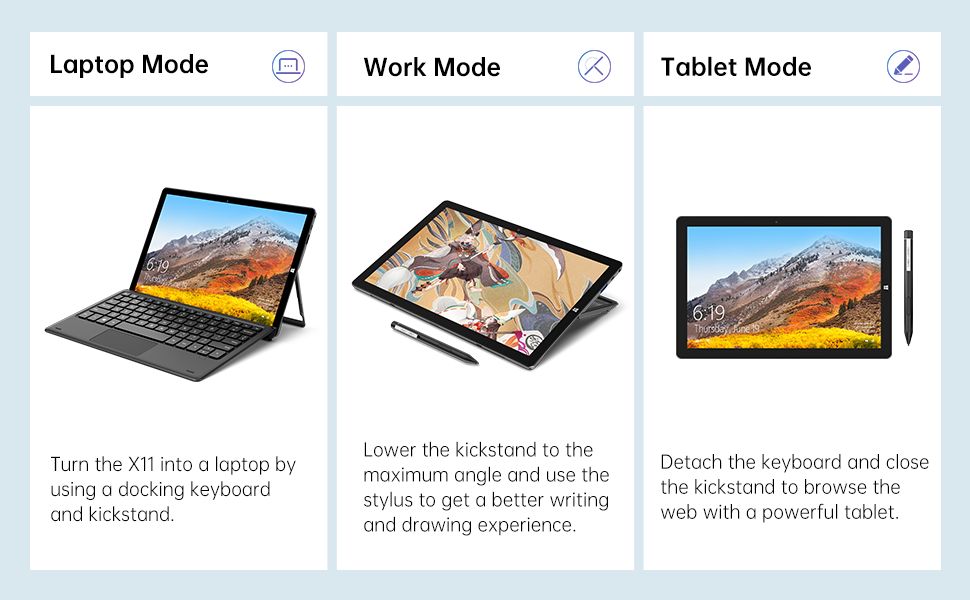
Image: The TECLAST X11 in laptop mode with the keyboard attached and kickstand deployed.
Ҳолати ноутбук: Attach the magnetic docking keyboard and deploy the integrated kickstand. The device will automatically detect the keyboard and switch to laptop interface.

Image: A user holding the TECLAST X11 in tablet mode, interacting with the touchscreen.
Ҳолати планшет: Detach the keyboard. The device will automatically switch to tablet mode, optimizing the interface for touch input.

Тасвир: Қафо view of the TECLAST X11 showing the adjustable kickstand extended.
Истифодаи Kickstand: The integrated U-shaped kickstand can be adjusted from 0° to 145° for comfortable viewing or typing angles.
5.2 Истифодаи экрани сенсорӣ
The 10.1-inch IPS display supports 10-point multi-touch. Use standard touch gestures for navigation, zooming, and interaction with applications.
5.3 External Connectivity
- USB 3.0: Дастгоҳҳои беруна ба монанди дискҳои USB, мушҳо ё принтерҳоро пайваст кунед.
- Mini-HDMI: Барои намоиши калонтар ба монитор ё телевизиони беруна пайваст шавед.
- Bluetooth 4.2: Pair with Bluetooth-enabled accessories like headphones or speakers.
- Вай-фай: Connect to wireless networks for internet access. Supports 2.4G and 5G bands.
5.4 Намоиши видео
Video: An official TECLAST video demonstrating the features and versatility of the X11 Windows tablet with its detachable keyboard and various usage scenarios.
6. Нигоҳдорӣ
6.1 Тоза кардани дастгоҳ
- Барои тоза кардани экран ва сатҳҳои берунӣ матои мулоим ва ифлосро истифода баред.
- Барои аломатҳои якрав, каме гampматоъро бо об ё маҳлули тозакунандаи экран бехатар.
- Аз истифодаи кимиёвии сахт, маводи абразивӣ ё намии аз ҳад зиёд худдорӣ намоед.
6.2 Нигоҳубини батарея
- Барои дароз кардани мӯҳлати батарея, аз ҳарорати аз ҳад зиёд канорагирӣ кунед.
- Дастгоҳро дар муддати тӯлонӣ пурра пур ё холӣ нагузоред.
- Танҳо пуркунандаи аслӣ ё тасдиқшудаи мувофиқро истифода баред.
6.3 Навсозии нармафзор
Regularly check for and install Windows updates to ensure optimal performance, security, and access to the latest features. Go to Start Menu > Settings > Update & Security > Windows Update.
7. Баррасии мушкилот
| Чоп | Ҳалли имконпазир |
|---|---|
| Дастгоҳ фаъол нест | Ensure the device is charged. Connect the power adapter and try again. If unresponsive, press and hold the Power button for 10-15 seconds to perform a hard reset. |
| Масъалаҳои пайвасти Wi-Fi | Check if Wi-Fi is enabled in Windows settings. Restart your router and the tablet. Ensure you are within range of the Wi-Fi signal. |
| Клавиатура ҷавоб намедиҳад | Ensure the keyboard is securely attached to the magnetic docking port. Restart the tablet. Verify that the keyboard was purchased separately and is compatible. |
| Иҷрои суст | Close unnecessary applications. Check for Windows updates. Ensure sufficient free storage space. Run a disk cleanup. |
| Screen rotation not working | Check if auto-rotate is enabled in Windows Action Center (swipe in from the right edge of the screen or click the icon in the taskbar). |
8. Мушаххасоти
| Хусусият | Тафсилот |
|---|---|
| Номи модел | X11 2-in-1 Tablet |
| Андозаи экран | 10.1 инч |
| Ҳалли экран | 1920 x 1200 пиксел (FHD IPS) |
| Протсессор | Intel Gemini Lake Reflash N4020 (1.1GHz - 2.8GHz) |
| RAM | 6 ГБ DDR4 SDRAM |
| Диски сахт | 128 GB eMMC (expandable up to 256GB via TF card) |
| Корти графикӣ | Интегратсияшудаи Intel UHD Graphics 600 |
| Низоми амал | Windows 10 Home |
| Навъи бесим | Bluetooth 4.2, Dual-band WiFi (2.4G + 5G) |
| Қафо Webҳалли камера | 5 МП |
| Пеш Webҳалли камера | 2 МП |
| Портҳо | USB 3.0, Mini-HDMI, Headphone Jack, DC Port |
| Вазни ашё | 2.31 фунт (тақрибан 1.05 кг) |
| Батареяҳо | 1 батареяи литий полимерӣ (дохил) |
9. Кафолат ва дастгирӣ
TECLAST provides a Хизматрасонии кафолатии 12-моҳа for the X11 2-in-1 Laptop/Tablet. If you encounter any issues or have questions regarding your device, please contact TECLAST customer support. Refer to the contact information provided with your product packaging or visit the official TECLAST webсайт барои тафсилоти дастгирӣ.


