1. Муқаддима
The ACT AC7049 Dual Monitor Docking Station transforms your laptop into a complete workstation. This versatile 11-in-1 docking station allows you to connect up to two Full HD displays (max. 2048 x 1152 resolution) to your laptop via HDMI, using a single USB-C/A cable. It expands your laptop's connectivity with a Gigabit LAN port, microphone and headphone jacks, and six additional USB ports. Featuring DisplayLink® technology, it ensures advanced screen display on both MacOS and Windows computers.
2. Хусусиятҳои асосӣ
- Дастгирии мониторҳои дугона: Connect up to two external displays with HDMI ports, supporting resolutions up to 2048x1152@60Hz.
- Мутобиқати универсалӣ: Works with laptops featuring a USB-C or USB-A 3.2 Gen1 (USB 3.0) port, compatible with MacOS and Windows thanks to DisplayLink technology.
- Пайвасти васеъ: Includes 2x HDMI, 1x Gigabit Ethernet, 3x USB-A 3.2 Gen 1 (one with fast charging), 4x USB-A 2.0, and 3.5mm audio jacks for microphone and headphones.
- Ҷойгиркунии чандир: Designed for both vertical and horizontal placement to optimize desk space and port accessibility.
- Порти барқи USB: Dedicated USB port for charging smartphones and tablets.
3. Мундариҷаи баста
Лутфан бастаро барои ҷузъҳои зерин тафтиш кунед:
- ACT AC7049 Docking Station
- USB-C/A 3.2 Gen1 Connection Cable (USB-A to USB-C)
- Адаптери барқ
- Истгоҳи амудӣ
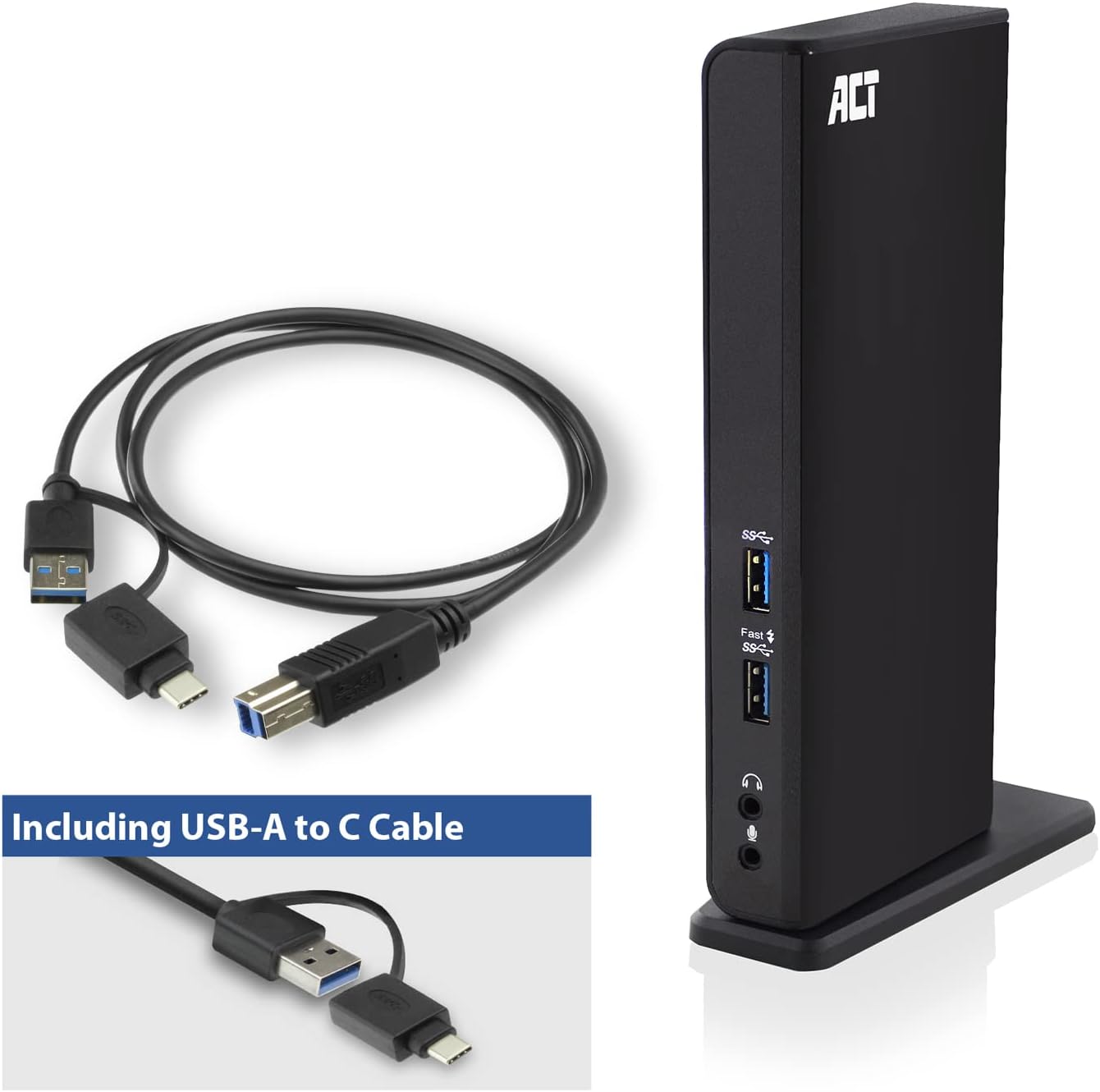
Image: The ACT AC7049 Docking Station shown with its included USB-A to USB-C connection cable and power adapter, highlighting the components provided in the package.
4. Дастури насб
4.1. Пайваст кардани адаптери барқ
- Connect the power adapter to the DC 5V input port on the back of the AC7049 docking station.
- Plug the power adapter into a wall outlet. The docking station will power on.
4.2. Пайвастшавӣ ба ноутбуки шумо
- Use the provided USB-C/A 3.2 Gen1 connection cable. Connect the USB-B end to the corresponding port on the docking station.
- Connect the other end (USB-A or USB-C, depending on your laptop's port) to an available USB 3.2 Gen1 (USB 3.0) or USB-C port on your laptop.
4.3. Driver Installation (DisplayLink)
The AC7049 utilizes DisplayLink technology for extended monitor functionality. Drivers are typically installed automatically on most operating systems. If not, please follow these steps:
- Ба DisplayLink расмии равед webсайт (www.displaylink.com/downloads) to download the latest drivers for your operating system (Windows or MacOS).
- Install the downloaded driver package and follow the on-screen instructions.
- Агар дархост карда шавад, компютери худро бозоғоз намоед.

Image: The official DisplayLink 'Plug and Display' logo, indicating the technology used for multi-monitor support.
5. Дастурҳои истифодабарӣ
5.1. Connecting External Displays
- Connect your HDMI monitors to the two HDMI ports on the back of the docking station.
- Once connected, your operating system should detect the new displays. You can configure display settings (extend, mirror, primary display) through your computer's display settings.

Image: A visual representation of the docking station enabling both 'Mirror your content' and 'Extend your content' display modes across a laptop and two external monitors.
5.2. Connecting USB Peripherals
- Портҳои пеши USB: Two USB-A 3.2 Gen1 ports (one with fast charging capability) are located on the front for easy access to frequently used devices like USB drives, smartphones, or tablets.
- Rear USB Ports: Four USB-A 2.0 ports are located on the back for connecting peripherals such as keyboards, mice, printers, or other less frequently connected devices.
5.3. Пайвастшавӣ ба шабака
Connect an Ethernet cable from your router or network switch to the Gigabit Ethernet port on the docking station. Your laptop will automatically gain wired network access.
5.4. Пайвастшавӣҳои аудиоӣ
Connect your headphones and/or microphone to the dedicated 3.5mm audio jacks on the front of the docking station.

Image: An isometric diagram showcasing the comprehensive connectivity of the ACT AC7049, demonstrating how a laptop, two monitors, a keyboard, mouse, network cable, headphones, and a smartphone can all be connected simultaneously.
6. Имконоти ҷойгиркунӣ
The ACT AC7049 docking station offers flexible placement options to suit your workspace:
- Ҷойгиркунии амудӣ: Use the included stand to position the docking station vertically. This saves desk space and provides easy access to all ports.
- Ҷойгиркунии уфуқӣ: The docking station can also be placed horizontally if preferred.

Image: The ACT AC7049 Docking Station positioned vertically on its stand, highlighting its compact design and accessible ports.
7. Нигоҳдорӣ
To ensure optimal performance and longevity of your ACT AC7049 Docking Station, follow these maintenance guidelines:
- Тозакунӣ: Use a soft, dry cloth to clean the exterior of the docking station. Avoid using liquid cleaners or aerosols, as they may damage the device.
- Вентилятсия: Барои пешгирӣ аз гармшавии аз ҳад зиёд, боварӣ ҳосил кунед, ки истгоҳи васлкунӣ дар ҷои хуб вентилятсияшуда ҷойгир карда шудааст. Сӯрохиҳои вентилятсияро набандед.
- Нигоҳдорӣ: Вақте ки истгоҳи докро муддати тӯлонӣ истифода намебаред, онро дар ҷои хунук ва хушк, дур аз нури бевоситаи офтоб ва ҳарорати аз ҳад зиёд нигоҳ доред.
- Идоракунии кабелӣ: Барои пешгирӣ аз осеб дидан ба кабелҳо ва портҳо, онҳоро мураттаб ва аз каҷшавӣ ё хамшавии аз ҳад зиёд эмин нигоҳ доред.
8. Баррасии мушкилот
If you encounter issues with your ACT AC7049 Docking Station, please refer to the following common troubleshooting steps:
- Намоиши баромад:
- Ensure the docking station is powered on and correctly connected to your laptop.
- Боварӣ ҳосил кунед, ки кабелҳои HDMI ба ҳам истгоҳи пайвасткунӣ ва ҳам ба мониторҳо боэътимод пайваст шудаанд.
- Check your laptop's display settings to ensure the external monitors are detected and configured correctly (e.g., extended or mirrored).
- Reinstall or update the DisplayLink drivers from www.displaylink.com/downloads.
- Барои ҳалли мушкилот, кӯшиш кунед, ки як мониторро дар як вақт пайваст кунед.
- Дастгоҳҳои USB кор намекунанд:
- Ensure the docking station is properly connected to your laptop and powered.
- Кӯшиш кунед, ки дастгоҳи USB-ро мустақиман ба ноутбуки худ пайваст кунед, то боварӣ ҳосил кунед, ки он кор мекунад.
- Connect the USB device to a different USB port on the docking station.
- Ноутбуки худро аз нав оғоз кунед.
- Пайвасти шабака нест:
- Verify the Ethernet cable is securely connected to both the docking station and your router/switch.
- Check your laptop's network settings to ensure the wired connection is enabled.
- Test the Ethernet cable with another device if possible.
- Аудио кор намекунад:
- Ensure headphones/microphone are fully plugged into the correct 3.5mm jacks.
- Check your laptop's sound settings to ensure the docking station's audio output/input is selected as the default device.
9. Мушаххасоти
| Хусусият | Мушаххасоти |
|---|---|
| Рақами модел | AC7049 |
| Бренд | ACT |
| Ранги | Сиёҳ |
| Технологияи пайвастшавӣ | USB-A, USB-C |
| Натиҷаи видео | 2 x HDMI (Max. 2048 x 1152 @ 60Hz) |
| Портҳои USB | 3 x USB-A 3.2 Gen 1 (5Gbps, 1x Fast Charging), 4 x USB-A 2.0 (480Mbps) |
| Порти шабакавӣ | 1 x Гигабит Ethernet (RJ45) |
| Портҳои аудио | 1 x 3.5mm Headphone Jack, 1 x 3.5mm Microphone Jack |
| Дастгоҳҳои мувофиқ | Laptop, Computer (with USB 3.2 Gen1 / USB 3.0 or USB-C port) |
| Дастгирии системаи оператсионӣ | Windows, MacOS (via DisplayLink) |
| Андозаҳо (L x W x H) | 10.9 x 6 x 18.1 см (тақрибан) |
| Вазни ашё | 317 грамм |
10. Кафолат ва дастгирӣ
ACT products are designed for reliability and adhere to international standards and EU legislation. The ACT AC7049 Docking Station comes with a manufacturer's warranty, typically ranging from 2 to 5 years. For specific warranty details and support, please refer to the official ACT webсайт ё фурӯшандаи худ тамос гиред.
For technical support or further inquiries, please visit the official ACT connectivity webсайт: www.act-connectivity.com


