1. Муқаддима
The AeroCool Blade is an ATX semi-tower PC case designed for optimal airflow and aesthetic appeal. It features an RGB front panel with preset lighting modes, a full tempered glass side window, and ample space for component installation. This manual provides essential information for the proper setup, operation, and maintenance of your PC case.
Маълумот дар бораи бехатарӣ: Always disconnect power from your system before performing any installation or maintenance. Handle components with care to avoid damage. Refer to individual component manuals for specific installation instructions.
2. Мундариҷаи баста
- AeroCool Blade ATX Semi-Tower PC Case
- 1 x 120mm RGB Rear Fan (pre-installed)
- 3 x 120mm Front Fans (pre-installed)
- Маҷмӯи лавозимот (винтҳо, бандҳо, пайвастҳои кабелӣ)
3. Танзим ва насб
3.1 Омода кардани парванда
Carefully remove the case from its packaging. Place it on a stable, flat surface. Remove the tempered glass side panel by unscrewing the thumb screws at the rear of the case and gently pulling the panel away.

Расми 3.1: Дохилӣ view of the AeroCool Blade PC case, illustrating the layout for component installation.
3.2 Насби motherboard
- Install the necessary motherboard standoffs into the motherboard tray according to your motherboard's form factor (ATX, Micro-ATX, Mini-ITX).
- Сипари вуруд/хуруҷро дар сӯрохи қафои корпус насб кунед.
- Модари худро бодиққат ба стендҳо ҷойгир кунед ва сӯрохиҳои винтро мувофиқ кунед.
- Модераторро бо винтҳои додашуда мустаҳкам кунед.
3.3 Насби воҳиди таъминоти барқ (PSU)
The AeroCool Blade supports bottom-mounted PSUs. Slide your PSU into the dedicated compartment at the bottom rear of the case. Secure it with screws from the rear of the case.
3.4 Насби диски нигаҳдорӣ
- Дискҳои сахти 3.5 дюймӣ: Install 3.5" hard drives into the drive cage located beneath the PSU shroud.
- 2.5" SSDs/HDDs: Install 2.5" drives onto the dedicated mounting points on the motherboard tray or behind it.

Тасвири 3.2: Даруни пушти view, highlighting cable management routes and 2.5-inch drive mounting locations.
3.5 Expansion Card (GPU) Installation
Remove the necessary expansion slot covers from the rear of the case. Insert your graphics card or other expansion cards into the PCIe slots on your motherboard and secure them with screws.
3.6 Насби вентилятор ва хунуккунӣ
The case comes with one 120mm RGB fan pre-installed at the rear and three 120mm fans pre-installed at the front. Ensure all fan cables are connected to appropriate headers on your motherboard or fan controller.

Figure 3.3: A 120mm RGB fan, similar to those pre-installed in the AeroCool Blade case.
3.7 Пайвастҳои вуруд/хуруҷи панели пеш
Connect the front panel cables (USB 3.0, USB 2.0, HD Audio, Power Switch, Reset Switch, LED Switch, Power LED, HDD LED) to the corresponding headers on your motherboard. Refer to your motherboard manual for exact pin configurations.
4. Дастурҳои истифодабарӣ
4.1 Фаъолсозии барқ
Once all components are installed and connected, replace the side panel. Connect your monitor, keyboard, mouse, and power cable to the PSU. Press the Power button located on the top panel of the case to turn on your system.

Расми 4.1: Қисми болоӣ view of the case, indicating the location of the power button and front I/O ports.
4.2 Назорати равшании RGB
The AeroCool Blade features an RGB front panel. Use the dedicated LED button on the top panel to cycle through various preset lighting modes and effects. Pressing the button will change the lighting pattern or color.

Расми 4.2: Пеш view of the AeroCool Blade case with its distinctive RGB lighting.
4.3 Портҳои панели пеш
The top panel provides convenient access to:
- 1 x порти USB 3.0
- 2 x портҳои USB 2.0
- HD Audio output
- Вуруди микрофон
Connect your USB devices, headphones, and microphone to these ports as needed.
5. Нигоҳдорӣ
5.1 Тоза кардани филтри чанг
Regularly check and clean the dust filters to maintain optimal airflow and prevent dust buildup inside the case. Dust filters are typically located at the top, front, and bottom (under the PSU). Gently remove them and clean with compressed air or rinse with water (ensure they are completely dry before re-installation).
5.2 Тозакунии берунӣ
Сатҳҳои берунии корпусро бо матои нарм пок кунед, damp матоъ. Аз истифодаи маводи кимиёвии сахт ё маводҳои абразивӣ, ки метавонанд ба рӯйпӯш ё шишаи сахтшуда зарар расонанд, худдорӣ кунед.
6. Баррасии мушкилот
- Система фаъол намешавад:
Ensure the PSU is switched on and properly connected to the wall outlet. Verify all power cables from the PSU are correctly connected to the motherboard and components. Check the front panel power switch connection to the motherboard. - Равшании RGB кор намекунад:
Ensure the RGB controller (if applicable) and fan RGB cables are securely connected. Press the LED button on the top panel to cycle through modes. If connected to a motherboard header, check motherboard software settings. - Мухлисон чарх намезананд:
Verify that all fan power cables are securely connected to the motherboard fan headers or a fan controller. Check BIOS/UEFI settings for fan speed control. - Панели пеши USB/аудио кор намекунад:
Ensure the USB and HD Audio cables from the front panel are correctly connected to the corresponding headers on your motherboard.
7. Мушаххасоти
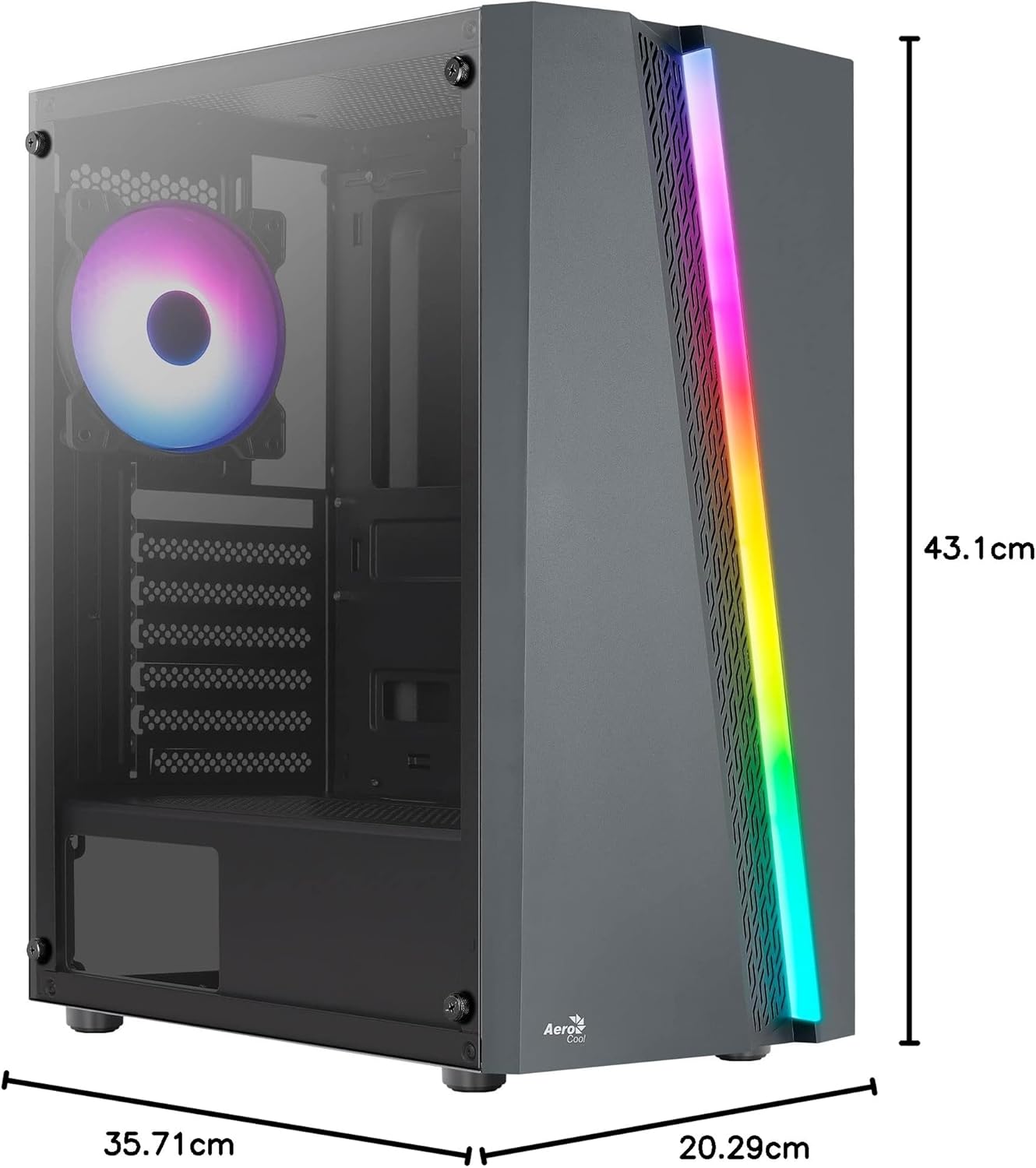
Figure 7.1: Dimensions of the AeroCool Blade PC Case.
| Хусусият | Мушаххасоти |
|---|---|
| Бренд | AeroCool |
| Номи модел | BLADEBK |
| Навъи парванда | Semi-Tower |
| Мутобиқати motherboard | ATX, Micro ATX, Mini ITX |
| Материал | Tempered Glass (Side Panel) |
| Андозаҳои маҳсулот (L x W x H) | 43.1 х 20.3 х 35.7 см |
| Вазни ашё | 4 кг |
| Drive Bays | 2 x 3.5", 2 x 2.5" |
| Тозакунии GPU | То 307мм |
| Баландии CPU сардтар | То 155мм |
| Портҳои I / O Front | 1 x USB 3.0, 2 x USB 2.0, HD Audio, Mic, LED Control, Power |
| Мухлисони пешакӣ насбшуда | 1 x 120mm RGB Rear, 3 x 120mm Front |
| Усули хунуккунӣ | Ҳаво |
8. Кафолат ва дастгирӣ
For warranty information and technical support, please refer to the official AeroCool webсайт ё фурӯшандаи маҳаллии худ тамос гиред. Барои даъвоҳои кафолат далели хариди худро нигоҳ доред.
Маълумот барои тамос: Барои кӯмаки иловагӣ лутфан боздид кунед www.aerocool.io.


