1. Муқаддима
This manual provides essential information for the setup, operation, and maintenance of your JLab Go Cam USB HD Webcam. The Go Cam is designed to deliver high-definition video and clear audio for various communication needs, including video conferencing, live streaming, and online meetings.
Хусусиятҳои асосӣ инҳоянд:
- Full 1080p video resolution at 30 frames per second (FPS).
- 2.1 Megapixel sensor for clear image capture.
- Built-in omni-directional microphone for natural sound.
- Optimized for various lighting conditions.
- Plug-and-play compatibility with PC, Mac, and Chromebook devices.
2. Оғози кор
2.1 Кушодани қуттӣ
Боварӣ ҳосил кунед, ки ҷузъҳои зерин ба бастаи шумо дохил карда шудаанд:
- JLab Go Cam USB HD Webcam
- Дастури оғози зуд
2.2 Талаботи система
The JLab Go Cam is compatible with the following operating systems:
- Windows (PC)
- macOS (Mac)
- Chrome OS (Chromebook)
No additional software or drivers are typically required for basic functionality.
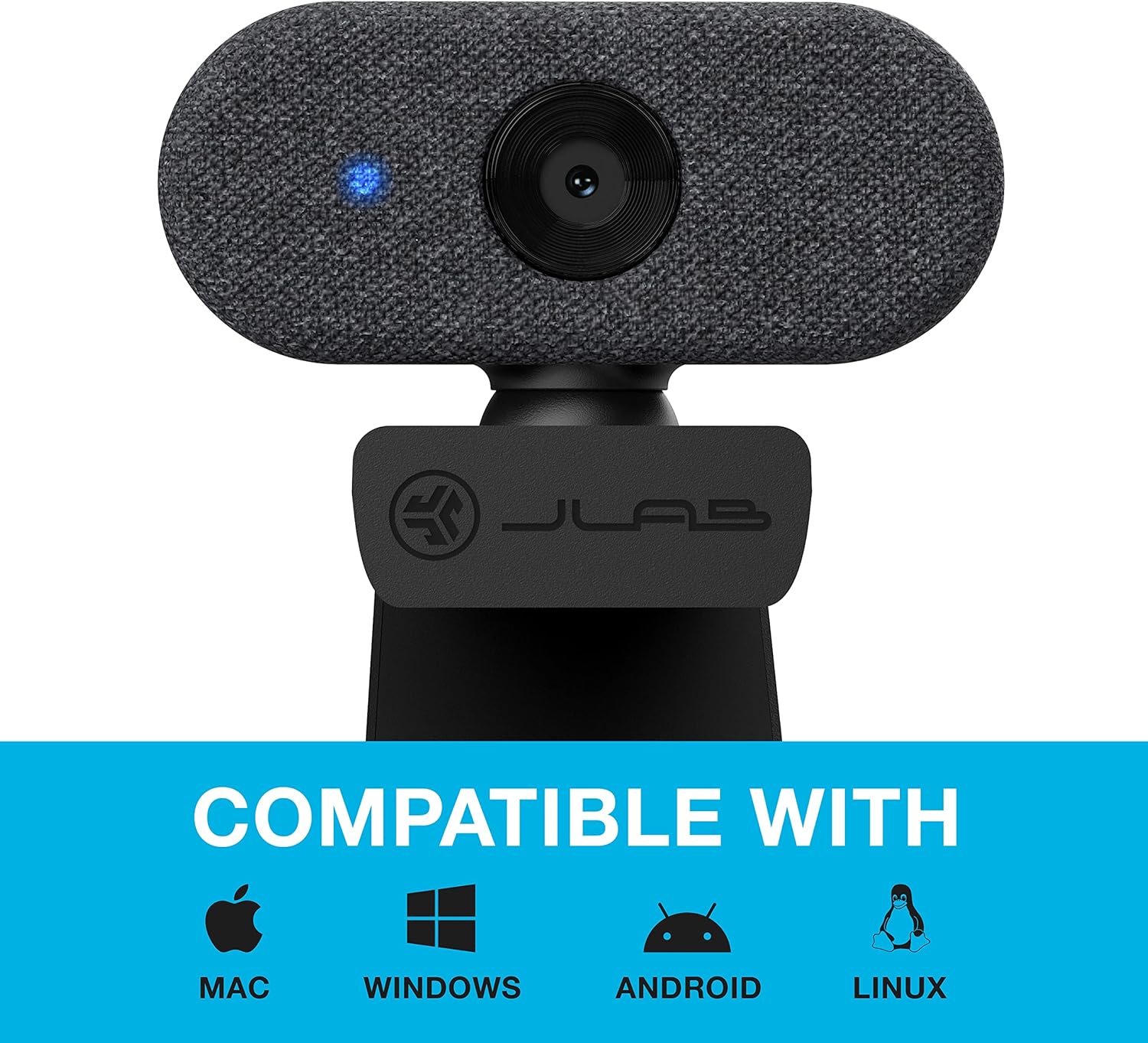
Image: The JLab Go Cam is compatible with Mac, Windows, Android, and Linux operating systems.
2.3 Танзимоти физикӣ
The JLab Go Cam features a versatile clip-on design for easy mounting.
- Mounting on a Monitor/Laptop: -ро кушоед webcam's integrated clip and place it securely on top of your monitor or laptop screen. Adjust the angle to ensure the webкамера устувор ва рӯ ба рӯи шумо қарор дорад.
- Ҷойгиркунии мизи корӣ: The clip can also serve as a stand for placing the webcam on a flat surface, such as a desk.

Image: The JLab Go Cam webcam showing its adjustable clip for mounting.
3. Амалиёт
3.1 Пайваст кардани Webcam
The JLab Go Cam is a plug-and-play device. Simply connect the integrated USB cable from the webcam to an available USB port on your computer. The operating system should automatically detect and install the necessary drivers.
3.2 Истифодаи барномаҳо
Пас аз пайвастшавӣ, webcam can be selected as your video and audio input device in most video conferencing, streaming, and recording applications (e.g., Zoom, Google Meet, Microsoft Teams, Skype, OBS Studio).
- Open your preferred application.
- Navigate to the application's settings or preferences, typically found under 'Audio & Video' or 'Devices'.
- Select 'JLab Go Cam' as your camera device.
- Select 'JLab Go Cam' or a similar entry as your microphone device.
- A blue indicator light on the webВақте ки камера фаъол ва истифода мешавад, камера фурӯзон мешавад.
3.3 Сифати видео ва аудио
The Go Cam provides 1080p Full HD video at 30 frames per second, ensuring clear and detailed visuals. The built-in omni-directional microphone captures sound from all directions, making conversations sound natural.

Image: The JLab Go Cam provides high-definition video for clear communication.

Image: The omni-directional microphone ensures clear audio capture.
3.4 Иҷрои нури паст
Дар webcam is designed to perform effectively in various lighting conditions, including low-light environments, to maintain image clarity.

Image: The JLab Go Cam adapts to different lighting conditions.
4. Нигоҳдорӣ
To ensure the longevity and optimal performance of your JLab Go Cam, follow these simple maintenance guidelines:
- Тоза кардани линза: Gently wipe the camera lens with a soft, lint-free cloth. Avoid abrasive materials or harsh cleaning chemicals.
- Тоза кардани бадан: Истифодаи хушк ё каме дamp матои тоза кардан webcam's exterior.
- Нигоҳдорӣ: Ҳангоми истифода нашудан, нигоҳ доред webcam in a clean, dry place away from extreme temperatures.
- Нигоҳубини кабел: Барои пешгирӣ аз осеб дидан аз хам кардан ё печондани сими USB аз ҳад зиёд худдорӣ кунед.
5. Баррасии мушкилот
If you encounter issues with your JLab Go Cam, refer to the following troubleshooting steps:
5.1 Webcam Not Detected or No Image/Sound
- Пайвасти USB-ро тафтиш кунед: Таъмин кунед webcam's USB cable is securely plugged into a functioning USB port on your computer. Try a different USB port.
- Компютерро бозоғоз намоед: Баъзан бозоғозкунии оддӣ метавонад мушкилоти ошкоркуниро ҳал кунад.
- Verify Application Settings: Confirm that 'JLab Go Cam' is selected as both the video and audio input device within your video conferencing or recording application's settings.
- Check Device Manager (Windows) / System Information (Mac): Тасдиқ кунед, ки webcam is recognized by your operating system.
5.2 Poor Image Quality (Dark, Pixelated, or Unclear)
- Шароити равшанӣ: Ensure adequate lighting in your environment. Position yourself facing a light source rather than having a bright light behind you.
- Линзаи тоза: Бодиққат тоза кунед webлинзаи камера бо матои нарм ва бепаж.
- Application Resolution: Check if your application's video settings are configured for 1080p resolution.
- No Dedicated Software: Please note that the JLab Go Cam does not come with proprietary software for advanced image adjustments (e.g., brightness, contrast, white balance). Adjustments may need to be made through your operating system's camera settings or the specific application you are using.
5.3 Сифати пасти аудио
- Интихоби микрофон: Ensure 'JLab Go Cam' is selected as the microphone input in your application's audio settings.
- Ҳаҷми микрофон: Check the microphone input level in your computer's sound settings and within the application.
- Садои муҳити зист: Minimize background noise for clearer audio.
5.4 Blue Indicator Light
The blue light on the front of the webcam indicates that the camera is actively in use by an application.
6. Мушаххасоти
| Бренд | JLab |
| Рақами модел | WGOCAMRBLK124 |
| Қарори сабти видео | 1080p (HD Full) |
| Чорчубахо дар як сония (FPS) | 30 FPS |
| Мегапиксел | 2.1 мегапиксел |
| Навъи микрофон | Ҳама самт |
| Технологияи пайвастшавӣ | USB |
| Хусусияти махсус | Иҷрои нури паст |
| Вазни ашё | 4.2 унция |
| Андозаҳои маҳсулот | 1.9 x 2.75 x 1.9 инч |
7. Кафолат ва дастгирӣ
7.1 Маълумот дар бораи кафолат
The JLab Go Cam USB HD Webcam бо а меояд JLab Two-Year Warranty. Please refer to the official JLab webБарои гирифтани шартҳо ва қоидаҳои пурраи кафолат ба сомона ё ҳуҷҷатҳои хариди шумо муроҷиат кунед.
7.2 Дастгирии муштариён
For further assistance, technical support, or warranty claims, please visit the official JLab support website or contact their customer service department. Contact information can typically be found on the JLab webсомона ё дар Дастури оғози зуд, ки бо маҳсулоти шумо дохил карда шудааст.


