1. Муқаддима
This manual provides essential instructions for the setup, operation, and maintenance of your Mercusys TP-Link MW300RE Wireless Wifi Extender. This device is designed to expand your existing wireless network coverage, eliminating Wi-Fi dead zones and improving signal strength in areas previously difficult to reach.
The MW300RE features a compact design, three external antennas with MIMO technology for enhanced performance, and a smart signal indicator to assist with optimal placement. It supports a single band speed of 300 Mbps and can also function as a wireless adapter via its Ethernet port.
2. Маҳсулот ба охир расидview
The Mercusys MW300RE is a wall-plug Wi-Fi range extender. Below are its key components and features:
- Антеннаҳои беруна: Three adjustable antennas for optimal signal reception and transmission.
- Васлаки барқ: Integrated power plug for direct wall outlet connection.
- Тугмаи WPS/Аз нав танзимкунӣ: Used for quick setup (WPS) and factory reset.
- LED сигнал: A multicolor LED indicator that helps determine the best location for the extender.
- Порти Ethernet: Allows wired connection for devices or to function as a wireless adapter.
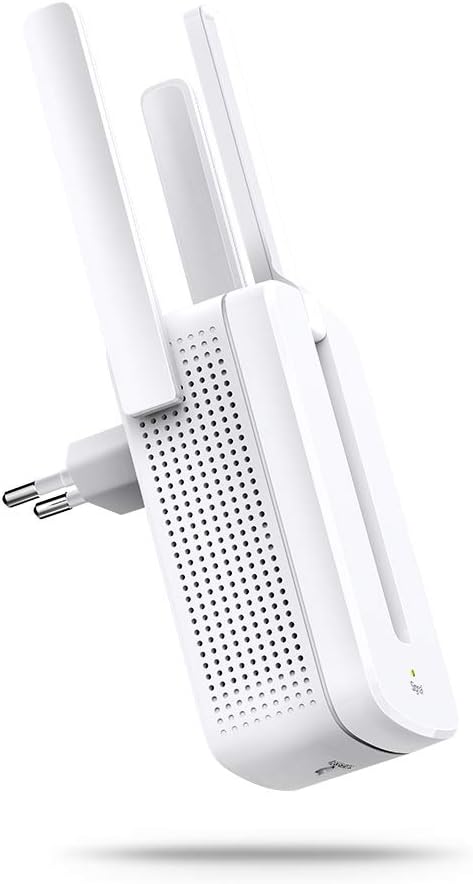
Расми 2.1: Пеш view of the Mercusys MW300RE Wireless Wifi Extender, highlighting its three external antennas.

Расми 2.2: Бозгашт view of the Mercusys MW300RE, showing the integrated power plug and product information label.

Расми 2.3: Пеш view of the extender, showing the signal indicator light at the bottom.
3. Танзимот
The Mercusys MW300RE can be set up quickly using the WPS (Wi-Fi Protected Setup) button or through a web браузер.
3.1. Quick Setup using WPS Button
- Фаъол: Plug the MW300RE into an electrical outlet near your main router. Wait for the Power LED to turn solid.
- WPS-ро дар роутер пахш кунед: Press the WPS button on your main Wi-Fi router.
- WPS-ро дар Extender пахш кунед: Within two minutes, press the WPS button on your MW300RE extender.
- Тасдиқи пайвастшавӣ: The Signal LED on the extender should change color (e.g., solid green or orange) to indicate a successful connection. If it does not, try repositioning the extender closer to the router and repeat the steps.

Расми 3.1: Visual guide for WPS button setup, illustrating the sequence of pressing WPS on both the router and the extender.
3.2. Setup via Web Browser (Alternative Method)
- Ба Extender пайваст шавед: Plug the MW300RE into an electrical outlet. Connect your computer or mobile device to the extender's default Wi-Fi network (e.g., "Mercusys_Extender").
- Дастрасӣ Web Интерфейс: Кушодани а web browser and enter the default management address (usually
mwlogin.netor an IP address like192.168.1.254). - Даромадан: Ҳангоми дархост кардани пароли воридшавӣ, парол эҷод кунед.
- Дастурҳои дар экранро иҷро кунед: The setup wizard will guide you through selecting your main Wi-Fi network and configuring the extender's settings.
- Ҷойгир кардани Extender: Once configured, unplug the extender and move it to a location between your router and the Wi-Fi dead zone. Ensure the Signal LED indicates a good connection (e.g., solid green).
4. Идоракунии васеъкунак
After successful setup, the MW300RE will extend your Wi-Fi coverage. Here's how to ensure optimal operation:
4.1. Ҷойгиркунии оптималӣ
The location of your extender is crucial for performance. Use the Smart Signal Indicator LED to find the best spot:
- Сабз сабз: Good connection. The extender is in an ideal location.
- Норанҷӣ/сурх: Weak connection. Move the extender closer to your router.
- Хомӯш: No connection. Move the extender closer to your router or check the power.
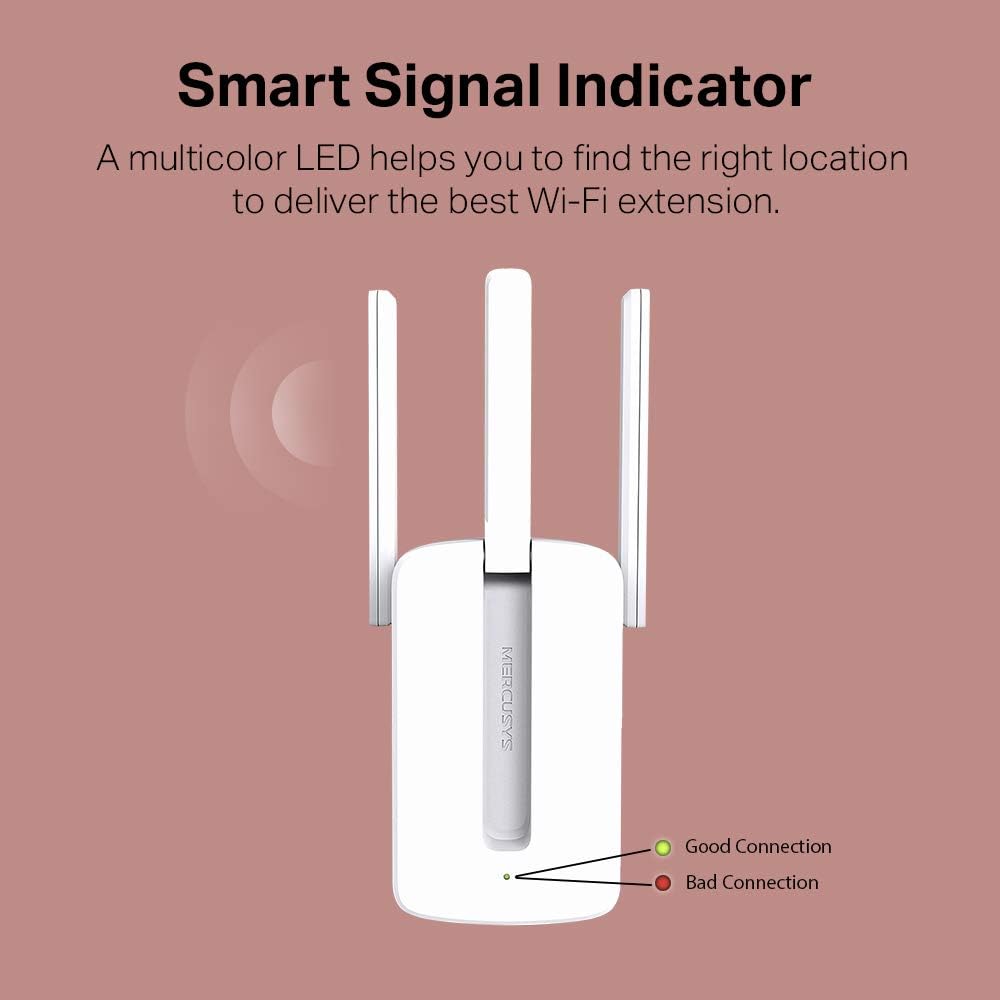
Расми 4.1: Explanation of the Smart Signal Indicator LED colors for optimal placement.

Расми 4.2: Illustration of the MW300RE extending Wi-Fi coverage to eliminate dead zones in a home environment.
4.2. Истифодаи порти Ethernet
The Ethernet port on the MW300RE allows you to connect a wired device, such as a desktop computer, gaming console, or smart TV, to your Wi-Fi network. This functions as a wireless adapter for that device, providing a stable wired connection while still extending Wi-Fi wirelessly.
5. Нигоҳдорӣ
To ensure the longevity and optimal performance of your Mercusys MW300RE, follow these maintenance guidelines:
- Тоза нигоҳ доред: Regularly wipe the device with a soft, dry cloth. Avoid using liquid cleaners or aerosols.
- Вентилятсия: Ensure the ventilation holes are not blocked. Do not place the device in enclosed spaces or cover it with cloth.
- Шароити экологӣ: Operate the device within its specified temperature and humidity ranges. Avoid direct sunlight, excessive heat, or moisture.
- Навсозии нармафзор: Check the official Mercusys website periodically for firmware updates. Updating firmware can improve performance, add features, and fix bugs.
- Сикли барқ: If you experience persistent issues, try power cycling the device (unplug it, wait 10 seconds, then plug it back in).
6. Баррасии мушкилот
If you encounter problems with your MW300RE, refer to the following common issues and solutions:
- No Internet Access after Connecting to Extender:
- Verify that your main router has internet access.
- Check the Signal LED on the extender. If it's off or red, reposition the extender closer to the router.
- Кӯшиш кунед, ки ҳам роутер ва ҳам васеъкунаки худро аз нав оғоз кунед.
- Ensure the extender is configured correctly. If necessary, perform a factory reset and reconfigure.
- Weak Signal or Slow Speed:
- Relocate the extender to an optimal position, using the Signal LED as a guide (solid green indicates a good connection).
- Ensure there are no major obstructions (thick walls, metal objects, large appliances) between the router, extender, and your devices.
- Minimize interference from other electronic devices operating on the 2.4 GHz band (e.g., microwaves, cordless phones).
- Хатогиҳо ҳангоми насби WPS:
- Ensure your router supports WPS and that WPS is enabled.
- Press the WPS button on your router and then on the extender within two minutes.
- Агар WPS минбаъд низ ноком шавад, аз ин истифода баред web browser setup method (Section 3.2).
- Forgot Management Password:
- Perform a factory reset on the extender. With the extender powered on, use a pin to press and hold the Reset button for about 5 seconds until the LEDs flash. The extender will revert to factory default settings, and you can set a new password during re-setup.
7. Мушаххасоти
| Хусусият | Тафсилот |
|---|---|
| Бренд | МЕРКУСИЗ |
| Модели | MW300RE V4.0 |
| Истеҳсолкунанда | TP-Link |
| Андозаҳои маҳсулот | 7.48 х 10.15 х 7.58 см |
| Вазн | 110 гр |
| Стандарти бесим | 802.11n |
| Меъёри интиқоли маълумот | 300 Мбит/с |
| Синфи басомади басомад | Single Band (2.4 GHz) |
| Антеннаҳо | 3 External Antennas with MIMO Technology |
| Хусусиятҳои махсус | LED Indicator, Access Point Mode |
| Порти Ethernet | 1x 10/100 Mbps Ethernet Port |
| Дастгоҳҳои мувофиқ | Роутер |
| Талаботи система | Microsoft Windows 98SE, NT, 2000, XP, Vista or Windows 7, 8, 10, Mac OS, NetWare, UNIX or Linux |
| Компонентҳои дохилшуда | MW300RE 300 Mbps Wi-Fi Range Extender, Quick Installation Guide |
8. Кафолат ва дастгирӣ
For warranty information, technical support, and additional resources, please refer to the official Mercusys website or the documentation included with your product. You can typically find FAQs, troubleshooting guides, and contact information for customer service there.
The product is manufactured by TP-Link. For the most up-to-date support, visit the Mercusys support page.


