Муқаддима
Thank you for choosing the AUSDOM Wireless Keyboard and Mouse Combo. This manual provides detailed instructions for setting up, operating, and maintaining your new wireless peripheral set. Please read this manual thoroughly before use to ensure optimal performance and longevity of your product.
Мундариҷаи баста
- 1 x AUSDOM Wireless Keyboard
- 1 x AUSDOM Wireless Mouse
- 1 x Қабулкунаки USB (дар қисмати батареяи муш нигоҳ дошта мешавад)
- 1 х Сими барқи USB-C
- 1 x Дастури корбар
Маҳсулот ба охир расидview
The AUSDOM Wireless Keyboard and Mouse Combo offers a comfortable and efficient input solution. The keyboard features a full-size layout with a numeric keypad and shortcut keys, while the mouse provides adjustable DPI settings for precise control.

Image: The AUSDOM wireless keyboard and mouse combo, showing the full-size keyboard, the ergonomic mouse, and the compact USB receiver.

Image: A visual emphasizing the quiet operation of the keyboard's scissor-switch keys and the silent click mouse, designed for a focused work environment.
Хусусиятҳои клавиатура:
- Full-size layout with numeric keypad
- 16 multimedia and shortcut keys
- Slim and silent scissor-switch keys
- Ба воситаи USB-C барқгиранда
Хусусиятҳои муш:
- Silent click design
- 3 adjustable DPI levels (800/1200/1600)
- Тугмаи бозгашт
- Ба воситаи USB-C барқгиранда
- Integrated USB receiver storage
Дастури насб
Follow these steps to connect your AUSDOM Wireless Keyboard and Mouse Combo to your computer.

Image: Step-by-step visual guide for connecting the wireless keyboard and mouse, including powering on devices and inserting the USB receiver.
- Пур кардани дастгоҳҳо: Before first use, ensure both the keyboard and mouse are fully charged using the provided USB-C cable. Connect the cable to the charging port on each device and a USB power source. The charging indicator will turn off when fully charged.
- Қабулкунаки USB-ро пайдо кунед: The 2.4 GHz USB receiver is stored in the battery compartment on the underside of the mouse. Gently open the compartment cover and remove the receiver.
- Қабулкунакро пайваст кунед: Insert the USB receiver into an available USB port on your computer (desktop, laptop, or all-in-one PC).
- Фаъол кардани клавиатура: Locate the power switch on the side or back of the keyboard and slide it to the "ON" position.
- Фаъол кардани муш: Калиди барқро дар паҳлӯи поёни муш ҷойгир кунед ва онро ба ҳолати "ON" лағжонед.
- Пайвасти худкор: The keyboard and mouse should automatically connect to your computer within a few seconds. No additional drivers are typically required for Windows operating systems.
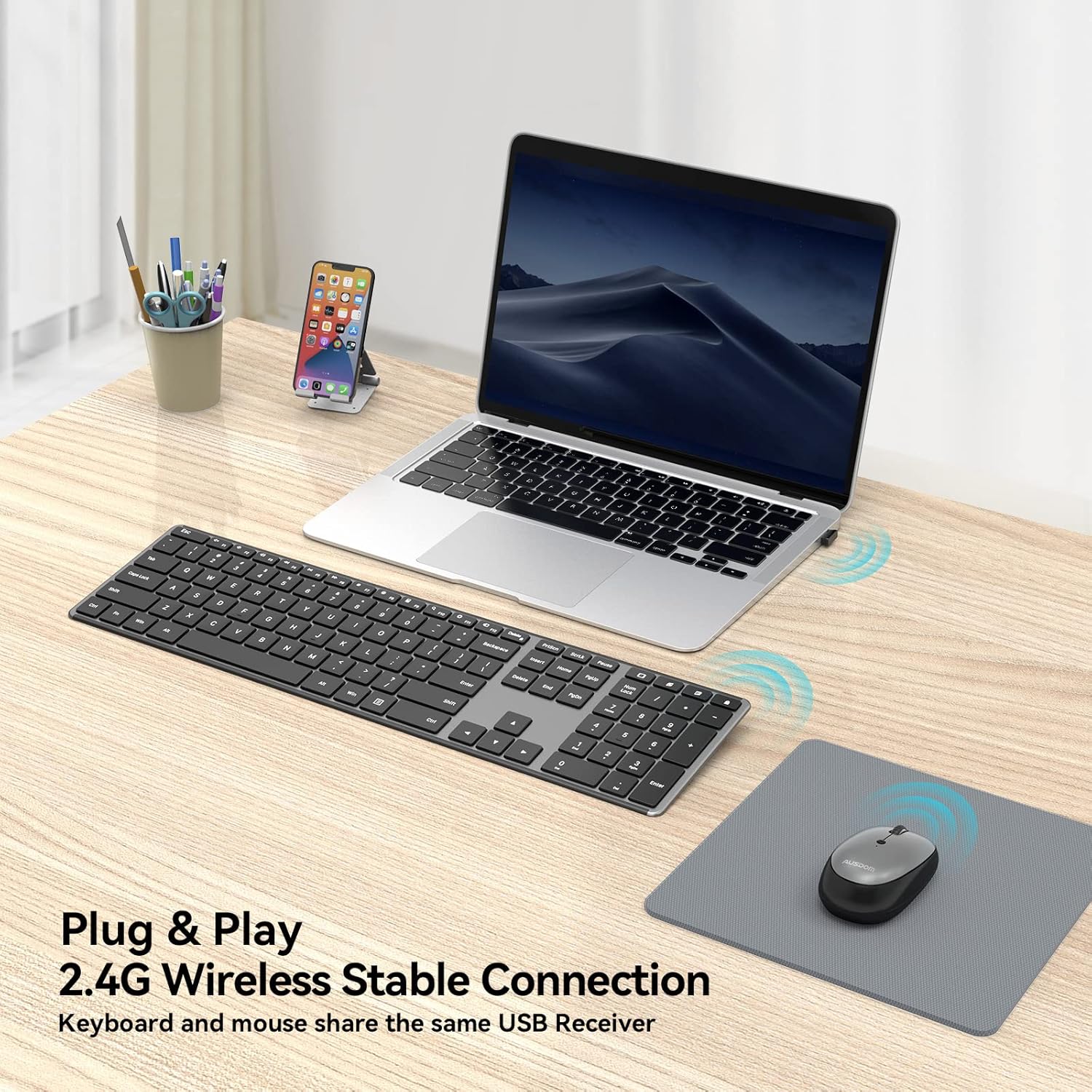
Image: The wireless keyboard and mouse connected to a laptop, illustrating the 2.4G wireless stable connection using a single USB receiver.

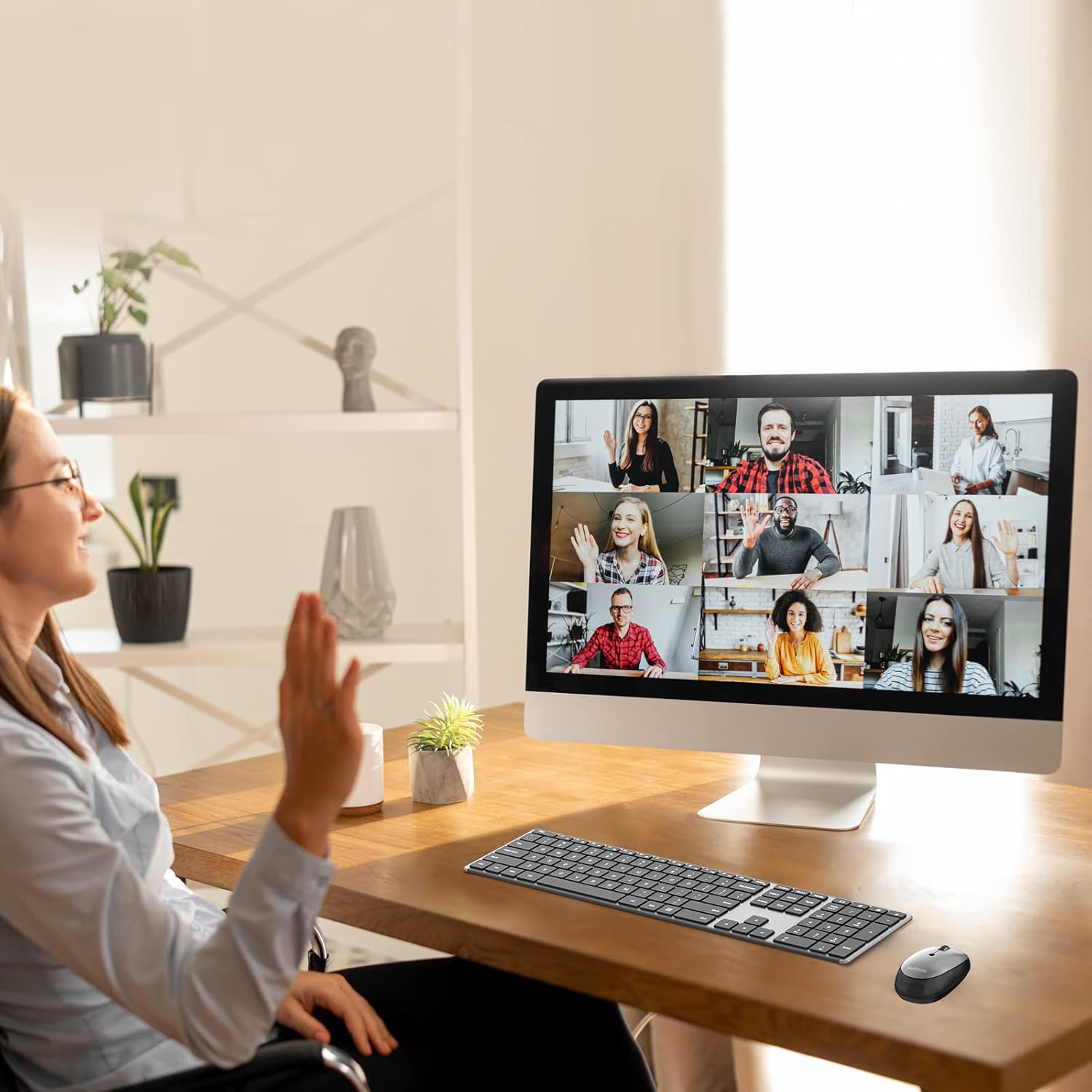
Image: The keyboard and mouse set up with a desktop computer, indicating its primary design for Windows devices including desktops, notebooks, and all-in-one PCs.
Дастурҳои амалиётӣ
Истифодаи клавиатура:
The keyboard features a standard QWERTY layout with a numeric keypad and dedicated function keys. It is designed for quiet and comfortable typing.
Тасвир: Муфассал view of the keyboard highlighting the 16 convenient shortcut keys for various functions like volume control, media playback, and system settings.
Калидҳои кнопка:
The keyboard includes 16 shortcut keys for quick access to common functions. These keys are typically activated by pressing the Fn тугмаи ҳамзамон бо тугмаи функсионалии дилхоҳ (F1-F12).
- Fn+F1: Хомӯш кардан
- Fn+F2: Паст кардани овоз
- Fn+F3: Баланд бардоштани овоз
- Fn+F4: Треки қаблӣ
- Fn+F5: Бозӣ/Таваққуф
- Fn+F6: Треки навбатӣ
- Fn+F7: Равшанӣ паст
- Fn+F8: Равшанӣ боло
- Fn+F9: Ҳисобкунак
- Fn+F10: кофтуков
- Fn+F11: Танзимотҳо
- Fn+F12: Дастгоҳро фаъол кунед
- Windows Search Key: Opens Windows Search.
- Open Browser Key: Launches default web браузер.
- Display Desktop Key: Minimizes all open windows.
- Lock Screen Key: Locks the computer screen.
Шарҳ: Some multimedia features may not be available or function differently on Mac OS.
Истифодаи муш:
The wireless mouse offers precise tracking and silent clicks for a focused work environment.

Image: The silent mouse with its underside visible, indicating the DPI adjustment button, power switch, and the compartment for the USB receiver.
Танзими DPI:
The mouse features three adjustable DPI (Dots Per Inch) levels to control cursor sensitivity. Press the DPI button (usually located near the scroll wheel or on the underside) to cycle through the settings:
- 800н/д: Slower cursor movement for precise tasks.
- 1200н/д: Standard cursor movement.
- 1600н/д: Faster cursor movement for quick navigation.
The mouse also includes a "Return Button" for quick navigation, typically functioning as a back button in web браузерҳо.
Нигоҳдорӣ
Пур кардан:
Both the keyboard and mouse are equipped with built-in rechargeable batteries. Use the provided USB-C charging cable to recharge them.
- Connect the USB-C end of the cable to the charging port on the keyboard or mouse.
- Connect the USB-A end of the cable to a USB power adapter (not included), a computer's USB port, or a power bank.
- Пуркунии пурра одатан тақрибан 1.5 соатро мегирад.
- A single full charge can provide over a month of usage time, depending on usage frequency.
- Дастгоҳҳоро ҳангоми пуркунӣ истифода бурдан мумкин аст.

Image: The wireless keyboard and mouse connected to USB-C charging cables, illustrating the rechargeable feature and estimated charging/usage times.
Сарфаи энергия:
To conserve battery life, both the keyboard and mouse feature power switches. Turn them off when not in use for extended periods.
Тозакунӣ:
To clean your devices, gently wipe them with a soft, damp cloth. Avoid using harsh chemicals or abrasive materials that could damage the surfaces.
Мушкилкушо
If you encounter issues with your AUSDOM Wireless Keyboard and Mouse Combo, please refer to the following common solutions:
- Devices Not Responding:
- Боварӣ ҳосил кунед, ки ҳам клавиатура ва ҳам муш ба кор андохта шудаанд.
- Санҷед, ки қабулкунаки USB ба порти USB-и коркунандаи компютери шумо боэътимод пайваст шудааст. Порти дигари USB-ро санҷед.
- Verify that the devices are fully charged. Recharge them if the battery is low.
- Move the devices closer to the USB receiver to ensure they are within the 10m wireless range.
- Компютери худро бозоғоз намоед.
- Пайвастшавии фосилавӣ:
- Ensure there are no large metal objects or other wireless devices (e.g., Wi-Fi routers, other wireless peripherals) causing interference between the devices and the receiver.
- Try plugging the USB receiver into a different USB port, preferably one on the front of your computer if using a desktop.
- Курсори муш ҷаҳида истодааст ё нодуруст аст:
- Сенсори оптикиро дар поёни муш тоза кунед.
- Боварӣ ҳосил кунед, ки шумо мушро дар сатҳи мувофиқ истифода мебаред (на он ки хеле инъикоскунанда ё шаффоф бошад). Тавсия дода мешавад, ки лавҳаи мушро истифода баред.
- Adjust the DPI settings using the DPI button on the mouse to find a comfortable sensitivity.
- Тугмаҳои клавиатура кор намекунанд:
- Check for any debris under the non-functioning key.
- Боварӣ ҳосил кунед, ки клавиатура пурра пур карда шудааст.
- If only function keys are not working as expected, ensure you are pressing the Fn key if required, or check your operating system's settings for function key behavior.
- Мушкилоти мутобиқат бо Mac OS:
- This combo is primarily designed for Windows devices. While basic typing and pointing functions will work, some multimedia or shortcut keys may not be fully functional or may require specific software/driver installations on Mac OS.
Мушаххасоти
| Хусусият | Тафсилот |
|---|---|
| Рақами модел | КАМ200 |
| Технологияи пайвастшавӣ | 2.4 ГГц бесим |
| Диапазони бесим | То 10 метр (33 фут) |
| Андозаи клавиатура | 16.85 x 4.49 x 0.62 инч (42.8 x 11.4 x 1.57 см) |
| Вазни клавиатура | Тақрибан 12.8 унсия (362.87 грамм) |
| Сатҳҳои DPI-и муш | 800 / 1200 / 1600 DPI |
| Навъи батарея | Built-in Rechargeable Lithium-Ion |
| Порти пуркунандаи барқ | USB-C |
| Вақти пуркунии барқ | тахминан. 1.5 соат |
| Мӯҳлати истифода (пурра пур кардан) | Over 1 month (depending on usage) |
| Системаҳои оператсионии мувофиқ | Windows (Desktop, Laptop, All-in-One PC) |

Image: A visual representation of the keyboard and mouse dimensions, highlighting the ultra-slim design of the keyboard at 0.62 inches thick.
Кафолат ва дастгирӣ
AUSDOM provides a one-year warranty service for this product. If you encounter any problems during use, please contact AUSDOM customer support for assistance.
For warranty claims or technical support, please visit the official AUSDOM website or contact their customer service department through the contact information provided with your purchase.