1. Муқаддима
Thank you for choosing the ENDORFY Thock TKL Wireless Keyboard. This manual provides detailed instructions for setting up, operating, maintaining, and troubleshooting your new keyboard. Please read this manual carefully before use to ensure optimal performance and longevity of your device.
2. Мундариҷаи баста
Лутфан тасдиқ кунед, ки ҳама ашё дар бастаи шумо мавҷуданд:
- ENDORFY Thock TKL Wireless Keyboard
- USB-C ба кабели USB-A
- Қабулкунаки бесими USB 2.4 ГГц
- Асбоби клавиатураи клавиатура
- Дастури корбар (ин ҳуҷҷат)
3. Танзимот
3.1 Initial Setup and Charging
Before first use, it is recommended to fully charge the keyboard. Connect the provided USB-C cable to the keyboard's USB-C port and the USB-A end to a powered USB port on your computer or a wall adapter. The keyboard's indicator light will show charging status.
3.2 Усулҳои пайвастшавӣ
The ENDORFY Thock TKL Wireless Keyboard supports three connection modes: 2.4 GHz Wireless, Bluetooth, and Wired (USB-C).
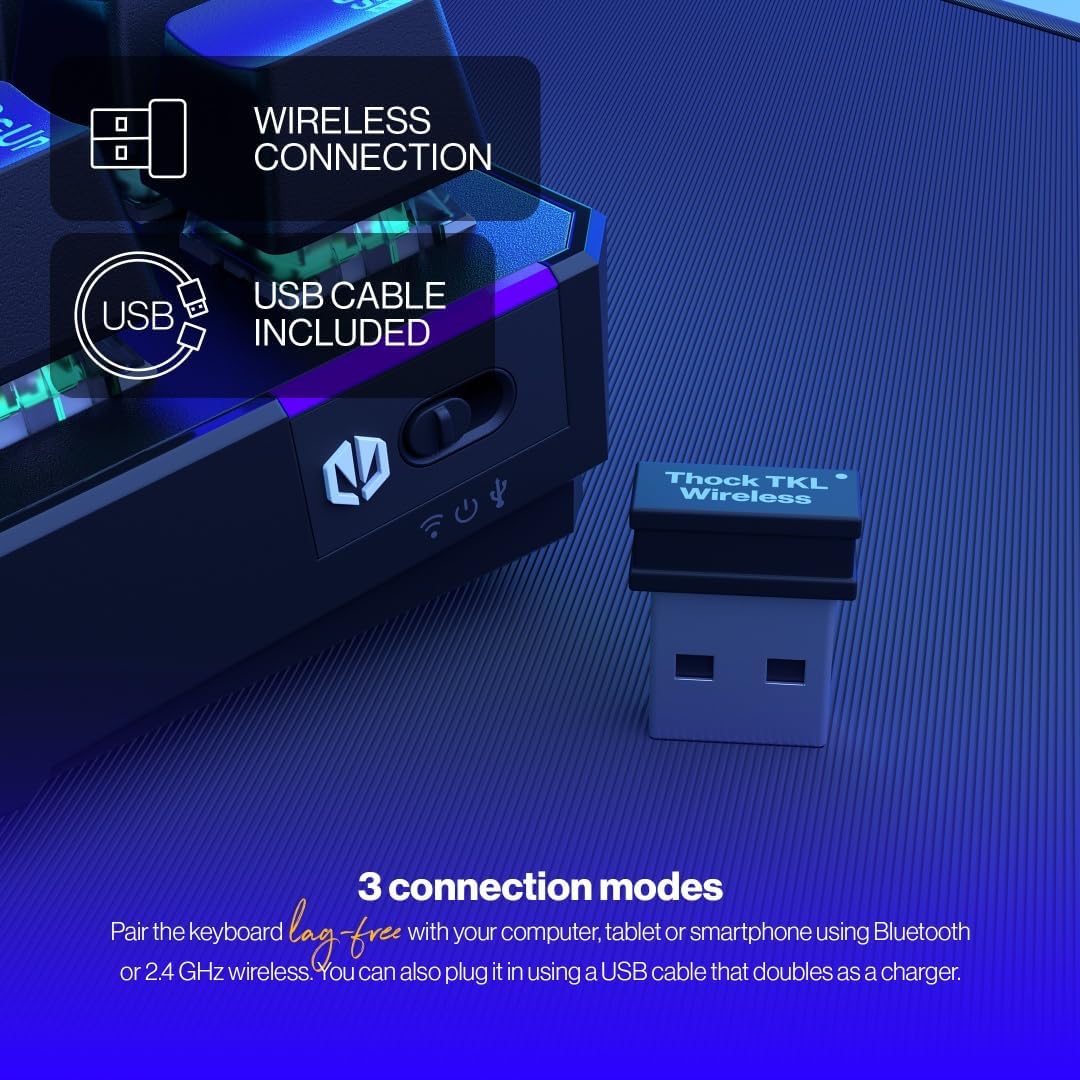
The keyboard offers versatile connectivity options including 2.4 GHz wireless, Bluetooth, and a wired USB connection.
3.2.1 2.4 GHz Wireless Connection
- Locate the 2.4 GHz USB wireless receiver in your package.
- Қабулкунаки USB-ро ба порти дастраси USB дар компютери худ пайваст кунед.
- On the keyboard, locate the mode switch (usually on the side or back) and set it to the '2.4G' or wireless icon position.
- The keyboard should automatically connect to your computer.
3.2.2 Пайвасти Bluetooth
- On the keyboard, set the mode switch to the 'BT' or Bluetooth icon position.
- Клавиатура ба ҳолати ҷуфтшавӣ ворид мешавад (чароғи нишондиҳанда метавонад милт-милт кунад).
- Дар компютер ё дастгоҳи худ, танзимоти Bluetooth-ро кушоед ва дастгоҳҳои навро ҷустуҷӯ кунед.
- Select 'ENDORFY Thock TKL' (or similar name) from the list of available devices to pair.
3.2.3 Пайвасти симӣ
- Connect the USB-C end of the provided cable to the USB-C port on the keyboard.
- Нӯги USB-A-и симро ба порти дастраси USB дар компютери шумо пайваст кунед.
- The keyboard will function as a wired keyboard and will also charge its internal battery.

The USB-C port on the side of the keyboard allows for wired connection and charging.
4. Дастурҳои истифодабарӣ
4.1 Вазифаҳои асосӣ
The Thock TKL keyboard features a standard 87-key US layout. Many keys have secondary functions accessible via the 'Fn' key. Refer to the keycaps for specific Fn combinations (e.g., Fn + F1-F12 for media controls, volume, etc.).
4.2 Танзими чароғаки пасзаминаи RGB
The keyboard features programmable ARGB backlighting. You can cycle through various lighting effects and colors directly on the keyboard using specific Fn key combinations, or through the dedicated software for more advanced customization.
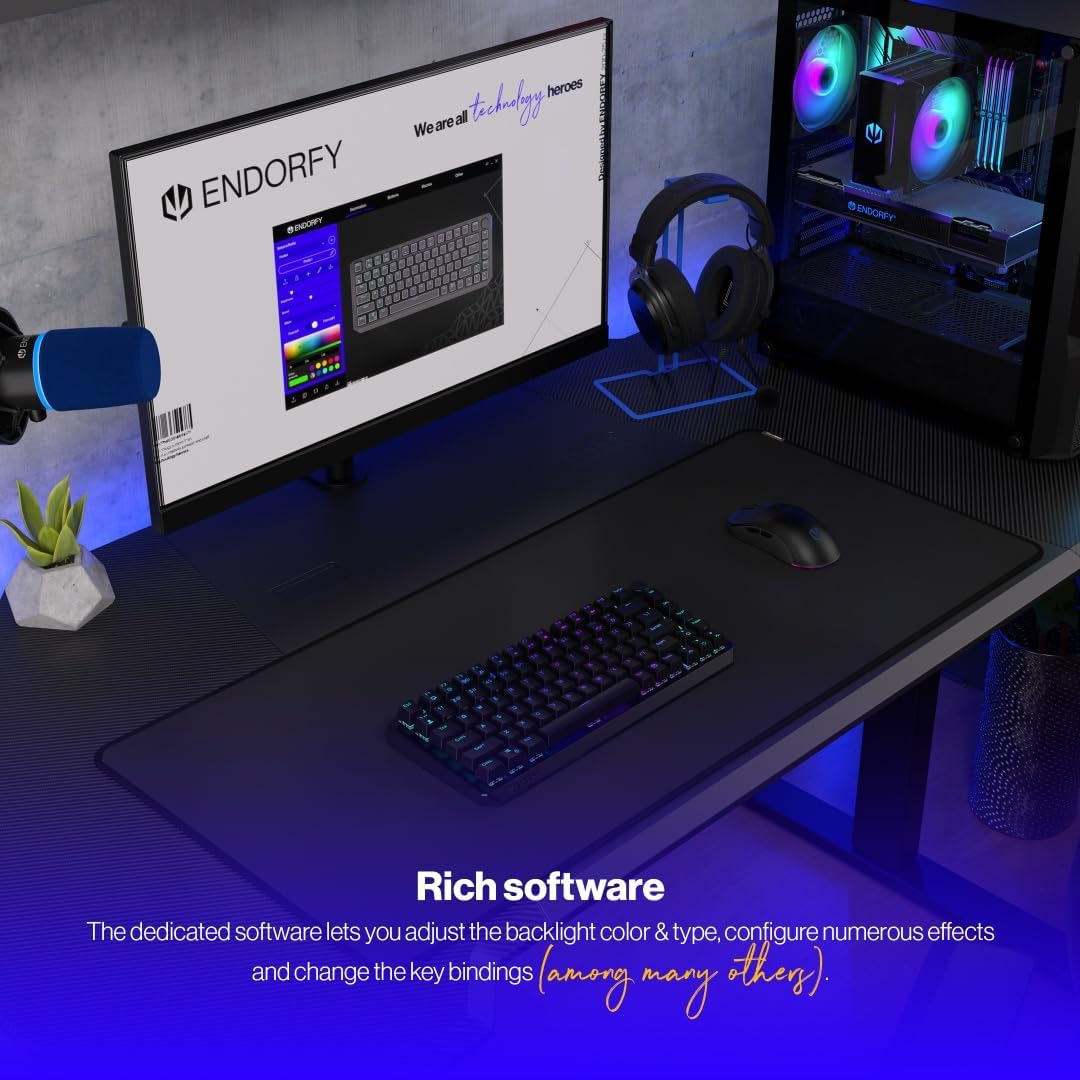
The keyboard features excellent ARGB backlighting, allowing for various color and effect customizations.
4.3 Software Usage
For advanced customization of key bindings, macros, and RGB lighting effects, download and install the dedicated ENDORFY software from the official website. The software provides a graphical interface to fine-tune your keyboard settings.

The dedicated software allows for comprehensive adjustment of backlight color, type, effects, and key bindings.
5. Нигоҳдорӣ
5.1 Тозакунӣ
To clean your keyboard, first disconnect it from your computer. Use a soft, dry cloth to wipe down the keycaps and chassis. For deeper cleaning, you may use a can of compressed air to remove dust and debris from between the keys. Avoid using harsh chemicals or abrasive materials.
5.2 Калидҳои ивазкунии гарм
The ENDORFY Thock TKL keyboard features hot-swappable switches, allowing you to easily change them without soldering. Use the provided switch puller tool to carefully remove switches. Align the new switch with the pins and gently press it into place until it clicks.

The hot-swap feature allows for easy replacement of switches using the included tool.

The keyboard comes equipped with Kailh Box Red switches, known for their smooth and linear actuation.
5.3 Keycap Replacement
The keyboard uses durable PBT Double Shot keycaps. To remove a keycap, use the keycap puller tool (often combined with the switch puller) to gently pull it upwards. To install a new keycap, align it with the switch stem and press down firmly until it is seated.

The durable PBT Double Shot keycaps are resistant to wear and maintain their appearance over time.
6. Баррасии мушкилот
6.1 Клавиатура ҷавоб намедиҳад
- Боварӣ ҳосил кунед, ки клавиатура пур карда шудааст.
- Check the connection mode switch (2.4G, BT, Wired) is set correctly.
- For wireless connections, ensure the USB receiver is properly plugged in or Bluetooth is paired. Try a different USB port.
- For wired connection, try a different USB cable or port.
- Компютери худро бозоғоз намоед.
6.2 Backlight Not Working or Incorrect
- Ensure the backlight is enabled via Fn key combinations.
- Check the brightness level.
- If using the software, ensure settings are applied correctly.
- Perform a factory reset if available (refer to software or advanced Fn commands).
6.3 Калидҳо ба қайд гирифта намешаванд
- Боварӣ ҳосил кунед, ки клавиатура тоза ва аз партовҳои зери клавиатураҳо тоза аст.
- If a specific key is not working, try hot-swapping the switch with a known working one to diagnose if the issue is with the switch or the keyboard PCB.
- Update keyboard firmware if available.
7. Мушаххасоти
| Рақами модел | EY5A080 |
| Навъи клавиатура | Mechanical, TKL (Tenkeyless) |
| Гузаришҳо | Kailh Box Red (Hot-Swappable) |
| Клавиатура | Тир дукаратаи PBT |
| Тарҳ | US Layout, 87 Keys |
| Пайвастшавӣ | 2.4 GHz Wireless, Bluetooth, USB-C Wired |
| Нури паси | ARGB Programmable |
| Батарея | 1 батареяи литий-ион (дохил) |
| Андозаҳои маҳсулот | 14.23 x 5.51 x 1.67 инч (361.50 x 140 x 42.50 мм) |
| Вазни ашё | 1.74 фунт |
| Дастгоҳҳои мувофиқ | PC, Gaming Consoles, Tablets, Smartphones |

боло view dimensions of the ENDORFY Thock TKL Wireless Keyboard.

Тараф view dimensions illustrating the adjustable height options of the keyboard.
8. Кафолат ва дастгирӣ
The ENDORFY Thock TKL Wireless Keyboard comes with a Кафолати 2 сол аз рӯзи харид. Лутфан далели хариди худро барои даъвоҳои кафолат нигоҳ доред.
For technical support, driver downloads, firmware updates, or further information, please visit the official ENDORFY webсайт:
http://endorfy.com/kb/EY5A-THOCK-TKL-WIRELESS
You may also contact ENDORFY customer support directly through the contact information provided on their webсайт.


