1. Муқаддима
The BuzzTV B5 is an advanced Android 11 TV Box designed to deliver a superior 4K UHD streaming experience. This device allows you to access a wide range of entertainment, including movies, TV shows, and applications, directly on your television. This manual provides essential information for the proper setup, operation, maintenance, and troubleshooting of your BuzzTV B5.
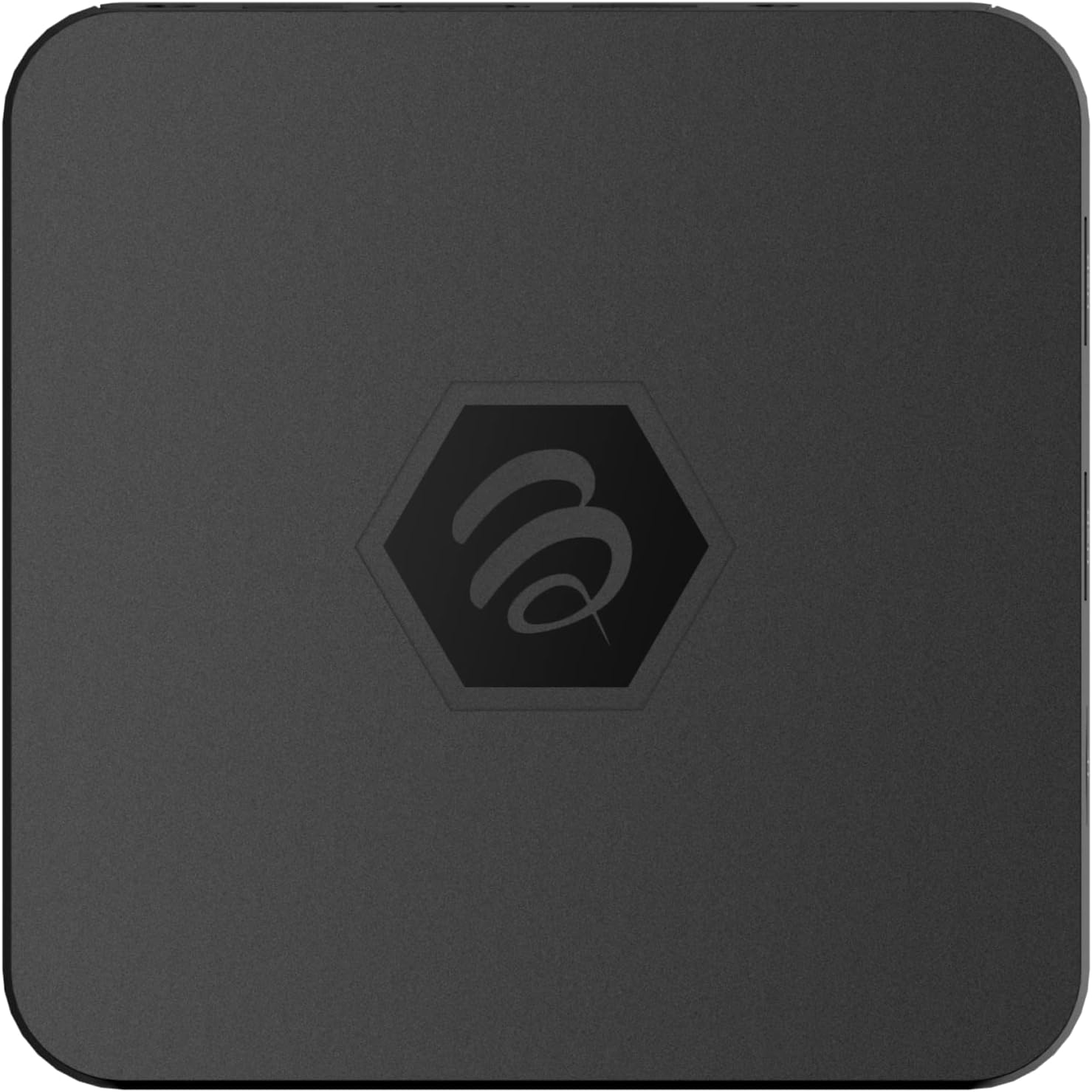
Тасвири 1.1: боло view of the BuzzTV B5 Android 11 TV Box.
2. Мундариҷаи баста
Please verify that all items listed below are included in your BuzzTV B5 package:
- BuzzTV B5 Set Top Box
- IR-100 Remote Control
- Адаптери таъминоти барқ
- 2x AAA Batteries (for remote control)
- Кабели HDMI
- Дастури корбар (ин ҳуҷҷат)

Image 2.1: Contents included in the BuzzTV B5 retail package.
3. Дастури насб
Follow these steps to set up your BuzzTV B5 TV Box:
- Ба телевизор пайваст шавед: Connect one end of the provided HDMI cable to the HDMI port on the BuzzTV B5 and the other end to an available HDMI input on your television.
- Пайваст кардани барқ: Plug the power supply adapter into the DC 5V port on the BuzzTV B5, then plug the adapter into a wall outlet. The device should power on automatically or can be powered on using the remote control.
- Батареяҳоро ба пульти дурдаст ворид кунед: Open the battery compartment on the back of the IR-100 Remote Control and insert the two AAA batteries, ensuring correct polarity (+/-).
- Пайвасти шабакавӣ: Once the device boots up, follow the on-screen instructions to connect to your network. You can choose between Wi-Fi (wireless) or Ethernet (wired) connection. For a wired connection, connect an Ethernet cable from your router to the Ethernet port on the BuzzTV B5.
- Танзимоти ибтидоӣ: Complete the initial Android setup process, which may include language selection, Google account login, and time zone settings.

Image 3.1: Rear ports of the BuzzTV B5 for connectivity.
4. Дастурҳои истифодабарӣ
The BuzzTV B5 operates on Android 11, providing a user-friendly interface for navigation and content access.
4.1 Функсияҳои идоракунии дурдаст
The IR-100 Remote Control is your primary interface for the BuzzTV B5. Key functions include:
- Тугмаи барқ: Дастгоҳро фаъол ё хомӯш мекунад.
- Панели навигатсионӣ (боло/поён/чап/рост/OK): Барои паймоиш дар менюҳо ва интихоби ҷузъҳо истифода мешавад.
- Тугмаи Бозгашт: Ба экран ё менюи қаблӣ бармегардад.
- Тугмаи хонагӣ: Returns to the main Android home screen.
- Тугмаҳои баландии овоз: Баландии садоро танзим мекунад.
- App/Menu Buttons: Accesses specific applications or context menus.

Image 4.1: Layout of the IR-100 Remote Control.
4.2 Дастрасӣ ба барномаҳо
From the home screen, you can access pre-installed applications like Netflix and YouTube, or download new applications from the Google Play Store. Use the navigation pad on your remote to select and launch applications.
4.3 4K UHD Streaming
The BuzzTV B5 supports 4K UHD resolution. Ensure your television is 4K compatible and that you are using a high-speed HDMI cable for optimal picture quality. Streaming quality will also depend on your internet connection speed and the content source.
5. Нигоҳдорӣ
To ensure the longevity and optimal performance of your BuzzTV B5, consider the following maintenance tips:
- Тозакунӣ: Барои тоза кардани берунии дастгоҳ матои мулоими хушкро истифода баред. Аз тозакунандаи моеъ ё маводи абразивӣ худдорӣ намоед.
- Вентилятсия: Ensure the device is placed in a well-ventilated area to prevent overheating. Do not cover ventilation openings.
- Навсозии нармафзор: Periodically check for and install system updates to benefit from new features, performance improvements, and security patches. These can usually be found in the device's settings menu.
- Сикли барқ: If the device becomes unresponsive, disconnect the power adapter, wait 10 seconds, and then reconnect it to perform a power cycle.
6. Баррасии мушкилот
If you encounter issues with your BuzzTV B5, refer to the following common problems and solutions:
| Мушкилот | Сабаби эҳтимолӣ | Ҳалли |
|---|---|---|
| Не қудрат | Адаптери барқ пайваст нашудааст; розетка кор намекунад. | Ensure power adapter is securely connected to the device and a working power outlet. Try a different outlet. |
| No Signal on TV | Incorrect HDMI input selected; faulty HDMI cable. | Select the correct HDMI input on your TV. Check HDMI cable connections or try a different HDMI cable. |
| Идоракунии дурдаст ҷавоб намедиҳад | Dead batteries; remote not paired (if applicable); obstruction. | Replace AAA batteries. Ensure no obstructions between remote and device. |
| Масъалаҳои пайвастшавӣ ба шабака | Incorrect Wi-Fi password; router issues; weak signal. | Verify Wi-Fi password. Restart your router. Move the device closer to the router or use an Ethernet cable. |
| Қатъи барномаҳо/яхшавӣ | Insufficient memory; outdated app; software glitch. | Close background apps. Update the app or the device's firmware. Clear app cache/data in settings. |
7. Мушаххасоти
Detailed technical specifications for the BuzzTV B5 Android 11 TV Box:
- Низоми амал: Android OS 11
- ВПМ - ВОҲИДИ ПАРДОЗИШИ МАРКАЗӢ: Amlogic S905W2 Quad-Core A-35
- GPU: Мали-G31 MP2
- RAM: 2 ГБ DDR
- Нигоҳдорӣ: 16 ГБ eMMC
- Вай-фай: Dual Band AC
- LAN: 10/100 Мбит/с Ethernet
- Блутуз: 4.2
- Портҳои USB: 2х USB 2.0
- Ковокии MicroSD: 1
- Интерфейси барқ: DC 5V
- баромади HDMI: 1
- Натиҷаи аудиои оптикӣ: 1
- Ҳалли натиҷа: 4K (32 FPS)
- Андозаҳо: 9.06 x 5.63 x 2.32 инч
- Вазни ашё: 1.01 фунт

Image 7.1: BuzzTV B5 with a summary of its technical specifications.
8. Маълумот дар бораи кафолат
For detailed warranty information regarding your BuzzTV B5, please refer to the warranty card included in your product packaging or visit the official BuzzTV webсайт. Шартҳо ва шартҳои кафолат вобаста ба минтақа ва фурӯшанда метавонанд фарқ кунанд.
9. Дастгирӣ
If you require further assistance or have questions not covered in this manual, please contact BuzzTV customer support or visit their official website for FAQs, software downloads, and additional resources.
BuzzTV Official Webсайт: www.buzztv.com


