1. Муқаддима
This manual provides comprehensive instructions for the setup, operation, and maintenance of your Xprinter XP-Q801K Thermal Receipt Printer. This printer is designed for efficient and reliable receipt printing in various business environments, featuring high-speed direct thermal printing and a USB interface for easy connectivity.

Расми 1: Пеш view of the Xprinter XP-Q801K Thermal Receipt Printer, showing the paper output slot and control buttons.
2. Танзимот
2.1 Кушодани баста
Carefully remove the printer and all accessories from the packaging. Verify that all components are present:
- Xprinter XP-Q801K Thermal Receipt Printer
- Адаптери барқ
- Сими USB
- Paper Roll (starter)
- Дастури корбар (ин ҳуҷҷат)
2.2 Пайваст кардани принтер
Before connecting, ensure the printer is powered off. Locate the ports on the rear of the printer.
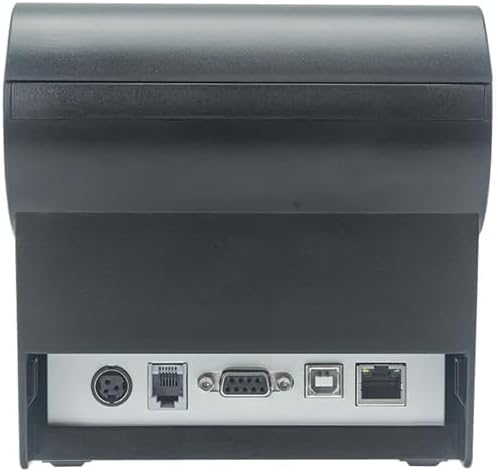
Расми 2: Қафо view of the printer, highlighting the power, USB, and other interface ports.
- Пайваст кардани барқ: Insert the power adapter cable into the printer's power input port (DC 24V/2.5A) and plug the adapter into a suitable electrical outlet (AC 100-240V, 50-60Hz).
- Пайваст кардани USB: Connect one end of the provided USB cable to the USB port on the printer and the other end to an available USB port on your computer.
- Cash Drawer (Optional): If using a cash drawer, connect its cable to the cash drawer port (DC 24V/1A) on the printer.
2.3 Loading the Paper Roll
The printer uses 80mm wide thermal paper rolls.
- Сарпӯши коғазро бо пахш кардани тугмаи кушодаи сарпӯш кушоед (одатан дар паҳлӯ ё пеш ҷойгир аст).
- Insert the thermal paper roll with the printing surface facing the print head. Ensure the roll is seated correctly in the paper compartment.
- Миқдори ками коғазро аз назди буранда берун кашед.
- Сарпӯши коғазро маҳкам пӯшед, то он даме, ки он дар ҷои худ ҷойгир шавад.
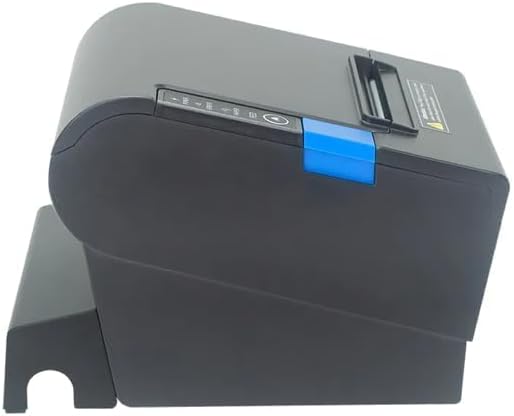
Расми 3: Тараф view of the printer, illustrating the paper cover mechanism.
2.4 Насби драйверҳо
The printer requires a driver to communicate with your computer. Drivers are typically available for Windows, Linux, Android, and Mac operating systems.
- For Windows users, the printer often supports plug-and-play installation or requires a specific Windows driver.
- For Linux, Android, and Mac, SDKs (Software Development Kits) are usually provided for integration.
Ба истеҳсолкунанда муроҷиат кунед website or the included driver CD/USB drive for the latest drivers and installation instructions specific to your operating system.
3. Истифода бурдани принтер
3.1 Фурӯзон/хомӯш кардан
Locate the power switch on the side or rear of the printer. Flip the switch to the 'ON' position to power on the printer. The 'POWER' indicator light will illuminate. Flip to 'OFF' to power down.
3.2 Indicator Lights and Buttons
The front panel typically features several indicator lights and buttons:
- Қудрат: Нишон медиҳад, ки принтер фаъол аст.
- ХАТО: Illuminates or flashes to indicate an error condition (e.g., paper out, print head overheating, cutter error).
- Қоғаз: Indicates that the paper roll is low or out.
- Тугмаи FEED: Press to manually feed paper. Hold to perform a self-test print (if supported by model).
3.3 Чопи асосӣ
Once the printer is connected and drivers are installed, you can print receipts from your POS software or application. Ensure the printer is selected as the default or active printer in your system settings.
The printer supports various print speeds up to 300 mm/s and automatic paper cutting after each print job.
4. Нигоҳдорӣ
Нигоҳдории мунтазам кори оптималиро таъмин мекунад ва умри чопгари шуморо дароз мекунад.
4.1 Тоза кардани сари чоп
The print head should be cleaned regularly, especially if print quality degrades.
- Turn off the printer and disconnect the power cable.
- Сарпӯши коғазро кушоед.
- Пахтазорро сабук истифода бурдан дampened with isopropyl alcohol (ethanol) to gently wipe the thermal elements of the print head.
- Allow the print head to dry completely before closing the cover and reconnecting power.
4.2 Cleaning the Cutter
Paper dust can accumulate around the cutter blade, affecting its performance.
- Turn off the printer and disconnect the power cable.
- Carefully remove any visible paper dust or debris from around the cutter blade using a soft brush or compressed air.
- Do not use liquids on the cutter.
4.3 Тозакунии умумӣ
берунии принтерро бо нарм пок кунед, гamp матоъ. Аз истифодаи кимиёвии сахт ё тозакунандаи абразив худдорӣ намоед.
5. Баррасии мушкилот
Ин бахш мушкилоти умумиеро, ки шумо бо чопгари худ дучор шуда метавонед, баррасӣ мекунад.
| Мушкилот | Сабаби эҳтимолӣ | Ҳалли |
|---|---|---|
| Принтер фаъол нест. | Сими барқ пайваст нашудааст; васлаки барқ вайрон аст; Хомӯш кардани барқ. | Ensure power cable is securely connected. Test power outlet. Turn power switch to 'ON'. |
| Чоп кардан мумкин нест. | Paper out; Paper loaded incorrectly; Driver not installed or incorrect; USB cable loose; Printer not selected. | Load new paper roll. Re-load paper correctly. Install/reinstall correct driver. Check USB connection. Select printer in software. |
| ERROR light is on/flashing. | Paper out; Paper jam; Print head overheating; Cutter error. | Load paper. Clear paper jam. Allow printer to cool down. Check cutter for obstructions. |
| Сифати чопи паст. | Dirty print head; Low quality paper; Old paper roll. | Clean the print head (see Section 4.1). Use high-quality thermal paper. Replace old paper rolls. |
Агар пас аз кӯшиши ин ҳалли мушкилот мушкилот боқӣ монад, лутфан бо дастгирии муштариён тамос гиред.
6. Мушаххасоти
| Хусусият | Тафсилот |
|---|---|
| Усули чоп | Гармии мустақим |
| Паҳнои коғаз | 80 мм |
| Суръати чоп | 230 мм/с, 260 мм/с, 300 мм/с |
| Интерфейс | USB |
| Фосилаи сатр | 3.75 mm (adjustable by commands) |
| Character Size (ANK) | Font A: 1.5 × 3.0 mm (12 × 24 dots) Font B: 1.1 × 2.1 mm (9 × 17 dots) |
| Character Size (Chinese/Traditional Chinese) | 3.0 × 3.0 mm (24 × 24 dots) |
| Намудҳои штрих-код | UPC-A / UPC-E / JAN13 (EAN13) / JAN8 (EAN8) / CODE39 / ITF / CODABAR / CODE93 / CODE128 |
| Баркоди 2D | QR Code / PDF417 |
| NV Flash Memory | 256 КБ |
| Қувваи вуруд | AC 100-240V, 50-60Гц |
| Қувваи баромад | DC 24V/2.5A |
| Баромади пулакӣ | DC 24V/1A |
| Вазн | 1.0 кг |
| Андозаҳо (D × W × H) | 194.5 × 145 × 146.4 мм |
| Ҳарорати корӣ | 0~45°C |
| Рутубати корӣ | 10 ~ 80% RH |
| Ҳаёти буридан | 1.5 миллион ихтисор |
| Ҳаёти сари чоп | 150 км |
| Мутобиқати OS | Windows, Linux, Android, Mac |


