Муқаддима
This manual provides essential information for setting up, operating, maintaining, and troubleshooting your HP 15 Laptop Computer. Please read this guide thoroughly to ensure optimal performance and longevity of your device. This laptop is equipped with an AMD Ryzen 3 processor, 16GB RAM, and a 512GB SSD, running on Windows 11 Home.

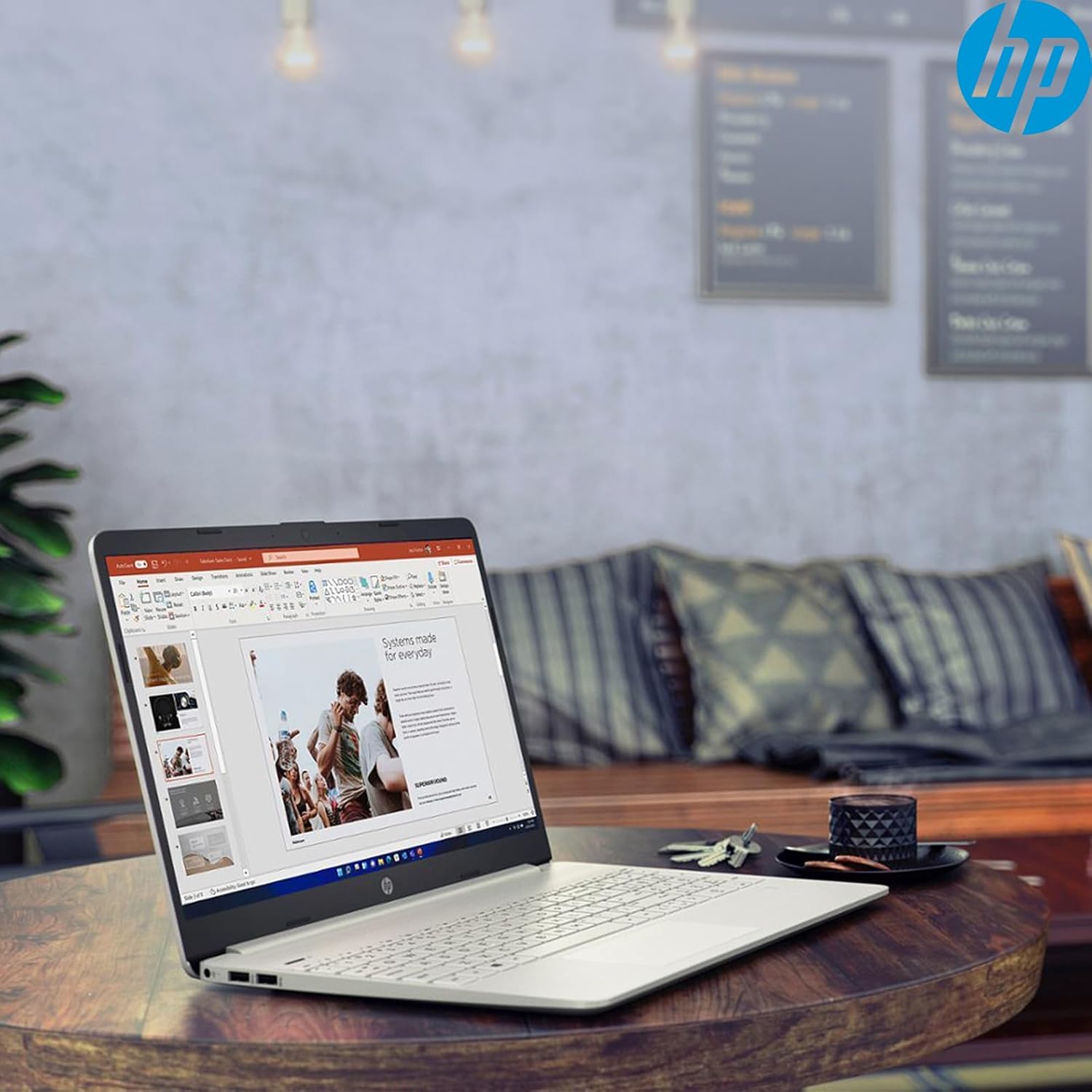
Image: The HP 15 Laptop Computer open, displaying the Windows 11 Home operating system, AMD Ryzen 3 processor, and AMD Radeon Graphics on its screen. An HP earphone case is visible on the palm rest, and the Microsoft Office logo is present on the bottom right.
1. Танзимот
1.1 Кушодани қуттӣ ва санҷиши ибтидоӣ
Carefully remove all components from the packaging. Verify that all items listed in the 'What's in the Box' section are present. Inspect the laptop for any visible damage.
- HP 15 Laptop
- Адаптери барқ
- HP Earphone
- Муши бесим
1.2 Пайваст кардани адаптери барқ
Connect the power adapter to the laptop's power jack and then plug it into a wall outlet. It is recommended to fully charge the battery before initial use.
1.3 Initial Power On and Windows 11 Setup
Барои фаъол кардани ноутбук тугмаи барқро пахш кунед. Барои анҷом додани раванди насби Windows 11 Home дастурҳои дар экран бударо иҷро кунед. Ин интихоби минтақаи шумо, пайвастшавӣ ба шабакаи Wi-Fi ва эҷоди ҳисоби корбарро дар бар мегирад.
2. Operating Your HP 15 Laptop
2.1 Вазифаҳои асосӣ
- Тугмаи барқ: Located on the top right of the keyboard deck. Press to turn on/off, or put the laptop to sleep.
- Клавиатура: Features a full-size keyboard with a 10-key numeric keypad for efficient data entry.
- Touchpad: Supports multi-touch gestures for navigation.
Тасвир: Наздик view of the HP 15 laptop's keyboard, clearly showing the integrated 10-key numeric keypad on the right side and the central touchpad below the spacebar.
2.2 Портҳо ва пайвастҳо
Your HP 15 laptop is equipped with various ports for connectivity:
- USB-C (5Gbps signaling rate): Барои интиқоли маълумот.
- USB-A (x2): Портҳои стандартии USB барои дастгоҳҳои периферӣ.
- HDMI 1.4b: Барои пайвастшавӣ ба дисплейҳои беруна.
- Хонандаи корти SD: Барои хондани кортҳои хотира.
- Jack гӯшмонак: Барои пайваст кардани гӯшмонак ё гӯшмонак.

Image: This image provides a detailed side view of the HP 15 laptop, illustrating the locations of its various connectivity ports including the power jack, two USB-A ports, an HDMI 1.4b port, an SD card reader, a headset jack, and a SuperSpeed USB Type-C port.
2.3 Webкамера ва аудио
The laptop features an HP True Vision 720p HD camera with dual array digital microphones for video calls. Audio is delivered through B&O-tuned stereo speakers.
2.4 Идоракунии батарея
The laptop offers up to 9.75 hours of battery life. HP Fast Charge technology allows for a 50% charge in approximately 45 minutes when the laptop is powered off or in sleep mode.
3. Нигоҳдорӣ
3.1 Тоза кардани ноутбуки шумо
Аз матои мулоим ва матои пок каме истифода баред гampened with water or a specialized screen cleaner to clean the display. For the keyboard and chassis, use a soft, dry cloth. Avoid harsh chemicals.
3.2 Навсозии нармафзор
Regularly check for and install Windows updates and HP driver updates to ensure optimal performance and security. Access Windows updates via Settings > Windows Update.
3.3 Идоракунии нигаҳдорӣ
Давра ба давра аз навview ва нолозимро нест кунед files to maintain sufficient free space on your 512GB SSD. Utilize cloud storage or external drives for large files.
4. Баррасии мушкилот
4.1 Масъалаҳои барқ
- Ноутбук фурӯзон намешавад: Боварӣ ҳосил кунед, ки адаптери барқӣ боэътимод пайваст аст ва розетка кор мекунад. Розеткаи дигарро санҷед.
- Батарея пур намешавад: Verify the power adapter connection. Check for any damage to the adapter or charging port.
4.2 Мушкилоти намоиш
- Экрани холӣ: Connect an external monitor to check if the laptop is outputting video. If it displays, the laptop screen may be faulty.
- Намоиши хира: Adjust brightness settings using the function keys (Fn + F2/F3 typically).
4.3 Масъалаҳои иҷроиш
- Slow operation: Close unnecessary applications. Check Task Manager for high resource usage. Ensure sufficient free storage space.
- Аз ҳад зиёд гармшавӣ: Боварӣ ҳосил кунед, ки сӯрохиҳои вентилятсия шаффофанд. Ноутбукро дар рӯи сатҳи сахт ва ҳамвор истифода баред.
4.4 Проблемаҳои пайвастшавӣ
- Wi-Fi пайваст намешавад: Restart your router and laptop. Check Wi-Fi settings in Windows.
- Дастгоҳи Bluetooth пайваст намешавад: Ensure the device is in pairing mode and within range. Check Bluetooth settings.
5. Мушаххасоти
| Хусусият | Тафсилот |
|---|---|
| Модели | HP 15 |
| Низоми амал | Windows 11 Home |
| Протсессор | AMD Ryzen 3 (up to 3.8GHz, 4 cores, 8 threads) |
| Графика | AMD Radeon Graphics (интегралӣ) |
| RAM | 16 ГБ DDR4 |
| Нигоҳдорӣ | 512 GB PCIe NVMe M.2 SSD |
| Намоиш | 15.6" HD (1366 x 768), micro-edge, anti-glare, 250 nits, 45% NTSC |
| Пайвасти бесим | Realtek Wi-Fi 5, Bluetooth 5 |
| Портҳо | 1x USB-C (5Gbps), 2x USB-A, 1x HDMI 1.4b, 1x SD Card Reader, 1x Headset Jack |
| Webcam | HP True Vision 720p HD camera |
| Аудио | Dual B&O-tuned stereo speakers |
| Муҳлати батарея | Up to 9.75 hours (HP Fast Charge: 50% in 45 mins) |
| Андозаҳо (LxWxH) | 14.11 x 9.53 x 0.78 инч |
| Вазн | 3.75 фунт |
6. Кафолат ва дастгирӣ
6.1 Кафолати маҳсулот
Your HP 15 Laptop Computer comes with a standard manufacturer's warranty. Please refer to the warranty card included with your product or visit the official HP support webсайт барои шартҳо ва шартҳои муфассал.
6.2 Дастгирии техникӣ
For technical assistance, driver downloads, or further information, please visit the official HP Support website or contact HP customer service. Have your product model and serial number ready when contacting support.
Дастгирии HP Webсайт: support.hp.com