1. Муқаддима
Thank you for choosing the IFYOO G53 Dual Mode RGB Vertical Ergonomic Wireless Mouse. This manual provides detailed instructions for setting up, operating, and maintaining your new mouse. Designed for comfort and efficiency, the G53 features dual wireless connectivity (2.4 GHz and Bluetooth 5.1), adjustable DPI, dynamic RGB lighting, and a rechargeable battery.
Маҳсулот ба охир расидview
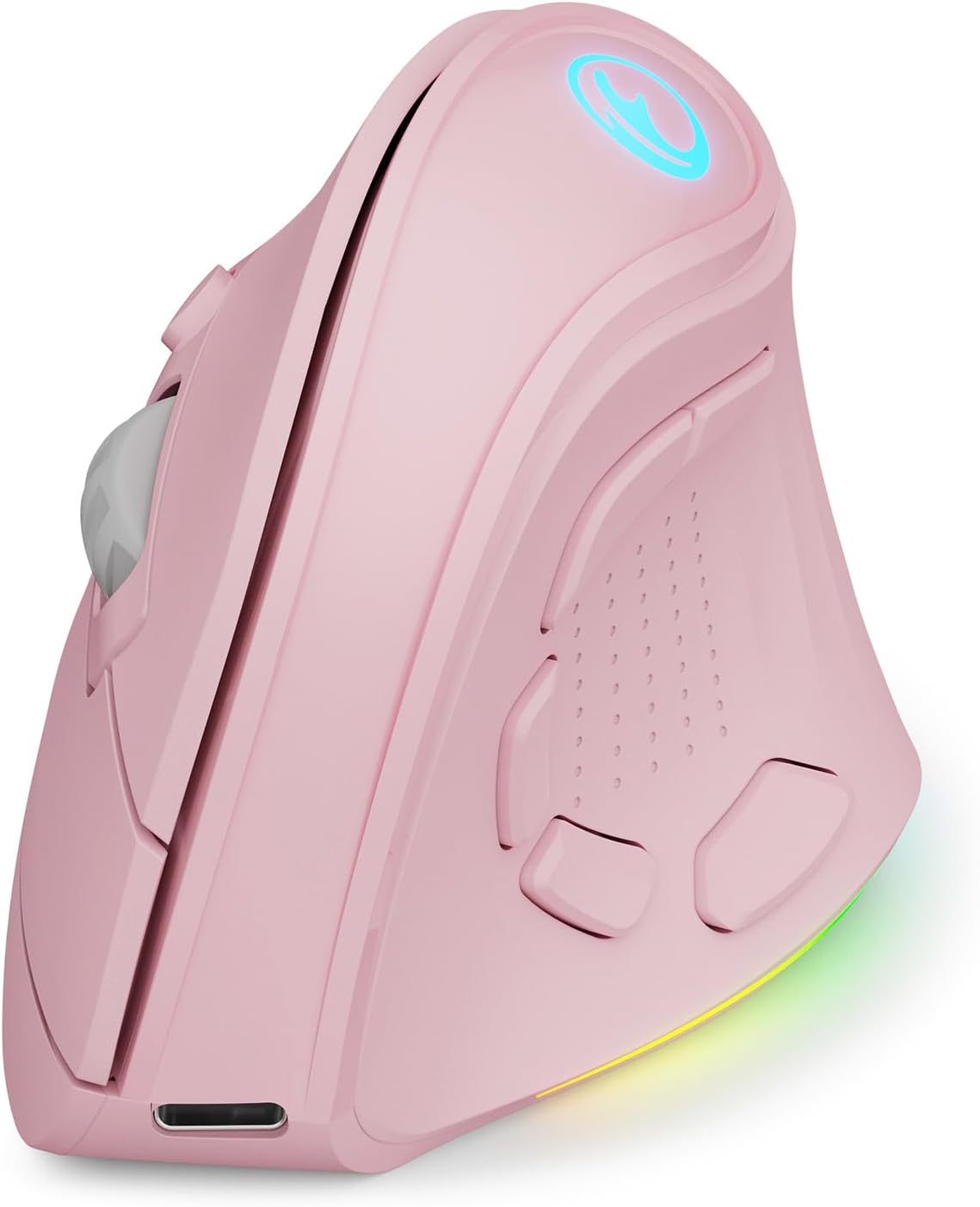
Figure 1: IFYOO G53 Vertical Ergonomic Wireless Mouse (Pink)
The IFYOO G53 is engineered to promote a natural hand posture, reducing wrist strain and discomfort often associated with traditional mice. Its vertical design helps maintain a handshake position, which can alleviate symptoms of carpal tunnel syndrome.

Figure 2: Ergonomic Benefits of the Vertical Mouse Design
Мундариҷаи баста
- 1 x IFYOO G53 Wireless Mouse
- 1 x Дастури корбар
- 1 x сими пуркунандаи USB Type-C
- 1 x 2.4 GHz USB Receiver (located at the bottom of the mouse)
Compatibility and Important Notes
- Compatible Operating Systems: Windows 11, 10, 8, 7, XP; Mac OS; iPad OS; Android.
- Шарҳ: Some side button shortcuts may not function with Mac OS, iPad OS, and other non-Windows operating systems.
- Шарҳ: The driver software for advanced customization is only compatible with Windows OS. In Bluetooth mode, the driver software and certain side buttons (7-9) are not functional. Mouse configuration changes are only supported in wired and 2.4G wireless modes.
2. Танзимот
2.1 Пур кардани муш
Before initial use, it is recommended to fully charge the mouse. Connect the provided USB Type-C cable to the charging port on the front of the mouse and to a USB power source (e.g., computer USB port, USB wall adapter). The RGB lighting may indicate charging status.
2.2 Connecting via 2.4 GHz Wireless Mode
- Locate the 2.4 GHz USB receiver at the bottom of the mouse. Gently pull it out.
- Қабулкунаки USB-ро ба порти дастраси USB дар компютери худ пайваст кунед.
- Бо истифода аз тугмаи барқ, ки дар поён ҷойгир аст, мушро фаъол созед.
- Press the Mode Switch button (also on the bottom) until the mouse is in 2.4G mode (indicated by a specific LED color or pattern, refer to the layout diagram).
- Муш бояд ба таври худкор ба дастгоҳи шумо пайваст шавад.
2.3 Connecting via Bluetooth 5.1 Mode
- Бо истифода аз тугмаи барқ, ки дар поён ҷойгир аст, мушро фаъол созед.
- Press the Mode Switch button (on the bottom) until the mouse is in Bluetooth mode (indicated by a specific LED color or pattern, refer to the layout diagram).
- On your device (PC, laptop, Mac, iPad, Android device), open Bluetooth settings.
- Ҷустуҷӯ new devices and select "IFYOO G53" (or similar) from the list to pair.
- Пас аз ҷуфт кардан, муш барои истифода омода аст.

Figure 3: Multi-Device Connectivity via 2.4G and Bluetooth
2.4 Гузариш байни режимҳо
The IFYOO G53 mouse supports seamless switching between 2.4 GHz wireless and Bluetooth 5.1 modes. Use the Mode Switch button located on the bottom of the mouse to toggle between the connected devices or modes.

Figure 4: IFYOO G53 Mouse Layout and Components
3. Дастурҳои истифодабарӣ
3.1 Функсияҳои тугмаҳо
The IFYOO G53 mouse features 10 buttons, including standard left/right click, scroll wheel, DPI switch, and 5 programmable side buttons.
- Тугмаи чап: Функсияи стандартии клик бо тугмаи чапи муш.
- Тугмаи рост: Функсияи стандартии тугмаи рости муш.
- Чархи ҳаракат: Ба боло/поён ҳаракат кунед, тугмаи миёнаро клик кунед.
- Гузариши DPI: Давраҳо тавассути танзимоти DPI.
- Side Buttons (Default Functions):
- Ба пеш: Ба пеш ҳаракат мекунад web браузерҳо ё file муҳаққиқ.
- Ба ақиб: Ба қафо дарун ҳаракат мекунад web браузерҳо ё file муҳаққиқ.
- Таъсири нур: Реҷаҳои равшании RGB-ро тағир медиҳад.
- File Explorer: мекушояд File Explorer (танҳо Windows).
- Мизи корӣ: Бармегардад ба мизи корӣ (танҳо Windows).

Figure 5: Side Button Functions for Enhanced Productivity
3.2 Adjusting DPI (Dots Per Inch)
The mouse features adjustable DPI settings up to 8400 DPI, allowing you to customize cursor sensitivity for different tasks. Press the DPI Switch button (located near the scroll wheel) to cycle through the available DPI levels. Each DPI level may be indicated by a different color on the DPI logo.
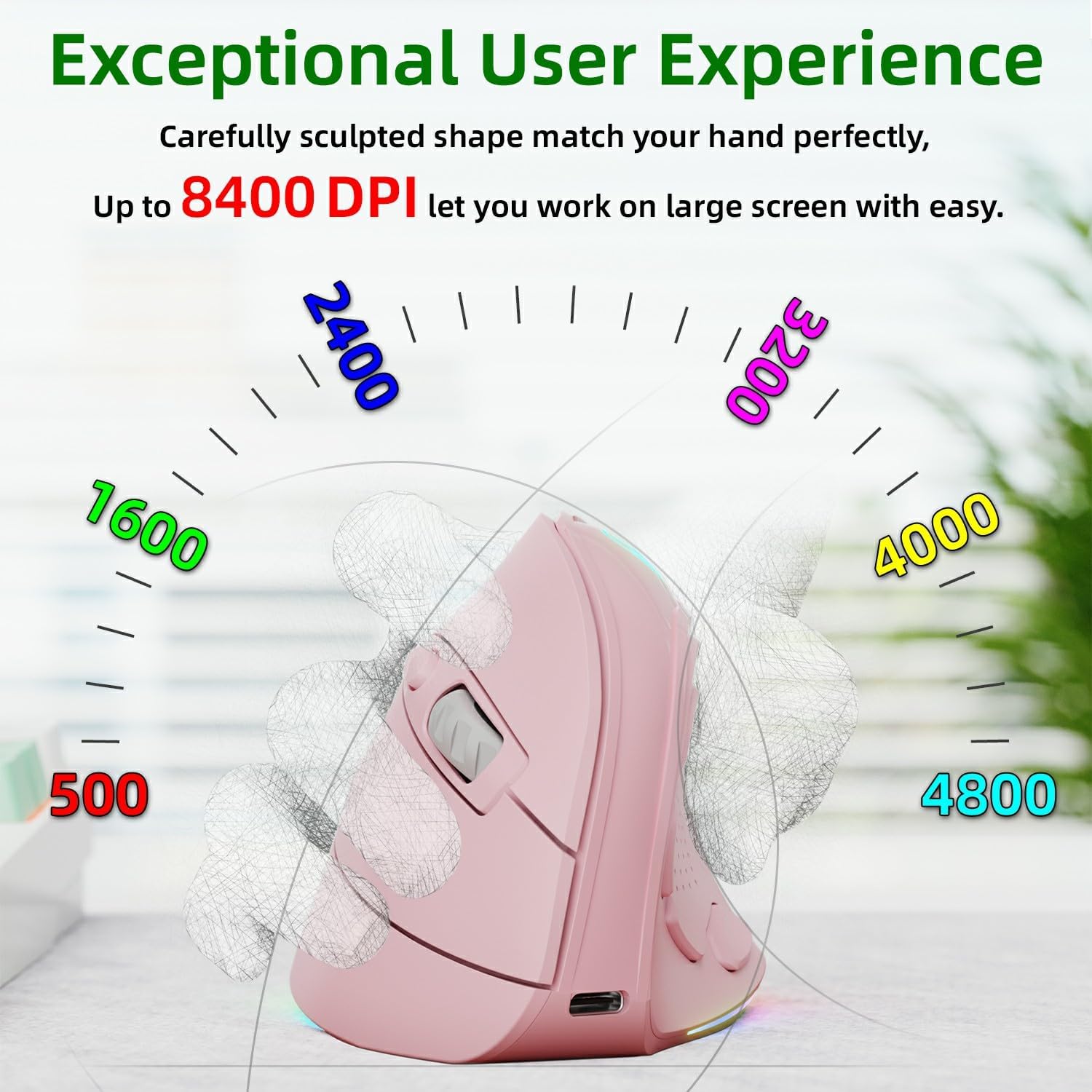
Figure 6: Adjustable DPI Levels for Precise Control
3.3 Dynamic RGB Lighting Effects
The IFYOO G53 mouse features 9 dynamic RGB lighting modes. Press the 'Light Effects' side button to cycle through these modes. You can also turn off the lighting if preferred. For advanced customization of lighting effects, use the driver software (Windows OS only).

Figure 7: Available RGB Lighting Effects
3.4 Идоракунии барқ
The mouse is equipped with a 600 mAh rechargeable battery and intelligent power-saving features to extend battery life. When not in use, the mouse may enter a sleep mode to conserve power. Move the mouse or click a button to wake it up.
4. Нигоҳдорӣ
4.1 Тозакунӣ
Барои тоза кардани муш, бо нармӣ рӯи заминро нарм тоза кунед, гamp cloth. Avoid using harsh chemicals or abrasive materials, as these can damage the finish. Ensure no liquid enters the mouse's internal components.
4.2 Нигоҳубини батарея
The mouse contains a built-in lithium-polymer rechargeable battery. To prolong battery life:
- Батареяро зуд-зуд пурра холӣ накунед.
- Мушро бо истифода аз сими USB Type-C, ки дода шудааст, пур кунед.
- Мушро дар ҳарорати аз ҳад зиёд нагузоред.
5. Баррасии мушкилот
5.1 Муш ҷавоб намедиҳад
- Боварӣ ҳосил кунед, ки муш фаъол аст.
- Сатҳи батареяро тафтиш кунед ва агар лозим бошад, пур кунед.
- Verify the correct connection mode (2.4G or Bluetooth) is selected via the Mode Switch button.
- For 2.4G mode, ensure the USB receiver is securely plugged into your device. Try a different USB port.
- For Bluetooth mode, ensure Bluetooth is enabled on your device and the mouse is paired. Try re-pairing the mouse.
- Компютер ё дастгоҳи худро бозоғоз намоед.
5.2 Cursor Movement is Erratic or Lagging
- Clean the optical sensor at the bottom of the mouse.
- Боварӣ ҳосил кунед, ки шумо мушро дар рӯи мувофиқ истифода мебаред (масалан, тахтаи муш).
- Adjust the DPI setting to a lower value if the cursor is too fast.
- Боварӣ ҳосил кунед, ки дар наздикӣ халалҳои бесими қавӣ вуҷуд надоранд.
5.3 Side Buttons Not Working (Mac OS/iPad OS)
As noted in the Introduction, some side button shortcuts (e.g., File Explorer, Desktop) are designed for Windows OS and may not function on Mac OS, iPad OS, or Android. The 'Light Effects' button should generally work across all compatible operating systems.
5.4 Мушкилоти нармафзори драйвер
The driver software for advanced customization is only compatible with Windows OS. If you are experiencing issues with the software, ensure your Windows operating system is up to date and that you have downloaded the correct driver from the official IFYOO webсайт (агар дастрас бошад).
6. Мушаххасоти
| Хусусият | Мушаххасоти |
|---|---|
| Бренд | IFYOO |
| Номи модел | G53 |
| Рақами модели ашё | IFYOO-G53-Pink |
| Ранги | Гулобӣ |
| Технологияи пайвастшавӣ | 2.4 GHz Wireless, Bluetooth 5.1 |
| Технологияи муайянкунии ҳаракат | Оптикӣ |
| Шумораи тугмаҳо | 10 |
| Диапазони DPI | Up to 8400 DPI (Adjustable) |
| Хусусиятҳои махсус | LED Light, Rechargeable, Ergonomic Vertical Design |
| Дастгоҳҳои мувофиқ | PC, Laptop, Mac, MacBook, iPad, Android devices |
| Мутобиқати системаи оператсионӣ | Windows 11, 10, 8, 7, XP; Mac OS; iPad OS; Android |
| Навъи батарея | Литий-полимер |
| Иқтидори батарея | 600 мАч |
| Самти даст | Дуруст |
| Истифодаи Маҳсулоти тавсияшуда | Дарун/ беруна |
7. Кафолат ва дастгирӣ
Маълумот дар бораи кафолати маҳсулот ва дастгирии муштариён дар маълумоти пешниҳодшудаи маҳсулот мавҷуд нест. Лутфан ба бастабандии маҳсулот ё ба шахси расмии истеҳсолкунанда муроҷиат кунед. website for details on warranty coverage and how to contact customer support.


