1. Муқаддима
This manual provides detailed instructions for the installation, operation, and maintenance of your Xprinter XP-370B Thermal Barcode Sticker Printer. Please read this manual thoroughly before using the printer to ensure proper functionality and to prevent damage.
2. Маълумот оид ба бехатарӣ
- Ҳамеша принтерро ба васлаки барқии заминӣ пайваст кунед.
- Do not expose the printer to water or high humidity.
- Нагузоред, ки принтерро дар зери нури бевоситаи офтоб ё дар наздикии манбаъҳои гармӣ ҷойгир кунед.
- Use only Xprinter approved accessories and power adapters.
- Принтерро аз кӯдакон дур нигоҳ доред.
- Кӯшиш накунед, ки принтерро худатон қисм-қисм кунед ё таъмир кунед. Барои кӯмак бо кормандони баландихтисоси хидматрасонӣ тамос гиред.
3. Мундариҷаи баста
Боварӣ ҳосил кунед, ки ҳама ашё дар баста мавҷуд аст:
- Xprinter XP-370B Thermal Barcode Sticker Printer
- Адаптери барқ
- Сими USB
- Дастури оғози зуд (агар дохил карда шуда бошад)
4. Маҳсулот ба охир расидview
The Xprinter XP-370B is a compact and efficient thermal printer designed for barcode and sticker printing. It features high-speed printing capabilities and supports various connectivity options.

Расми 4.1: Пеш аз рост view of the Xprinter XP-370B Thermal Barcode Sticker Printer.

Расми 4.2: Тараф view illustrating the power button and top cover key for accessing the media compartment.
5. Танзимот
5.1 Кушодан ва ҷойгиркунӣ
- Принтерро бодиққат аз бастааш хориҷ кунед.
- Place the printer on a stable, flat surface with adequate ventilation.
- Ensure there is enough space around the printer for cable connections and media loading.
5.2 Пайваст кардани принтер
- Connect the power adapter to the printer's power port and then plug it into a power outlet.
- Connect the printer to your computer using the provided USB cable. The printer also supports Serial, Ethernet, and Bluetooth connectivity options depending on the model.
- Turn on the printer using the power button located on the side (refer to Figure 4.2).
5.3 Loading Print Media
- Press the top cover key (refer to Figure 4.2) to open the printer's top cover.
- Place the roll of thermal labels into the media compartment. The maximum label diameter supported is 100mm.
- Adjust the paper guide to fit the width of your labels securely.
- Pull a small length of labels past the print head.
- Close the top cover until it clicks into place.
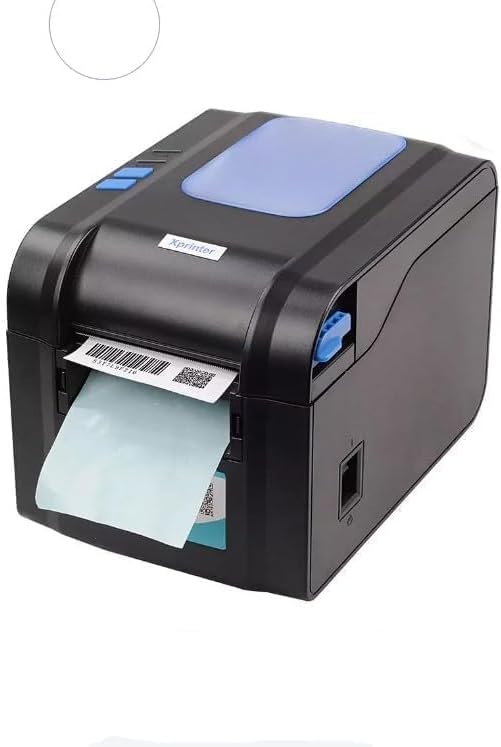
Figure 5.3: The printer demonstrating a label being fed out after printing.
5.4 Насби драйверҳо
- For Windows systems, insert the driver CD (if provided) or download the latest drivers from the official Xprinter webсомона. Барои насб дастурҳои дар экран бударо иҷро кунед.
- For Android and iOS devices, download the appropriate printing application from your device's app store.
6. Дастурҳои истифодабарӣ
6.1 Чопи асосӣ
- Ensure the printer is powered on and connected to your device.
- Ҳуҷҷат ё барномаеро, ки мехоҳед чоп кунед, кушоед.
- Select the Xprinter XP-370B from your list of available printers.
- Adjust print settings such as label size, orientation, and density as needed.
- Initiate the print command. The printer will begin printing at speeds up to 152mm/s.
7. Нигоҳдорӣ
7.1 Тоза кардани принтер
- Turn off and unplug the printer before cleaning.
- Аз матои мулоим ва бе-лин истифода баред гampened with isopropyl alcohol to gently clean the print head.
- Clean the exterior of the printer with a soft, dry cloth.
- Тозакунанда ё ҳалкунандаҳои абразивиро истифода набаред.
8. Баррасии мушкилот
- Printer not responding: Check power connection, USB/Serial/Ethernet/Bluetooth connection, and ensure drivers are correctly installed.
- Сифати пасти чоп: Clean the print head, ensure correct media type is used, and check print density settings.
- Роҳбандии коғаз: Open the top cover, carefully remove any jammed labels, and re-load the media correctly.
- Labels not feeding: Ensure labels are loaded correctly and the paper guide is adjusted properly. Check for any obstructions.
9. Мушаххасоти
| Хусусият | Мушаххасоти |
|---|---|
| Бренд | Xprinter |
| Рақами модел | XP-370B |
| Технологияи чопгар | Гармӣ |
| Технологияи пайвастшавӣ | USB, Serial, Bluetooth, Ethernet (options vary) |
| Суръати максималии чоп | То 152 мм/с |
| Андозаи максималии медиа | 4 x 6 дюйм |
| Maximum Label Diameter | 100 мм |
| Матбуоти чопӣ | Тамғакоғазҳо |
| Натиҷаи чопгар | Монохромӣ |
| Андозаҳои ашё (D x W x H) | 15D x 7W x 10H сантиметр |
| Вазни ашё | 300 гр |
| Системаҳои оператсионии дастгирӣшаванда | Windows, Android, iOS |
10. Кафолат ва дастгирӣ
For warranty information and technical support, please refer to the documentation provided with your purchase or visit the official Xprinter webсайт. Квитансияи хариди худро ҳамчун далели харид барои даъвоҳои кафолат нигоҳ доред.


