1. Муқаддима
This manual provides comprehensive instructions for the setup, operation, maintenance, and troubleshooting of your MAXHUB Interactive Flat Panel 75". Please read this manual thoroughly before using the product to ensure proper functionality and safety.

Расми 1.1: Пеш view of the MAXHUB Interactive Flat Panel 75". This image shows the large display screen with a digital clock and icons for folders, settings, notes, and more, indicating its interactive capabilities.
2. Маълумот оид ба бехатарӣ
Барои пешгирӣ аз осеб дидани маҳсулот ё ҷароҳат ба худ ва дигарон, ҳамеша дастурҳои бехатарии зеринро риоя кунед:
- Do not expose the panel to water or excessive humidity.
- Ensure proper ventilation around the panel.
- Танҳо адаптери барқ, ки бо дастгоҳ дода мешавад, истифода баред.
- Avoid placing heavy objects on the panel.
- Пеш аз тоза кардан ё анҷом додани нигоҳдорӣ барқро ҷудо кунед.
3. Ҷузъҳо ва хусусиятҳои маҳсулот
The MAXHUB Interactive Flat Panel 75" is designed with several key features for enhanced usability and durability.
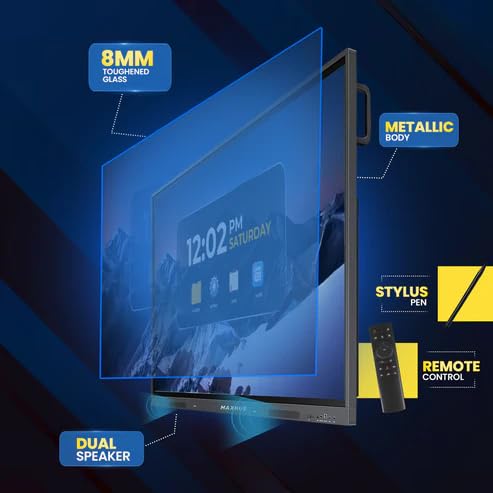
Расми 3.1: Таркид view diagram highlighting key components. This image illustrates the 8mm toughened glass, metallic body, dual speakers, stylus pen, and remote control that come with the interactive flat panel.
- Шишаи сахтшудаи 8 мм: Provides durability and protection for the display.
- Metallic Body: Ensures structural integrity and a premium finish.
- Гӯшмонакҳои дугона: Баромади аудиоии равшанро таъмин мекунад.
- Қалам Stylus: For precise interaction and writing on the screen.
- Назорати дурдаст: Барои кори қулай аз дур.
Расми 3.2: Тараф view detailing connectivity options. This image shows the power supply input, VGA connection, OPS slot, connecting port, and front connectors for easy access.
- Ковокии OPS: For integrating an optional OPS (Open Pluggable Specification) module.
- Пайвастшавӣ VGA: For traditional video input.
- Таъмини нерӯ: Вуруди қувваи асосӣ.
- Front Connectors: Easily accessible ports for peripherals.
4. Танзим ва насб
Follow these steps for proper installation of your MAXHUB Interactive Flat Panel:
- Кушодани: Carefully remove the panel from its packaging. Retain all packaging materials for future transport or storage.
- Монтаж: Securely mount the panel using a compatible VESA wall mount or floor stand (sold separately). Ensure the mounting surface can support the weight of the panel.
- Қувваи пайвастшавӣ: Connect the power cable to the panel's power input and then to a grounded electrical outlet.
- Пайваст кардани дастгоҳҳои периферӣ: Connect any necessary peripherals such as computers, cameras, or external storage devices to the appropriate ports (HDMI, USB, USB Type-C). The versatile USB Type-C integrates 65-watt power charge, video, audio, touch, and internet access features into one interface.
- Фаъолсозии ибтидоӣ: Press the power button on the panel or remote control to turn on the device.
5. Дастурҳои истифодабарӣ
The MAXHUB Interactive Flat Panel offers a user-friendly interface and advanced features for various applications.
5.1 Амалиёти асосӣ
- Фаъол / Хомӯш: Use the power button on the panel or remote.
- Интихоби манбаъ: Navigate through input sources (HDMI, VGA, OPS) using the input button on the remote or on-screen menu.
- Таъсири мутақобилаи ламсӣ: Use your finger or the provided stylus for direct interaction with the screen. The panel features less than 40ms writing latency for a natural writing experience.
5.2 Хусусиятҳои пешрафта
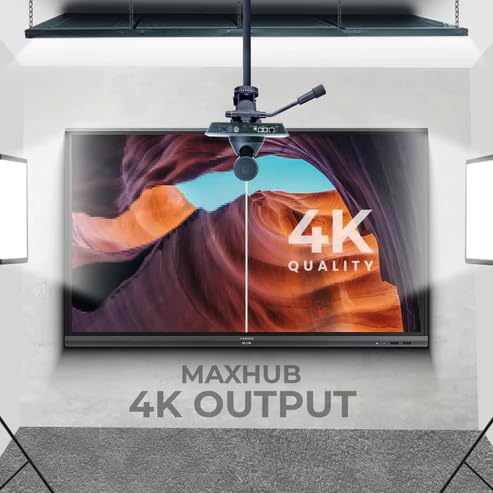
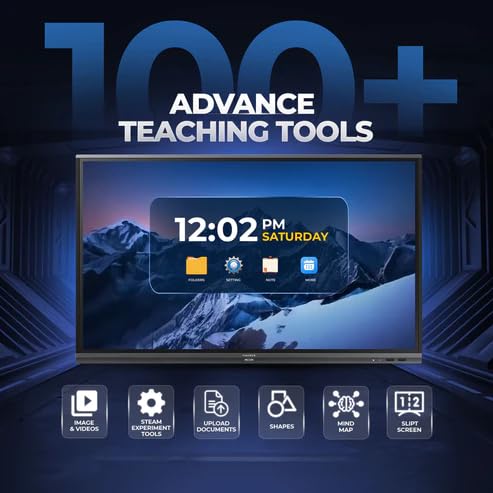
Figure 5.1: Display showing a variety of advanced teaching tools. This image highlights features like image and video integration, STEAM experiment tools, document upload, shapes, mind mapping, and split screen functionality.
- Professional 4K Display: Experience high color accuracy (AE≤2) and NTSC 72% wide color gamut for vivid visuals.
- Pre-installed Course Delivery Apps: Utilize built-in applications and widgets for productive teaching and presentations.
- Технологияи нигоҳубини чашм: Features TUV Low Blue light and TUV Flicker-free with an ambient light sensor and anti-glare glass to reduce eye strain.
- Responsive Hardware: Equipped with a powerful built-in 2.0Ghz quad-core CPU and 4GB RAM, along with a high-speed 1000Base-T network adapter for smooth performance.
- Тарҳрезии гигиенӣ: Incorporates SGS-certified antibacterial components for a cleaner environment.

Figure 5.2: The interactive flat panel being used in a hybrid teaching environment. This image demonstrates its suitability for both in-person and online educational settings.
6. Нигоҳдорӣ ва нигоҳубин
Regular maintenance ensures the longevity and optimal performance of your interactive flat panel.
- Тоза кардани экран: Аз матои мулоим ва матои пок каме истифода баред гampened with a non-abrasive, screen-safe cleaner. Do not spray cleaner directly onto the screen.
- Тоза кардани бадан: Wipe the exterior with a dry, soft cloth. Avoid harsh chemicals.
- Вентилятсия: Ensure ventilation slots are clear of dust and debris to prevent overheating.
- Навсозии нармафзор: Periodically check for and install software updates to ensure optimal performance and security.
7. Баррасии мушкилот
This section addresses common issues you might encounter with your MAXHUB Interactive Flat Panel.
| Мушкилот | Сабаби эҳтимолӣ | Ҳалли |
|---|---|---|
| Не қудрат | Сими барқ ҷудо карда шудааст; Масъалаи васлаки барқ. | Пайвастагии сими барқро тафтиш кунед; Васлаки дигарро санҷед. |
| Намоиш | Incorrect input source selected; Cable connection issue. | Verify input source; Check HDMI/VGA/USB-C cable connections. |
| Экрани сенсорӣ ҷавоб намедиҳад | Calibration needed; Software glitch. | Recalibrate touchscreen via settings; Restart the panel. |
| Сифати тасвири паст | Resolution mismatch; Dirty screen. | Adjust display resolution on connected device; Clean the screen. |
8. Мушаххасоти техникӣ
| Хусусият | Мушаххасоти |
|---|---|
| Бренд | MAXHUB |
| Рақами модел | MaxHub Interactive Flat Panel 75" | OPS |
| Андозаи намоиш | 75 инч |
| Технологияи намоиш | LCD |
| Ҳалли намоиш | 3840 x 2160 (4K UHD) |
| Вақти ҷавоб | 40 Миллисония |
| ВПМ - Воҳиди Пардозиши Марказӣ | 2.0Ghz Quad-core |
| RAM | 4 ГБ |
| Пайвастшавӣ | Wi-Fi, USB Type-C, HDMI, USB 3.0 |
| Хусусиятҳои махсус | Ultrawide Screen, TUV Low Blue Light, TUV Flicker-free, Anti-glare glass, SGS-certified antibacterial components |
| Андозаҳои бастаҳо | 180 х 114 х 20 см |
9. Маълумот дар бораи кафолат
The MAXHUB Interactive Flat Panel 75" comes with a standard manufacturer's warranty. Please refer to the warranty card included with your product for specific terms and conditions, including coverage duration and limitations.
An extended warranty option may be available. For details, please contact your retailer or visit the official MAXHUB webсайт.
10. Дастгирии муштариён
For technical assistance, service, or further inquiries, please contact MAXHUB customer support through the following channels:
- Webсайт: Visit the official MAXHUB webсайт барои саволҳои зуд-зуд додашаванда, драйверҳо ва захираҳои дастгирӣ.
- Почтаи электронӣ: Refer to your product documentation for the support email address.
- Телефон: Contact the customer service hotline provided in your product's packaging.
When contacting support, please have your product model number (MaxHub Interactive Flat Panel 75" | OPS) and serial number ready.


