1. Муқаддима
Thank you for choosing the Mecer 23.8 Inch Full HD LED Monitor. This manual provides essential information for setting up, operating, and maintaining your monitor. Please read it thoroughly before use to ensure proper functionality and longevity of your device.
This monitor features a 23.8-inch Full HD (1920 x 1080) display, offering crisp and clear visuals. It incorporates TFT LED panel technology for energy efficiency and vibrant colors, with a 16:9 aspect ratio suitable for widescreen viewing. Connectivity options include VGA and HDMI, making it compatible with various devices. Built-in speakers provide basic audio, and wide 178° viewing angles ensure comfortable use. With a 2ms response time, it is suitable for general computing and multimedia consumption.
2. Маълумот оид ба бехатарӣ
- Манбаи нерӯ: Танҳо адаптери барқро, ки бо монитор дода мешавад, истифода баред. Боварӣ ҳосил кунед, ки васлаки барқ дуруст ба замин пайваст карда шудааст.
- Вентилятсия: Do not block ventilation openings. Allow adequate space around the monitor for proper airflow to prevent overheating.
- Ҷойгиршавӣ: Мониторро дар рӯи сатҳи устувор ва ҳамвор ҷойгир кунед. Аз ҷойгир кардани он дар зери нури бевоситаи офтоб, дар наздикии манбаъҳои гармӣ ё дар муҳитҳое, ки чангу ғубор ё намӣ аз ҳад зиёд аст, худдорӣ намоед.
- Тозакунӣ: Disconnect the power cord before cleaning. Use a soft, dry cloth for the screen and a slightly damp cloth for the casinг. Истифодаи тозакунакҳои абразивӣ ё ҳалкунандаҳоро худдорӣ кунед.
- Таъсири моеъ: Keep liquids away from the monitor. If liquid enters the monitor, disconnect power immediately and contact qualified service personnel.
- Ҷудокунӣ: Кӯшиш накунед, ки мониторро худатон қисм-қисм кунед ё таъмир кунед. Ҳамаи хизматрасониҳоро ба кормандони баландихтисос оид ба хидматрасонӣ супоред.
3. Мундариҷаи баста
Лутфан мундариҷаи бастаро тафтиш кунед, то боварӣ ҳосил кунед, ки ҳама ашё мавҷуд аст:
- Mecer 23.8 Inch LED Monitor
- Пойгоҳи монитор (поя ва гардан)
- Адаптери барқ ва кабел
- Кабели HDMI
- Кабели VGA
- Дастури корбар (ин ҳуҷҷат)
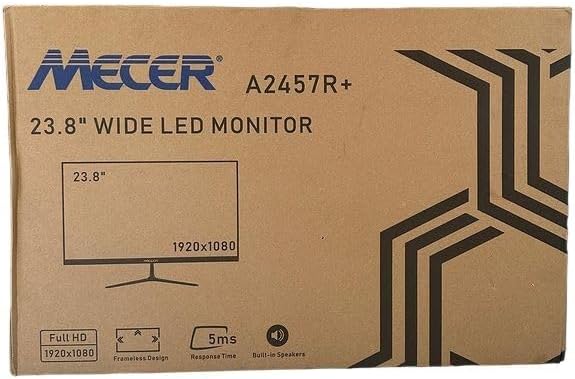
Тасвири 3.1: The monitor packaging box, indicating the model A2457R+ and key features like 23.8" display, Full HD 1920x1080 resolution, frameless design, 5ms response time, and built-in speakers.
4. Танзимот
4.1. Монтажи стенди монитор
- Монитор ва ҷузъҳои стендро бодиққат аз баста ҷудо кунед.
- Гардани стендро ба панели монитор бо роҳи мувофиқ кардани ҷадвалҳо ва сахт тела додан то он даме, ки он клик кунад, часпонед.
- Attach the stand base to the stand neck, securing it with the provided screw (usually hand-tightened).
- Монитори ҷамъшударо дар сатҳи устувор ва ҳамвор ҷойгир кунед.

Тасвири 4.1: Пеш view of the Mecer 23.8 Inch LED Monitor with its stand assembled, ready for connection.
4.2. Пайвастшавӣ ба компютер
Монитор ҳам пайвастҳои HDMI ва ҳам VGA-ро дастгирӣ мекунад. Сими мувофиқро барои компютери худ интихоб кунед.
- Пайвасти HDMI: Connect one end of the HDMI cable to the HDMI port on your computer's graphics card and the other end to the HDMI port on the monitor. HDMI transmits both video and audio signals.
- Пайвастшавӣ VGA: Connect one end of the VGA cable to the VGA port on your computer's graphics card and the other end to the VGA port on the monitor. VGA transmits only video signals.

Тасвири 4.2: Қафо view of the Mecer 23.8 Inch LED Monitor, showing the input ports including HDMI and VGA, as well as the power input.
4.3. Пайвастшавии барқ
- Connect the power adapter cable to the DC IN port on the back of the monitor.
- Адаптери барқро ба васлаки деворӣ пайваст кунед.
5. Дастурҳои истифодабарӣ
5.1. Фурӯзон/хомӯшкунӣ
Press the power button, typically located on the bottom right side or rear of the monitor, to turn the monitor on or off. The power indicator light will illuminate when the monitor is on.
5.2. Интихоби манбаи вуруд
If you have multiple devices connected, you may need to manually select the input source. Use the monitor's control buttons (usually located near the power button) to navigate to the input selection menu and choose between HDMI or VGA.
5.3. Менюи Намоиши экран (OSD).
The OSD menu allows you to adjust various display settings. Use the monitor's control buttons to:
- Ба менюи OSD дастрасӣ пайдо кунед.
- Navigate through menu options (e.g., Brightness, Contrast, Color Settings, Input Source).
- Adjust values or select options.
- Аз менюи экрани экран хориҷ шавед.
Танзимоти маъмулии танзимшаванда иборатанд аз:
- Равшанӣ/Контраст: Равшании умумӣ ва фарқияти байни минтақаҳои равшан ва торикро танзим кунед.
- Танзимоти ранг: Adjust color temperature, RGB values, or select preset color modes.
- Таносуби тараф: Change between 16:9, 4:3, or other available options.
- Аудио: Adjust volume for the built-in speakers.
5.4. Динамикҳои дарунсохт
The monitor includes built-in speakers for basic audio output. If using an HDMI connection, audio will be transmitted automatically. For VGA connections, ensure your computer's audio output is configured correctly. Adjust the volume through the OSD menu or your computer's operating system.
6. Нигоҳдорӣ
6.1. Тоза кардани монитор
- Пеш аз тоза кардан ҳамеша мониторро аз васлаки барқ ҷудо кунед.
- Экран: Экранро бо матои мулоим ва бе пахта нарм тоза кунед. Барои аломатҳои якрав, сабук гampen the cloth with water or a specialized screen cleaner (ensure it's alcohol-free and ammonia-free) and wipe carefully. Do not spray liquid directly onto the screen.
- Casing: Барои тоза кардани монитор матои хушк ва мулоимро истифода баред вasinж. Агар лозим бошад, каме damp матоъ истифода бурдан мумкин аст, пас аз он матои хушк.
6.2. Нигоҳдорӣ
Агар мониторро барои муддати тӯлонӣ нигоҳ доред, ҳамаи кабелҳоро ҷудо кунед, онро дар бастаи аслии худ ҷойгир кунед (агар мавҷуд бошад) ва онро дар ҷои хунук ва хушк дур аз нурҳои бевоситаи офтоб ва ҳарорати аз ҳад зиёд нигоҳ доред.
7. Баррасии мушкилот
Агар шумо бо мониторатон мушкилот пайдо кунед, ба мушкилот ва роҳҳои ҳалли зерин муроҷиат кунед:
- Не қудрат:
- Боварӣ ҳосил кунед, ки сими барқ ба монитор ва васлаки деворӣ боэътимод пайваст шудааст.
- Тасдиқ кунед, ки васлаки барқ кор мекунад, тавассути пайваст кардани дастгоҳи дигар.
- Санҷед, ки оё адаптери барқ дуруст кор мекунад.
- Сигнал нест:
- Ensure the video cable (HDMI or VGA) is securely connected to both the monitor and the computer.
- Тафтиш кунед, ки манбаи дурусти вуруд дар монитор интихоб шудааст (тавассути менюи OSD).
- Check if your computer is powered on and outputting a video signal.
- Агар дастрас бошад, кабели дигари видеоиро санҷед.
- Тасвир норавшан ё таҳрифшуда аст:
- Дар танзимоти намоиши компютери худ, боварӣ ҳосил кунед, ки қарори монитор ба қарори аслии худ (1920 x 1080) муқаррар шудааст.
- Adjust the monitor's OSD settings for brightness, contrast, and sharpness.
- For VGA connections, use the 'Auto Adjust' function in the OSD menu if available.
- Аз баландгӯякҳои дарунсохт садо нест:
- Ensure the monitor's volume is not muted or set too low in the OSD menu.
- Check your computer's audio output settings to ensure the monitor is selected as the playback device.
- If using VGA, ensure your computer's audio is routed to an external speaker system, as VGA does not carry audio.
8. Мушаххасоти
| Хусусият | Мушаххасоти |
|---|---|
| Бренд | Mecer |
| Рақами модел | A2457R+ |
| Андозаи намоиш | 23.8 инч |
| Резолюция | 1920 x 1080 пиксел (Full HD) |
| Навъи намоиш | LED (TFT LED Panel) |
| Таносуби тараф | 16:9 |
| Вақти ҷавоб | 2 Миллисония |
| Меъёри навсозӣ | 75 Гц |
| Viewкунҷҳо | 178 ° уфуқӣ / 178 ° амудӣ |
| Пайвастшавӣ | 1x HDMI, 1x VGA |
| Баландгӯякҳои дарунсохт | Бале |
| Ранги | Сиёҳ |
| Андозаҳои маҳсулот (D x W x H) | 560D x 42W x 410H миллиметр |
| Хусусиятҳои махсус | High performance intelligent multi-frequency scanning, Micro Computer digital technology control, no radiation, no glare, Comply with VESA DPMS international power saving regulation, Support DDC 1/2B and Windows PNP Plug and Play |
9. Кафолат ва дастгирӣ
This Mecer monitor comes with a Кафолати маҳдуди 1 сол аз рӯзи харид. Лутфан далели хариди худро барои даъвоҳои кафолат нигоҳ доред.
For technical support, service, or warranty inquiries, please contact your retailer or the authorized Mecer service center in your region. Do not attempt to repair the product yourself, as this may void your warranty.


