Муқаддима
This manual provides detailed instructions for the installation, operation, and maintenance of your ANJIELO SMART Wired 1080P Video Door Phone Apartment Intercom System. Please read this manual thoroughly before installation and use to ensure proper functionality and safety. Keep this manual for future reference.
Маҳсулот ба охир расидview
The ANJIELO SMART Video Door Phone Intercom System is designed to enhance home security and communication. It features a 10-inch touch monitor and a 1080P outdoor doorbell unit. The system supports multiple unlocking methods, motion detection, automatic recording, and two-way audio communication.

Расми 1: Ҷузъҳои система аз нав сохта шудаандview. This image displays the main components of the ANJIELO SMART Video Door Phone Intercom System, including the indoor monitor and outdoor doorbell unit, highlighting their design and key features.
Мундариҷаи баста
Боварӣ ҳосил кунед, ки ҳама ашё дар баста мавҷуд аст:
- 1 x 10-inch Indoor Touch Monitor
- 1 x 1080P Outdoor Doorbell Unit
- 1 x Rain Cover for Outdoor Doorbell
- 1 x 3m 4-core cable (for doorbell connection)
- 1 x 1.2m External Power Supply (for monitor)
- 5 x IC Cards (for unlocking)
- 1 х 32 ГБ корти Micro SD
- Виддаҳо ва лангарҳои васлкунӣ
- Дастури корбар (ин ҳуҷҷат)
Мушаххасоти
Outdoor Doorbell Unit
- Sensor Kamera: 1 / 2.7 CMOS
- Қарор: 1080Р
- Линза: 3.2мм
- View Кунҷ: 148°
- Нигоҳи шабона: IR LEDs (120°)
- Истеъмоли қувваи барқ: 200мА макс
- Таъмини нерӯ: Аз воҳиди дохилӣ таъмин карда мешавад
- Ҳарорати корӣ: -40 ℃ то +50 ℃
- Насбкунӣ: Surface mount with rain cover
- Андозаҳо: 137 мм х 85.5 мм х 23.5 мм
- Муҳофизат: IP65 Waterproof, dustproof, vandal resistant

Figure 2: IP65 Waterproof Outdoor Doorbell. This image illustrates the outdoor doorbell unit, highlighting its robust IP65 waterproof design, suitable for various weather conditions.
Indoor Touch Monitor
- Экран: 10 inch TFT-LCD touch screen
- Қарор: 1024 х 680
- Оҳанги занг: 7-chord melody rings
- Танзимшаванда: Volume, Color
- Пайвастшавӣ: 4-wires (to doorbell), WiFi (2.4GHz for Tuya App)
- Маводҳои панел: Acrylic/ABS cover
- Насбкунӣ: Монтажи рӯизаминӣ
- Вуруди ҷилдиtage: AC 100-240В 50/60Гц
- Ҷилди корӣtage: DC 12V, 2А
- Андозаҳо: 272mm x 180mm x 21mm (10.6×71×1 inch)
Имкониятҳои система
- Max Doorbell Units: 2
- Max Indoor Monitors: 6
- Mobile Phone Sharing: Supports up to 5 mobile phones via Tuya App
- Electronic Lock Compatibility: Supports all 12V electronic locks
Дастури насб
1. Wiring Diagram and Requirements
The indoor monitor and outdoor doorbell unit require a wired connection using a 4-core cable. The provided 3m 4-core cable is for base installation. You can extend the distance using RVV4/Cat5/Cat6 wires, with a maximum distance exceeding 300ft (approximately 90 meters).

Figure 3: 4-Wire Cable Connection Diagram. This diagram illustrates the wired connection between the indoor monitor, outdoor doorbell, and an optional electronic lock, showing the required 4-wire cable for communication and power.
Эзоҳ муҳим: While the monitor supports WiFi for app connectivity, the connection between the indoor monitor and the outdoor doorbell is always wired.
2. Қадамҳои насб
- Mount the Outdoor Doorbell: Choose a suitable location near your entrance. Use the provided rain cover and mounting screws to securely attach the doorbell unit to the wall. Ensure it is at an appropriate height for visitors.
- Монитори дохилиро насб кунед: Select a convenient indoor location for the monitor. Use the provided mounting hardware to secure it to the wall.
- Пайваст кардани ноқилҳо:
- Connect the 4-core cable from the outdoor doorbell to the indoor monitor. Ensure correct polarity if applicable (refer to specific wiring labels on devices).
- If connecting an electronic lock, wire it to the outdoor doorbell unit as per the lock's instructions and the system's wiring diagram. The system supports 12V electronic locks.
- Фаъол: Connect the 1.2m external power supply to the indoor monitor and plug it into a standard AC outlet. The system will power on.
3. WiFi and Tuya App Connection
The main indoor monitor can connect to your home's 2.4GHz WiFi network to enable remote access via the Tuya app.
- Барномаи Tuya-ро зеркашӣ кунед: Download and install the "Tuya Smart" app from your smartphone's app store (iOS or Android).
- Бақайдгирӣ / Вуруд: Барномаро кушоед ва ҳисоби нав эҷод кунед ё агар шумо аллакай дошта бошед, ворид шавед.
- Илова кардани дастгоҳ: On the indoor monitor, navigate to the WiFi settings. Follow the on-screen instructions to connect the monitor to your 2.4GHz WiFi network.
- Бо барнома ҷуфт кунед: In the Tuya app, select "Add Device" and follow the prompts to pair your video intercom system. This typically involves scanning a QR code displayed on the monitor or entering a device ID.
- Мубодилаи дастрасӣ: The system supports sharing access with up to 5 mobile phones. Follow the app's instructions to invite family members or other authorized users.
Дастурҳои амалиётӣ
1. Ҷавоб додан ба зангҳо ва аудиои дуҷониба
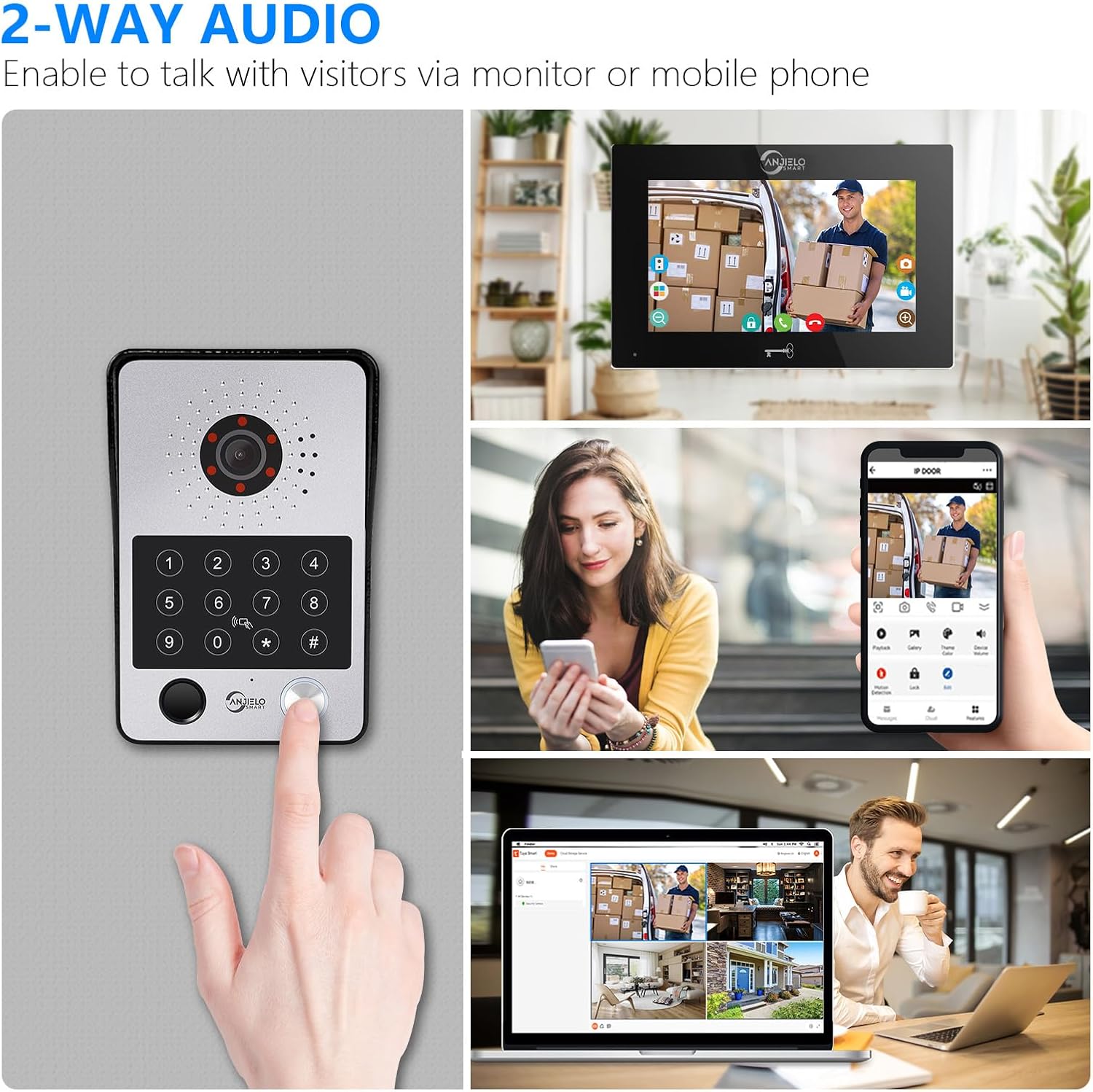
When a visitor presses the doorbell, all connected indoor monitors and paired mobile phones will ring. You can see, hear, and speak to the visitor from any monitor or your mobile phone.
- Аз монитор: Touch the screen to answer the call. You can then speak to the visitor.
- Аз барномаи мобилӣ: Receive a notification on your phone. Open the Tuya app to view the visitor and engage in two-way audio.

Figure 4: Two-Way Audio Interface. This image shows the indoor monitor and mobile app interfaces during a two-way audio call, demonstrating how users can communicate with visitors at the door.
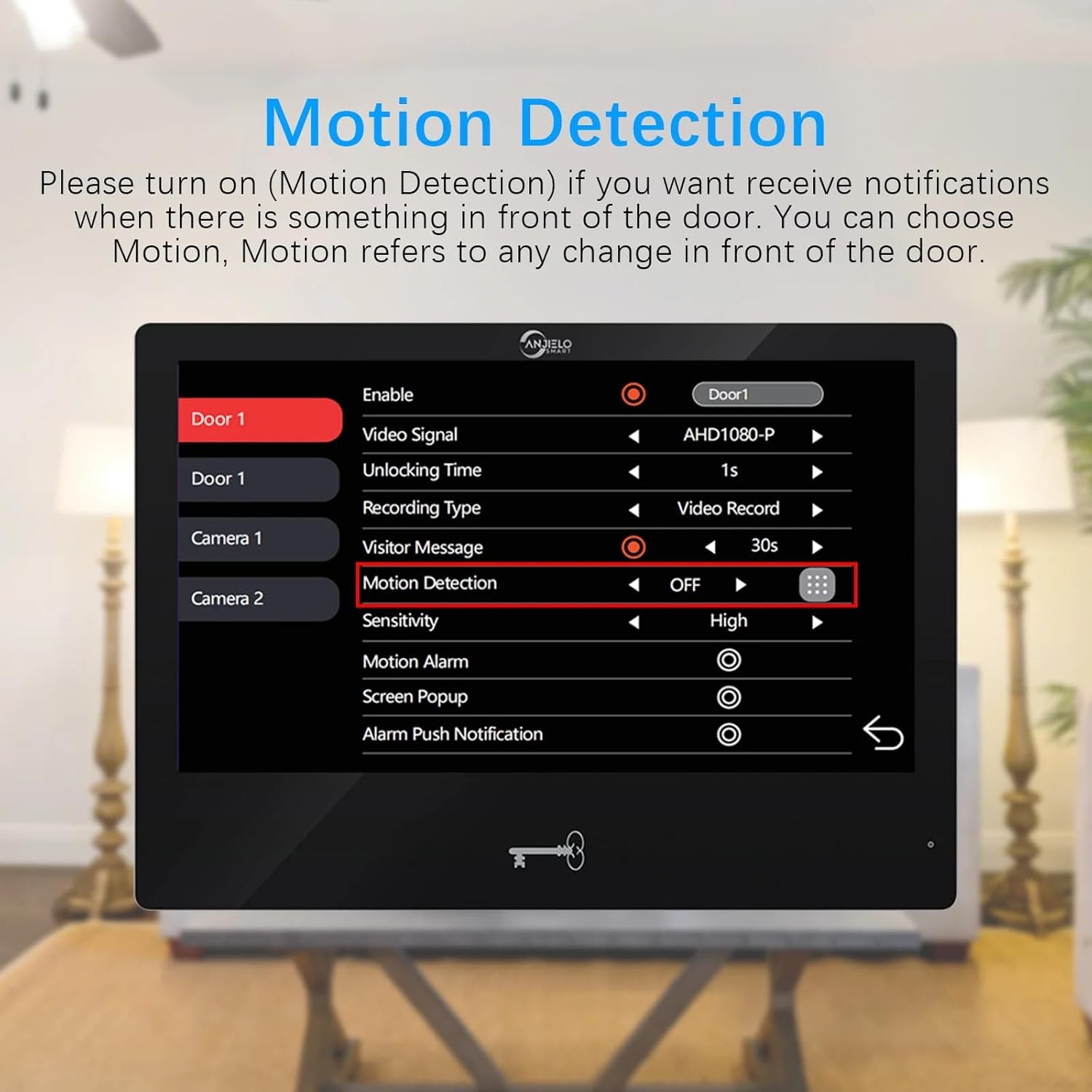
Figure 5: Real-time Two-Way Audio Interaction. This image depicts a user interacting with the indoor monitor, engaging in a conversation with a visitor, illustrating the practical application of the two-way audio feature.
2. Unlocking Methods (5-in-1)
The system offers five methods to unlock a connected 12V electronic lock:
- Рамз: Enter a pre-set password on the outdoor doorbell keypad.
- Изи ангушт: Use a registered fingerprint on the outdoor doorbell's fingerprint reader.
- Корти IC: Tap a registered IC card (5 included) on the outdoor doorbell's RFID reader.
- Барномаи Tuya: Remotely unlock the door using the Tuya Smart app on your mobile phone.
- Монитор: Press the unlock button on the indoor touch monitor.
Расми 6: Зиёдview of 5-in-1 Unlocking Methods. This image visually demonstrates the five different ways to unlock the door: Fingerprint, Password, IC Card, Monitor, and Tuya App, providing a comprehensive view of the system's access control features.
3. Motion Detection and Automatic Recording
The system is equipped with motion detection. When motion is detected in front of the doorbell or a visitor presses the doorbell, the camera will automatically record videos or capture snapshots.
- Фаъолсозӣ: Motion detection can be enabled or disabled via the indoor monitor settings.
- Нигоҳдорӣ: Recordings and snapshots are saved to the included 32GB Micro SD card.
- Viewing: Шумо метавонед дубораview recorded events directly on the indoor monitor or through the Tuya app on your mobile phone.
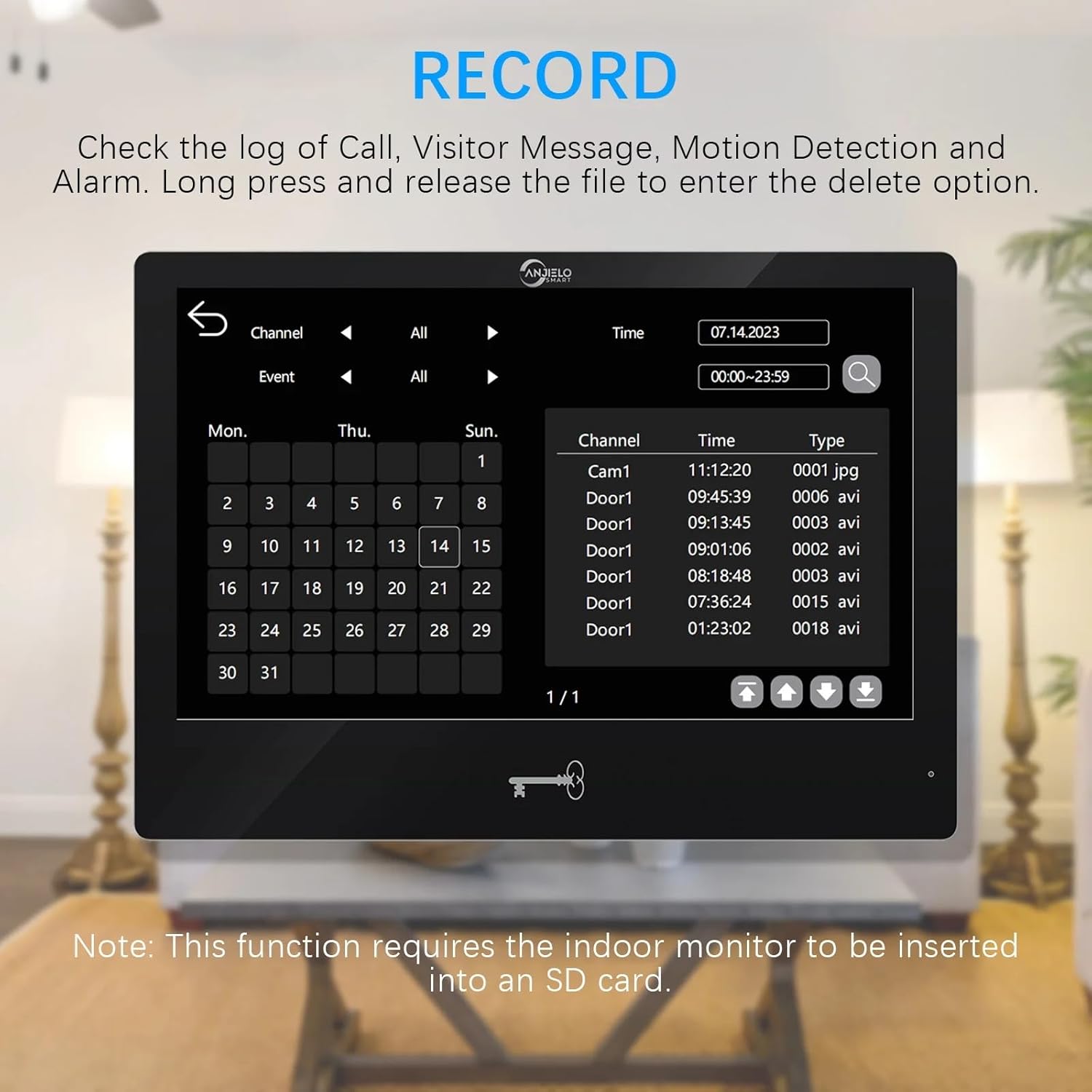
Figure 7: Motion Detection Settings. This image shows the motion detection configuration screen on the indoor monitor, allowing users to enable/disable the feature, adjust sensitivity, and set recording preferences.
4. Motion Detection Area Setting
When motion detection is enabled, you can define specific areas for detection to minimize false alarms. By default, the entire viewable area is active for motion detection.
- Access Setting: On the monitor, navigate to the motion detection settings.
- Adjust Area: Click the grid icon to enter the area selection mode. Click on squares within the grid to toggle them between active (motion detection enabled) and transparent (motion detection disabled) states.
5. Event Record Review
Шумо метавонед дубораview logs of calls, visitor messages, motion detection events, and alarms directly from the indoor monitor.
- Сабтҳои дастрасӣ: Navigate to the "Record" section on the monitor.
- Browse Events: Use the interface to browse events by date and type.
- Нест кардани сабтҳо: Long-press on a file to enter the delete option.

Figure 8: Event Record Log. This image displays the event log interface on the indoor monitor, showing a chronological list of recorded events such as calls, motion detections, and alarms, with options to filter and review.
6. Call Forwarding and Internal Speaking
If you have multiple indoor monitors, the system supports call forwarding and internal audio communication between them.
- Интиқоли зангҳо: When a visitor rings the doorbell, the call can be forwarded to other monitors if the primary one is not answered.
- Internal Speaking: You can initiate an audio-only call between different indoor monitors within your system.
Нигоҳдорӣ
- Тозакунӣ: Regularly wipe the indoor monitor screen and outdoor doorbell lens with a soft, damp матоъ. Аз тозакунандаи абразивӣ худдорӣ кунед.
- Навсозии нармафзор: Check for available firmware updates through the Tuya app or monitor settings to ensure optimal performance and security.
- Идоракунии корти SD: Давра ба давра аз навview and delete old recordings from the Micro SD card to free up space.
- Санҷиши ноқилҳо: Occasionally inspect all wired connections for any signs of wear or damage, especially for outdoor components.
Мушкилкушо
| Мушкилот | Сабаби эҳтимолӣ | Ҳалли |
|---|---|---|
| No image/video on monitor | Loose wiring connection; Power issue; Doorbell camera malfunction. | Check all 4-core cable connections. Ensure monitor is powered. Restart the system. |
| Monitor not connecting to WiFi | Incorrect WiFi password; Router is 5GHz only; Weak signal. | Verify WiFi password. Ensure router is 2.4GHz compatible. Move monitor closer to router or use a WiFi extender. |
| Doorbell not ringing on monitor/phone | Wiring issue; Monitor volume too low; App notifications disabled. | Check doorbell-to-monitor wiring. Adjust monitor volume. Enable notifications in Tuya app. |
| Муайянкунии ҳаракат кор намекунад | Feature disabled; Sensitivity too low; SD card full. | Enable motion detection in settings. Increase sensitivity. Check/clear SD card. |
| Cannot unlock electronic lock | Incorrect wiring; Lock power issue; Incorrect password/card/fingerprint. | Verify lock wiring to doorbell. Ensure lock has power. Re-register unlocking credentials. |
Кафолат ва дастгирӣ
For warranty information and technical support, please refer to the ANJIELO SMART official webсайт ё фурӯшандаи худ тамос гиред. Квитансияи хариди худро ҳамчун далели харид барои даъвоҳои кафолат нигоҳ доред.
Истеҳсолкунанда: ANJIELOSMART
Рақами модел: 94218B-BK-95112BKX2