1. Муқаддима
The EazeID M950 is a versatile label maker designed for home, office, and school use. It offers two primary printing modes: direct input via its integrated QWERTY keyboard and wireless control through the 'Print Master' mobile application via Bluetooth. Featuring a rechargeable battery and a backlit LCD screen, the M950 provides convenience and clarity for all your labeling needs. This manual provides detailed instructions for setting up, operating, and maintaining your device.
2. Мундариҷаи баста
Лутфан тасдиқ кунед, ки ҳамаи ҷузъҳои дар поён овардашуда ба бастаи шумо дохил карда шудаанд:
- 1 x EazeID M950 Label Maker
- 1 x 3M21 Black on White Label tape (12mm*4M)
- 1 x Сими иттилоотии навъи C
- 1 x Қуттии бастабандӣ
- 1 x Дастури корбар (ин ҳуҷҷат)

Figure 2.1: EazeID M950 Label Maker package contents.
3. Маҳсулот ба охир расидview
The EazeID M950 Label Maker features a compact design with an integrated QWERTY keyboard and a backlit LCD screen for ease of use. It utilizes thermal printing technology, eliminating the need for ink or toner.

Расми 3.1: Пеш view of the EazeID M950 Label Maker and accessories.

Figure 3.2: Key features and components of the EazeID M950 Label Maker.
4. Танзимот
4.1 Пур кардани дастгоҳ
The M950 Label Maker is equipped with a built-in 1200mAh rechargeable lithium battery. Before first use, or when the battery is low, charge the device using the provided Type-C USB cable.
- Connect the Type-C end of the cable to the charging port on the side of the label maker.
- Connect the USB-A end of the cable to a 5V-2A charging adapter (not included) or a compatible USB port.
- The device will indicate charging status on the LCD screen. A full charge typically takes 1-2 hours.
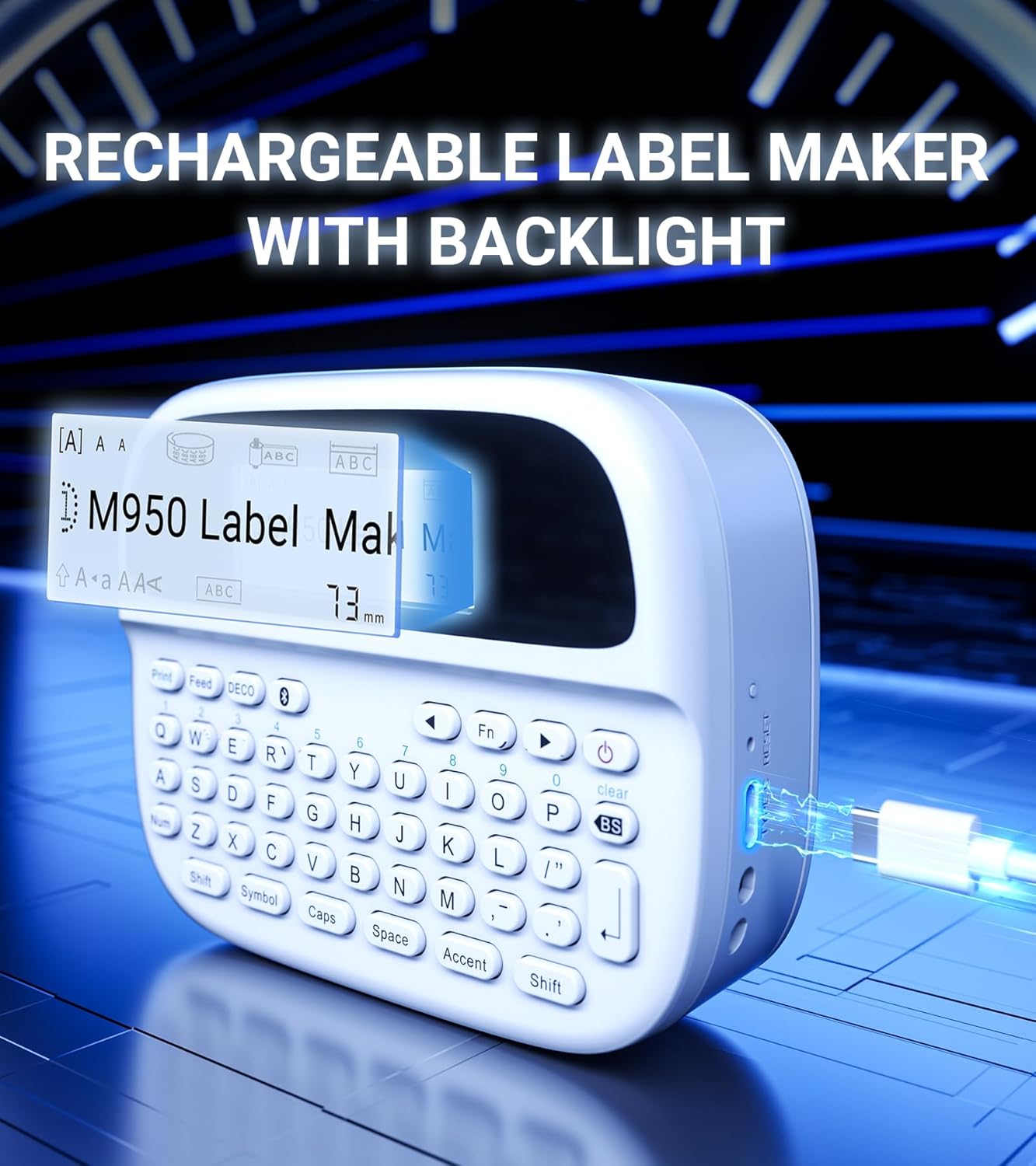
Figure 4.1: Charging the EazeID M950 Label Maker.
4.2 Installing Label Tape
To install or replace the label tape cassette:
- Боварӣ ҳосил кунед, ки истеҳсолкунандаи тамғакоғаз хомӯш аст.
- Locate the tape compartment cover on the top of the device. Gently open the cover.
- Insert the label tape cassette into the compartment, ensuring it clicks into place. The tape should feed smoothly out of the slot.
- Сарпӯши қисмати лентаро бехатар пӯшед.

Расми 4.2: Дохилӣ view of the M950 label maker showing tape cassette placement.
5. Дастурҳои истифодабарӣ
5.1 Фурӯзон/хомӯш кардан
- Барои фаъол кардан: -ро пахш карда нигоҳ доред Қувва button (usually marked with a power symbol) until the LCD screen illuminates.
- Барои хомӯш кардани: -ро пахш кунед ва доред Қувва то хомӯш шудани экран тугмаро боз пахш кунед.
5.2 Direct Printing via QWERTY Keyboard
The M950 features an ergonomic QWERTY keyboard for direct label creation.
- Фаъол: Turn on the label maker.
- Input Text: Use the QWERTY keyboard to type your desired label text. The text will appear on the backlit LCD screen.
- Formatting Options: Use the function keys (e.g., Fn, Рамз, Сарпӯшҳо, Аксент) to access various fonts, sizes, symbols, and other formatting options.
- Чоп кардан: -ро пахш кунед Чоп кардан button to generate the label.
- Буридан: Use the built-in cutter to cleanly separate the printed label from the tape roll.

Figure 5.1: Using the QWERTY keyboard for direct label printing.
5.3 Bluetooth App Printing (Print Master App)
For advanced features and customization, connect your M950 to the 'Print Master' app via Bluetooth.
- Барномаро зеркашӣ кунед: Download the 'Print Master' app from your device's app store (available on Android and iOS).
- Power On & Bluetooth: Turn on the label maker and ensure Bluetooth is enabled on both the label maker and your smartphone.
- Пайвастшавӣ: Open the 'Print Master' app. The app will search for nearby EazeID label makers. Select 'EazeID M950' from the list to connect.
- Design Label: Use the app's interface to create your label. The app offers a vast library of customizable templates, over 1000 patterns, 100+ frames, 100+ fonts, barcodes, and QR codes.
- Чоп кардан: Once your label is designed, tap the 'Print' icon in the app.
- Буридан: Use the built-in cutter on the label maker to separate the printed label.

Figure 5.2: The EazeID M950 supports both keyboard and Bluetooth app printing modes.

Figure 5.3: Connecting to the 'Print Master' app via Bluetooth.
6. Нигоҳдорӣ
6.1 Тоза кардани дастгоҳ
Барои таъмини кори беҳтарин ва дарозумрии истеҳсолкунандаи тамғакоғазҳои шумо:
- Пеш аз тоза кардан, дастгоҳро хомӯш кунед.
- Use a soft, dry cloth to wipe the exterior of the label maker.
- For the print head, gently wipe with a cotton swab lightly dampбо спирти изопропилӣ омехта кунед. Пеш аз истифода, бигзор он пурра хушк шавад.
- Тозакунанда ё ҳалкунандаҳои абразивиро истифода набаред.
6.2 Нигоҳубини батарея
Барои ба ҳадди аксар расонидани мӯҳлати батарея:
- Батареяро зуд-зуд пурра холӣ накунед.
- Charge the device regularly, even if not in constant use.
- Дастгоҳро дар ҷои хунук ва хушк нигоҳ доред, вақте ки дар муддати тӯлонӣ истифода намешаванд.
7. Баррасии мушкилот
If you encounter issues with your EazeID M950 Label Maker, refer to the following common problems and solutions:
| Мушкилот | Сабаби эҳтимолӣ | Ҳалли |
|---|---|---|
| Дастгоҳ фаъол нест | Батареяи кам; Мушкилоти дастгоҳ | Дастгоҳро ҳадди аққал 30 дақиқа пур кунед. Агар то ҳол посух надиҳад, бо дастгирии техникӣ тамос гиред. |
| No print or faint print | Tape installed incorrectly; Print head dirty; Low battery | Reinstall tape cassette. Clean the print head. Charge the device. |
| Пайвасти Bluetooth ноком шуд | Bluetooth off; App not updated; Device too far | Ensure Bluetooth is enabled on both devices. Update 'Print Master' app. Move label maker closer to smartphone. Restart both devices. |
| Labels are difficult to peel | Specific label tape characteristic | Ensure you are using genuine EazeID label tape. Try bending the label backing slightly to separate. |
8. Мушаххасоти
Technical specifications for the EazeID M950 Label Maker:
- Номи модел: EazeID M950 Label Maker
- Технологияи чоп: Гармӣ
- Қарори чоп: 203 DPI
- Пайвастшавӣ: Bluetooth, USB Type C
- Андозаи максималии медиа: 12мм (0.47 инч)
- Батарея: 1200mAh Lithium Ion (rechargeable, included)
- Усули назорат: App (Print Master), QWERTY Keyboard
- Хусусиятҳои махсус: Backlit LCD Screen, Built-in Cutter, Portable
- Андозаҳои маҳсулот: Тақрибан 1 x 1 x 1 дюйм
- Вазни ашё: 1.06 фунт
- Компонентҳои дохилшуда: Label maker, tape, USB-C cable, user manual

Figure 8.1: EazeID M950 Label Maker dimensions and key features.
9. Кафолат ва дастгирӣ
The EazeID M950 Label Maker comes with a limited warranty. For specific warranty terms and conditions, please refer to the warranty card included in your product packaging or visit the official EazeID webсайт.
For technical support, troubleshooting assistance, or inquiries about replacement parts and accessories, please contact EazeID customer service through the contact information provided on the official webсайт ё платформаи хариди шумо.


