1. Муқаддима
This manual provides detailed instructions for the safe and efficient operation of your VGKE Mini Projector, model TS-6. Please read this manual thoroughly before using the projector and retain it for future reference.
The VGKE Mini Projector TS-6 is a portable Full HD projector designed for home entertainment, offering versatile connectivity options including WiFi and Bluetooth for seamless integration with various devices.
2. Маҳсулот ба охир расидview
2.1 Хусусиятҳои асосӣ
- Full HD 1080p Native Resolution (Supports 4K Sources)
- Built-in WiFi 6 for fast wireless connectivity
- Bluetooth 5.2 for external audio devices
- Portable design with a retractable stand
- 90-degree flip adjustment for ceiling projection
- Electric Focus and Keystone Correction (Auto Keystone 15° Vertical Only, 4-Direction, 4-Point Correction)
- 60-100% Zoom function
- Wide compatibility with Android, iOS, Laptops, TV Sticks, HDMI, and USB devices

Figure 1: VGKE Mini Projector TS-6. This image displays the compact and portable design of the projector.

Figure 2: Key features of the VGKE Mini Projector, including high brightness, Full HD resolution, 4K source support, and a retractable stand.
2.2 Мундариҷаи баста
Лутфан бастаро барои ҷузъҳои зерин тафтиш кунед:
- VGKE Mini Projector TS-6
- Адаптери барқ
- Назорати дурдаст
- Дастури корбар
- Сими HDMI (аз рӯи минтақа/баста фарқ мекунад)
3. Танзимот
3.1 Ҷойгиркунӣ
Position the projector on a stable, flat surface. Ensure adequate ventilation around the device. The projector features a 90-degree flip adjustment, allowing for flexible placement, including ceiling projection.

Figure 3: Projector demonstrating 90-degree flip adjustment for versatile projection angles, including ceiling projection.
3.2 Пайвастшавии барқ
- Адаптери барқро ба порти вуруди барқи проектор пайваст кунед.
- Адаптери барқро ба васлаки деворӣ пайваст кунед.
- Барои фаъол кардани дастгоҳ тугмаи барқро дар проектор ё пулти дурдаст пахш кунед.
3.3 Initial Focus and Keystone Adjustment
Upon initial power-on, adjust the focus and keystone to achieve a clear, rectangular image.
- Фокуси барқ: Use the remote control to adjust the focus until the image is sharp.
- Ислоҳи санги калидӣ: The projector supports auto 15° vertical keystone correction. Manual 4-direction and 4-point correction are also available via the settings menu for precise image alignment.

Figure 4: Illustration of the Electric Focus and various Keystone Correction options available on the projector.
4. Дастурҳои истифодабарӣ
4.1 Дастгоҳҳои пайвастшавӣ
Проектор якчанд имконоти пайвастшавиро пешниҳод мекунад:
- HDMI: Connect laptops, TV sticks, gaming consoles (Switch/PS5), or TV boxes via the HDMI ports.
- USB: Insert USB sticks or external storage devices into the USB ports for media playback.
- Порти аудио: Наушник ё баландгӯякҳои берунаро пайваст кунед.
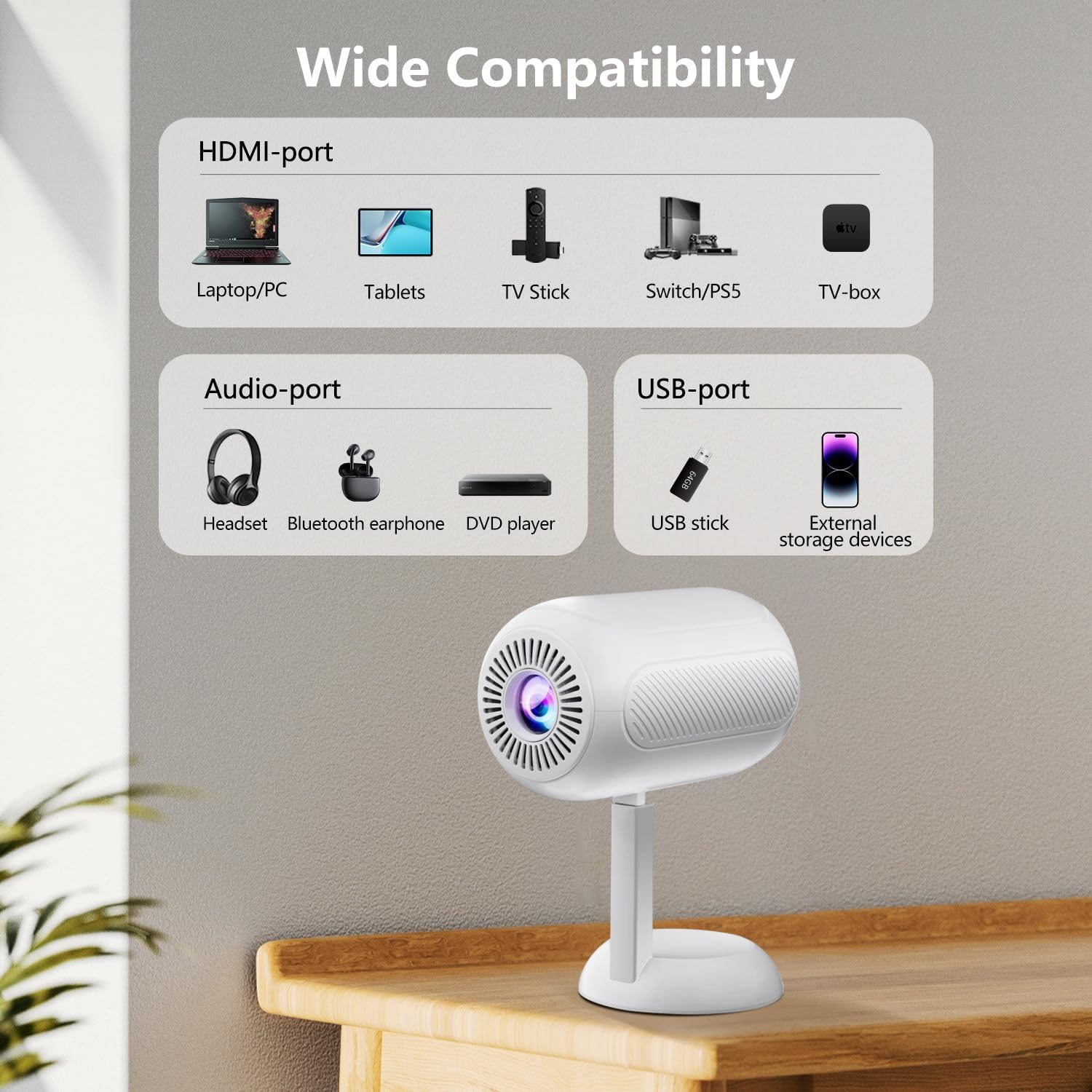
Расми 5: Зиёдview of the projector's connectivity ports, including HDMI, USB, and Audio ports.
4.2 Пайвасти бесим (WiFi ва Bluetooth)
The projector supports WiFi 6 and Bluetooth 5.2 for wireless connections.
- Пайвасти WiFi:
- Navigate to the projector's settings menu.
- Select "Network" or "WiFi Settings".
- Шабакаи дилхоҳи WiFi-ро интихоб кунед ва паролро ворид кунед.
- Once connected, you can use screen mirroring features.
- Пайвасти Bluetooth:
- Ба менюи танзимоти проектор гузаред.
- "Танзимоти Bluetooth" -ро интихоб кунед.
- Bluetooth-ро фаъол созед ва дастгоҳҳои дастрасро ҷустуҷӯ кунед.
- Select your Bluetooth speaker or headphones to pair.

Figure 6: The projector connected wirelessly via WiFi and Bluetooth, demonstrating compatibility with iOS, Android, and Windows devices.
4.3 Зеркашии экран
The projector supports screen mirroring from Android, iOS, and Windows devices. Ensure your device and the projector are connected to the same WiFi network.
- Барои дастгоҳҳои iOS:
- On the projector, select the "iOS Cast" or "Screen Mirroring" option.
- Дар дастгоҳи iOS-и худ Маркази идоракуниро кушоед ва "Оинаи экран" -ро клик кунед.
- Аз рӯйхати дастгоҳҳои мавҷуда проекторро интихоб кунед.
- Барои дастгоҳҳои Android:
- On the projector, select the "Android Cast" or "Screen Mirroring" option.
- On your Android device, enable "Wireless Display," "Smart View," or "Cast" (names may vary by device).
- Аз рӯйхати дастгоҳҳои мавҷуда проекторро интихоб кунед.
Шарҳ: Due to HDCP copyright protocols, certain streaming services (e.g., Netflix, Disney+, Prime Video, Hulu) may not support direct screen mirroring. For these services, it is recommended to use a TV Stick (e.g., Amazon Fire Stick, Roku) connected via HDMI.
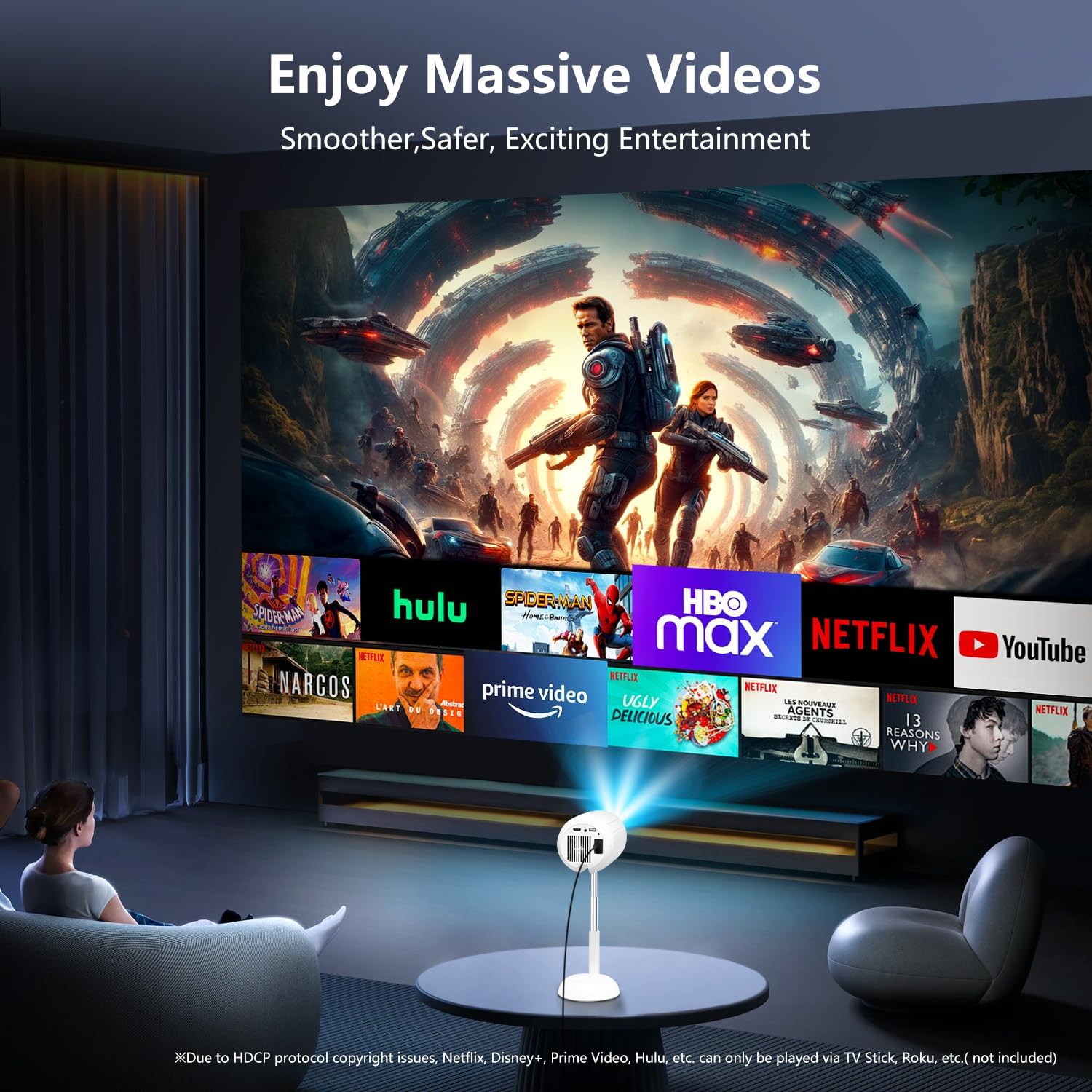
Figure 7: The projector displaying content from various streaming services, highlighting the use of external devices for copyrighted content.
5. Нигоҳдорӣ
5.1 Тоза кардани линза
Барои тоза кардани линзаи проектор аз матои нарм ва бепахта, ки махсус барои линзаҳои оптикӣ тарҳрезӣ шудааст, истифода баред. Аз истифодаи тозакунандаҳои абразивӣ ё қувваи аз ҳад зиёд худдорӣ кунед, зеро ин метавонад линзаро харошад.
5.2 Тоза кардани корпуси проектор
Wipe the exterior of the projector with a soft, dry cloth. Do not use liquid cleaners or solvents, as they may damage the finish.
5.3 Вентилятсия
Барои пешгирӣ аз гармшавии аз ҳад зиёд, сӯрохиҳои вентилятсияро аз чанг ва монеаҳо тоза кунед. Ҳангоми кор сӯрохиҳои вентилятсияро набандед.
6. Баррасии мушкилот
| Мушкилот | Сабаби эҳтимолӣ | Ҳалли |
|---|---|---|
| Ягон тасвир нишон дода нашудааст | Power cable disconnected; incorrect input source; device not connected properly. | Check power connection; select correct input source (HDMI, USB, etc.); ensure cables are securely connected. |
| Тасвири норавшан | Out of focus; incorrect keystone adjustment. | Adjust electric focus using the remote; perform keystone correction. |
| Садо нест | Volume too low; external audio device not connected/paired; projector muted. | Increase volume; connect/pair Bluetooth device; unmute projector. |
| Оинаи экран кор намекунад | Devices not on same WiFi network; HDCP restrictions; WiFi signal weak. | Ensure both devices are on the same WiFi; use HDMI for restricted content; check WiFi signal strength. |
7. Мушаххасоти
| Хусусият | Тафсилот |
|---|---|
| Бренд | ВГКЕ |
| Рақами модел | TS-6 |
| Ҳалли намоиш | 1920 x 1080 (HD Full) |
| Технологияи пайвастшавӣ | Bluetooth, HDMI, USB, Wi-Fi |
| Хусусиятҳои махсус | Built-In Wi-Fi, Bluetooth |
| Андозаҳои маҳсулот | 4.93 x 4.93 x 8.45 инч |
| Вазни ашё | 2.88 фунт |
| Истифодаи тавсияшаванда | Кинотеатри хонагй |
8. Кафолат ва дастгирӣ
For warranty information and technical support, please refer to the contact details provided on the VGKE official webсайт ё ҳуҷҷатҳои хариди шумо. Барои даъвоҳои кафолат далели хариди худро нигоҳ доред.
For further assistance, you may contact VGKE customer service through their official channels.


