1. Маҳсулот ба охир расидview
The MOBAPAD N1 HD is a versatile wireless controller designed for an enhanced gaming experience across multiple platforms. It features advanced technologies such as Hall Effect Joysticks for precise control, ALPS Dual-Axis Motors for immersive HD vibration, and six-axis motion control. This controller is compatible with Nintendo Switch, PC, iOS, and Android devices, offering seamless connectivity and responsive performance.

Тасвир: Пеш view of the MOBAPAD N1 HD Wireless Controller, showcasing тарҳи эргономии он ва тарҳбандии тугмаҳо.
2. Хусусиятҳои асосӣ
- Мутобиқати бисёр платформа: Fully compatible with Nintendo Switch, PC, iOS, and Android devices, ensuring broad usability.
- Ҷойстикҳои Hall Effect: Provides smooth, precise, and durable control with minimal wear, ideal for accurate gaming.
- ALPS Dual-Axis Motors with HD Vibration: Delivers realistic and immersive haptic feedback for enhanced gameplay.
- Назорати ҳаракати шаш меҳвар: Built-in gyroscope enables enhanced motion control for compatible games.
- NFC for Amiibo Scanning: Supports NFC technology for scanning Amiibo figures on Nintendo Switch.

Image: The controller illustrating its immersive motion control capabilities with swirling lines around it.

Image: The controller positioned in front of a collection of Amiibo figures, highlighting its NFC scanning function.

Image: The controller shown alongside icons for Switch, Android/iOS, and PC, demonstrating its multi-device compatibility.
3. Насбкунӣ ва пайвастшавӣ
Follow these steps to connect your MOBAPAD N1 HD controller to your desired device.
3.1. Пайвастшавӣ ба Nintendo Switch
- Аз Менюи HOME ро интихоб кунед Назоратчиён, пас Тағйир Grip / Тартиби.
- While the screen is displaying "Press L + R on the controller", press and hold the Тугмаи хонагӣ on the MOBAPAD N1 HD controller for 3-5 seconds until the player LEDs begin to flash.
- Once connected, the player LED(s) corresponding to the controller number will remain lit.
3.2. Пайвастшавӣ ба компютер (Windows)
- Connect the controller to your PC using a USB-C cable. The controller will be recognized as a wired controller.
- For wireless connection, ensure your PC has Bluetooth enabled. Go to Bluetooth & other devices settings.
- "Илова кардани Bluetooth ё дастгоҳи дигар" -ро интихоб кунед ва сипас "Bluetooth" -ро интихоб кунед.
- -ро пахш карда нигоҳ доред Тугмаи хонагӣ on the controller until the LEDs flash rapidly, indicating pairing mode.
- Select "MOBAPAD N1 HD" from the list of available devices.
3.3. Connecting to iOS/Android Devices
- Bluetooth-ро дар дастгоҳи iOS ё Android-и худ фаъол созед.
- Ба танзимоти Bluetooth равед ва дастгоҳҳои навро ҷустуҷӯ кунед.
- -ро пахш карда нигоҳ доред Тугмаи хонагӣ on the controller until the LEDs flash rapidly.
- Select "MOBAPAD N1 HD" from the list of available devices to pair.
4. Истифодабарии контроллер
Familiarize yourself with the controller's layout and functions for optimal gameplay.
4.1. Тарҳбандии тугмаҳо
- Стики аналогии чап: For movement and camera control. Features Hall Effect technology.
- Stick аналогии рост: For camera control and aiming. Features Hall Effect technology.
- D-Pad: Directional input for menu navigation and specific game actions.
- Тугмаҳои A/B/X/Y: Тугмаҳои амали стандартӣ.
- Тугмаҳои L/R: Тугмаҳои китф.
- Тугмаҳои ZL/ZR: Тугмаҳои триггер.
- Тугмаи минус (-): Typically for opening in-game menus or specific functions.
- Тугмаи Плюс (+): Typically for opening in-game menus or specific functions.
- Тугмаи хонагӣ: Returns to the system's home screen. Also used for pairing and NFC scanning.
- Тугмаи аксбардорӣ: Takes screenshots or video clips (Nintendo Switch).
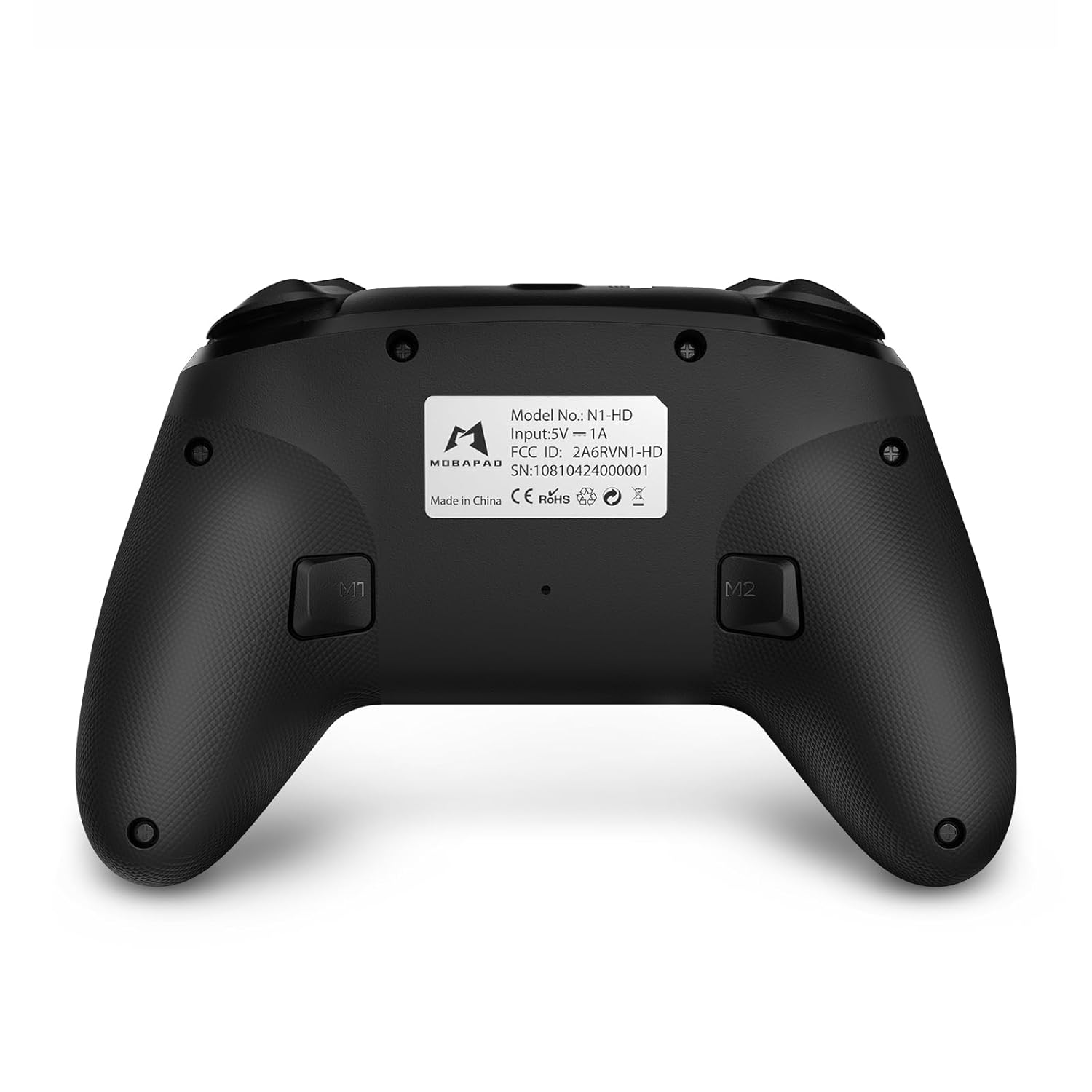
- Тугмаҳои M1/M2: Programmable back buttons for custom macros or remapping.
Тасвир: Пеши муфассал view of the MOBAPAD N1 HD controller, showing all buttons and joysticks.

Тасвир: Бозгашт view of the MOBAPAD N1 HD controller, highlighting the M1 and M2 programmable buttons and product label.
4.2. NFC Functionality (Amiibo Scanning)
To use the NFC function for Amiibo scanning on Nintendo Switch:
- Ensure your controller is connected to the Nintendo Switch.
- In a compatible game, when prompted to scan an Amiibo, place the Amiibo figure directly over the Тугмаи хонагӣ area on the controller.
- Hold the Amiibo in place until the game registers the scan.
5. Нигоҳдорӣ ва нигоҳубин
Proper maintenance ensures the longevity and optimal performance of your controller.
- Тозакунӣ: Барои тоза кардани контроллер аз матои нарм ва хушк истифода баред. Барои ифлосии якрав, каме тоза кунед.ampдар матои об. Аз маводи кимиёвии сахт ё маводи абразивӣ худдорӣ намоед.
- Нигоҳдорӣ: Контроллерро дар ҷои хунук ва хушк аз нури бевоситаи офтоб ва ҳарорати аз ҳад зиёд дур нигоҳ доред.
- Нигоҳубини батарея: The controller contains a Lithium Ion battery. Avoid fully discharging the battery frequently. If storing for extended periods, charge the battery to about 50% to prolong its lifespan. Do not expose the battery to fire or extreme heat.
- Муносибат: Аз афтидани контроллер ё дучор шудан ба зарбаҳои сахт худдорӣ кунед, зеро ин метавонад ба қисмҳои дохилӣ зарар расонад.
6. Баррасии мушкилот
If you encounter issues with your MOBAPAD N1 HD controller, refer to the following common solutions.
| Мушкилот | Сабаби эҳтимолӣ | Ҳалли |
|---|---|---|
| Контроллер пайваст намешавад. | Батареяи кам, берун аз диапазон, ҳолати ҷуфткунии нодуруст, дахолат. | Charge the controller fully. Ensure it is within range of the device. Re-enter pairing mode (hold Home button). Move closer to the device or away from other wireless devices. |
| Тугмаҳо ё джойстикҳо ҷавоб намедиҳанд. | Software glitch, physical obstruction, damage. | Restart the controller and the connected device. Check for any debris around the buttons/joysticks. If issues persist, contact customer support. |
| Вибрация заиф ё нест. | Vibration setting off, game does not support vibration, motor issue. | Check in-game settings and system settings to ensure vibration is enabled. Verify if the game supports vibration feedback. |
| NFC scanning fails. | Incorrect placement, game not prompting scan, controller not connected. | Ensure the Amiibo is placed directly over the Home button area. Confirm the game is prompting for an Amiibo scan. Verify controller is properly connected to the Switch. |
7. Мушаххасоти
| Хусусият | Тафсилот |
|---|---|
| Рақами модел | Mobapad N1 HD Black |
| Андозаҳо (L x W x H) | 5.91 x 2.36 x 3.94 инч |
| Вазн | 7.05 унция |
| Навъи батарея | 1 батареяи литий-ион (дохил) |
| Пайвастшавӣ | Wireless (Bluetooth), USB-C (wired) |
| Мутобиқати | Nintendo Switch, PC, iOS, Android |
| Хусусиятҳои махсус | Hall Effect Joysticks, ALPS Dual-Axis Motors, HD Vibration, Six-Axis Gyroscope, NFC |
8. Кафолат ва дастгирӣ
For warranty information or technical support, please contact MOBAPAD customer service. Refer to the official MOBAPAD webбарои шартҳои мушаххаси кафолат ва маълумоти тамос ба вебсайт ё ҳуҷҷатҳои хариди шумо муроҷиат кунед.
You can visit the official MOBAPAD store on Amazon for more information: MOBAPAD Store


