1. Муқаддима
Thank you for choosing the MEETION BTM011 Ergonomic Wireless Bluetooth Vertical Mouse. This device is designed to provide a comfortable and efficient computing experience by promoting a natural hand position, reducing wrist strain. It offers versatile connectivity options for multiple devices and adjustable precision to suit various tasks.

The ergonomic design of the MEETION vertical mouse helps maintain a natural hand and wrist posture, reducing discomfort compared to traditional mice.
2. Мундариҷаи баста
- MEETION BTM011 Ergonomic Wireless Bluetooth Vertical Mouse
- USB 2.4G Receiver (stored in the mouse battery compartment)
- USB-A ба USB-C Adapter
- Дастури корбар
3. Маҳсулот ба охир расидview
Familiarize yourself with the various components and buttons of your MEETION BTM011 mouse.

Муфассал view of the mouse components, including the Mode Switching Button, Power Switch (ON/OFF), Low Battery Indicator, Charging Indicator, DPI Speed Switch Button, 2.4G Connection Indicator, Bluetooth 1 Connection Indicator, and Bluetooth 2 Connection Indicator.
- Тугмаи чап: Функсияи стандартии клик бо тугмаи чапи муш.
- Тугмаи рост: Функсияи стандартии тугмаи рости муш.
- Чархи ҳаракат: For scrolling up and down.
- Тугмаи пеш: Ба пеш ҳаракат мекунад web браузерҳо ё file кашфкунандагон.
- Тугмаи Бозгашт: Ба қафо дарун ҳаракат мекунад web браузерҳо ё file кашфкунандагон.
- Тугмаи Гузариш DPI: Ҳассосияти курсорро танзим мекунад.
- Тугмаи ивазкунии режим: Switches between 2.4G, Bluetooth 1, and Bluetooth 2 modes.
- Калиди барқ (фағол/хомӯш): Мушро фаъол ё хомӯш мекунад.
- Бахши батарея: Located at the bottom, for 1x AA battery and USB receiver storage.
4. Дастурамал оид ба насб
4.1 Насби батарея
The mouse requires one AA battery (not included).
- Locate the battery compartment cover on the bottom of the mouse.
- Сарпӯшро кушоед.
- Як батареяи АА гузоред, ки қутбияти дурустро таъмин кунед (+/-).
- Сарпӯши қисмати батареяро бехатар пӯшед.

Insert one AA battery into the compartment. The USB receiver is also stored here.
4.2 Фаъол кардан/хомӯш кардан
Slide the power switch located on the bottom of the mouse to the "ON" position to turn it on. Slide to "OFF" to conserve battery when not in use.
4.3 Усулҳои пайвастшавӣ
The MEETION BTM011 mouse supports three connection modes: 2.4GHz wireless (via USB receiver) and two independent Bluetooth 5.3 channels (BT1 and BT2). You can connect to up to three devices simultaneously and switch between them.

The mouse supports 2.4G wireless and two Bluetooth 5.3 connections for seamless switching between devices.
4.4 2.4GHz USB Connection
- Take out the USB receiver from the battery compartment of the mouse.
- Insert the USB receiver into an available USB-A port on your computer. If your computer only has USB-C ports, use the provided USB-A to USB-C adapter.
- Бо истифода аз тугмаи барқ мушро фаъол кунед.
- Press the Mode Switching Button until the 2.4G Connection Indicator (green light) lights up. The mouse should now be connected.
4.5 Пайвастшавии Bluetooth (BT1 / BT2)
- Бо истифода аз тугмаи барқ мушро фаъол кунед.
- Press the Mode Switching Button to select either Bluetooth 1 (BT1) or Bluetooth 2 (BT2). The corresponding blue indicator light will blink, indicating pairing mode.
- On your device (computer, laptop, tablet, smartphone), go to Bluetooth settings.
- Ҷустуҷӯ new devices. You should find "Meetion_MS_BT1" or "Meetion_MS_BT2".
- Select the device to pair. Once paired, the blue indicator light will stop blinking and remain solid for a few seconds.

Visual guide for connecting the mouse via 2.4G USB receiver and Bluetooth modes.
5. Дастурҳои истифодабарӣ
5.1 Танзими DPI
The mouse features 4 adjustable DPI levels: 1200, 1600, 2400, and 3200. Press the DPI Switch Button (located behind the scroll wheel) to cycle through these settings. Each press changes the cursor speed, allowing you to select the precision suitable for your task.
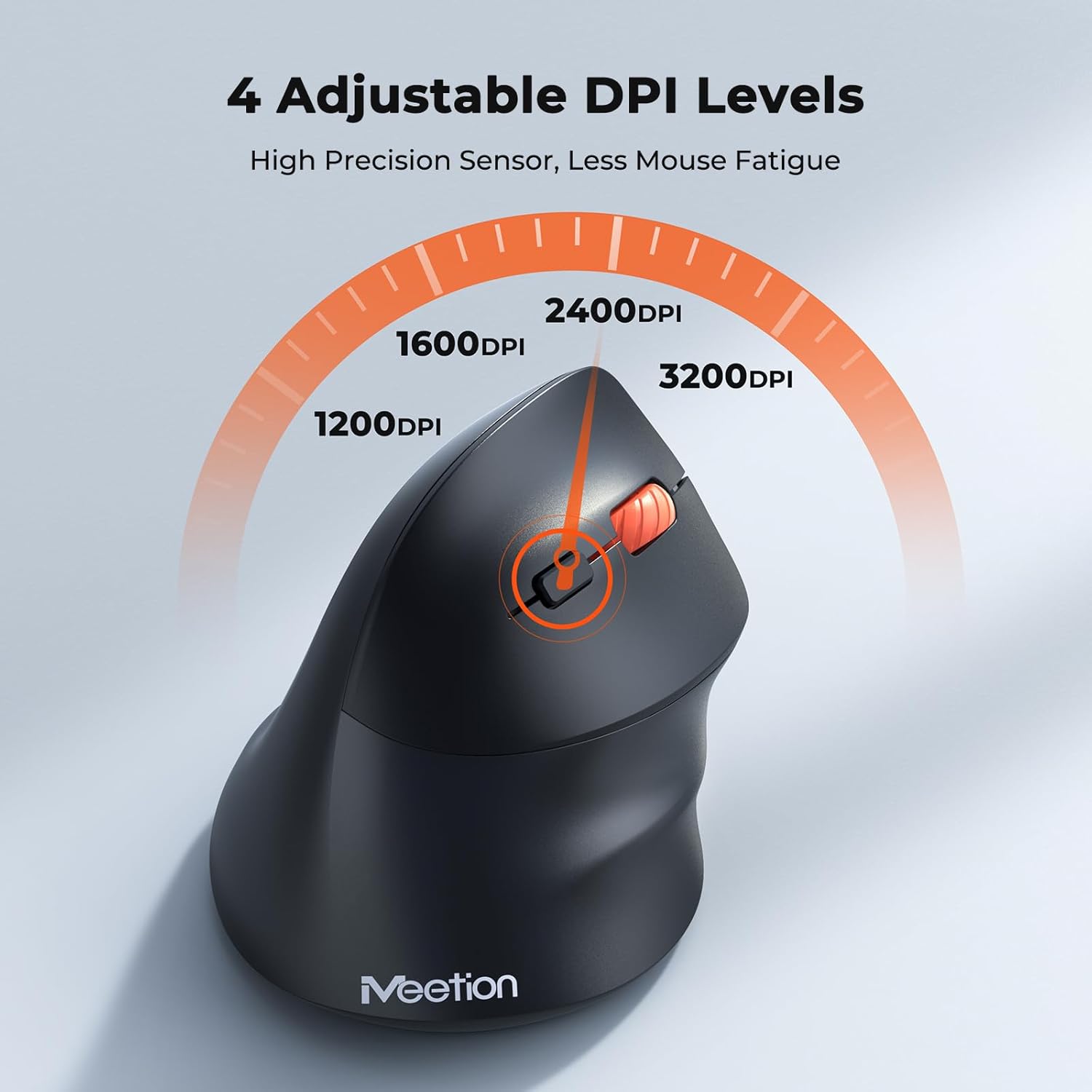
Adjust the DPI to match your preference for cursor speed and precision.
5.2 Гузариши бисёрдастгоҳҳо
To switch between connected devices, simply press the Mode Switching Button located on the bottom of the mouse. The corresponding indicator light (green for 2.4G, blue for BT1/BT2) will illuminate to show the active connection.
5.3 Forward/Back Buttons
Use the Forward and Back buttons, conveniently located on the side of the mouse, for quick navigation in web браузерҳо, file explorers ва дигар барномаҳое, ки ин функсияҳоро дастгирӣ мекунанд.
6. Идоракунии барқ
6.1 Auto-Sleep Mode
To conserve battery life, the mouse will automatically enter sleep mode after 20 minutes of inactivity. This intelligent feature helps extend the battery's operational time.
6.2 Waking the Mouse
To wake the mouse from sleep mode, simply press any button. It will instantly reconnect to the last active device.
6.3 Муҳлати батарея
With typical usage, a single AA battery can power the mouse for up to 3 months. Actual battery life may vary based on usage patterns and battery quality.
7. Нигоҳдорӣ
To ensure optimal performance and longevity of your mouse, follow these maintenance guidelines:
- Тозакунӣ: Барои тоза кардани сатҳи муш аз матои нарм ва хушк истифода баред. Барои ифлосиҳои якрав, каме тоза кунед.amp матоъро истифода бурдан мумкин аст, аммо боварӣ ҳосил кунед, ки намӣ ба дастгоҳ ворид намешавад. Аз маводи кимиёвии сахт ё тозакунандаҳои абразивӣ худдорӣ кунед.
- Иваз кардани батарея: Replace the AA battery when the low battery indicator lights up or when mouse performance degrades. Always dispose of used batteries responsibly.
- Нигоҳдорӣ: When not in use for extended periods, turn off the mouse and store it in a dry, cool place.
8. Баррасии мушкилот
If you encounter issues with your MEETION BTM011 mouse, refer to the following solutions:
| Мушкилот | Ҳалли |
|---|---|
| Муш ҷавоб намедиҳад |
|
| Ҳаракати курсор номунтазам ё суст аст |
|
| Тавассути Bluetooth пайваст шуда наметавонад |
|
| Forward/Back buttons not working |
|
9. Мушаххасоти
| Хусусият | Тафсилот |
|---|---|
| Модели | BTM011 |
| Пайвастшавӣ | 2.4GHz Wireless, Bluetooth 5.3 (BT1, BT2) |
| Сатҳи DPI | 1200/1600/2400/3200 |
| Тугмаҳо | 7 (Left, Right, Scroll Wheel, Forward, Back, DPI Switch, Mode Switch) |
| Манбаи нерӯ | 1x Батареяи AA (дохил карда нашудааст) |
| Худкор-хоб | Пас аз 20 дақиқа бефаъолият |
| Мутобиқати | Windows, Mac OS, Linux, Android, iOS (for iPad/iPhone) |
| Материал | Пластмасса |
| Андозаҳо (тақрибан) | 4.4 x 3.29 x 2.74 инч (11.18 x 8.36 x 6.96 см) |
10. Кафолат ва дастгирӣ
10.1 Маълумот дар бораи кафолат
MEETION products are designed and manufactured to the highest quality standards. This product is covered by a limited warranty against defects in materials and workmanship. Please retain your proof of purchase for warranty claims. Specific warranty terms may vary by region; refer to your local retailer or the official MEETION webсайт барои тафсилот.
10.2 Дастгирии муштариён
For technical assistance, troubleshooting, or general inquiries, please contact MEETION customer support:
- Почтаи электронӣ: service@meetion.com
- Webсайт: Visit the official MEETION webсайт барои Саволҳо ва захираҳои иловагӣ.


