1. Маҳсулот ба охир расидview
The Mvgges 4x6 Thermal Label Printer is designed for efficient and high-quality label printing without the need for ink or toner. It supports both Bluetooth and USB connectivity, making it versatile for use with various devices including Windows, Mac, iOS, and Android systems. This printer is ideal for shipping labels, inventory management, and other labeling tasks for small businesses and personal use.

Figure 1: Mvgges 4x6 Thermal Label Printer in operation.
This image shows the compact design of the Mvgges thermal label printer, actively printing a shipping label. A smartphone in the foreground illustrates its Bluetooth connectivity feature, allowing users to print directly from their mobile devices.
Key features include 203 DPI resolution for clear prints, a printing speed of up to 160mm/s, and compatibility with thermal labels ranging from 20-104mm in width. It is compatible with major shipping and e-commerce platforms such as USPS, UPS, Etsy, eBay, Shopify, and PayPal.
2. Дар қуттӣ чӣ мавҷуд аст
Upon unboxing your Mvgges Thermal Label Printer, please ensure all the following components are present:
- 1x Mvgges Thermal Label Printer
- 1 x адаптери барқ
- 1 x кабели USB
- 1 x USB Drive and Type-C Adapter for Mac
- 1 x Дастури корбар (ин ҳуҷҷат)
- 30 x Test Labels
3. Танзимот
3.1 Initial Setup and Label Loading
Before first use, or when replacing labels, ensure the printer is powered off. Open the printer cover, remove any existing label rolls, and insert the new thermal label roll. Ensure the labels are properly aligned and the tearable side is facing up. Close the cover securely.

Figure 2: Built-in Label Bin for easy label loading.
This image highlights the printer's built-in label bin, which eliminates the need for an external label holder. It shows a roll of thermal labels correctly placed within the printer, ready for use. The design supports both roll and fanfold papers.
For a visual guide on loading labels and initial calibration, please refer to the video below:
Video 1: Guide to Loading Labels and Calibration.
This video demonstrates the correct procedure for loading thermal labels into the Mvgges printer and performing the necessary calibration steps to ensure proper label feeding and print quality. It also addresses how to resolve a blinking red light issue, which often indicates a label loading or calibration requirement.
3.2 Имконоти пайвастшавӣ
The Mvgges printer offers flexible connectivity:
- Пайвасти Bluetooth: For Android and iOS smartphones and tablets. Download the "Print Label" app for Android or "Zlabel" app for iOS.
- Пайвасти USB: For Windows and Mac OS laptops and PCs. Note that Wi-Fi connection is not supported.

Figure 3: Bluetooth and USB Connection Overview.
This diagram illustrates the dual connectivity options of the Mvgges printer. It clearly shows that mobile devices (Android, iOS, iPad) connect via Bluetooth, while desktop computers and laptops (Windows, Mac OS) utilize a USB connection for printing. A note indicates that PCs and laptops can only print via USB.
To print via Bluetooth from your smartphone, follow these steps:
- Download the appropriate app: "Print Label" for Android (available on Google Play) or "Zlabel" for iOS (available on the App Store).
- Connect your device to the printer via Bluetooth within the app.
- PDF-ро кушоед file or label design you wish to print.
- Initiate printing from the app.

Figure 4: Using the App for Bluetooth Printing.
This visual guide provides a clear, step-by-step process for printing labels using the dedicated mobile application via Bluetooth. It shows the stages from downloading the app (with QR codes for Google Play and App Store) to connecting the printer, opening a PDF file, and finally initiating the print command.
4. Дастурҳои истифодабарӣ
Once connected and labels are loaded, you can begin printing. The Mvgges printer delivers fast and clear results, essential for high-volume tasks.

Figure 5: High-Speed and Clear Printing Capabilities.
This image emphasizes the printer's performance, highlighting its 160mm/s printing speed and 203 DPI resolution, ensuring both efficiency and print clarity. A smartphone screen shows a label being prepared for printing, demonstrating the user-friendly interface.
The printer is compatible with a wide range of thermal labels, supporting widths from 0.8 to 4.1 inches, including common sizes like 4x6 inches for shipping labels.
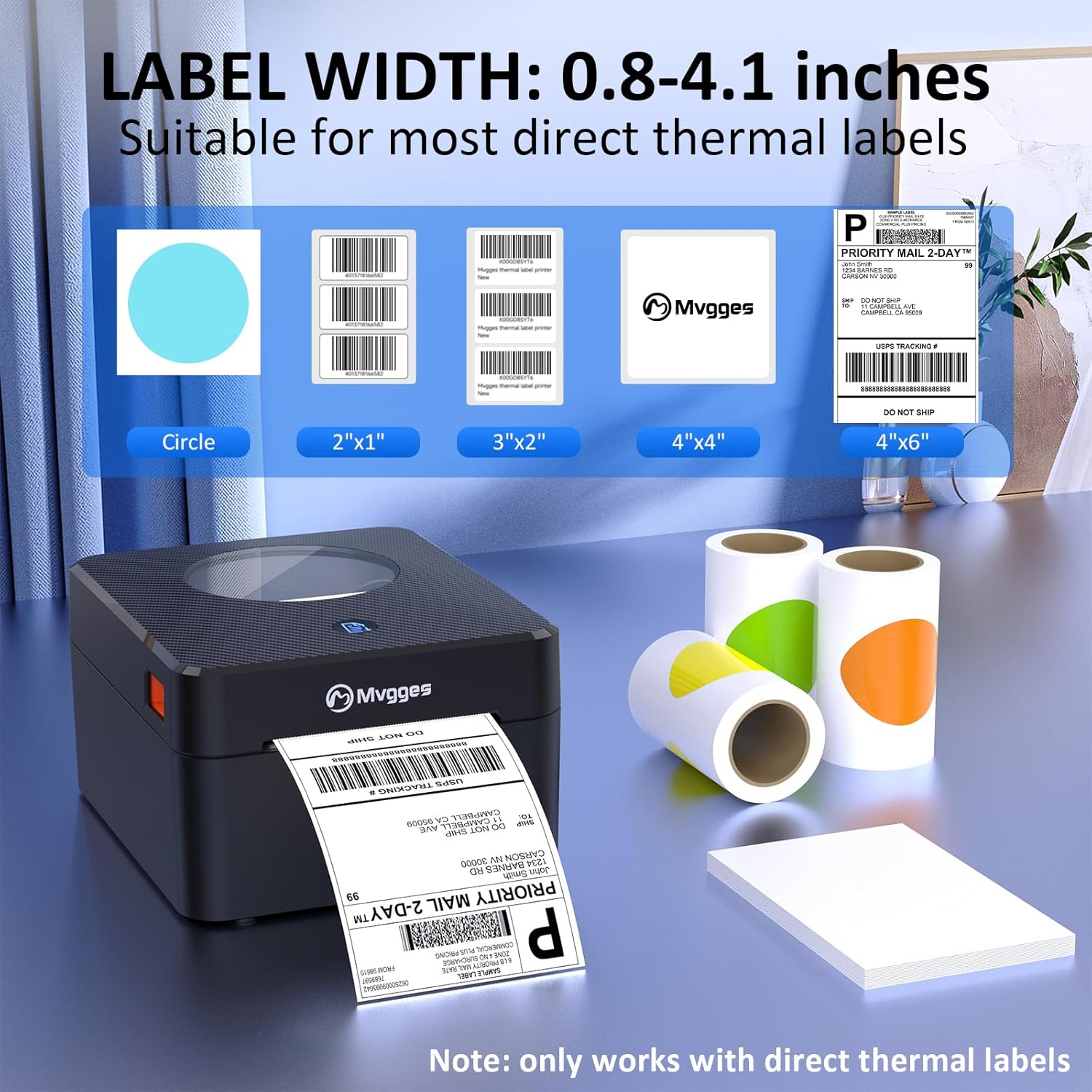
Figure 6: Supported Label Widths and Types.
This image visually demonstrates the versatility of the Mvgges printer by showcasing various compatible direct thermal label sizes and shapes, from small circles to standard 4x6 inch shipping labels. It confirms the printer's ability to handle label widths between 0.8 and 4.1 inches.
It integrates seamlessly with popular e-commerce and shipping platforms, streamlining your workflow for package shipping and product labeling.

Figure 7: Platform Compatibility.
This image displays a comprehensive list of major e-commerce and shipping platforms with which the Mvgges printer is compatible, including Amazon, Etsy, eBay, UPS, PayPal, Shopify, and more. This highlights its broad utility for small businesses and online sellers.
5. Нигоҳдорӣ
To ensure optimal print quality and prolong the lifespan of your Mvgges printer, regular maintenance is recommended. The most critical aspect is cleaning the printer head.
- Тоза кардани сари принтер: The printer head should be cleaned regularly to remove any accumulated dust, dirt, or adhesive residue from labels. This prevents print quality degradation, such as faded lines or incomplete prints. Use a lint-free cloth lightly dampened with isopropyl alcohol. Ensure the printer is turned off and cooled down before cleaning.
- Тозакунии умумӣ: Wipe the exterior of the printer with a soft, dry cloth to keep it free from dust.
6. Баррасии мушкилот
This section addresses common issues you might encounter with your Mvgges printer.
6.1 Blinking Red Light
A blinking red light typically indicates a label loading issue or that the printer requires calibration. Follow these steps to resolve it:
- Turn off the printer using the power switch.
- Open the printer cover and ensure the label roll is correctly seated and aligned. Remove and re-insert the labels if necessary.
- Сарпӯши принтерро пӯшед.
- Turn on the printer. The light should turn blue.
- If the red light is still blinking, long-press the feed button. When the red light blinks and the printer beeps twice, release the feed button. The printer will perform a test print and calibrate the labels.
For a visual demonstration of resolving the blinking red light issue and performing calibration, please refer to Video 1 in Section 3.1.
6.2 Масъалаҳои сифати чоп
- Faded or Incomplete Prints: This can be caused by a dirty print head. Refer to Section 5 (Maintenance) for cleaning instructions.
- Labels Not Feeding Correctly: Ensure the label roll is properly loaded and aligned. Perform a calibration as described in Section 6.1.
- Incorrect Label Size: Verify that the label size selected in your printing software matches the physical labels loaded into the printer.
7. Мушаххасоти
Detailed technical specifications for the Mvgges ZJ-9250 Thermal Label Printer:
| Мушаххасоти | Арзиш |
|---|---|
| Номи модел | ZJ-9250 |
| Бренд | Mvgges |
| Технологияи пайвастшавӣ | Bluetooth, USB |
| Технологияи чоп | Гармӣ |
| Андозаи максималии медиа | 4 x 6 дюйм |
| Ҳаҷми ҳадди аксар чопи сиёҳ ва сафед | 203 dpi |
| Суръати максималии чоп (монохромӣ) | 160мм/с |
| Дастгоҳҳои мувофиқ | Laptops, PC, Smartphones, Tablets (iOS & Android Phone, Pad, Mac OS, Windows system) |
| Андозаҳои маҳсулот | 7 x 8.4 x 4.7 инч |
| Вазни ашё | 2.98 фунт |
| Ранги | Matte Black Carbon Fiber |
| Хусусияти махсус | Bluetooth and USB Connection, Built-in Paper Bin |
8. Кафолат ва дастгирӣ
For warranty information and technical support, please refer to the documentation included with your product or contact Mvgges customer service directly. Contact details are typically provided on the product packaging or the official Mvgges webсайт.


