1. Муқаддима
This manual provides detailed instructions for the setup, operation, maintenance, and troubleshooting of your Phomemo D520BT Bluetooth Thermal Label Printer. Please read this manual thoroughly before using the device to ensure proper functionality and to extend the product's lifespan.

Figure 1: Phomemo D520BT printer in purple, printing a shipping label, with a smartphone displaying a label design connected via Bluetooth. This image illustrates the printer's compact design and wireless printing capability.
2. Мундариҷаи баста
Боварӣ ҳосил кунед, ки ҳамаи ҷузъҳои дар поён овардашуда ба бастаи шумо дохил карда шудаанд. Агар ягон ашё гум ё вайрон бошад, лутфан бо дастгирии мизоҷон тамос гиред.
- Phomemo D520BT Thermal Printer
- Roll Label (sampле)
- Дастури оғози зуд
- Дастури корбар (ин ҳуҷҷат)
- Сими барқ
- Сими USB
- Адаптери Type-C
- Адаптери барқ

Figure 2: All components included in the Phomemo D520BT product package.
3. Дастури насб
3.1 Кушодани баста
- Принтер ва ҳамаи лавозимотро аз бастабандӣ бодиққат хориҷ кунед.
- Remove any protective films or packing materials from the printer.
3.2 Боркунии нишонаҳо
The Phomemo D520BT supports both roll paper and folding paper labels.
- Open the printer cover by gently lifting it.
- For Roll Paper: Place the label roll into the internal paper holder, ensuring the labels feed from the bottom and the printing side faces upwards. Guide the first label through the output slot until it is slightly visible.
- For Folding Paper: Place the stack of folding labels behind the printer, ensuring the labels feed smoothly into the rear input slot and the printing side faces upwards. Guide the first label through the output slot until it is slightly visible.
- Сарпӯши принтерро бехатар пӯшед.

Figure 3: The Phomemo D520BT printer supports both folding paper and roll paper labels.
3.3 Пайваст кардани принтер
The D520BT offers both USB and Bluetooth connectivity.
3.3.1 USB Connection (Windows, Mac, Chrome OS, Linux)
- Connect one end of the USB cable to the printer and the other end to your computer.
- Адаптери барқро ба принтер пайваст кунед ва онро ба васлаки барқ пайваст кунед.
- Принтерро фаъол созед.
- Install the necessary printer drivers for your operating system. Drivers can typically be found on the official Phomemo webсайт.
3.3.2 Bluetooth Connection (Android, iOS, iPad)
- Адаптери барқро ба принтер пайваст кунед ва онро ба васлаки барқ пайваст кунед.
- Принтерро фаъол созед.
- -ро зеркашӣ ва насб кунед “Labelife” барнома аз мағозаи барномаҳои дастгоҳи шумо.
- Open the Labelife app and follow the in-app instructions to pair your device with the D520BT printer via Bluetooth.

Figure 4: The Phomemo D520BT supports both Bluetooth and USB connectivity for various devices and operating systems.
4. Дастурҳои истифодабарӣ
4.1 Фаъол кардан/хомӯш кардан
- Фаъол: Press the power button located on the printer. The indicator light will illuminate.
- Хомӯш: Тугмаи барқро то хомӯш шудани чароғи нишондиҳанда пахш кунед ва нигоҳ доред.
4.2 Чопи тамға
- Ensure the printer is powered on and connected to your device (computer via USB or mobile device via Bluetooth).
- Ҳуҷҷат ё барномаеро, ки мехоҳед чоп кунед, кушоед.
- Select the Phomemo D520BT as your printer.
- Adjust print settings as needed (e.g., label size, orientation). The printer supports a width range of 1 to 4.6 inches.
- Фармони чопро оғоз кунед.
The Labelife app provides various free templates for customizing shipping labels, address labels, barcode labels, and thank-you stickers.
4.3 Хусусиятҳои асосӣ
- High Speed Printing: The D520BT can print up to 72 labels per minute (150mm/s), suitable for high-volume printing tasks.
- Қарори баланд: Prints at 203 DPI, ensuring sharp and precise details on each label.
- Wide Printing Range: Supports label widths from 1 inch to 4.6 inches, accommodating various label types including 4x6 inch shipping labels.
- Ink-Free Thermal Technology: Utilizes direct thermal printing, eliminating the need for ink or toner cartridges.
- Тарҳрезии сарфакунандаи фазо: Features a built-in paper holder, reducing the need for external label racks and optimizing desktop space.
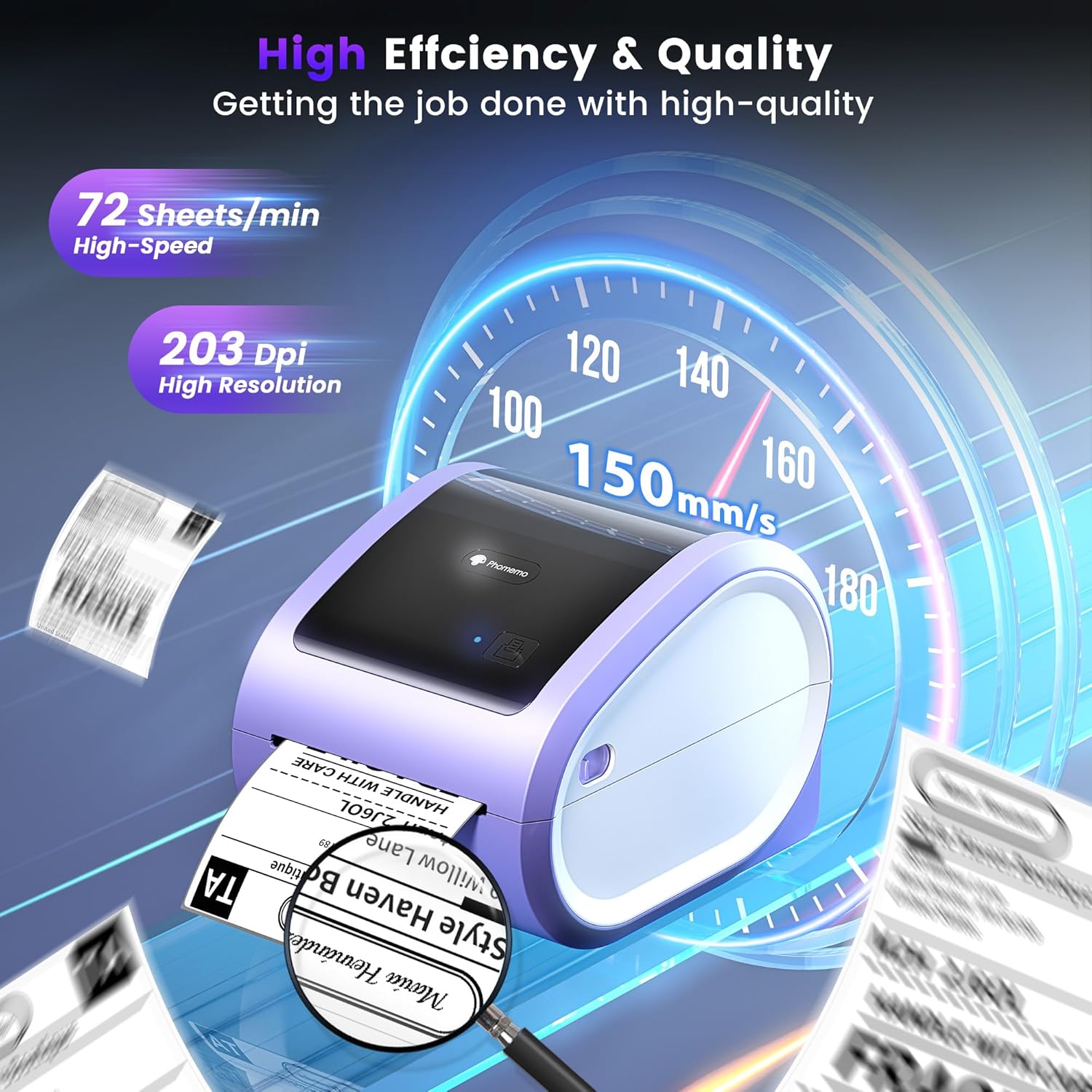
Figure 5: The Phomemo D520BT offers high efficiency and quality with a print speed of 150mm/s and 203 DPI resolution.

Figure 6: The Phomemo D520BT is compatible with various label sizes, from 1 inch to 4.6 inches wide.

Figure 7: The Phomemo D520BT supports multi-scenario applications for various labeling needs.

Figure 8: The Phomemo D520BT is compatible with all major shipping and sales platforms.
5. Нигоҳдорӣ
5.1 Тоза кардани сари чоп
Regular cleaning of the print head ensures optimal print quality and extends the printer's life.
- Принтерро хомӯш кунед ва сими барқро ҷудо кунед.
- Сарпӯши чопгарро кушоед.
- Gently wipe the print head with an alcohol swab or a soft, lint-free cloth lightly dampбо спирти изопропилӣ андохт.
- Пеш аз пӯшидани сарпӯш ва фурӯзон кардани принтер, ба сари чоп иҷозат диҳед, ки пурра хушк шавад.
5.2 Нигоҳдорӣ
Store the printer in a cool, dry place away from direct sunlight and extreme temperatures. Avoid exposing the printer to dust or moisture.
6. Баррасии мушкилот
If you encounter issues with your Phomemo D520BT printer, refer to the following common problems and solutions:
- Принтер фаъол нест:
- Ensure the power adapter is securely connected to both the printer and a working power outlet.
- Санҷед, ки тугмаи барқ сахт пахш карда шудааст ё не.
- Labels not printing or feeding incorrectly:
- Verify that labels are loaded correctly with the printing side facing up.
- Ensure there are no obstructions in the label path.
- Check if the label roll or stack is depleted.
- Poor print quality (faded, streaky, or blank labels):
- Сари чопро мувофиқи тавсифи қисмати 5.1 тоза кунед.
- Боварӣ ҳосил кунед, ки шумо тамғакоғазҳои гармидиҳии баландсифатро истифода мебаред.
- Check print density settings in your printer preferences.
- Масъалаҳои пайвасти Bluetooth:
- Боварӣ ҳосил кунед, ки Bluetooth дар дастгоҳи мобилии шумо ва принтер фаъол аст.
- Restart both the printer and your mobile device.
- Ensure you are within the Bluetooth range.
- Re-pair the printer through the Labelife app.
- Масъалаҳои пайвасти USB:
- Verify the USB cable is securely connected to both the printer and the computer.
- Ensure the correct printer drivers are installed.
- Порт ё сими дигари USB-ро санҷед.
For further assistance, refer to the detailed video tutorials and user manuals available online, or contact Phomemo customer support.
7. Мушаххасоти
| Хусусият | Мушаххасоти |
|---|---|
| Бренд | Фомемо |
| Номи модел | D520BT |
| Технологияи пайвастшавӣ | Bluetooth, USB |
| Технологияи чоп | Гармӣ |
| Хусусияти махсус | Portable, Built-in Holder |
| Натиҷаи чопгар | Монохромӣ |
| Суръати максималии чоп | 150 mm/s (72 labels/min) |
| Қарори чоп | 203 DPI |
| Максимум паҳнои чоп | 4.6 инч |
| Вазни ашё | 2.4 фунт |
| Андозаҳои маҳсулот | 10.31"D x 10.31"W x 7.87"H |
8. Кафолат ва дастгирӣ
Phomemo provides customer support to assist with any questions or issues you may encounter. For detailed warranty information, please refer to the warranty card included with your product or visit the official Phomemo website. Our customer support team is available via phone, email, or remote support.
For additional resources, including video tutorials and updated user manuals, please visit the Phomemo support page.


