Муқаддима
This manual provides detailed instructions for the setup, operation, and maintenance of your Taiahiro Wireless Gaming Keyboard and Mouse Combo. This combo features a 98-key RGB backlit mechanical keyboard with blue switches and an ergonomic wireless gaming mouse, offering versatile connectivity options (USB-C, 2.4G, Bluetooth 5.0) for various devices.
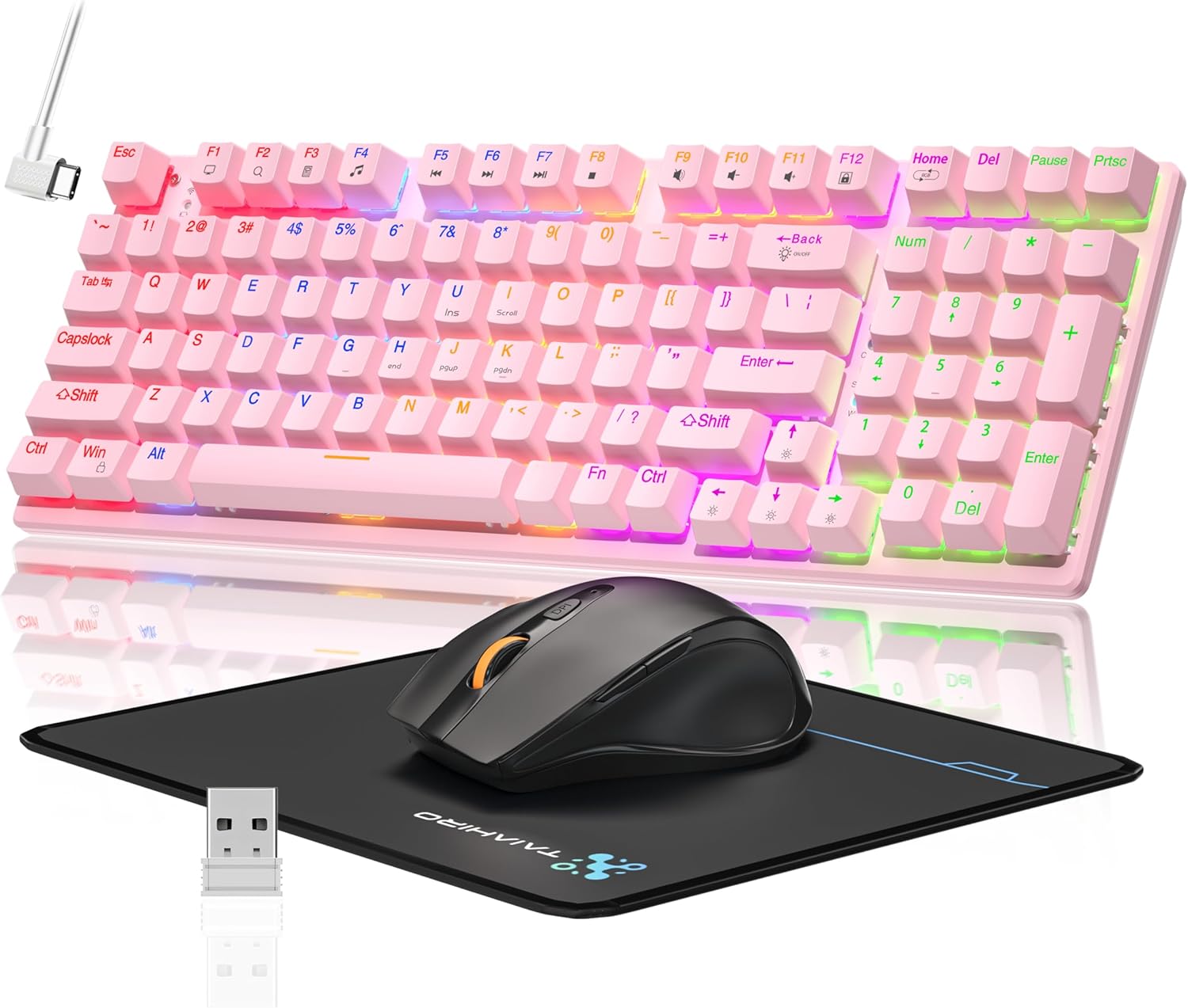
Image: The Taiahiro Wireless Gaming Keyboard and Mouse Combo, featuring a pink 98-key mechanical keyboard with RGB backlighting, a black ergonomic mouse, and a mouse pad. A USB receiver is also visible.
Мундариҷаи баста
- Клавиатураи бесими механикӣ
- Муши бесими бозикунӣ
- Сими USB-C
- Қабулкунандаи USB 2.4G
- Панели муш
- Дастури корбар (ин ҳуҷҷат)
Ташкил кардан
Насби клавиатура
The keyboard supports three connectivity modes: USB-C wired, 2.4G wireless, and Bluetooth 5.0.
- Пайвасти симӣ ба USB-C: Connect the provided USB-C cable from the keyboard to an available USB port on your computer. The keyboard will be recognized automatically.
- Пайвасти бесими 2.4G:
- Locate the 2.4G USB receiver, typically stored in the mouse or keyboard compartment.
- Қабулкунаки USB-и 2.4G-ро ба порти дастраси USB дар компютери худ пайваст кунед.
- Ensure the keyboard's mode switch (usually on the back or side) is set to 2.4G mode.
- Клавиатура бояд ба таври худкор пайваст шавад.
- Пайвастшавӣ ба Bluetooth 5.0:
- Боварӣ ҳосил кунед, ки тугмаи ҳолати клавиатура ба ҳолати Bluetooth танзим шудааст.
- Дар дастгоҳи худ (компютер, ноутбук, планшет, смартфон) Bluetooth-ро фаъол созед ва дастгоҳҳои навро ҷустуҷӯ кунед.
- Select "Taiahiro Keyboard" (or similar name) from the list of available devices.
- Барои анҷом додани ҷуфтшавӣ ҳама гуна дастурҳои дар экран бударо иҷро кунед.

Image: A pink mechanical keyboard connected to various devices (monitor, laptop, tablet) illustrating its triple-mode connectivity via Bluetooth, 2.4GHz, and USB-C.
Танзимоти муш
The mouse supports 2.4G wireless and Bluetooth connectivity.
- Пайвасти бесими 2.4G:
- Insert 1 AA battery (not included) into the mouse.
- Plug the 2.4G USB receiver (shared with keyboard) into an available USB port on your computer.
- Ensure the mouse's power switch is turned ON.
- Муш бояд ба таври худкор пайваст шавад.
- Пайвасти Bluetooth:
- Insert 1 AA battery (not included) into the mouse.
- Ensure the mouse's power switch is turned ON and set to Bluetooth mode.
- Дар дастгоҳи худ Bluetooth-ро фаъол созед ва дастгоҳҳои навро ҷустуҷӯ кунед.
- Select "Taiahiro Mouse" (or similar name) from the list of available devices.
- Барои анҷом додани ҷуфтшавӣ ҳама гуна дастурҳои дар экран бударо иҷро кунед.

Image: A wireless gaming mouse highlighting its 4 adjustable DPI levels and showing the battery compartment with a tiny USB receiver and space for a 1AA battery.
Дастурҳои амалиётӣ
Функсияҳои клавиатура
- Равшании паси RGB: The keyboard features 8 different RGB lighting modes.
- пахш кунед Fn + Хона барои гузаштан аз режимҳои равшанӣ.
- пахш кунед Fn + ↑/↓ to adjust brightness (5 levels).
- пахш кунед Fn + ←/→ to adjust breathing speed (5 levels).
- Калидҳои мултимедиявӣ: -ро истифода баред Fn key in combination with F-keys for multimedia controls (e.g., Fn+F1 for media player, Fn+F2 for volume down, etc.). Refer to the keycap legends for specific functions.
- Пойҳои танзимшаванда: The keyboard has adjustable feet on the underside to change the typing angle for ergonomic comfort.
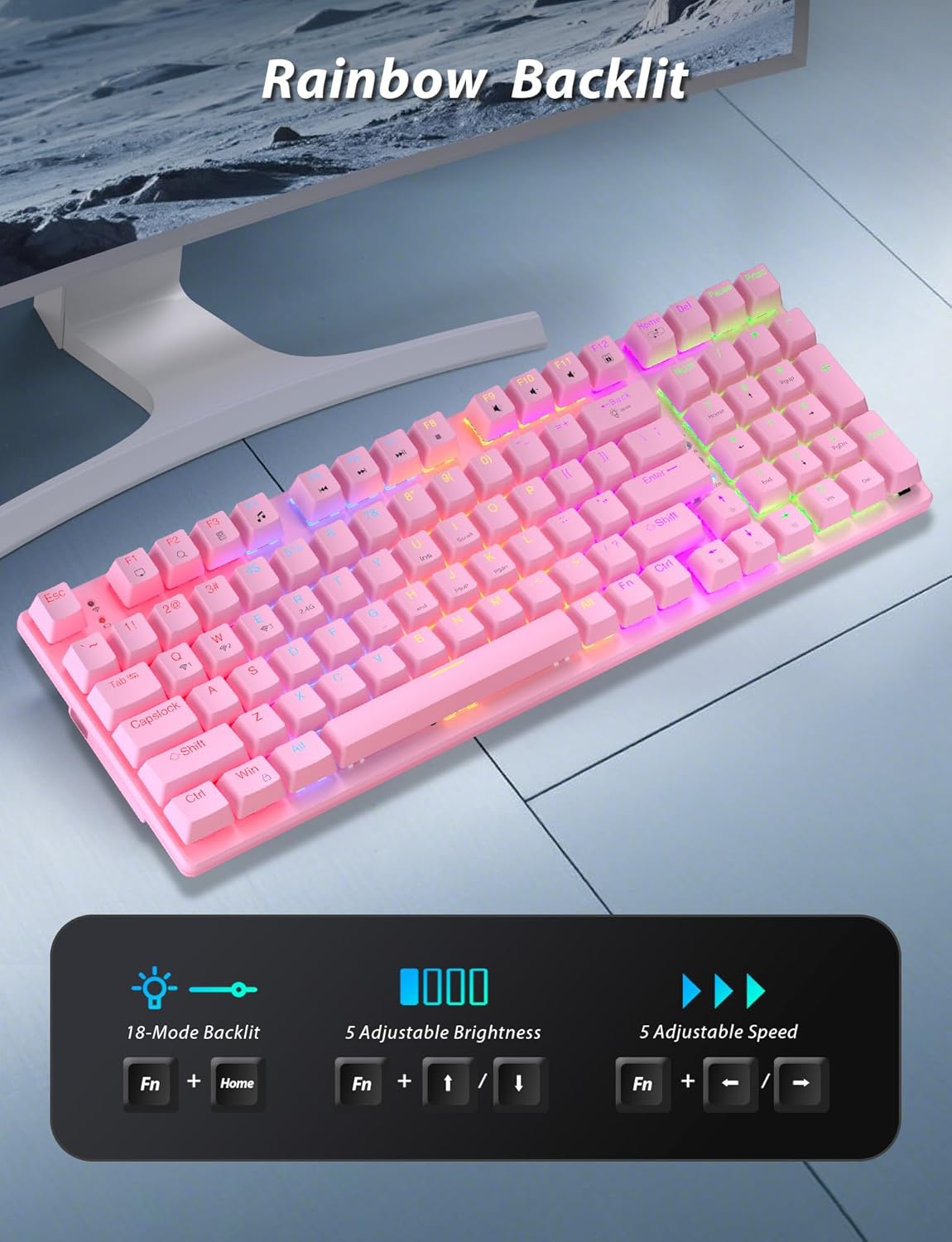
Image: A pink mechanical keyboard displaying its rainbow backlit keys, with an overlay showing the key combinations (Fn + Home, Fn + ↑/↓, Fn + ←/→) for controlling 8 modes, 5 adjustable brightness levels, and 5 adjustable speeds.

Тасвир: Нақшаи наздик view of the side of the pink mechanical keyboard, showing its ergonomic sloped design and the adjustable feet extended for comfortable typing. The accompanying mouse is also shown on a mousepad.
Вазифаҳои муш
- Танзими DPI: The mouse features 4 adjustable DPI levels (800/1600/2400/3200). Press the DPI button (usually located behind the scroll wheel) to cycle through the sensitivity settings.
- Тарҳрезии эргономикӣ: The contoured shape of the mouse is designed to fit comfortably in your hand, reducing fatigue during extended use.
- Anti-skid Scroll Wheel: Provides precise scrolling control.
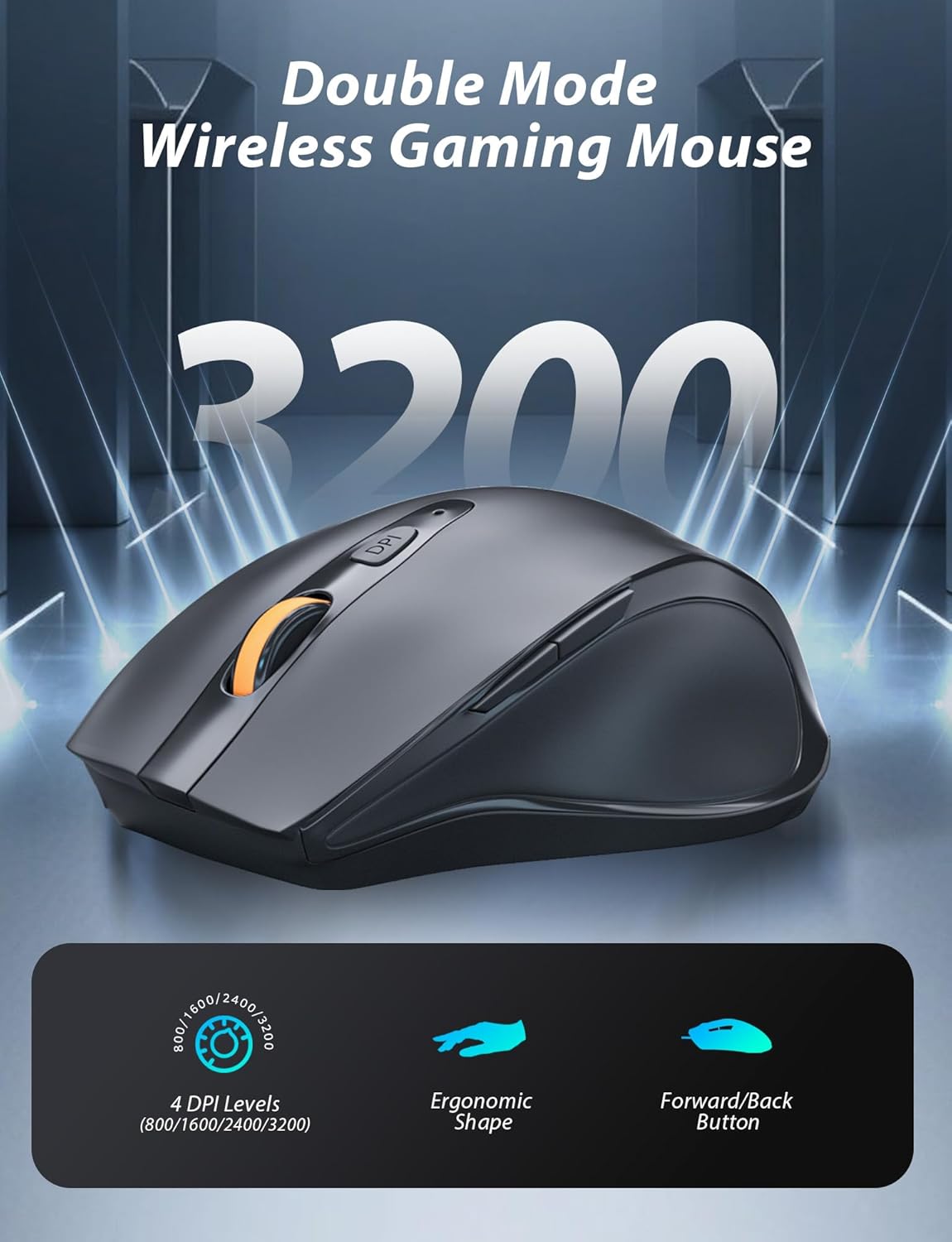
Image: A wireless gaming mouse with a prominent scroll wheel and DPI button, illustrating its 4 adjustable DPI levels (800/1600/2400/3200), ergonomic shape, and forward/back buttons.
Нигоҳдорӣ
- Тозакунӣ: Use a soft, dry cloth to clean the surfaces of the keyboard and mouse. For deeper cleaning, a slightly damp cloth can be used, ensuring no liquid enters the internal components. Avoid harsh chemicals or abrasive materials.
- Иваз кардани батарея: For the mouse, replace the AA battery when performance degrades. For the keyboard, recharge via the USB-C cable when the battery indicator shows low power.
- Нигоҳдорӣ: Вақте ки шумо онро муддати тӯлонӣ истифода намебаред, комборо дар ҷои хунук ва хушк, дур аз нури бевоситаи офтоб ва ҳарорати аз ҳад зиёд нигоҳ доред.
Мушкилкушо
| Мушкилот | Ҳалли |
|---|---|
| Keyboard/Mouse not connecting via 2.4G. |
|
| Keyboard/Mouse not connecting via Bluetooth. |
|
| Чароғаки қафои RGB кор намекунад ё хира аст. |
|
| Курсори муш номунтазам ё беҷавоб аст. |
|
Мушаххасоти
| Хусусият | Тафсилот |
|---|---|
| Рақами модел | BK6301 |
| Навъи клавиатура | 98-Key Mechanical Keyboard |
| Навъи гузариш | Гузаришҳои кабуд |
| Пайвастшавӣ ба клавиатура | USB-C (Wired), 2.4G Wireless, Bluetooth 5.0 |
| Mouse Connectivity | 2.4G бесим, Bluetooth |
| Сатҳҳои DPI-и муш | 800/1600/2400/3200 |
| Равшании паси | RGB (8 Modes, 5 Brightness, 5 Speed) |
| Дастгоҳҳои мувофиқ | PC, Laptop, Smartphone, Tablet (Windows, macOS, Android) |
| Keyboard Key Life | 50 миллион клик |
| Андозаи клавиатура | Approx. 14.96 x 5.51 x 3.15 inches (from Package Dimensions) |
| Вазни ашё | 2.72 pounds (combo weight) |
| Батареяи муш | 1 x батареяи AA (дохил карда нашудааст) |
| Батареяи клавиатура | 1 x C battery (included) Note: This seems unusual for a keyboard, usually Li-ion. Based on input "1 C batteries required. (included)". Will state as per input. |

Тасвир: Нақшаи наздик view of the mechanical blue switches on the keyboard, showing the keycap removed and the switch mechanism, along with specifications like 50,000,000 keystrokes life, key force, and stroke travel.
Кафолат ва дастгирӣ
Taiahiro products are designed for reliability and performance. For warranty information or technical support, please refer to the contact details provided on the product packaging or visit the official Taiahiro webсайт. Квитансияи хариди худро барои даъвоҳои кафолат нигоҳ доред.
For further assistance, you may contact Taiahiro customer service through their official channels. Please provide your product model number (BK6301) and a detailed description of the issue when seeking support.


