Муқаддима
This manual provides essential information for the installation, operation, maintenance, and troubleshooting of your Sapphire Nitro+ AMD Radeon RX 9070 XT Gaming OC Graphics Card. Please read this manual thoroughly before installing and using your new graphics card to ensure optimal performance and longevity.

Image: The Sapphire Nitro+ AMD Radeon RX 9070 XT Graphics Card shown alongside its retail packaging.
Мундариҷаи баста
Боварӣ ҳосил кунед, ки ҳама ҷузъҳо дар бастаи маҳсулоти шумо мавҷуданд:
- Sapphire Nitro+ AMD Radeon RX 9070 XT Graphics Card
- Дастури корбар (ин ҳуҷҷат)
- Дастгирии корти графикӣ
- Power Cable Adapter (if applicable)
- Кабели синхронизатсияи ARGB
Video: An unboxing video demonstrating the contents of the Sapphire Nitro+ AMD Radeon RX 9070 XT Graphics Card package, including the card and accessories.
Насб ва насб
Барои дуруст насб кардани корти графикии худ, ин қадамҳоро иҷро кунед:
- Тайёрӣ: Компютери худро хомӯш кунед ва ҳамаи кабелҳоро ҷудо кунед. Қуттии компютери худро кушоед.
- Корти графикии кӯҳнаро хориҷ кунед (агар лозим бошад): If you are replacing an existing graphics card, carefully remove it by unscrewing its retention bracket and releasing the PCIe slot latch.
- Корти графикии навро ворид кунед: Align the Sapphire Nitro+ RX 9070 XT with an available PCI Express x16 slot on your motherboard. Press down firmly until the card is securely seated and the PCIe slot latch engages. This card typically occupies three expansion slots.
- Кортро муҳофизат кунед: Use screws to secure the graphics card's retention bracket to your computer case.
- Кабелҳои барқро пайваст кунед: Connect the necessary PCIe power cables from your power supply to the graphics card. Ensure all connections are firm. This model features a hidden power cable design for a cleaner aesthetic.
- Install Support Bracket: Due to the size and weight of the card, it is recommended to install the included anti-sag support bracket to prevent GPU sag over time.
- Парвандаи пӯшед ва аз нав пайваст кунед: Қуттии компютери худро пӯшед, ҳамаи кабелҳоро аз нав пайваст кунед ва системаи компютерро фурӯзон кунед.
- Насби драйвер: Once your operating system loads, install the latest AMD Radeon drivers from the official AMD or Sapphire webсайт.

Image: The rear I/O panel of the graphics card, featuring multiple DisplayPort and HDMI outputs for connecting to monitors.

Тасвир: Намоиши диаграммаasing the STEALTH Hidden Power Cable design, which routes power connectors for a cleaner build appearance.
Идоракунии корти графикии шумо
After successful installation and driver setup, your Sapphire Nitro+ RX 9070 XT is ready for use. Connect your display(s) to the available ports (2 x HDMI, 2 x DisplayPort). For optimal performance, ensure your display cables are securely connected and your monitor is set to the correct input source.
Regularly check for driver updates through the AMD Radeon Software application to benefit from performance improvements and bug fixes. You can also utilize Sapphire's Trixx software for advanced monitoring, fan control, and RGB lighting customization.

Image: The graphics card displaying its integrated ARGB lighting, which can be customized for various visual effects.
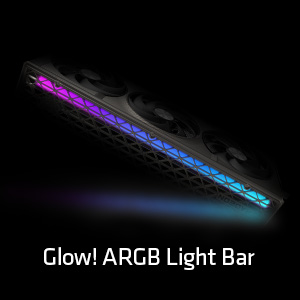
Тасвир: Муфассал view of the Glow! ARGB Light Bar, highlighting its customizable illumination capabilities.
Нигоҳдорӣ
To maintain optimal performance and extend the lifespan of your graphics card, periodic cleaning is recommended.
- Тоза кардани чанг: Use compressed air to gently clear dust from the fans and heatsink fins. Ensure the fans do not spin rapidly during cleaning to prevent damage.
- Санҷиши вентилятор: Periodically check the fans for any obstructions or unusual noises. The Quick Connect Fan feature allows for easy removal and cleaning of individual fans.
- Тозакунии умумӣ: Wipe the exterior of the card with a soft, dry, anti-static cloth. Avoid using liquid cleaners directly on the card.

Image: A diagram demonstrating the Quick Connect Fan system, which allows for easy removal and replacement of the cooling fans.
Мушкилкушо
Агар шумо бо корти графикии худ мушкилот дошта бошед, роҳҳои ҳалли маъмулии зеринро баррасӣ кунед:
- Намоиши баромад:
- Боварӣ ҳосил кунед, ки сими монитор ҳам ба корти графикӣ ва ҳам ба монитор боэътимод пайваст шудааст.
- Verify that the graphics card is fully seated in the PCIe slot and the power cables are properly connected.
- Санҷед, ки оё монитори шумо ба манбаи дурусти вуруд танзим шудааст.
- Ноустувории система ё садамаҳо:
- Драйверҳои графикии худро ба версияи охирин навсозӣ кунед.
- Боварӣ ҳосил кунед, ки воҳиди таъминоти барқи шумо (PSU) ба ҳадди ақали ватт мувофиқат мекунадtagталаботи иловагӣ барои корти графикӣ ва системаи шумо.
- Monitor GPU temperatures using software like AMD Radeon Software or Sapphire Trixx. Overheating can cause instability.
- Фаъолияти бад:
- Боварӣ ҳосил кунед, ки дисплейи шумо ба корти графикӣ пайваст аст, на ба графикаи дарунсохти motherboard.
- Check in-game settings to ensure they are appropriate for your system's capabilities.
- Боварӣ ҳосил кунед, ки барномаҳои замина захираҳои аз ҳад зиёди системаро истеъмол намекунанд.
- Садои мухлиси:
- Clean the fans and heatsink to remove dust buildup.
- Adjust fan curves using AMD Radeon Software or Sapphire Trixx to find a balance between cooling and noise.
If issues persist, consult the Sapphire support webсайт ё бо хидмати мизоҷони худ тамос гиред.
Мушаххасоти
| Хусусият | Тафсилот |
|---|---|
| Рақами модел | 11348-01-20Г |
| Процессори графикӣ | AMD Radeon RX 9070 XT |
| Андозаи хотира | 16 ГБ GDDR6 |
| Интерфейси хотира | 256-бит |
| Суръати хотира | 20 ГГц |
| Суръати соати GPU | 3060 МГц |
| Ҳалномаи максималии экран | 3840х2160 |
| Портҳои баромад | 2 x HDMI, 2 x DisplayPort |
| Вазни ашё | 5.72 фунт |
| Андозаҳои маҳсулот (LxWxH) | 13.02 x 5.06 x 0.04 инч |
Кафолат ва дастгирӣ
Your Sapphire Nitro+ AMD Radeon RX 9070 XT Graphics Card is covered by a manufacturer's warranty. Please refer to the warranty card included in your product packaging or visit the official Sapphire webсайт барои шартҳо ва шартҳои кафолати муфассал.
For technical assistance, driver downloads, FAQs, and further support, please visit the Sapphire Technology webсайт. You may also find helpful resources and community support through the official AMD Radeon channels.


