1. Муқаддима
Thank you for choosing the Hama WK-300 Multi-Device Wireless Keyboard. This compact office keyboard is designed for wireless control of computers, smartphones, and tablets, offering versatile connectivity via Bluetooth or a 2.4 GHz radio connection with a USB-A receiver. It allows simultaneous connection to up to three devices, providing a seamless experience for various tasks.
2. Дастурамал оид ба бехатарӣ
- Агар дастгоҳ вайрон шавад, онро накушед ё корашро идома надиҳед.
- Худатон кӯшиш накунед, ки маҳсулотро таъмир кунед. Ҳама гуна кори хидматрасониро ба коршиносони соҳибихтисос гузоред.
- Маҳсулотро аз лой, намӣ ва аз ҳад зиёд гармшавӣ муҳофизат кунед ва онро танҳо дар муҳити хушк истифода баред.
- Ин маҳсулотро мисли ҳама маҳсулоти барқӣ аз дастрасии кӯдакон дур нигоҳ доред.
- Маҳсулотро дар ҷойҳое истифода набаред, ки истифодаи дастгоҳҳои электронӣ иҷозат дода нашудааст.
- Маводи бастабандиро дарҳол мувофиқи қоидаҳои дар маҳал татбиқшаванда партояд.
3. Мундариҷаи баста
Please check that the package contains the following items:
- 1 Hama WK-300 Multi-Device Wireless Keyboard
- 1 USB-A Receiver (typically stored in the battery compartment)
- 1 Дастури дастурӣ
Шарҳ: AAA batteries are required for operation and are not included in the package.
4. Танзимот
4.1 Насби батарея
- Қисмати батареяро дар тарафи поёни клавиатура ҷойгир кунед.
- Сарпӯши қисмати батареяро кушоед.
- Як батареяи AAA-ро ворид кунед ва қутби дурустро таъмин намоед (+/-).
- Сарпӯши қисмати батареяро бехатар пӯшед.
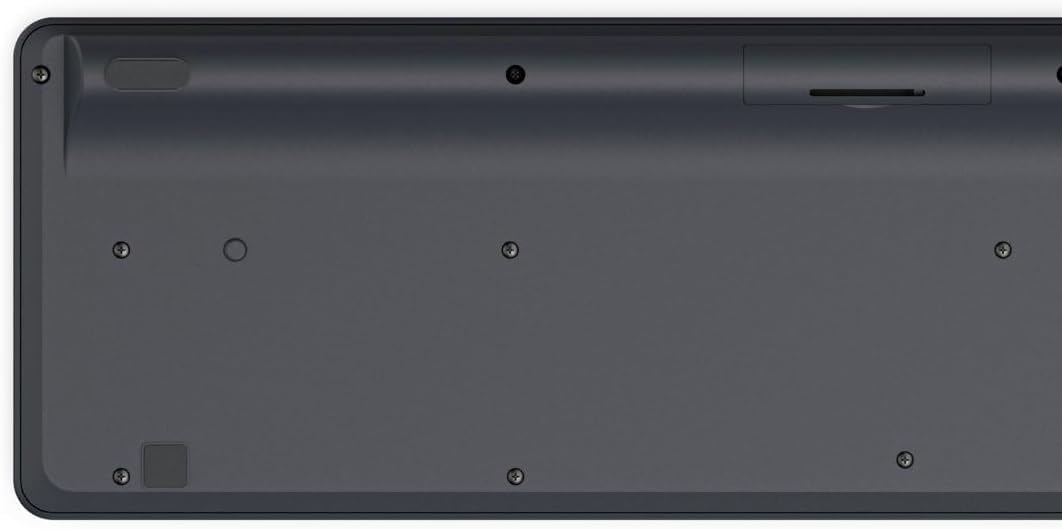
Image: Underside of the Hama WK-300 keyboard, illustrating the battery compartment and the storage slot for the USB receiver.
4.2 Пайвастшавӣ ба дастгоҳҳо
The Hama WK-300 keyboard supports connection to up to three devices simultaneously via 2.4 GHz radio (channel 1) and Bluetooth (channels 2 and 3).
4.2.1 2.4 GHz Radio Connection (Channel 1)
- Remove the USB-A receiver from its storage slot in the battery compartment.
- Plug the USB-A receiver into a free USB port on your computer.
- Switch the keyboard to channel 1 (usually indicated by a switch or button on the keyboard). The keyboard should automatically connect to your computer.
4.2.2 Bluetooth Connection (Channels 2 & 3)
- Switch the keyboard to either channel 2 or channel 3.
- Press and hold the pairing button (refer to keyboard layout for exact location, often combined with the channel switch) until the indicator light flashes, signifying pairing mode.
- On your device (smartphone, tablet, computer), go to Bluetooth settings and search for new devices.
- Select "Hama WK-300" from the list of available devices to complete the pairing process.
4.3 Гузариш байни дастгоҳҳо
To switch between connected devices, simply press the corresponding channel button (1, 2, or 3) on the keyboard. The keyboard will instantly connect to the selected device.
5. Истифода бурдани клавиатура
5.1 Basic Typing Functions
The Hama WK-300 features a QWERTY layout with quiet keys, ensuring a comfortable and undisturbed typing experience. Simply begin typing after connecting to your device.

Тасвир: аз боло ба поён view of the Hama WK-300 keyboard, highlighting its 90% layout and key functions, including the Fn key for multimedia controls.
5.2 Multimedia Functions (Fn Keys)
The F keys (F1-F12) have secondary assignments for multimedia control. To activate these functions, press and hold the Fn key simultaneously with the desired F key. This allows for quick control of media playback, volume, and other system functions without navigating through system settings.
5.3 AI Assist Button
The dedicated Assist button activates a cross-program AI assistant, enhancing productivity by providing quick access to intelligent features.
5.4 Сарфаи барқ
The keyboard is battery-operated and designed for efficiency, making it ideal for mobile use. It will enter a low-power state after a period of inactivity to conserve battery life.
6. Нигоҳдорӣ
6.1 Тоза кардани клавиатура
To clean your keyboard, ensure it is turned off and disconnected from any devices. Use a soft, lint-free cloth slightly dampened with water or a mild cleaning solution. Avoid excessive moisture and abrasive cleaners. Do not immerse the keyboard in water.
6.2 Иваз кардани батарея
When the keyboard's performance diminishes or it stops responding, it may be time to replace the AAA battery. Follow the battery installation steps outlined in Section 4.1.
7. Баррасии мушкилот
- Клавиатура пайваст намешавад: Ensure the keyboard has fresh batteries and is switched to the correct channel (1 for 2.4 GHz, 2 or 3 for Bluetooth). For Bluetooth, ensure the keyboard is in pairing mode and your device's Bluetooth is enabled. For 2.4 GHz, ensure the USB receiver is properly inserted into your device.
- Калидҳо ҷавоб намедиҳанд: Check battery level. If using 2.4 GHz, try plugging the USB receiver into a different USB port. If using Bluetooth, try re-pairing the keyboard with your device.
- Пайвасти фосилавӣ: Ensure there are no strong interference sources nearby (e.g., other wireless devices, large metal objects). Try moving closer to your device.
- Калидҳои мултимедиявӣ кор намекунанд: Боварӣ ҳосил кунед, ки шумо тугмаро пахш мекунед Fn key simultaneously with the desired F key.
8. Мушаххасоти
| Бренд | Хама |
| Рақами модел | 182641 |
| Ранги | Сиёҳ |
| Пайвастшавӣ | 2.4 GHz Radio (USB-A receiver), Bluetooth (2 channels) |
| Шумораи Дастгоҳҳо | Up to 3 simultaneous devices |
| Тарҳбандии клавиатура | QWERTY |
| Андозаҳои маҳсулот (LxWxH) | 16 x 43.8 x 2.6 Сантиметр |
| Вазни ашё | 447 гр |
| Батареяҳо лозиманд | Батареяи 1 AAA (дохил карда намешавад) |
9. Кафолат
The Hama WK-300 Multi-Device Wireless Keyboard comes with a Кафолати 5 сол. Please retain your proof of purchase for warranty claims. For detailed warranty terms and conditions, refer to the official Hama webсайт ё бо дастгирии мизоҷон тамос гиред.
10. Дастгирӣ
For further assistance, technical support, or to inquire about spare parts, please contact Hama customer service. You can find contact information on the official Hama webсайт (www.hama.com) or through your local retailer.


