1. Муқаддима
The FLYINGVOICE FTA5111 is an Analog Telephone Adapter (ATA) designed to bridge traditional analog communication devices with modern Voice over IP (VoIP) networks. It features one FXS port for connecting an analog phone and one FXO port for integrating with the Public Switched Telephone Network (PSTN). This device ensures high-quality voice communication, offers stand-alone survivability (SAS) for emergency situations, and supports advanced SIP V2 protocol for broad compatibility.
Хусусиятҳои асосӣ инҳоянд:
- Seamless Analog to VoIP Conversion with 1 FXS port and 1 SIP line.
- PSTN Connectivity with 1 FXO port for failover and traditional line access.
- Stand-Alone Survivability (SAS) for uninterrupted communication during network failures.
- Advanced SIP V2 Protocol for enhanced compatibility with VoIP service providers and PBX systems.
- Effortless Installation & Easy Integration with auto-provisioning and remote management.
2. Мундариҷаи баста
Боварӣ ҳосил кунед, ки ҳамаи ҷузъҳои дар поён овардашуда ба бастаи шумо дохил карда шудаанд. Агар ягон ашё нопадид ё вайрон бошад, лутфан бо фурӯшандаи худ тамос гиред.
- FLYINGVOICE FTA5111 Analog Telephone Adapter
- Адаптери барқ
- RJ11 Cable (x2)
- Сими RJ45 Ethernet
- Дастур оид ба насби зуд

Image: Contents of the FTA5111 product package.
3. Ба охир расидани ҷисмонӣview
The FTA5111 features a compact design with clearly labeled ports and LED indicators for easy setup and monitoring.
3.1 Нишондиҳандаҳои панели пешина

Image: Front panel of the FTA5111 with LED status indicators.
- FXO: Indicates status of the FXO port connection.
- FXS: Indicates status of the FXS port connection.
- WAN: Indicates status of the Wide Area Network connection.
- LAN1/LAN2: Indicate status of the Local Area Network connections.
- PWR: Ҳолати қудратро нишон медиҳад.
3.2 Портҳои панели пушти сар

Image: Rear panel of the FTA5111 detailing the FXO, FXS, WAN, LAN, Reset, and Power ports.
- Порти FXO: Connects to the Public Switched Telephone Network (PSTN) line. Compatible with analog phones, fax machines, and POS machines.
- FXS Port: Connects to an analog telephone or fax machine.
- Бандари WAN: Connects to your internet router or modem for VoIP service.
- LAN1/LAN2 Ports: Connect to local network devices such as computers, printers, or IPTV.
- Тугмаи RST: Reset button (use a paperclip to press and hold for factory reset).
- DC(12V/1A) Port: Вуруди барқ барои дастгоҳ.
4. Дастури насб
Follow these steps to set up your FLYINGVOICE FTA5111 Analog Telephone Adapter.
- Пайваст кардани барқ: Plug the provided power adapter into the DC(12V/1A) port on the rear of the FTA5111 and then into a power outlet. The PWR LED on the front panel should illuminate.
- Connect to Network (WAN): Use an RJ45 Ethernet cable to connect the WAN port of the FTA5111 to your internet router or modem. The WAN LED should illuminate and may blink to indicate activity.
- Connect Analog Phone (FXS): Connect your analog telephone or fax machine to the FXS port using an RJ11 cable. The FXS LED should illuminate.
- Connect to PSTN (FXO - Optional): If you wish to integrate with a traditional telephone line, connect your PSTN line to the FXO port using an RJ11 cable. The FXO LED should illuminate.
- Пайваст кардани дастгоҳҳои маҳаллӣ (LAN - ихтиёрӣ): Use RJ45 Ethernet cables to connect computers, printers, or other network devices to the LAN1 and LAN2 ports. The corresponding LAN LEDs should illuminate.
- Конфигуратсия: Дастрасӣ ба дастгоҳ webИнтерфейси идоракунии асосёфта тавассути web browser by entering the device's IP address (refer to the Quick Installation Guide for default IP or how to find it). Log in with the default credentials to configure VoIP accounts, network settings, and other advanced features.
5. Дастурҳои истифодабарӣ
5.1 Функсияҳои асосии занг
- Занг задан: Pick up the analog phone connected to the FXS port. You should hear a dial tone. Dial the desired number and wait for the connection.
- Қабули занг: When the analog phone rings, pick up the handset to answer the call.
- Анҷом додани занг: Гӯшакро гузоред.
5.2 Three-Way Audio Conference
The FTA5111 supports basic three-way audio conferencing. Consult your VoIP service provider or the device's web interface settings for specific dialing sequences or feature codes to initiate a conference call.

Image: Visual representation of a three-way audio conference facilitated by the FTA5111.
5.3 Fax Over IP (T.38 and T.30)
The FTA5111 supports T.38 and T.30 fax protocols, allowing you to send and receive faxes over your VoIP network using a traditional fax machine connected to the FXS port. Ensure your VoIP service provider supports T.38 for optimal fax transmission.

Image: FTA5111 enabling fax over IP functionality.
5.4 Stand-Alone Survivability (SAS)
In the event of a VoIP network failure, the FTA5111's SAS feature allows it to function as an independent voice switch. It can assign up to 50 extension numbers, ensuring internal calls, emergency dialing, and key business communications remain operational. This feature is crucial for maintaining communication continuity.
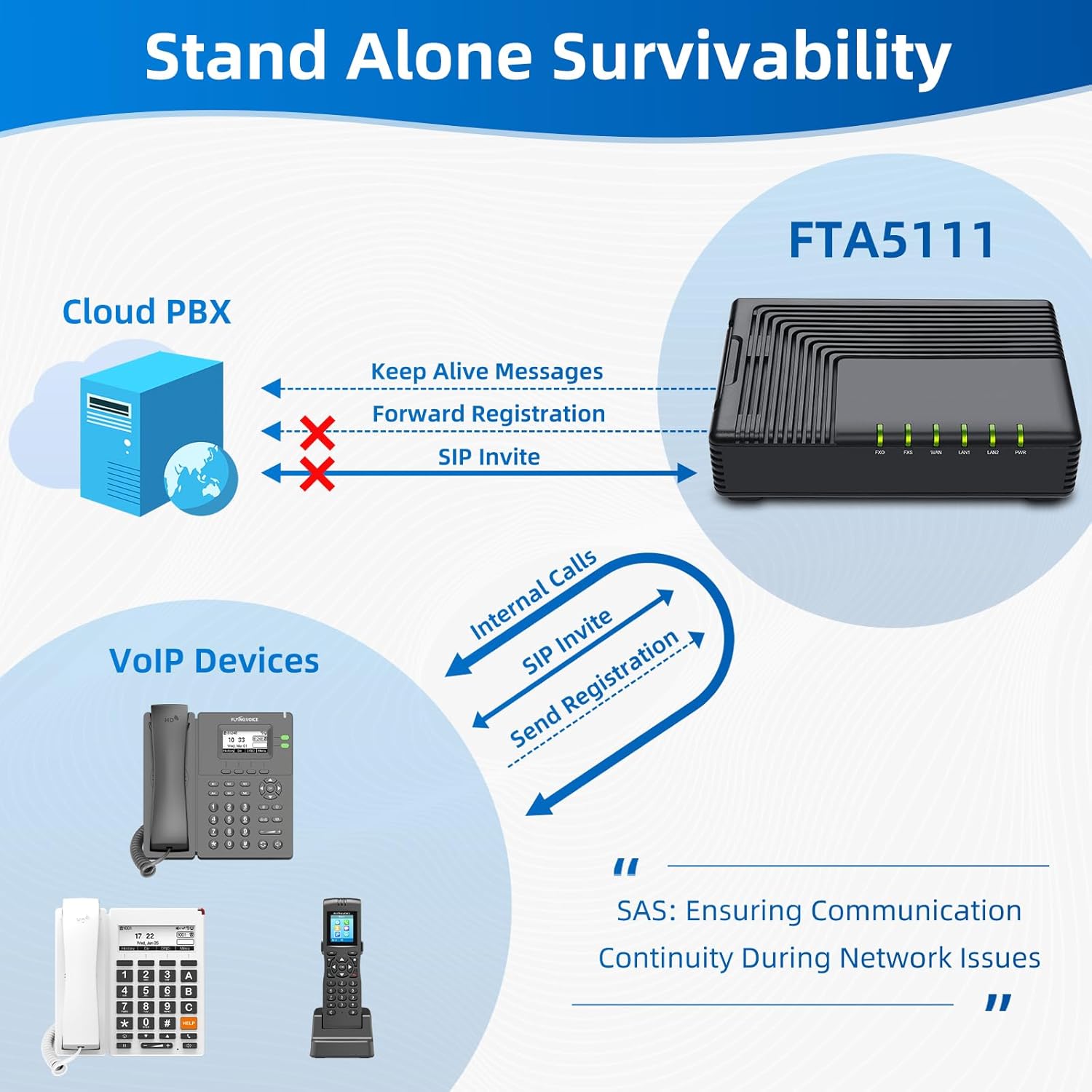
Image: How the FTA5111 provides Stand-Alone Survivability.
6. Нигоҳдорӣ
To ensure optimal performance and longevity of your FTA5111, consider the following maintenance guidelines:
- Тоза нигоҳ доред: Барои тоза кардани чанг, дастгоҳро мунтазам бо матои нарм ва хушк пок кунед. Аз истифодаи воситаҳои тозакунандаи моеъ худдорӣ намоед.
- Вентилятсия: Ensure the device is placed in a well-ventilated area to prevent overheating. Do not block ventilation slots.
- Навсозии нармафзор: Periodically check the FLYINGVOICE website for firmware updates. Keeping the firmware updated can improve performance, add new features, and enhance security. Firmware updates can typically be performed via the device's web интерфейси идоракунӣ.
- Сикли барқ: If the device is experiencing minor issues, a simple power cycle (unplugging and replugging the power adapter) can often resolve them.
7. Баррасии мушкилот
This section addresses common issues you might encounter with your FTA5111.
7.1 Бе занги занг
- Санҷиши нерӯ: Ensure the power adapter is securely connected and the PWR LED is illuminated.
- Check FXS Connection: Verify that the analog phone is correctly plugged into the FXS port and the FXS LED is on.
- Пайвастшавӣ ба шабака: Ensure the WAN port is connected to your router/modem and the WAN LED is active. Check your internet connection.
- VoIP Registration: Воридшавӣ ба web interface to confirm that your VoIP account is registered successfully.
7.2 Cannot Make/Receive Calls
- VoIP Account Status: Verify that your VoIP account is active and registered in the device's web интерфейс.
- Network Firewall: Ensure your network firewall is not blocking VoIP traffic (SIP ports, RTP ports).
- PSTN Line (if applicable): If using the FXO port, ensure the PSTN line is active and connected properly.
- Dialing Plan: Check the dialing plan configuration in the web interface to ensure correct number routing.
7.3 Poor Call Quality (Echo, Jitter)
- Internet Bandwidth: Ensure you have sufficient internet bandwidth for VoIP calls.
- Қатъи шабака: Reduce other network activities that might consume bandwidth.
- Танзимоти QoS: Configure Quality of Service (QoS) settings on your router and the FTA5111 (if available) to prioritize voice traffic.
- Codec Settings: Experiment with different audio codecs in the device's web interface if supported by your VoIP provider.
7.4 Device Not Accessible via Web Интерфейс
- Суроғаи IP: Confirm you are using the correct IP address for the device. You might need to check your router's DHCP client list.
- Пайвасти шабакавӣ: Ensure your computer is connected to the same local network as the FTA5111 (via LAN port or the same router).
- Сипар: Temporarily disable your computer's firewall to rule it out as a cause.
- Аз нав танзим кардан: If all else fails, perform a factory reset by pressing and holding the RST button for 5-10 seconds. Note that this will erase all configurations.
8. Мушаххасоти
| Хусусият | Тафсилот |
|---|---|
| Бренд | FLYINGVOICE |
| Рақами модел | FTA5111 |
| Андозаҳои бастаҳо | 7.87 x 5.91 x 2.36 инч |
| Ранги | Сиёҳ |
| Материал | Пластмасса |
| Манбаи нерӯ | Адаптери AC |
| Навъи телефон | Corded (for connected analog phones) |
| Дастгоҳҳои мувофиқ | Analog phone, Fax, IP TV, PSTN |
| Қобилияти занги конфронс | Basic (3-way) |
| Амалиёти бисёрсатрӣ | Амали як-хати |
| Шиносоии занг | No (device does not provide, depends on connected phone/service) |
9. Маълумот дар бораи кафолат
FLYINGVOICE products are typically covered by a manufacturer's warranty. Please refer to the warranty card included with your product or visit the official FLYINGVOICE webсайт барои шартҳо ва шартҳои кафолати муфассал.
Extended protection plans may also be available for purchase. For more information on additional protection, please refer to the options provided by your retailer, such as the Нақшаи 3-солаи муҳофизат or Нақшаи 4-солаи муҳофизат offered on Amazon.
10. Дастгирӣ
For further assistance, technical support, or to access additional resources, please visit the official FLYINGVOICE webсайт ё мағозаи брендии онҳо:
- FLYINGVOICE Brand Store: https://www.amazon.com/stores/FLYINGVOICE/page/F0B2FDB3-38D4-49B5-87D3-1B0FE9D39EF0
You may also consult the Quick Installation Guide included in your package for initial setup instructions.


