1. Муқаддима
The KAYSION SK20 is a compact, inkless thermal label printer designed for various labeling needs in home and office environments. It offers convenient connectivity via Bluetooth for smartphones and tablets, and USB for computers. This manual provides detailed instructions for setting up, operating, and maintaining your SK20 label printer.
2. Мундариҷаи баста
Лутфан қуттии ҷузъҳои зеринро тафтиш кунед:
- KAYSION SK20 Thermal Label Printer
- Сими пуркунандаи USB
- Label Roll (40x30mm, 230pcs)
- Дастури корбар
3. Дастури насб
3.1 Пуркунии принтер
Before first use, fully charge the printer using the provided USB cable. Connect the USB cable to the printer's charging port and a standard USB power adapter (not included). The indicator light will show charging status.
3.2 Боркунии коғази тамғагузорӣ
Follow these steps to load a new roll of label paper:
- Open Top Cover: Locate the 'OPEN' button or latch on the side of the printer and press/slide it to open the top cover.
- Adjust Bracket Position: Inside, you will see an adjustable bracket. Slide it to match the width of your label roll.
- Fix the Paper Roll: Place the label roll onto the bracket, ensuring the printing surface faces upwards and the leading edge extends slightly out of the printer's slot.
- Close Top Cover: Gently close the top cover until it clicks into place. Ensure the label paper is straight and not jammed.

Image: Steps for loading label paper into the KAYSION SK20 printer.
3.3 Насб ва пайвастшавии барнома
The KAYSION SK20 printer connects wirelessly via Bluetooth to mobile devices and via USB to computers.
- Барои дастгоҳҳои Android: Download the "Print Label" app from the Google Play Store.
- Барои дастгоҳҳои iOS: Download the "Zlabel" app from the Apple App Store.
- Bluetooth Connection (Mobile):
- Turn on the SK20 printer.
- Дар смартфон ё планшет Bluetooth -ро фаъол созед.
- Open the installed label printing app ("Print Label" or "Zlabel").
- Within the app, navigate to the device connection settings and select the SK20 printer from the list of available Bluetooth devices.
- USB Connection (Mac OS/Windows):
- Connect the SK20 printer to your computer using the provided USB cable.
- Install the necessary printer drivers (usually available on the manufacturer's website or provided on a CD/USB drive, if included).
- The printer will then be recognized as a standard printer in your operating system.

Image: KAYSION SK20 printer connected to a smartphone via the app.
4. Дастурҳои истифодабарӣ
4.1 Фаъол кардан/хомӯш кардан
Press and hold the power button on the printer for a few seconds to turn it on or off. The indicator light will illuminate when the printer is on.
4.2 Чоп кардани тамғакоғазҳо
Once connected via Bluetooth or USB, you can create and print labels:
- Истифодаи барномаи мобилӣ:
- Open the "Print Label" or "Zlabel" app.
- Select a label template or create a new design.
- Add text, images, QR codes, or barcodes as needed.
- Пешview your label to ensure it appears as desired.
- Tap the print button to send the label to the SK20 printer.
- Using a Computer (USB):
- Open your preferred label design software or document editor.
- Create your label content.
- Select the KAYSION SK20 printer from your printer options.
- Adjust print settings (e.g., label size, orientation) if necessary.
- Initiate the print command.
4.3 Supported Label Sizes
The SK20 printer supports label widths ranging from 20mm (0.79 inches) to 50mm (1.97 inches). Ensure you use thermal labels compatible with these dimensions for optimal performance.
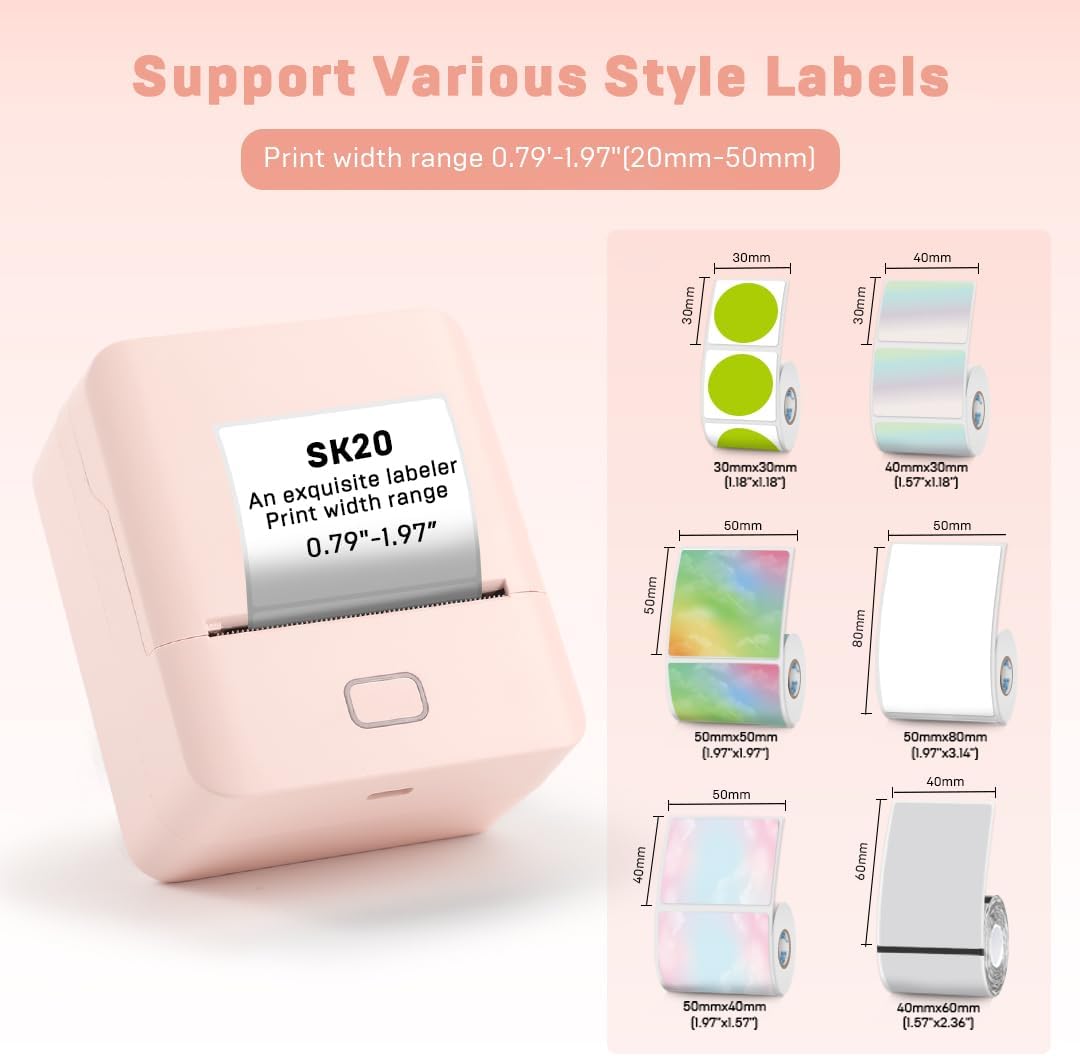
Image: KAYSION SK20 printer demonstrating support for various label sizes.
5. Нигоҳдорӣ
5.1 Тоза кардани сари чоп
To maintain print quality, periodically clean the thermal print head. Use a cotton swab lightly dampened with isopropyl alcohol. Gently wipe the print head surface. Allow it to dry completely before closing the cover and using the printer.
5.2 Нигоҳубини батарея
- Батареяро зуд-зуд пурра холӣ накунед.
- If storing the printer for an extended period, charge it to about 50% and recharge every few months.
- Барои пур кардани барқ танҳо сими USB-ро истифода баред.
5.3 Нигоҳдорӣ
Store the printer in a cool, dry place away from direct sunlight and extreme temperatures. Keep it free from dust and moisture.
6. Баррасии мушкилот
Printer Not Turning On
Сабаби эҳтимолӣ: Мушкилоти ками батарея ё қувваи барқ.
Ҳалли: Connect the printer to a power source using the USB cable and allow it to charge for at least 30 minutes before attempting to power on again.
Poor Print Quality / Faint Prints
Сабаби эҳтимолӣ: Сари чопи ифлос, намуди нодурусти тамға ё батареяи кам.
Ҳалли: Clean the print head as described in Section 5.1. Ensure you are using thermal labels. Charge the printer fully.
Тавассути Bluetooth пайваст шуда наметавонад
Сабаби эҳтимолӣ: Bluetooth not enabled, printer not in pairing mode, or app issue.
Ҳалли: Ensure Bluetooth is enabled on your mobile device and the printer is on. Restart both the printer and your mobile device. Re-open the app and try pairing again. Check if the app has Bluetooth permissions.
Ҷараёни коғаз
Сабаби эҳтимолӣ: Incorrectly loaded label paper or foreign object.
Ҳалли: Turn off the printer, open the top cover, and carefully remove any jammed paper. Ensure the label roll is loaded correctly and the bracket is adjusted properly before closing the cover.
7. Мушаххасоти
| Хусусият | Мушаххасоти |
|---|---|
| Номи модел | SK20 |
| Технологияи чоп | Гармӣ |
| Технологияи пайвастшавӣ | Bluetooth, USB навъи C |
| Қарори чоп | 203 DPI |
| Суръати максималии чоп (монохромӣ) | 60mm/s (2.4''/s) |
| Андозаи максималии медиа | 20-50мм (0.79-1.97 инч) |
| Натиҷаи чопгар | Монохромӣ |
| Усули назорат | Барнома |
| Андозаҳои маҳсулот | 2.05 x 3.19 x 3.78 инч |
| Вазни ашё | 15.9 унсия (тақрибан 450 грамм) |
| Компонентҳои дохилшуда | Printer, USB Cable, Label Roll |
8. Кафолат ва дастгирӣ
For warranty information and customer support, please refer to the documentation included with your purchase or visit the official KAYSION webсайт. Квитансияи хариди худро барои даъвоҳои кафолат нигоҳ доред.


